
You can resolve most printing errors by performing a hard power cycle and clearing the print queue, as outlined in this Brother Printer Troubleshooting Guide. Most issues stem from software conflicts or debris in the rollers. If problems persist, check the display panel for specific error codes and consult the Brother support center for your model.
Brother Printer Troubleshooting Guide: Common Issues
Printing issues usually stem from a breakdown in the digital path between your computer and the printer. When you send a document, it waits in a “spooler” on your computer. If a previous job gets stuck due to a large file size or a connection drop, the entire queue halts. This leaves the printer in an “Offline” state even if the hardware is perfectly healthy.
Mechanical problems account for the remaining errors. Every printer uses rollers to pull paper through the machine. If you use paper that’s too thick, damp, or improperly loaded, the rollers can’t grip it. This triggers a “Paper Jam” sensor. Dust buildup on these rubber rollers also causes slipping, which can trigger false jam alerts.
Environmental factors matter as well. If your printer is connected via Wi-Fi, signal interference from other household devices often causes intermittent connectivity. A printer that works one day but fails the next is frequently struggling with an unstable IP address. When your router assigns a new address to the printer, your computer loses the path to reach it. This isn’t a hardware failure; it’s a networking configuration issue. If you’re unsure if your network is the cause, check if the printer’s physical “Ready” light is solid green. If it’s solid, the issue is almost certainly between your PC and the router, not the printer itself.
Perform a hard power reset
This fix is for anyone dealing with a frozen screen, a printer that won’t wake from sleep, or a persistent “Communication Error.” You must fully drain the power to clear the temporary memory in the print engine.
First, turn the printer off using the power button. Once the screen goes dark, pull the power plug directly from the wall outlet. Leave it unplugged for at least one full minute. During this time, go to your computer, open your “Devices and Printers” folder, and cancel all pending documents in the queue. Don’t just delete one; clear the list entirely.
If the printer initializes and prints a test page, the issue is resolved. If it remains stuck, check the label on the back of your printer for the exact power requirements. If you see a warning about voltage, ensure your outlet matches those specifications exactly. This fix isn’t for internal mechanical damage; if you hear grinding noises or smell burning plastic, stop immediately and contact a qualified service technician.
Refresh the network connection
This fix is for printers that are suddenly “Offline” despite being turned on. It works by forcing your computer to find the printer on the local network again.
Go to your printer’s control panel and print a “Network Configuration” report. This page lists the current IP address of your printer. If the address starts with “169.254,” your printer has failed to connect to your router. In this case, you must restart your router, wait five minutes for the network to stabilize, and then restart the printer.
If the IP address is valid, go to your computer’s “Printer Properties” menu. Select the “Ports” tab and click “Configure Port.” Ensure the IP address listed there matches the one on your printed report. If they don’t match, update the port to the correct address. This process effectively “re-points” your computer to the printer’s current location. If you have changed your Wi-Fi password recently, you must use the printer’s LCD menu to re-enter the new credentials. This is a common requirement for all wireless models. If the printer still refuses to join the network after three attempts, your router may have a “MAC address filter” enabled that blocks new devices. Check your router’s manual to see if you need to manually add the printer’s ID to the allowed list.
Update the printer driver
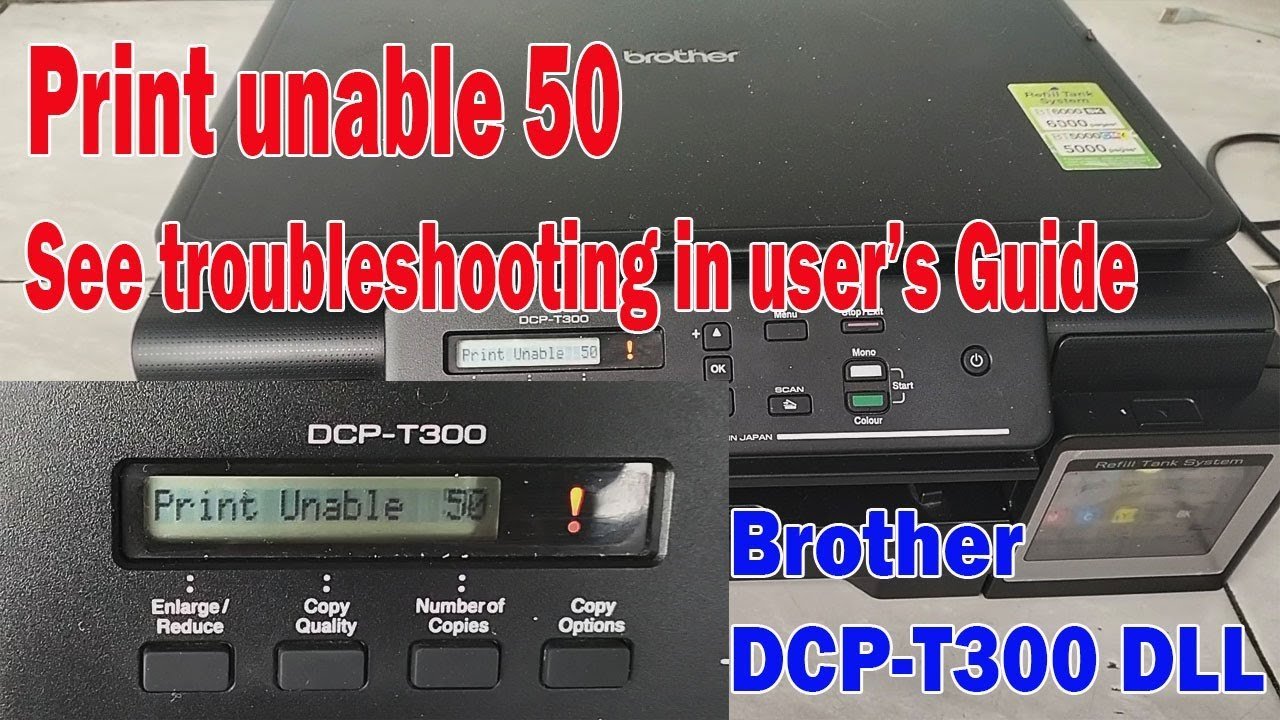
This fix is for users experiencing garbled text, partial prints, or software crashes when clicking “Print.” It’s worth the effort if basic resets fail, as outdated software is the most common cause of complex formatting errors.
Visit the official manufacturer website and search for your specific model number. Download the latest “Full Driver and Software Package.” Before you install it, uninstall the current printer driver from your computer’s control panel. This prevents old, corrupted files from interfering with the new installation. Restart your computer after the uninstall finishes, then run the new installer.
This process isn’t for those who are uncomfortable navigating system settings; if you’re unsure about removing system drivers, ask someone with administrative experience to assist you. If you have a workplace-issued computer, your IT department might block driver installations. In that case, don’t attempt to bypass these restrictions. Contact your IT administrator to perform the update. If the printer still fails to communicate after a clean driver install, the internal network card may have reached its end of service. At this stage, professional repair is often more expensive than replacing the unit with a newer, compatible model.
What not to do
- Don’t pull stuck paper out while the printer is powered on. Doing this can damage the sensitive sensor flags that detect paper position, leading to permanent “Jam” errors.
- Don’t use sharp tools to remove paper scraps. You’ll likely scratch the delicate drum or roller surfaces, causing permanent streaks on every page you print later.
- Don’t perform a factory reset unless you have the network settings written down. A factory reset wipes all your saved Wi-Fi and scanning profiles, requiring a full re-configuration of the device.
- Don’t shake the toner cartridge forcefully. This can cause internal leaking, which coats the internal optics in fine dust and creates complex hardware failures that require a professional to clean.
How to stop it happening again
Consistent maintenance prevents the majority of common printing issues before they start.
| If you’re doing this | Do this instead | Why |
|---|---|---|
| Using cheap, thin paper | Use 20lb standard bond | Prevents roller slipping |
| Connecting via power strip | Plug into wall outlet | Ensures stable voltage |
Frequently asked questions
Can I fix a paper jam myself?
You can safely remove paper by following the path indicated on the printer’s internal guide. Pull the paper slowly in the direction the rollers move to avoid tearing. Stop immediately if the paper is stuck deep inside the fuser unit to prevent internal damage.
Why is my printer saying it’s offline?
Your printer is offline because your computer lost the connection to its current IP address. This occurs when a router assigns a new address after a power flicker. Restarting both devices usually restores the link, though assigning a static IP address prevents recurring issues.
How long does a printer last?
It typically lasts between three and five years for home users, depending on your monthly print volume. High-volume printing wears down the rubber rollers and the fuser unit faster than light, occasional use. You’ll know it’s reaching the end of its life when you see consistent mechanical noises, frequent paper jams despite clean rollers, or faded output that doesn’t improve with a new toner cartridge.
Is it safe to use third-party toner?
No, it isn’t always safe, as third-party cartridges often lack the precise seals of original manufacturer parts. Leaking toner can destroy the internal laser scanner and imaging drums. While they’re cheaper, the cost of cleaning or repairing a damaged printer usually outweighs the savings on ink. If you choose to use them, ensure they’re from a reputable brand that offers a warranty for printer damage caused by their product.
What happens if I ignore a firmware update?
Ignoring firmware updates may eventually prevent your printer from working with newer operating systems or mobile devices. Manufacturers release these updates to patch security vulnerabilities and improve software communication. Ensure the printer remains powered on during the update to avoid permanent damage.
Final Thoughts
If your machine still isn’t working after these checks, don’t worry. It’s a good idea to reach out to a professional technician or contact the manufacturer’s help desk directly. They’ve got the tools to fix deeper hardware faults, so you’ll be back to printing your important documents in no time.
Related guides
- Brother Sewing Machine Troubleshooting: Fix Common Errors Fast
- Brother Sewing Machine Troubleshooting: Fix Common Errors Fast in 2026
- Daikin Air Conditioner Troubleshooting: Fix Common Errors