
To adjust the time display on your Samsung microwave, you must access the settings menu, typically labeled as “Clock” or “Options,” and use the number pad to input the current time before confirming with the Start button. Most Samsung appliances utilize a standard control interface that relies on a specific sequence of button presses to transition from the standby mode to the time-entry mode. Because models vary significantly based on the release year and the specific series, understanding the general logic behind the interface allows you to navigate the settings even if your particular button layout differs slightly from the standard configuration.
Key Takeaways
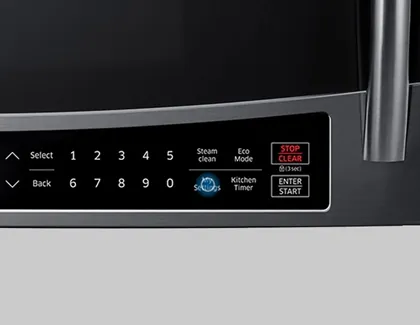
- The Start/+30s button is almost always used to confirm the time entry once you have set the digits.
- Check for a dedicated “Clock” button on the front panel before navigating through sub-menus.
- Most Samsung microwaves use a 12-hour format, though some high-end units allow for a 24-hour setting.
- If your microwave has an “Options” or “Settings” button, press it repeatedly to cycle through the available menu items.
- Always ensure the door is securely closed and the unit is in standby mode before attempting to adjust the clock.
How to Set Clock on Samsung Microwave
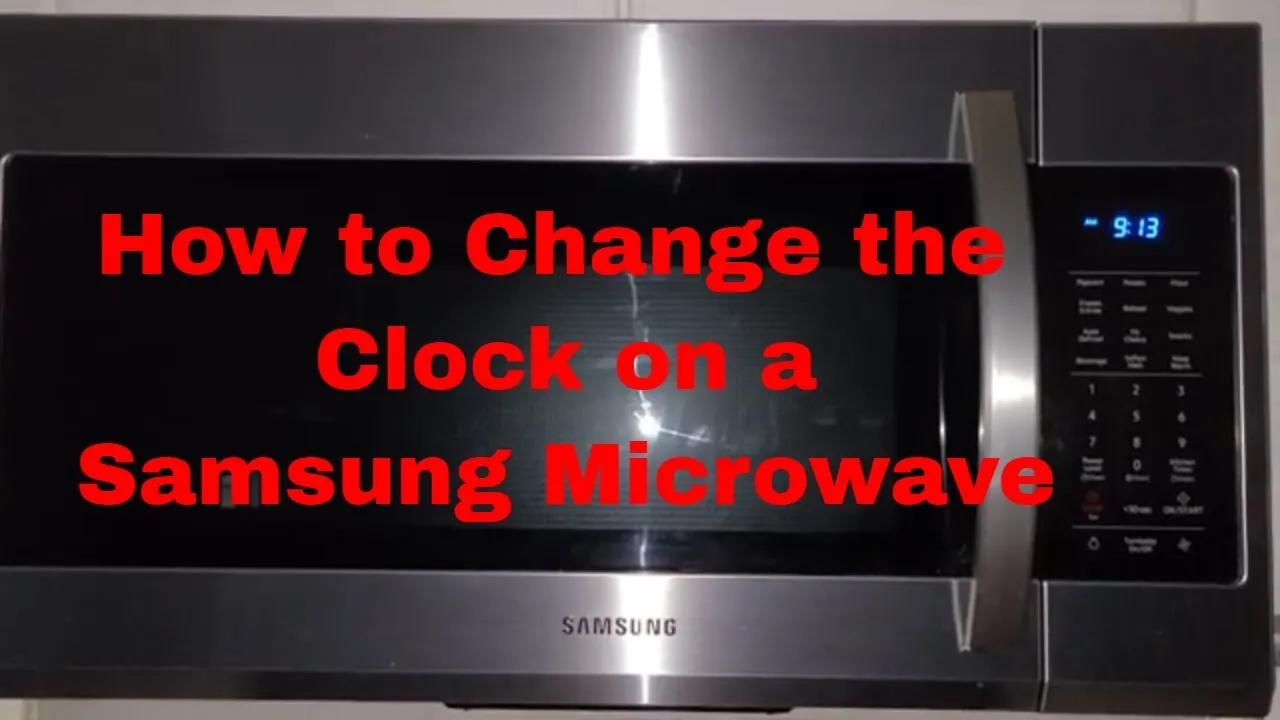
The process for setting the time on your Samsung microwave usually follows a consistent path. First, ensure that the display isn’t showing a cooking cycle or an error message. If the microwave is currently running or paused, press the “Cancel” or “Stop/Clear” button to return to the idle screen. Once the screen is clear, look for a button labeled “Clock” or “Options.” If you see a dedicated “Clock” button, press it once.
You’ll notice the display begin to blink, indicating it’s ready for input. Use the numeric keypad to enter the current hour and minutes. For instance, if it is 2:30, press “2,” “3,” and “0” in that order. After entering the digits, press the “Clock” or “Start” button to lock in the change. The blinking will cease, and the time will remain stationary on the display.
Navigating the Options Menu
Some newer Samsung models lack a dedicated clock button, instead grouping the time adjustment under a broader settings menu. In these cases, you must press the “Options” or “Settings” button. This button is often hidden or integrated into the touch control panel. Press the button until you see the word “Clock” or a clock icon appear on the digital display. Once selected, the appliance will prompt you to enter the time.
If your model uses a dial rather than a keypad, rotate the knob to select the hour, press the knob or “Start” to confirm, then rotate it again to select the minutes. This digital interface logic ensures that the user can’t accidentally change the clock while the microwave is actively heating food, which is a core safety feature of modern kitchen appliances.
Understanding the 12/24 Hour Format
Many Samsung microwaves provide the flexibility to switch between a 12-hour and 24-hour clock format. This is particularly useful for households that prefer military time or international standards. To change this, you typically enter the settings menu by pressing “Options” and navigating until the display shows “12H” or “24H.”
Use the number pad, usually by pressing “1” for 12-hour or “2” for 24-hour, to toggle your preference. Once you have made the selection, press the “Start” button to save the configuration. This system configuration remains saved in the microwave’s non-volatile memory, meaning you won’t need to reset the format even if you experience a brief power outage, provided the battery backup or capacitor holds the memory.
| Feature Type | Typical Button Name | Functionality |
|---|---|---|
| Primary Input | Number Pad (0-9) | Sets the specific time digits |
| Confirmation | Start / +30s | Saves the time to the display |
| Menu Access | Options / Settings | Navigates to the clock submenu |
| Clearing Input | Stop / Clear / Cancel | Resets the entry if a mistake is made |
Troubleshooting Common Display Issues
If you find that the clock isn’t saving your settings, the first step is to check for a power interruption. Frequent power flickers can cause the internal processor to hang, requiring a hard reset. Unplug the unit from the wall outlet, wait for approximately sixty seconds, and then plug it back in. This clears the temporary memory and allows the clock to be set again from a clean state.
Additionally, ensure that the door latch is fully engaged. If the microwave detects that the door is slightly ajar, it may disable certain functions, including the ability to change the clock, to prevent accidental operation. Refer to the Samsung microwave user manual to verify the specific requirements for your model number, as some units require a specific sequence of button presses to unlock the control panel.
Does Your Microwave Have a Lock?
A common reason users can’t set the clock is that the “Child Lock” feature is currently enabled. When this safety mode is active, the control panel becomes unresponsive to standard inputs to prevent children from starting the microwave. You can identify if this is the issue by looking for a “L,” “Loc,” or a small padlock icon on the display screen.
To disable the child lock, you generally need to hold down the “Cancel” or “Stop” button for three to five seconds. Once the lock icon disappears, the panel will resume normal functionality, and you’ll be able to proceed with setting the clock as described in previous sections. This security lockout mechanism is designed to provide peace of mind for parents and caregivers.
Handling Power Outages and Resets
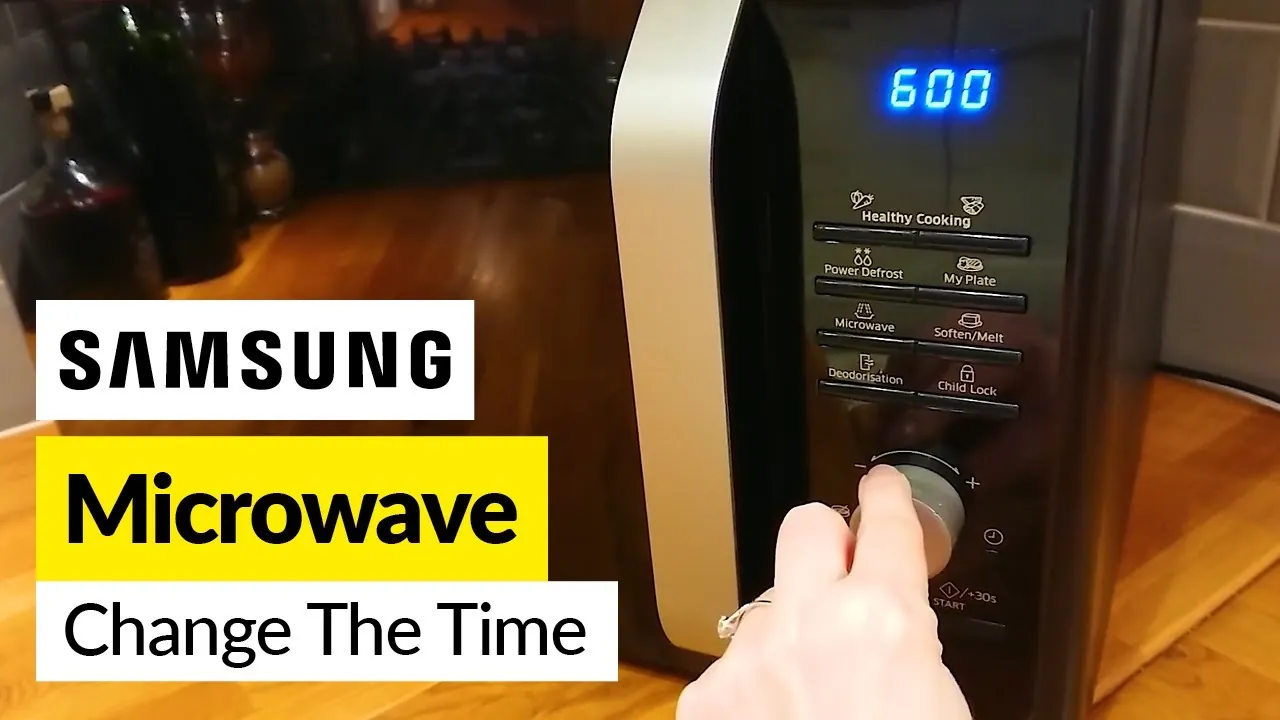
Whenever there’s a significant power failure in your home, your Samsung microwave will likely flash “88:88” or simply remain blank. This is the appliance’s way of indicating that it has lost its internal time reference. You don’t need to perform any special reset procedure other than the standard clock-setting process. Simply follow the steps for your specific model to re-enter the current time.
If the display remains unresponsive after a power outage, check your home’s circuit breaker panel. It’s possible that the surge tripped the breaker associated with the kitchen outlet. If the microwave power supply stability is in question, avoid using the unit until you have confirmed the electrical connection is secure and providing consistent voltage.
Tips for Touchscreen Models
Modern Samsung microwaves often feature sleek, glass-fronted touch panels. Unlike physical buttons, these capacitive touch sensors require a clean surface to register input correctly. If you’re struggling to enter the time, wipe the panel with a dry microfiber cloth to remove grease or fingerprints. Even a thin layer of residue can interfere with the sensitivity of the sensors.
When pressing the touch buttons, use the pad of your finger rather than the tip, as this provides a larger surface area for the sensor to detect. If the capacitive touch interface remains unresponsive, ensure that your hands aren’t excessively dry or wet, as these conditions can also affect the conductivity required for the panel to register your commands.
| Error Symptom | Potential Cause | Recommended Fix |
|---|---|---|
| Display is blank | No power / Breaker tripped | Check circuit breaker or outlet |
| “Loc” appears | Child Lock is active | Hold Stop/Clear for 3-5 seconds |
| Flashing “88:88” | Power loss | Re-enter time using Clock button |
| Unresponsive touch | Dirty glass or moisture | Clean surface with dry cloth |
Why Is the Clock Dimming?
Some Samsung microwaves include an “Eco Mode” or “Power Save” feature designed to reduce energy consumption when the appliance isn’t in use. This mode may automatically dim the display or turn it off entirely after a certain period of inactivity. If you notice that your clock disappears shortly after you set it, check your settings menu for an “Eco” or “Display” option.
By toggling this setting to “Off” or “On,” you can control whether the clock remains permanently visible or fades out to save electricity. While this energy efficient setting is beneficial for your utility bill, it can be confusing if you’re accustomed to using your microwave as a kitchen clock.
What If the Clock Gains Time?
It’s rare, but some users report that their microwave clock runs fast or slow over time. This usually occurs because the microwave uses the frequency of the electrical grid (60Hz in the United States) to keep time. If your local power utility experiences slight fluctuations in frequency, the clock may drift.
Unfortunately, there’s no way to calibrate the internal oscillator of a consumer-grade microwave. If the drift becomes significant, you’ll simply need to reset the clock manually every few weeks. This clock drift phenomenon is a standard characteristic of appliances that lack an internal quartz crystal or internet-connected synchronization, which are typically reserved for more expensive smart home devices.
Using the Kitchen Timer Feature
Don’t confuse the clock setting with the “Kitchen Timer” function. The kitchen timer is a countdown feature that allows you to track other cooking tasks without running the microwave’s magnetron. To use the timer, press the “Timer” button, enter the desired duration on the number pad, and press “Start.” The microwave will beep when the time elapses.
Importantly, the kitchen timer doesn’t override the main clock display. You can use the timer while the clock is set, and the appliance will typically return to showing the current time once the timer finishes its countdown. Understanding the independent timer function helps you multitask in the kitchen without losing track of the time of day.
Maintaining Your Appliance Display
To ensure your microwave display remains clear and functional for years, avoid using harsh chemical cleaners directly on the control panel. Ammonia and bleach-based cleaners can damage the protective coating on the display, leading to “ghosting” or dead pixels over time. Instead, use a mild glass cleaner sprayed onto a cloth, then gently wipe the panel.
Keeping the area around the buttons free of steam and moisture is also vital. If you frequently boil water or cook foods that generate significant steam, ensure the ventilation path behind the microwave is clear, as excess moisture can infiltrate the control board and cause short circuits or flickering of the LED segments.
Related guides
- Samsung Smart Tv Troubleshooting Guide: Fix Glitches Fast
- Samsung Clothes Washer Troubleshooting: Fix Common Error Codes
- Samsung Smart TV Troubleshooting Guide: Fix Common Glitches in 2026
Frequently Asked Questions
Why does my microwave beep when I set the clock?
Samsung microwaves are programmed to provide audio feedback for every button press. This confirms that the appliance has registered your input. A single beep usually indicates a successful entry, while a rapid series of beeps may indicate an invalid input or that you have reached the end of a menu. You can often adjust the volume of these alerts in the settings menu if you find them too loud.
Can I set the clock while the microwave is cooking?
No, you can’t change the clock while the microwave is in an active cooking cycle. The control panel is designed to prioritize the heating function for safety reasons. You must press the “Stop/Clear” button to halt the current operation before you can access the time-setting menu. Once the display returns to the standby state, you may proceed with the clock adjustment steps as normal.
Is it possible to turn off the microwave clock display?
Yes, most Samsung microwaves offer a display-off or energy-saving mode. If you prefer not to see the time, navigate to your “Options” or “Settings” menu and look for a “Display” or “Eco” setting. Turning this feature on will cause the display to go dark when the microwave isn’t in use, which helps reduce power consumption and prevents the light from being a distraction in your kitchen.
What should I do if the clock button is broken?
If the physical clock button is unresponsive despite the rest of the keypad working, the internal switch behind the button may have failed. You should first try performing a hard power reset by unplugging the unit. If that fails, the control panel assembly may require replacement. Consult the official documentation for your model to see if the control board is a user-replaceable part, though professional service is recommended for electrical repairs.
Why does my clock show AM/PM incorrectly?
If your Samsung microwave is set to a 12-hour format, you must ensure you’re aware of the AM/PM indicator. Some models don’t have a dedicated AM/PM button; instead, they cycle through the hours. If you enter “1” for 1:00, the microwave will default to either AM or PM based on the current system time. If it’s wrong, continue pressing the hour buttons until the correct AM or PM indicator appears on the screen.
Conclusion
To finalize your setup, double-check your kitchen’s power source if the display remains blank or the time fails to hold after you have followed these steps. If you have successfully set your clock, you’re now ready to use the full suite of timing features available on your Samsung unit. If you encounter persistent technical issues, refer to your original product manual for model-specific button combinations.