
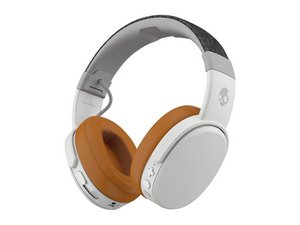
Are your Skullcandy Crusher Wireless headphones not working the way they should? It’s frustrating when your favorite music suddenly stops, or the sound quality drops unexpectedly.
But don’t worry—you’re not alone, and fixing these issues might be easier than you think. In this guide, you’ll discover simple, step-by-step solutions to get your Skullcandy Crusher Wireless back to delivering powerful sound. Keep reading, and soon you’ll be enjoying your music without interruptions again.

Credit: www.skullcandy.com
Common Issues
Skullcandy Crusher Wireless headphones are popular for their strong bass and comfort. Like all gadgets, they may face some issues. Knowing common problems helps solve them fast. This guide covers typical troubles and simple fixes.
No Power Or Charging Problems
Sometimes, the headphones do not turn on or charge. Check the charging cable and port for dirt or damage. Use a different charger if possible. Make sure the power button is pressed long enough. A reset might help if they stay off. Avoid overcharging to protect battery health.
Connectivity And Pairing Failures
Pairing issues occur when the headphones do not connect to devices. Turn off Bluetooth on your device, then turn it on again. Restart the headphones by holding the power button. Remove old connections from your device’s Bluetooth list. Keep the device close to the headphones during pairing. Update your device’s software for better compatibility.
Audio Distortion Or No Sound
Distorted sound or no audio can spoil the listening experience. Check the headphone volume and your device’s audio level. Clean the headphone speakers to remove dust. Test with different apps or devices to find the cause. Reset the headphones if the problem continues. Avoid using damaged audio cables if using wired mode.
Bass And Volume Irregularities
Skullcandy Crusher Wireless is known for strong bass. Sometimes bass or volume may be uneven. Adjust the bass slider or equalizer settings. Make sure the headphones fit well on your ears. Loose fit can reduce bass effect. Check for firmware updates to fix sound bugs. Lower volume levels prevent sound distortion.
Basic Fixes
Basic fixes often solve common problems with Skullcandy Crusher Wireless headphones. These quick steps help restore sound and connectivity. They are easy to try before seeking more help.
Start with simple checks. Many issues come from power or connection errors. Follow these steps carefully for better results.
Restarting The Headphones
Turning the headphones off and on can clear minor glitches. Hold the power button until the device turns off. Wait a few seconds, then press the button again to restart. This refresh often restores normal function.
Resetting To Factory Settings
Resetting wipes all settings and pairs the headphones as new. Press and hold the power and volume up buttons for 10 seconds. The lights will blink, signaling a reset. Reconnect your device after this process.
Checking The Battery Level
Low battery can cause sound and connection problems. Check the LED indicator or the Skullcandy app for battery status. Charge the headphones fully before using them again. Avoid using them while charging to maintain battery health.
Inspecting Charging Cable And Port
A damaged cable or dirty port blocks charging. Examine the cable for frays or breaks. Look inside the charging port for dust or debris. Clean gently with a soft brush if needed. Replace the cable if it shows signs of wear.
Bluetooth Troubleshooting
Bluetooth issues can stop your Skullcandy Crusher Wireless from working properly. These problems may cause sound cuts or connection loss. Troubleshooting Bluetooth helps fix many common issues fast. Follow clear steps to restore a strong connection.
Re-pairing With Devices
Start by turning off your headphones. Then, forget the Skullcandy Crusher on your device’s Bluetooth list. Turn the headphones back on and put them in pairing mode. Search for the Skullcandy Crusher on your device and connect. This process resets the link and solves many connection bugs.
Clearing Bluetooth Cache
Your device saves old Bluetooth data that can cause problems. Go to your device settings and find Bluetooth options. Clear the Bluetooth cache to remove stored files. This step forces your device to refresh the connection. It often improves pairing and audio quality.
Avoiding Interference
Bluetooth signals can be weak near other devices. Move away from Wi-Fi routers, microwaves, or other electronics. Keep your headphones and device close, within 30 feet. Walls and metal objects can block signals. Clearing the space around you helps keep the connection stable.
Updating Device Firmware
Outdated firmware may cause Bluetooth errors. Check the Skullcandy app or website for updates. Follow instructions to install the latest firmware. Updated software fixes bugs and improves performance. Keep your headphones updated to avoid connection issues.
Credit: www.ifixit.com
Audio Issues Solutions
Audio problems can ruin your listening experience with Skullcandy Crusher Wireless. Simple fixes often solve common sound issues quickly. This section covers practical steps to restore clear audio and strong bass.
Adjusting Sound Settings
Check the volume level on your headphones and connected device. Make sure the bass slider on the Crusher app is not too low. Reset equalizer settings to default for balanced sound. Disable any sound effects that may distort audio. Try toggling the ANC (active noise cancelation) on and off to see if it helps.
Testing With Different Devices
Connect the headphones to another phone, tablet, or computer. This helps identify if the issue is with the headphones or the original device. Use both Bluetooth and wired connections if possible. Test different apps and music players for sound consistency. This step narrows down the source of the problem.
Checking Audio Source Quality
Low-quality audio files can cause poor sound. Use high-quality music files or streaming services with good bit rates. Avoid highly compressed MP3s or low-resolution videos. Check if other headphones have the same audio issue with the same source. Clear cache in apps that play music to remove corrupted data.
Cleaning Headphone Components
Dirt and earwax block sound from reaching your ears clearly. Gently clean the ear cushions and speaker mesh with a soft, dry cloth. Use a small brush or compressed air to remove debris from tiny holes. Avoid using water or harsh chemicals on the headphones. Regular cleaning improves sound clarity and comfort.
Advanced Tips
Advanced tips can help fix tough issues with your Skullcandy Crusher Wireless headphones. These steps go beyond basic fixes. They help keep your headphones updated and working well.
Using The Skullcandy App
The Skullcandy app lets you control your headphones better. You can adjust sound settings like bass and treble. The app also shows battery life and connection status. Use it to customize your listening experience. It helps solve some problems without complex steps.
Firmware Updates And Downloads
Updating your headphones’ firmware can fix bugs and add features. Check the Skullcandy app or website for updates. Connect your headphones to your phone or computer. Follow the instructions to download and install updates safely. Keep your device current to avoid glitches and improve performance.
Contacting Support And Warranty Info
If problems persist, contact Skullcandy support. They offer help through chat, email, or phone. Have your purchase details ready. Ask about warranty coverage for repairs or replacements. Using support services ensures you get expert help fast. It protects your investment in the headphones.

Credit: manuals.plus
Frequently Asked Questions
How Do I Reset My Skullcandy Crusher Wireless Headphones?
To reset, press and hold the power button for 10 seconds. The headphones will turn off and reset. This fixes most basic issues.
Why Won’t My Skullcandy Crusher Connect To Bluetooth?
Make sure Bluetooth is on and headphones are in pairing mode. Restart your device and try again. Clear old Bluetooth connections if needed.
How Can I Fix Low Or No Sound On Crusher Wireless?
Check the volume on both headphones and your device. Ensure the headphones are fully charged. Try reconnecting or resetting the headphones.
What Should I Do If Skullcandy Crusher Won’t Charge?
Use the original charging cable and adapter. Clean the charging port gently with a dry cloth. Try a different power source or USB port.
Why Is My Skullcandy Crusher Wireless Sound Distorted?
Distorted sound can come from low battery or bad connection. Lower the volume and recharge your headphones. Reset them if the problem continues.
How To Update Firmware On Skullcandy Crusher Wireless?
Download the Skullcandy app on your phone. Connect your headphones and follow the app instructions for updates. Keep headphones charged during the update.
Conclusion
Troubleshooting your Skullcandy Crusher Wireless can be simple. Start with basic steps like charging and restarting. Check your Bluetooth connection carefully. Clean the headphone jack and ear pads if needed. Keep your device’s software updated for best performance. These quick fixes often solve common problems.
Stay patient and try each step one by one. Enjoy your music without interruption soon. Your headphones will work smoothly again.