
Is your La Crosse Technology clock acting up and leaving you frustrated? You rely on it to keep your day on track, but when it stops working right, it can throw everything off.
Don’t worry—you’re not alone, and fixing it might be easier than you think. In this guide, you’ll find simple, clear steps to troubleshoot your clock and get it ticking perfectly again. Keep reading, and take back control of your time with confidence.
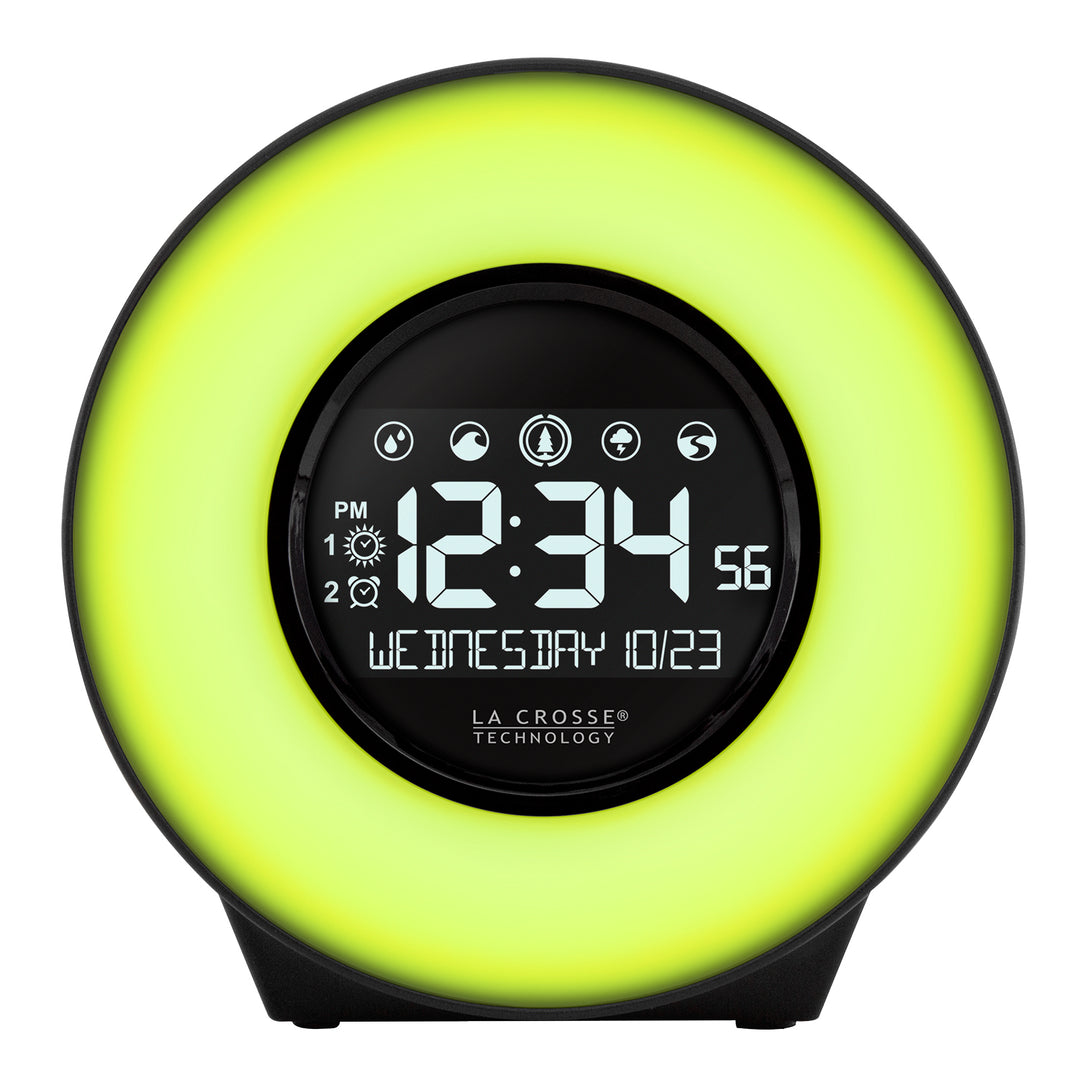
Credit: www.lacrossetechnology.com
Common La Crosse Clock Issues
La Crosse Technology clocks are popular for their accuracy and design. Still, users often face some common issues. These problems can affect the clock’s performance and convenience.
Understanding these issues helps in quick fixes and smooth use. Below are frequent problems reported by many users.
Power Problems
Power issues are the top cause of clock failures. Dead or weak batteries lead to sudden shutdowns. Loose battery contacts can stop the clock from working. Some clocks also have power adapter faults. Check the batteries and adapter connections first.
Display Malfunctions
The display may flicker, blur, or go blank. Exposure to moisture or extreme temperatures often damages the screen. Faulty LCD connections inside the clock can cause display errors. Clean the screen gently and keep the clock dry. Resetting the clock sometimes restores the display.
Time Inaccuracy
Incorrect time showing is a common complaint. Weak signals or poor reception cause the clock to lag or jump. Manual time settings may override automatic sync, causing errors. Make sure the clock is placed away from electronic interference. Re-sync the clock regularly for best accuracy.
Sensor And Signal Errors
Outdoor sensors may fail to send correct data. Signal interference from other devices can disrupt readings. Dirty or damaged sensors give false temperature or humidity results. Clean sensors carefully and place them in open areas. Replace sensors if the problem continues.

Credit: www.lacrossetechnology.com
Basic Troubleshooting Steps
Basic troubleshooting steps help fix common problems with La Crosse Technology clocks. These steps are simple and quick. They often solve issues like incorrect time, no display, or signal loss. Follow each step carefully for the best results.
Checking Batteries
Batteries power your clock. Weak or dead batteries cause most problems. Open the battery compartment. Remove old batteries and check for corrosion. Insert fresh, high-quality batteries. Make sure they fit correctly and match the polarity signs. Close the compartment firmly.
Resetting The Clock
Resetting clears errors and restarts the clock system. Find the reset button, usually a small hole or switch. Use a paperclip or small tool to press it. Hold for a few seconds. The clock will restart and try to sync again.
Adjusting Settings
Incorrect settings cause wrong time or display issues. Use the buttons on the clock to set the time zone, daylight saving, and 12/24-hour format. Follow the user manual for exact button steps. Double-check each setting to match your location.
Repositioning The Clock
Signal strength affects time accuracy. Place the clock near a window or away from metal objects. Avoid spots near electronic devices that cause interference. A better position improves the clock’s ability to receive the radio signal.
Fixing Display Problems
Display problems with La Crosse Technology clocks can be frustrating. A clear screen is essential for reading time and settings. Fixing these issues often involves simple checks and quick steps. This guide helps solve common display problems easily.
Screen Not Lighting Up
First, check the power source. Replace old batteries with fresh ones. Ensure batteries are inserted correctly, matching the polarity signs. If using an adapter, confirm it is plugged in firmly and working. Reset the clock by removing batteries or unplugging it for a minute. This can refresh the system and fix the screen.
Fuzzy Or Incomplete Display
Clean the screen gently with a soft cloth. Dust or dirt can blur the display. Check for any screen damage or cracks. Reset the clock to clear any software glitches. Make sure the clock is not exposed to extreme temperatures. Cold or heat can affect screen clarity. Adjust brightness settings if your model allows it.
Dim Or Flickering Screen
Low battery power often causes dim or flickering screens. Replace batteries promptly. Check for loose connections inside the battery compartment. Avoid placing the clock near strong magnets or electronic devices. These can interfere with the screen’s performance. Try resetting the clock to stabilize the display.
Improving Time Accuracy
Improving the time accuracy of your La Crosse Technology clock helps you stay on schedule. Accurate time display prevents missed appointments and confusion. This section explains simple ways to ensure your clock shows the correct time consistently.
Syncing With Atomic Signal
La Crosse clocks sync with the atomic signal to set the exact time. Place your clock near a window for better signal reception. Avoid placing it near metal objects or electronics that block signals. The clock updates time automatically once it receives a strong atomic signal.
Manual Time Adjustment
Manual time adjustment is useful if the atomic signal is weak or unavailable. Use the clock buttons to set hours and minutes precisely. Check your local time zone setting to match your area. This method keeps your clock accurate until it can sync again.
Avoiding Interference
Electronic devices can interfere with your clock’s time accuracy. Keep your clock away from Wi-Fi routers, microwaves, and cordless phones. Also, avoid placing it near large metal objects or thick walls. Reducing interference helps maintain a stable and correct time display.
Resolving Sensor And Signal Issues
Sensor and signal problems often cause La Crosse Technology clocks to show wrong data. Fixing these issues helps the clock display correct temperature and humidity. Simple checks and small fixes can solve many sensor problems. Understanding how to troubleshoot sensors improves your clock’s performance.
Outdoor Sensor Troubleshooting
Check the outdoor sensor for dirt or damage. Clean the sensor with a soft cloth if it looks dirty. Make sure the sensor is dry and not covered by snow or ice. Inspect the sensor’s battery and replace it if low. Confirm the sensor’s signal reaches the clock without interruptions.
Ensuring Proper Sensor Placement
Place the sensor in a shaded spot to avoid direct sunlight. Avoid areas near heat sources or vents. Keep the sensor away from walls or metal objects that block signals. Position the sensor within the clock’s range, usually under 300 feet. Proper placement ensures accurate readings and strong signals.
Replacing Faulty Sensors
Faulty sensors can cause wrong or no readings. Buy a sensor model that matches your clock. Follow the manufacturer’s guide to pair the new sensor with the clock. Test the new sensor before final installation. Replace the sensor quickly to keep your clock working well.

Credit: www.lacrossetechnology.com
Maintenance Tips For Longevity
Keeping your La Crosse Technology Clock in good shape ensures it works well for years. Simple care steps help avoid common issues. Follow these maintenance tips to extend your clock’s life and keep it accurate.
Regular Cleaning
Dust and dirt can affect your clock’s sensors and display. Wipe the clock gently with a soft, dry cloth every week. Avoid using water or cleaning sprays. Keep the clock away from direct sunlight and moisture to prevent damage.
Battery Replacement Schedule
Change the batteries before they run out. Weak batteries cause wrong time or no display. Use high-quality alkaline batteries for best results. Check batteries every six months and replace them if needed. Remove batteries if you store the clock for long periods.
Firmware Updates
Some La Crosse clocks allow firmware updates. Updates fix bugs and improve performance. Visit the official website to find the latest software. Follow the instructions carefully to update your clock. Regular updates keep your device running smoothly.
When To Seek Professional Help
Knowing when to seek professional help for your La Crosse Technology clock saves time and stress. Some issues need expert care beyond simple troubleshooting steps. Recognizing these moments helps keep your clock working properly.
Persistent Malfunctions
Some problems do not go away after basic fixes. The clock may stop keeping time or fail to update automatically. Buttons might not respond, or the display could stay blank. Persistent malfunctions suggest internal damage or complex faults. A professional technician can diagnose and repair these issues safely and correctly.
Warranty And Support Options
Check your clock’s warranty status before trying advanced repairs. Many La Crosse Technology clocks come with warranties covering defects and repairs. Contact the official support team for help if your clock is under warranty. Using authorized service centers protects your coverage and ensures proper service. Support staff can also guide you through troubleshooting or replacement options.
Frequently Asked Questions
Why Is My La Crosse Clock Not Updating The Time?
Your clock may have weak batteries or poor signal reception. Replace batteries and place the clock near a window.
How Do I Reset My La Crosse Technology Clock?
Remove the batteries and wait 10 seconds before reinserting them. This will reset the clock’s internal settings.
What Causes My La Crosse Clock To Lose Time?
Low battery power or interference from electronic devices can cause time loss. Check batteries and move the clock away from other electronics.
How Can I Fix La Crosse Clock Temperature Errors?
Clean the sensor area and avoid placing the clock near heat sources. Make sure the clock is in a stable, room-temperature area.
Why Won’t My La Crosse Clock Sync With The Atomic Signal?
Signal interference or distance from the transmitter can block syncing. Move the clock closer to a window and away from metal objects.
How Do I Change The Time Format On My La Crosse Clock?
Press and hold the “Mode” or “Set” button until the time format option appears. Use the arrow keys to select 12 or 24-hour format.
Conclusion
Troubleshooting your La Crosse Technology clock can be simple and quick. Check the batteries first to ensure they have power. Make sure the clock is set to the right time zone. Reset the clock if it shows incorrect time or no signal.
Keep the clock away from metal objects that may block signals. With these easy steps, your clock should work properly again. Enjoy accurate time and weather updates without stress. Small fixes can save you time and frustration.