
Is your Chromebook screen acting up with annoying glitches? Flickering, freezing, or strange lines can make using your device frustrating.
But don’t worry—you don’t have to be a tech expert to fix it. In this guide, you’ll find simple and effective steps to get your screen back to normal quickly. Keep reading, and you’ll be able to enjoy a smooth, glitch-free Chromebook experience again.

Credit: www.wikihow.com
Common Causes Of Screen Glitches
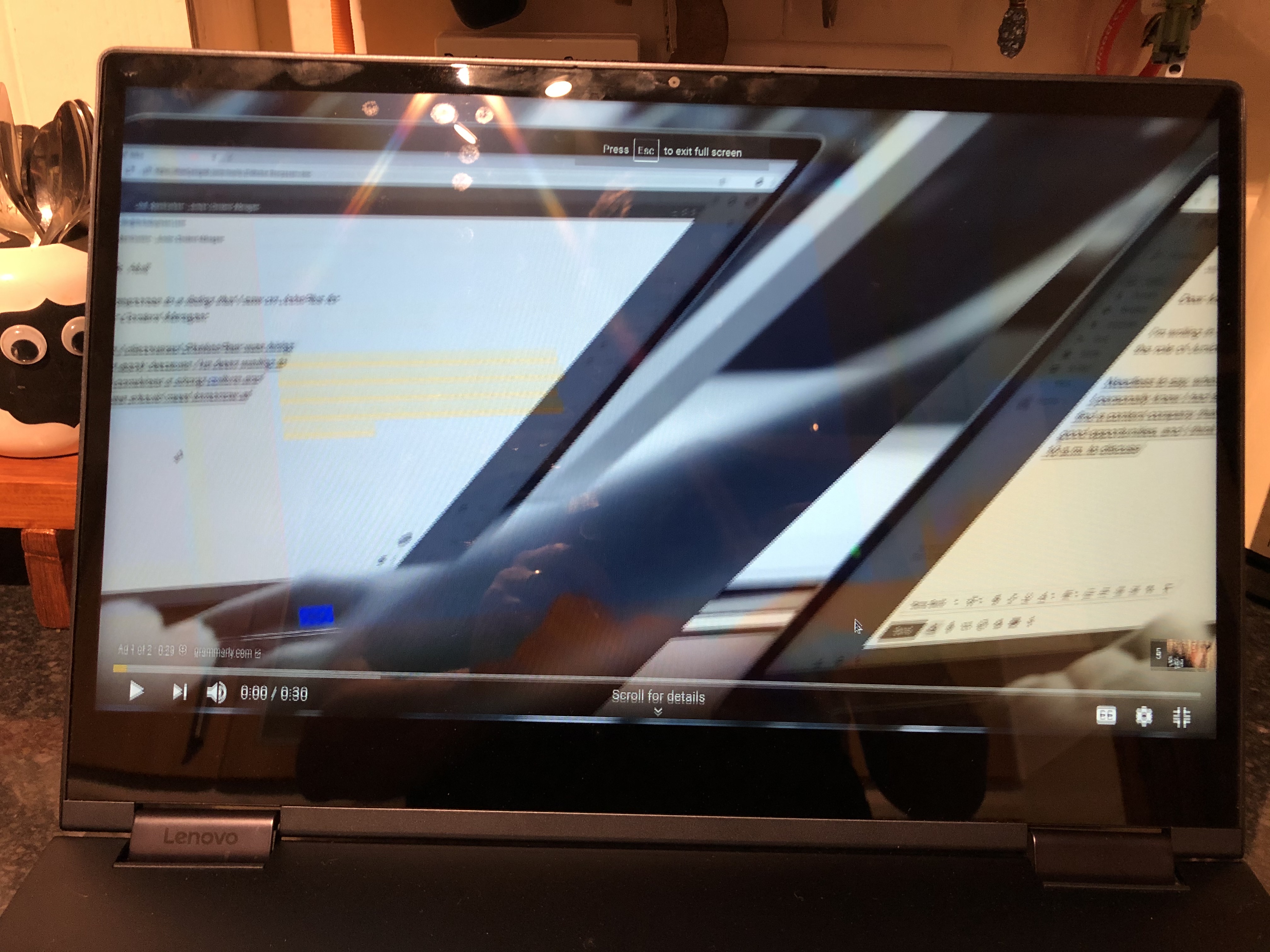
Screen glitches on a Chromebook can be frustrating and stop you from working smoothly. These glitches appear as flickering, lines, or color problems on the screen. Understanding the common causes helps fix these issues faster. Problems usually come from hardware, software, or display settings. Each area needs different solutions. Knowing the cause narrows down what to check first.
Hardware Issues
Physical damage can cause screen glitches. Loose cables inside the Chromebook may disrupt display signals. Faulty graphics chips or damaged screens also create flickering or lines. Overheating can harm hardware parts and cause screen problems. External devices like monitors or docks can sometimes interfere with the display. Hardware issues often need professional repair or part replacement.
Software Problems
Outdated or corrupted software can cause the screen to glitch. Buggy updates sometimes break display functions. Running many apps at once may overload the system and cause flickers. Malware or corrupted files can also affect the screen performance. Restarting or resetting the Chromebook can clear minor software glitches. Keeping software up to date helps prevent these problems.
Display Settings Conflicts
Incorrect display settings can cause glitches on the screen. Wrong resolution or refresh rate may lead to flickering. Conflicts between apps and display settings can cause screen issues. Changing brightness or color profiles may solve some problems. Resetting display settings to default often fixes these conflicts. Checking settings is a simple step to try before deeper fixes.
Credit: www.reddit.com
Basic Troubleshooting Steps
Screen glitches can interrupt your work or play on a Chromebook. Basic troubleshooting helps find quick fixes. It saves time and avoids complex steps.
Try simple actions first. These steps often solve common screen problems.
Restart Your Chromebook
Restarting clears temporary files and resets system processes. Press the power button and select “Restart.” Wait for the device to turn off and back on. Check the screen after it restarts.
Check For System Updates
Updates fix bugs and improve device performance. Open Settings and click “About Chrome OS.” Select “Check for updates” and install any available updates. Restart your Chromebook to apply changes. This step often fixes display issues.
Adjust Screen Brightness And Resolution
Incorrect brightness or resolution can cause flickering or glitches. Use the brightness keys on your keyboard to adjust screen light. Go to Settings > Device > Displays to change resolution. Choose the recommended setting for your screen. Check if this stops the glitching.
Advanced Fixes For Persistent Glitches
Sometimes, basic steps do not fix a glitching Chromebook screen. Advanced fixes can help with persistent problems. These methods reset hardware, clear software issues, and isolate the cause. Follow these steps carefully for better results.
Reset Chromebook Hardware
Resetting the hardware can solve screen glitches caused by temporary errors. Hold the Refresh key and press the Power button at the same time. Release both keys after the Chromebook restarts. This resets internal hardware without deleting data. It often fixes display problems quickly.
Powerwash Your Device
Powerwashing restores the Chromebook to factory settings. It removes all files and apps, so back up important data first. Go to Settings, then Advanced, and select Reset Settings. Click Powerwash and confirm. This clears corrupted files that may cause screen glitches. Afterward, set up your device again.
Test In Guest Mode
Guest Mode runs the Chromebook without personal data or apps. This helps check if glitches come from user settings or extensions. Click the account icon, then Select Guest. Use the Chromebook and watch for screen issues. If the screen works fine here, the problem is in your profile or apps.
When To Seek Professional Help
Sometimes, fixing a glitching Chromebook screen is not easy. The problem might be more than just software. Knowing when to get professional help can save time and money. It prevents more damage to your device. Here are signs that show you need expert support.
Identifying Hardware Damage
Hardware damage often causes screen glitches. Look for cracks, lines, or dead pixels on the screen. Flickering or a blank display can also mean hardware issues. If the screen responds poorly to touch or shows color problems, damage could be inside. Problems like these need a technician’s attention. Trying to fix hardware yourself may make it worse.
Warranty And Repair Options
Check if your Chromebook is still under warranty. A warranty can cover repairs or screen replacement. Contact the manufacturer or store where you bought it. They can guide you through repair options. Authorized service centers use original parts. This keeps your Chromebook safe and working well. Repairs outside warranty may cost more but ensure quality service.
Preventing Future Screen Issues
Preventing future screen issues keeps your Chromebook working well. Small steps help avoid glitches and screen problems. Taking care of your device saves time and money.
Regular Software Maintenance
Keep your Chromebook’s software up to date. Updates fix bugs that cause screen glitches. Check for updates often in the settings menu.
Restart your Chromebook regularly. It clears temporary files and refreshes the system. This helps prevent slow or flickering screens.
Run the built-in diagnostics tool. It finds hidden software or hardware problems early. Fixing issues quickly stops bigger screen problems.
Safe Handling And Usage Tips
Avoid pressing too hard on the screen. Excess pressure can damage the display. Use a soft cloth to clean the screen gently.
Do not drop or bump your Chromebook. Physical shocks can cause screen glitches and cracks. Use a sturdy case for extra protection.
Keep your Chromebook away from liquids and extreme temperatures. Moisture and heat harm the screen and internal parts. Store the device in a cool, dry place.
Credit: support.google.com
Frequently Asked Questions
Why Is My Chromebook Screen Glitching Randomly?
Screen glitches can occur due to software bugs or hardware issues. Updating your Chrome OS or restarting the device often helps fix this problem.
How Can I Fix Screen Flickering On My Chromebook?
Try adjusting your screen brightness or toggling the display settings. If flickering continues, a system restart or update may resolve it.
Does A Chromebook Factory Reset Fix Screen Glitches?
A factory reset can clear software problems causing screen glitches. Remember to back up your data before performing the reset.
Can External Devices Cause Chromebook Screen Glitches?
Yes, faulty or loose external devices like HDMI cables may cause screen issues. Disconnect them to check if glitches stop.
When Should I Seek Professional Help For Screen Glitches?
If glitches persist after updates, resets, and disconnecting devices, professional repair is advised. It may indicate a hardware defect.
Conclusion
Fixing a glitching Chromebook screen is often simple and quick. Restart your device first to clear temporary issues. Check for updates to keep your software current. Adjust screen settings and disconnect any external devices. If problems persist, consider hardware checks or professional help.
These steps can restore your Chromebook’s display. Keep your device clean and updated to avoid future glitches. A smooth screen means better work and play time. Stay patient and try each fix carefully. Your Chromebook can work well again.