
Is your computer taking forever to open a simple program? Frustrating, right?
A slow computer can waste your time and test your patience. But don’t worry—you don’t need to be a tech expert to fix it. You’ll discover easy, effective steps to speed up your computer and get it running smoothly again.
Keep reading, and you’ll soon enjoy a faster, more responsive device that works the way it should. Ready to stop the lag? Let’s dive in.
Credit: vintageits.com
Identify Causes Of Slow Performance
Slow computer performance frustrates many users. Before fixing it, find the cause. Identifying the root problem helps you apply the right solution. Check different areas to find what slows down your PC.
Check For Malware And Viruses
Malware and viruses harm your computer’s speed. They use resources without permission. Run a full scan using trusted antivirus software. Remove any threats found. Regular scans keep your system clean and fast.
Monitor Resource Usage
Watch how your computer uses memory and CPU. Open Task Manager to see active processes. Some programs use too much power. Close or uninstall heavy apps to improve speed. This step reveals hidden resource hogs.
Evaluate Startup Programs
Many programs start with Windows automatically. This slows boot time and overall performance. Disable unnecessary startup items using Task Manager or System Configuration. Keep only essential programs enabled. This reduces load and speeds up your computer.

Credit: www.youtube.com
Clean Up Your System
Cleaning up your system can make your computer faster and more efficient. Over time, junk files and unused programs build up. These take up space and slow down your machine.
Regular cleaning helps your computer run smoothly. It frees up storage and improves performance. Follow these simple steps to clean your system.
Remove Unnecessary Files
Delete temporary files, old downloads, and duplicate files. These files waste space and slow down your computer. Use the built-in disk cleanup tool on Windows or storage management on Mac. Clear out documents and media you no longer need.
Uninstall Unused Programs
Many programs run in the background and use resources. Uninstall apps that you rarely or never use. This frees up memory and speeds up startup times. Check your control panel or settings to remove these programs safely.
Clear Browser Cache
Browsers store cache to load websites faster. Too much cache can slow down browsing and affect system speed. Clear your browser cache regularly. This simple step keeps your internet experience quick and smooth.
Optimize Software Settings
Optimizing software settings can make your computer faster and more efficient. Small changes to your system’s software can reduce lag and improve performance. These tweaks help your computer use resources better and run smoother.
Focus on updating your system, adjusting visual effects, and managing background processes. Each step can help speed up your computer without extra hardware.
Update Operating System And Drivers
Keep your operating system up to date. Updates fix bugs and improve security. They also enhance system speed. Check for updates regularly and install them promptly.
Update device drivers too. Drivers control hardware like graphics and sound cards. Outdated drivers can slow your computer. Visit the manufacturer’s website or use a trusted tool to update drivers.
Adjust Visual Effects
Visual effects can use a lot of system resources. Turning off unnecessary animations and shadows can boost speed. In Windows, find the visual effects settings and choose “Adjust for best performance.”
This change makes your computer look simpler but run faster. It is especially helpful for older computers or those with limited memory.
Manage Background Processes
Many programs run in the background without your knowledge. These processes use CPU and memory, slowing your computer down. Open the task manager to see active processes.
End tasks that are not needed. Be careful not to stop essential system processes. Limiting background apps frees up resources for important tasks.
Improve Hardware Performance
Improving hardware performance is a key step to speed up a slow computer. Hardware parts work together to run your system. If one part is weak, the computer feels slow. Upgrading or cleaning hardware can make a big difference. Simple changes can help your computer run faster and smoother. Below are some practical ways to improve your hardware.
Upgrade Ram
RAM (Random Access Memory) helps your computer handle many tasks at once. More RAM means your computer can work on more programs without slowing down. Adding extra RAM is one of the easiest upgrades. Check how much RAM your computer has now. Then buy compatible RAM sticks and install them. This upgrade lets your computer run faster, especially with many open apps.
Switch To A Solid State Drive
Most computers use hard drives to store data. Old hard drives are slow and cause delays. A Solid State Drive (SSD) works much faster. It loads programs and files quickly. Switching to an SSD can cut boot time in half. It also makes programs open faster. SSDs are more durable and use less power than hard drives. This upgrade greatly improves overall system speed.
Clean Internal Components
Dust and dirt build up inside your computer over time. This blocks airflow and causes overheating. Overheating slows down your computer’s speed. Cleaning inside parts helps keep your computer cool. Use compressed air to blow dust from fans and vents. Clean the CPU and GPU carefully. Regular cleaning prevents heat issues and keeps hardware running well.
Use Performance-boosting Tools
Performance-boosting tools help make your computer faster. They clean up and organize files. This lets your system run smoother and quicker. Using these tools regularly keeps your PC in good shape.
Here are some easy ways to boost your computer’s speed using built-in and extra tools.
Run Disk Defragmenter
Disk Defragmenter arranges files on your hard drive. It puts pieces of files closer together. This reduces the time your computer needs to find data. Use this tool to improve access speed and overall performance. It works best on traditional hard drives, not SSDs.
Utilize System Cleanup Utilities
System cleanup tools delete junk files and clear caches. They remove temporary files that take up space. This frees up disk space and helps your computer run faster. Windows has built-in tools like Disk Cleanup. Use them often to keep your system tidy.
Try Third-party Optimization Software
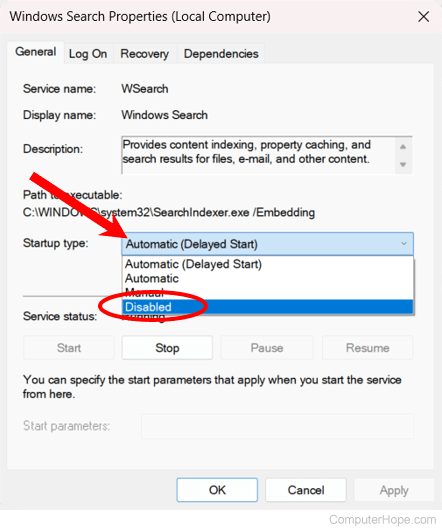
Third-party apps offer extra features for boosting speed. They can clean registries, manage startup programs, and fix errors. Choose trusted software to avoid malware. These tools simplify maintenance tasks and improve system health. Use them carefully and follow instructions.
Credit: www.computerhope.com
Maintain Regular System Care
Maintaining your computer regularly keeps it running smoothly. It helps avoid slowdowns and other issues. Small tasks done often can save time and frustration later. Regular care ensures your system stays healthy and fast.
Schedule Routine Maintenance
Set a calendar reminder for system checks. Clean temporary files and cache to free space. Update software and drivers to fix bugs. Run antivirus scans to catch threats early. Routine steps prevent many common problems.
Backup Important Data
Save your files on an external drive or cloud. Backups protect against data loss from crashes. Regular backups let you restore files quickly. Make it a habit to copy new files weekly. Safe data means less worry about accidents.
Stay Alert For Warning Signs
Notice if your computer slows down or freezes. Strange noises can indicate hardware trouble. Frequent error messages signal deeper issues. Catch problems early to avoid bigger damage. Pay attention to changes in performance.
Frequently Asked Questions
What Causes A Computer To Run Slowly Over Time?
Computers slow down due to too many programs running at once and insufficient memory. Temporary files and malware also reduce speed. Regular cleaning can help keep your computer fast.
How Can I Free Up Space To Speed Up My Pc?
Deleting unused files, uninstalling old programs, and clearing temporary files frees space. Use disk cleanup tools for easy removal. This helps your computer run smoother and faster.
Does Restarting My Computer Improve Its Speed?
Yes, restarting closes background apps and clears memory. This refresh can fix slow performance. Try restarting regularly for better speed.
Can Outdated Software Make My Computer Slow?
Outdated software can cause slowdowns and security issues. Updating programs improves performance and stability. Always keep your software up to date.
Is Adding More Ram A Good Way To Fix Slowness?
Adding RAM helps your computer handle more tasks at once. It improves speed, especially for older machines. Consider this if your PC often feels slow.
Conclusion
A slow computer can cause many problems and frustrations. Fixing it is easier than you think. Start by cleaning up files and removing unused programs. Check for viruses and update your software regularly. Adding more memory can help your computer run faster.
Keep your system tidy and organized. Small steps make a big difference. Your computer will feel fresh and responsive again. Stay patient and follow these tips for better speed. A smooth computer means less stress and more productivity. Keep your device healthy for a better experience every day.