
Google Nest Thermostat troubleshooting often involves checking your wiring, battery levels, and Wi-Fi signal. Most unresponsive devices suffer from a lack of power from the C-wire or a depleted battery. If the screen remains blank after checking your breaker and furnace door switch, inspect the base plate wiring.
Google Nest Thermostat Troubleshooting
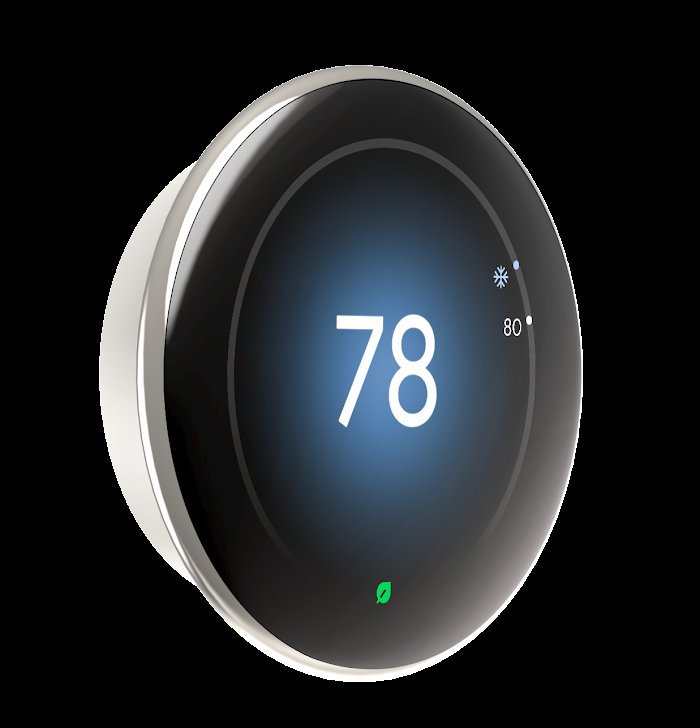
The primary reason these devices fail to function is a power delivery error. Your thermostat relies on a constant flow of electricity from your heating and cooling system to keep its internal battery charged. If your system lacks a C-wire, the Nest must “power steal” from the other wires. This method isn’t always compatible with every furnace or heat pump setup. When the system is off for long periods during temperate seasons, the battery can drain completely. Once the battery hits a critical low point, the device shuts down to protect its internal components and loses its connection to your home network.
Another frequent cause is a software glitch or a Wi-Fi configuration change. If you recently changed your router settings or updated your network password, the thermostat will lose contact with the Google Home servers. While the device will continue to follow its last saved schedule, it won’t respond to app commands or temperature adjustments made via your smartphone.
Finally, hardware interference can lead to false readings or short-cycling. Dust buildup inside the unit can block the temperature sensors, causing the thermostat to think the room is hotter or colder than it actually is. Additionally, if the base plate isn’t perfectly level, the internal connection pins may not make proper contact with the display unit. This creates intermittent power loss that looks like a software crash but is actually a simple mechanical misalignment. Always verify that your system is compatible with the Google Nest compatibility checker to ensure your wiring configuration supports the power requirements of your specific model.
Verify the system power
This fix is for users who see a blank screen or a “no power” error code on their device. Start by going to your home’s main electrical panel and confirming that the breaker labeled for your furnace or air handler is set to the “on” position. If it’s already on, flip it off for sixty seconds and then turn it back on to reset the system’s control board.
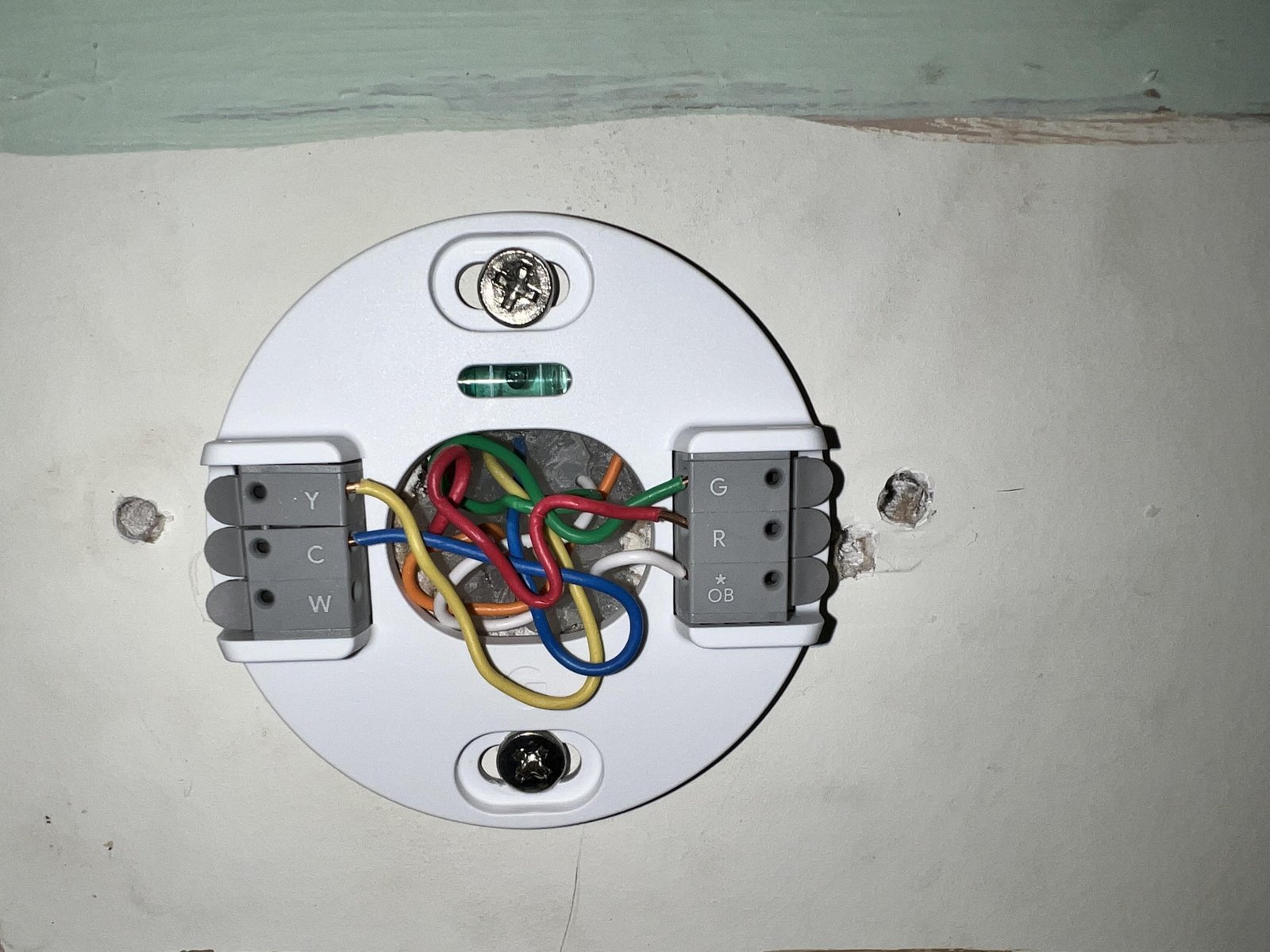
Next, inspect the furnace door. Most furnaces have a safety switch that cuts power when the panel is removed. Ensure the door is pushed firmly into place. If you have a multi-zone system, verify that all zone controllers are powered and that the wires are firmly inserted into the terminals on the thermostat base. You should see the wires pushed all the way into the spring-loaded connectors. If a wire looks frayed or loose, press the terminal button, pull the wire out, trim the end to expose fresh copper, and re-insert it while holding the button down.
If the screen lights up after these steps, wait about thirty minutes for the internal battery to charge. If the screen remains blank after you have confirmed power at the breaker and the furnace door, the fault may lie with the transformer or the control board inside your HVAC unit. This is a technician-only job because internal HVAC components carry high-voltage risks that can cause injury if handled incorrectly. If you aren’t comfortable or if the power issue persists, call a licensed HVAC professional to test the voltage at the thermostat wires.
Reset the network connection
Use this fix if your thermostat is powered on but refuses to connect to your Wi-Fi or shows as “offline” in the app. This is for users who have recently updated their router, changed their SSID, or experienced a power outage that scrambled the network settings.
Begin by restarting your router. Unplug the power cable, wait thirty seconds, and plug it back in. Once the internet is restored to other devices in your home, go to your thermostat. Use the dial to navigate to the “Settings” menu and select “Network.” Choose the option to reset or reconfigure your Wi-Fi settings. You’ll need to select your network name and enter the password again using the on-screen interface.
If the device can’t find your network, check if your router is broadcasting a 5GHz-only signal. Many older Nest models require a 2.4GHz network to connect properly. If your router combines both bands into one name, you may need to log into your router’s admin panel to temporarily disable the 5GHz band while you pair the thermostat. Once the device is linked and showing as “online” in the Google Home app, you can re-enable the 5GHz band. This is a trade-off: some modern routers prefer 5GHz, but the thermostat’s stability is often better on the 2.4GHz band. If the connection drops frequently, moving your router closer or adding a mesh node might be necessary, as the thermostat’s antenna is smaller than those in computers or phones.
Inspect the sensor environment
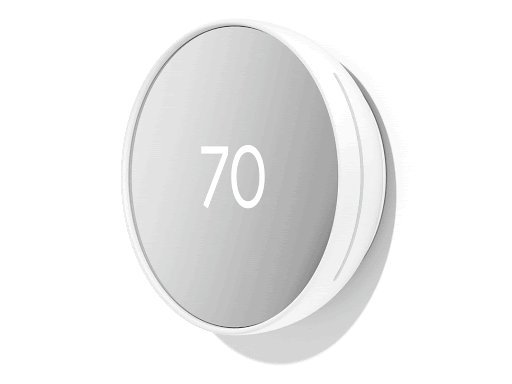
This fix is for users who notice that the thermostat triggers the heat or AC at the wrong times or displays inaccurate ambient temperatures. This is worth the effort if your energy bills have spiked or if the house feels uncomfortable despite the display showing the correct set point.
Start by checking the location of your thermostat. It shouldn’t be in direct sunlight, near a kitchen vent, or behind a door that stays closed. Heat sources near the unit will trick it into thinking the room is warmer than it is, causing the AC to run too much or the heat to stay off. If the device is in a bad spot, you can’t move the wiring, but you can add a remote temperature sensor to tell the device to prioritize the temperature in a different room.
Check for drafts coming from the hole in the wall where the wires enter. If you feel air moving through the hole, the thermostat is reading the temperature inside your wall cavity rather than the room air. Use a small piece of plumber’s putty or non-flammable insulation to seal the hole around the wires. This is a simple step that prevents the thermostat from getting confused by cold or hot air traveling through the wall studs. If you have done this and the sensor still reports wild temperature swings, the internal sensor may be damaged. In this case, you should contact Google support for a warranty claim, as the internal hardware isn’t user-serviceable.
What not to do
- A technician must confirm whether the part has failed, as attempting to test internal components yourself is dangerous.
- Don’t try to clean the interior of the thermostat with liquid cleaners or compressed air. Moisture or high-pressure air can damage the delicate humidity and temperature sensors, leading to permanent hardware failure.
- Don’t bypass the safety switches on your furnace or air handler. These switches exist to prevent fire and equipment damage, and overriding them voids your warranty and creates a fire hazard.
- Don’t pull the display unit off the base plate while the system is actively calling for heat or cooling. This can cause a small electrical spark at the terminals, which may damage the pins or the control board over time.
How to stop it happening again
Consistent maintenance prevents the most common software and power failures that plague smart thermostats.
| If you’re doing this | Do this instead | Why |
|---|---|---|
| Ignoring low battery warnings | Charge the device via USB | Prevents system shutdown |
| Blocking the wall hole | Seal the hole with putty | Stops false temperature readings |
| Using a weak password | Use a secure network | Prevents unauthorized access |
| Leaving the HVAC door open | Close and secure the door | Ensures the safety switch engages |
Frequently asked questions
Can I fix a blank screen by myself?
You can fix a blank screen by checking the breaker, furnace door switch, and base plate wiring. Most blank screens result from a lack of HVAC power rather than a broken thermostat. If these steps fail, the issue may involve the HVAC control board, which requires professional service.
Why is my Nest offline?
Your Nest is likely offline due to router settings, weak Wi-Fi, or internet provider interruptions. The thermostat continues to run your schedule using previously stored data while disconnected. If restarting your router or re-entering your Wi-Fi password fails, you may need a signal extender to improve coverage.
How long should the battery last?
The internal battery should last for many years if it receives a steady charge from your system’s C-wire. This battery acts as a backup during power outages or when the system is idle. If you see frequent low-battery warnings, have a professional install a C-wire or power-extender kit.
Is it safe to leave my thermostat on during a storm?
It’s safe to leave your thermostat on during a storm if your home has surge protection. A surge protector shields your thermostat and HVAC control board from voltage spikes. If the device fails to restart after a power outage, check your breakers to ensure the circuit hasn’t tripped.
What happens if I move to a new house?
Perform a factory reset before moving to clear your schedule, Wi-Fi settings, and account data. This returns the unit to its original out-of-the-box state. When installing in a new home, always verify your specific system’s compatibility with the Nest setup guide, as HVAC configurations vary significantly between houses.
Final Thoughts
If these simple checks don’t get your system running smoothly again, don’t hesitate to reach out to a local HVAC professional. They’ll quickly identify any hidden electrical faults that you can’t see. It’s better to be safe and keep your home comfortable, so you’ll stay cozy throughout the entire year.