
T Mobile Home Internet troubleshooting often involves power cycling your gateway or improving signal reception. Most issues result from poor device placement or local network congestion. If speeds drop, move the gateway to an elevated area near a window to improve its line of sight to cell towers.
Causes of home internet troubleshooting issues
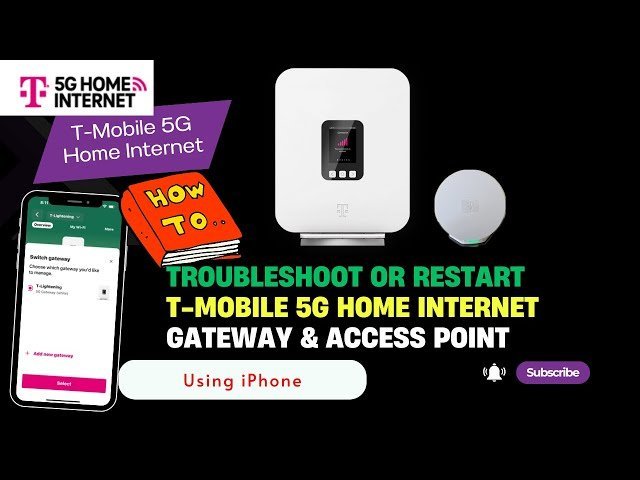
The most frequent cause for a signal drop is physical obstruction. Radio waves from cell towers are easily blocked by dense materials like brick, concrete, or heavy metal siding. If your gateway is hidden inside a cabinet or tucked in a basement, it will struggle to maintain a consistent handshake with the tower. Modern homes often have foil-backed insulation or energy-efficient glass that acts as a shield against cellular signals, which effectively creates a dead zone for your gateway.
Network congestion is the second common factor. Because this service relies on the same cellular bands as mobile phones, the speed you experience depends on how many people are using that specific tower at the same time. During peak evening hours, the network may prioritize mobile data traffic over home internet data, leading to temporary slowdowns or higher latency.
Finally, hardware overheating can cause the gateway to throttle its own performance to protect internal components. The device generates significant heat when processing high-speed data. If the ventilation holes are covered by dust or placed against a wall, the internal temperature rises, forcing the processor to slow down. This isn’t a defect but a safety feature designed to prevent permanent damage to the cellular modem. If the device feels hot to the touch and the connection drops, move it to a ventilated, open space and clear away any nearby objects. You can find detailed official gateway placement tips on the manufacturer’s support site to ensure the best possible signal reception.
Reposition the gateway device
This fix is for users who have a signal that fluctuates between “weak” and “good” throughout the day. If your signal strength is consistently poor, you need to find a new location that minimizes interference. Start by using the T-Mobile Internet mobile app to view the signal strength in real-time as you move the device.
If you have a multi-story home, the best location is almost always the highest floor near a window that faces the outside. Avoid placing the device near large metal objects, such as refrigerators or filing cabinets, which can reflect or absorb the cellular signal. If you find a spot that provides three or more bars of signal, keep the device there for at least one hour to see if the connection stability improves.
This fix isn’t for users who have a total loss of signal (zero bars) regardless of location. If you see no signal anywhere in the house, moving the device won’t help because there’s likely a service outage or a damaged tower nearby. In that case, you should check the local network status through the app or website rather than moving hardware. If the signal remains low even after trying three different windows, the issue might be external to your home. Signal quality varies by model — check the label on the bottom of your gateway to confirm which version you’re using, as some newer models have better internal antennas than older ones.
Reset network connection settings
Performing a factory reset is a powerful lever to pull when software glitches cause connection loops, but it should be a last resort. This process clears all custom settings, including your Wi-Fi name, password, and any port forwarding rules you have configured. To perform a reset, locate the small hole on the back or bottom of the gateway labeled “Reset.” Use a paperclip or a similar tool to press and hold the button inside for about 10 seconds.
You’ll know it worked when the lights on the front of the device cycle off and then begin to blink as the unit reboots. After the device restarts, you must use the T-Mobile app to reconfigure your network settings from scratch. This is helpful if you have changed your settings multiple times and suspect a configuration conflict is blocking traffic.
This fix isn’t for users experiencing simple signal strength issues, as a reset can’t improve the quality of the radio waves reaching your home. If your signal bars are low, a reset won’t fix the physical obstruction. Only use this when the device is “stuck” or when you have forgotten your admin password. If you’re uncomfortable reconfiguring your network settings, you can reach out to T-Mobile customer support to guide you through the process, but be aware that they will likely ask you to perform this same reset step first.
Update your hardware firmware
Updating the gateway firmware is a task that the system usually handles automatically, but sometimes a manual push is necessary. If your device has been running for months without a reboot, it may be operating on outdated software that no longer communicates efficiently with the tower. To check for updates, open the T-Mobile Internet app and navigate to the “Network” or “Device” tab. If an update is available, the app will prompt you to install it.
This process requires the device to stay powered on and connected to the internet for the duration of the update, which usually takes 5 to 10 minutes. Don’t unplug the gateway while it’s updating, as this can corrupt the firmware and render the device unusable.
If you’re a power user, you can also access the web-based management interface by typing the gateway’s IP address into a browser on a connected computer. This is worth the effort if you notice consistent bugs or strange behavior, such as the Wi-Fi signal dropping while the cellular signal remains strong. If you don’t see an update option in the app or the web interface, your device is likely already on the latest version. This varies by model — check the label on your device to see which software version is currently installed. If the update fails repeatedly, it’s a sign that the cellular signal is too unstable to download the file, and you should call professional support to have them push an update from their end.
What not to do
- Don’t place the gateway inside a metal box or rack. Metal blocks radio frequencies entirely, which will kill your signal strength and force the device to work harder to maintain a connection.
- Don’t use a third-party router to “boost” the signal immediately. Adding another layer of hardware creates double-NAT issues and makes it harder to troubleshoot where the connection is actually failing.
- Don’t leave the gateway on a carpeted floor. Carpets trap heat and dust, which can cause the device to overheat and force a performance-lowering shutdown to protect the internal motherboard.
- Don’t press the reset button every time the internet is slow. A factory reset clears your settings and takes time to re-establish, so use it only when the device isn’t responding to a standard power cycle.
How to stop it happening again
To maintain a fast and stable connection, you should monitor the gateway’s performance and environment consistently.
| If you’re doing this | Do this instead | Why |
|---|---|---|
| Leaving the gateway on the floor | Place it on a high shelf | Signals travel better from high points |
| Using a crowded Wi-Fi channel | Use the app to select a different band | Reduces interference from neighbors |
| Keeping it in a closed cabinet | Move to an open area | Allows for proper heat dissipation |
| Ignoring software notifications | Update the firmware immediately | Fixes known bugs and connectivity issues |
Frequently asked questions
Can I move my T-Mobile gateway to a different house?
No, the service is locked to your registered address to manage local tower capacity. Moving the device may result in blocked connections or throttled speeds. Please contact customer support before relocating to verify service availability at your new home.
How long does a factory reset take?
A factory reset typically takes about 5 to 10 minutes to complete from the moment you press the button until the device is fully back online. During this time, the lights on the gateway will blink in a specific sequence, usually turning solid once the connection to the cellular network is re-established. Don’t unplug the power during this window, as it can cause a permanent software error.
Is it safe to leave the gateway on 24/7?
Yes, the gateway is designed to remain powered on at all times to ensure you have a constant connection. The device is built for continuous operation, but it does benefit from a manual restart regularly to clear out temporary memory files and refresh the connection to the cellular tower. This simple habit often prevents the need for more complex troubleshooting later on.
What happens if the power goes out?
The gateway will automatically reconnect to the cellular network once power is restored. It may take up to 10 minutes to complete the handshake with the nearest tower. If it fails to reconnect after 15 minutes, perform a manual power cycle by unplugging the device for 30 seconds.
Why is my Wi-Fi speed slower than my cellular signal?
Wi-Fi speed is often limited by the distance between your device and the gateway, as well as the number of walls between them. Even if your cellular signal to the tower is perfect, your internal Wi-Fi signal can be weakened by walls, mirrors, or other electronics like microwaves. If the signal is weak, try moving your computer or phone closer to the gateway to see if the speed increases.
Can I use my own router with the gateway?
Yes, you can connect your own router to the gateway via an Ethernet cable to manage your home network. This is a good choice if you have a large home and need better Wi-Fi coverage than the gateway provides on its own. If you do this, you should disable the Wi-Fi broadcast on the T-Mobile gateway to prevent interference between the two devices.
Final Thoughts
If your connection remains inconsistent after trying these adjustments, don’t hesitate to contact customer support through the T-Mobile app. They’ve got advanced diagnostic tools that can pinpoint hidden tower issues in your neighborhood. Getting a quick check-up from their team is often the best way to ensure you’re getting the speeds you deserve.