
Dell Computer Monitor Troubleshooting involves checking cables, power settings, and input sources to resolve dark or flickering screens. Most issues stem from loose video cables or incorrect input settings. Before troubleshooting further, verify power connections at the wall and the monitor. If you see a “No Signal” message, the monitor is functional but lacks data. For black screens with power lights, check for sleep mode or test a different cable.
Common Dell Computer Monitor Troubleshooting Causes

Most display issues stem from simple physical connections or software conflicts. When a monitor fails to show an image, it’s usually because the connection between the graphics card and the screen is interrupted. This happens if the cable isn’t pushed in all the way or if the pins inside a VGA cable are bent. You should also consider the input source settings. Modern monitors have multiple ports like HDMI, DisplayPort, and USB-C. If your monitor is set to look for a signal from the HDMI port, but your computer is plugged into the DisplayPort, you’ll see a blank screen.
Another frequent cause is the display resolution or refresh rate set by the operating system. If your computer tries to output a resolution that the monitor can’t support, the screen will remain black or show a “Signal out of range” warning. This often happens after a driver update or when moving a monitor to a different computer.
Finally, power management features can sometimes cause confusion. If the monitor enters a deep sleep state, it might not wake up when the computer sends a signal. This is different from a hardware failure. You can verify the power status by looking at the small LED light on the front or bottom of the screen. If the light is blinking amber or orange, the monitor is receiving power but waiting for a signal. If the light is completely off, there’s a power delivery issue. Before assuming the screen is broken, always consult the Dell support documentation to verify if your specific model has a known power reset sequence.
Check your physical connections
This fix is for users who see a “No Signal” message or have a completely blank screen. You must start by unplugging every video cable from both the monitor and the computer. Inspect the ends of the cables for bent pins or debris. If the cable looks damaged, replace it immediately. Plug the cable back in firmly until you hear a click or feel it seat securely.
If you use a desktop, ensure the video cable is plugged into the dedicated graphics card port, not the motherboard port near the USB slots. If you have a laptop, try using a different port on your docking station or a direct HDMI connection to the laptop itself.
This isn’t for users who have physical cracks on the glass or liquid damage, as those require a screen replacement which is rarely cost-effective. If the monitor still shows nothing after you have tried two different cables, the issue is likely internal hardware. If you aren’t comfortable handling electrical equipment or if the device is under warranty, don’t attempt to open the case. Contact professional support to avoid voiding your warranty or risking electrical injury.
Adjust input and resolution settings
This fix is for users who see a menu on the screen but no image from the computer. Press the “Menu” or “Input” button on the front or side of your monitor. A menu should appear. If it doesn’t appear, the monitor’s internal board may have failed. If the menu does appear, navigate to the “Input Source” or “Signal Selection” option. Change this setting to match the cable you’re using. For example, if you’re using an HDMI cable, ensure the monitor is set to HDMI.
If the monitor is set correctly but the screen is still black, your resolution might be too high. Boot your computer into Safe Mode. This forces the system to use a basic, low-resolution driver that almost every monitor can display. Once in Safe Mode, open your display settings in Windows or macOS and lower the resolution to 1920×1080 or lower. Restart your computer normally. If the image returns, your monitor simply couldn’t handle the previous high-resolution setting. This varies by model — check the label on the back to find your native resolution and refresh rate. Setting the refresh rate to 60Hz is the safest first step for any monitor.
Test with another device
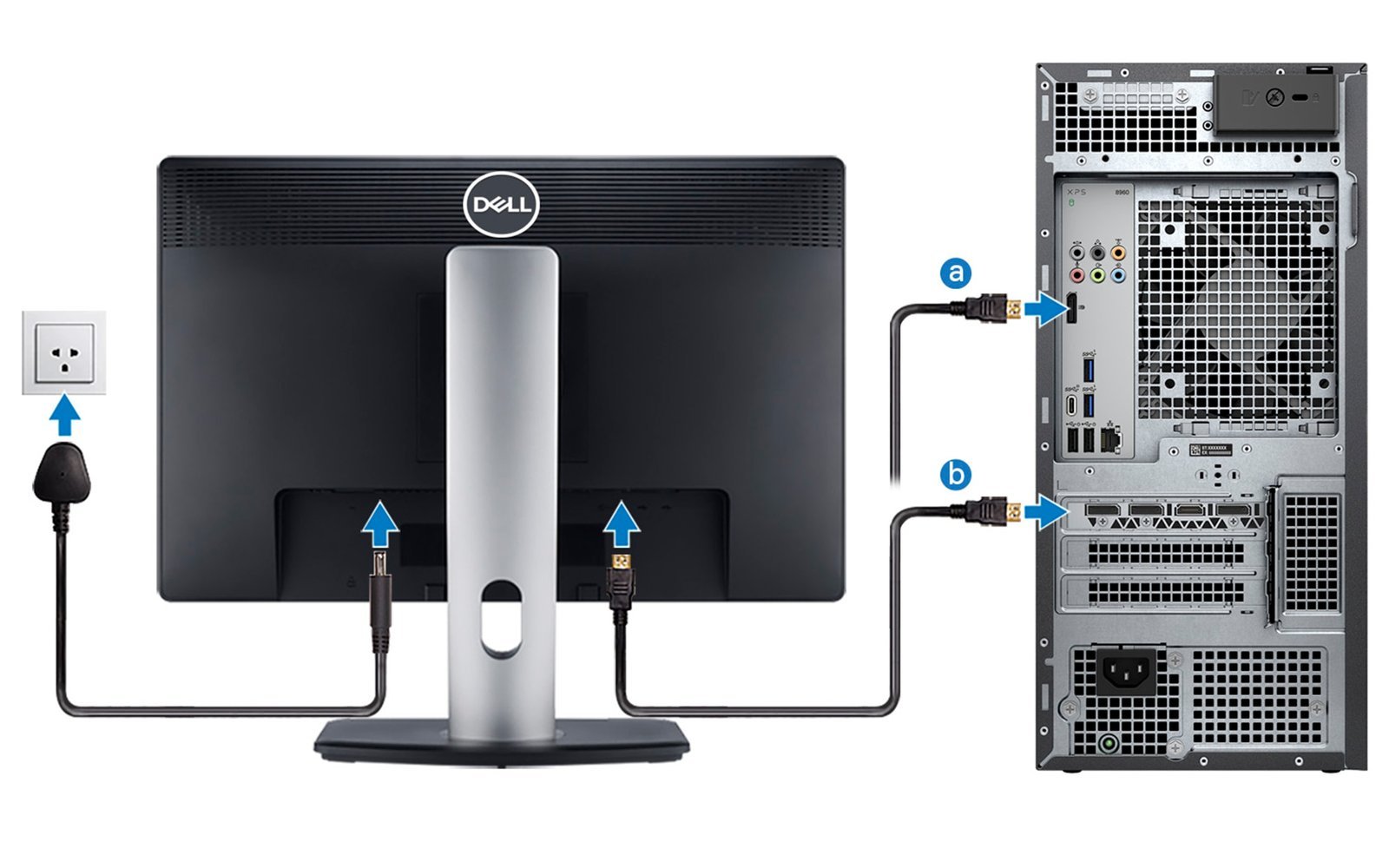
This fix is for when you can’t determine if the monitor or the computer is the problem. You need a second device, such as a laptop, a game console, or a different desktop computer. Unplug the monitor from your primary computer and plug it into the second device using a known working cable. If the monitor works perfectly with the second device, your primary computer’s graphics card or software is the source of the problem.
If the monitor still shows no image with the second device, the monitor itself is likely defective. This is the moment to stop trying to fix it yourself. If the monitor is past its warranty period, the cost of professional repair often exceeds the price of a new monitor. If you’re handy with electronics, you could look for a local repair shop, but be aware that internal components like power boards are often proprietary and hard to find. Don’t attempt to repair the internal electronics yourself if you lack formal training, as monitors store high-voltage charges even when unplugged. If the monitor is under warranty, contact the manufacturer to start a claim.
What not to do
- Don’t use a magnet to “fix” screen colors, as this can permanently damage the internal display components and void your warranty.
- Don’t shake or hit the monitor to resolve a flicker, as this often causes loose internal parts to break or cracks the fragile LCD panel.
- Don’t attempt to open the monitor housing or touch the internal circuit boards, because even unplugged monitors can hold a dangerous electrical charge.
- Don’t use harsh cleaning chemicals like bleach or window cleaner on the screen, as these can strip the anti-glare coating and cause permanent smudges.
- Don’t ignore a burning smell or smoke coming from the vents, as these are signs of a major electrical failure that requires immediate power disconnection.
How to stop it happening again
To keep your display running, you must ensure your setup is stable and protected from power surges.
| If you’re doing this | Do this instead | Why |
|---|---|---|
| Leaving cables hanging | Use cable ties to secure cords | Prevents strain on the ports |
| Plugging directly into wall | Use a surge protector | Protects against voltage spikes |
| Leaving the screen on 24/7 | Use OS sleep settings | Extends the life of the backlight |
| Wiping with paper towels | Use a microfiber cloth | Prevents scratches on the panel |
Frequently asked questions
Can I fix a flickering Dell monitor myself?
Yes, you can often fix flickering by checking your cable connections or lowering your screen’s refresh rate in the display settings. If the flicker persists across multiple cables and different computers, it’s likely a hardware failure in the backlight or power board. At that point, a professional repair is necessary.
Why is my Dell monitor screen black?
A black screen usually means the monitor isn’t receiving a video signal or it has entered a power-saving mode. Check that your computer is turned on and that the video cable is firmly connected to both devices. If the monitor’s power light is off, check the power cable and the wall outlet first.
How long should a monitor last?
Most monitors degrade as they age depending on how many hours per day they’re used. If you keep the brightness set to the maximum level, the backlight will degrade faster than if you use moderate settings. Always check your model’s manual for specific maintenance recommendations.
Is it safe to leave my monitor on all the time?
No, leaving a monitor on constantly wastes energy and accelerates the wear of the internal components. It’s best to set your computer’s power plan to turn off the display after 15 or 30 minutes of inactivity. This prevents image retention and saves the backlight from unnecessary strain.
What happens if I use the wrong resolution?
If you set the resolution higher than what your monitor supports, the screen will likely go black or show an “Out of Range” error message. You can fix this by booting your computer into Safe Mode and reverting the display resolution to the native settings listed in the monitor’s manual.
Final Thoughts
If these quick fixes don’t clear up your screen, don’t worry. You shouldn’t hesitate to reach out to Dell’s official support team for further guidance. They’ve got the tools to help you identify if there’s a deeper hardware fault, so you’ll be back to your work in no time at all.