
A cold boot is the most effective way to resolve common software freezes, connectivity drops, and app glitches on your Samsung Smart TV. This process clears volatile memory to fix temporary errors without deleting your personal settings or installed applications. You should perform this power cycle before attempting any complex menu resets.
Common Samsung smart TV issues
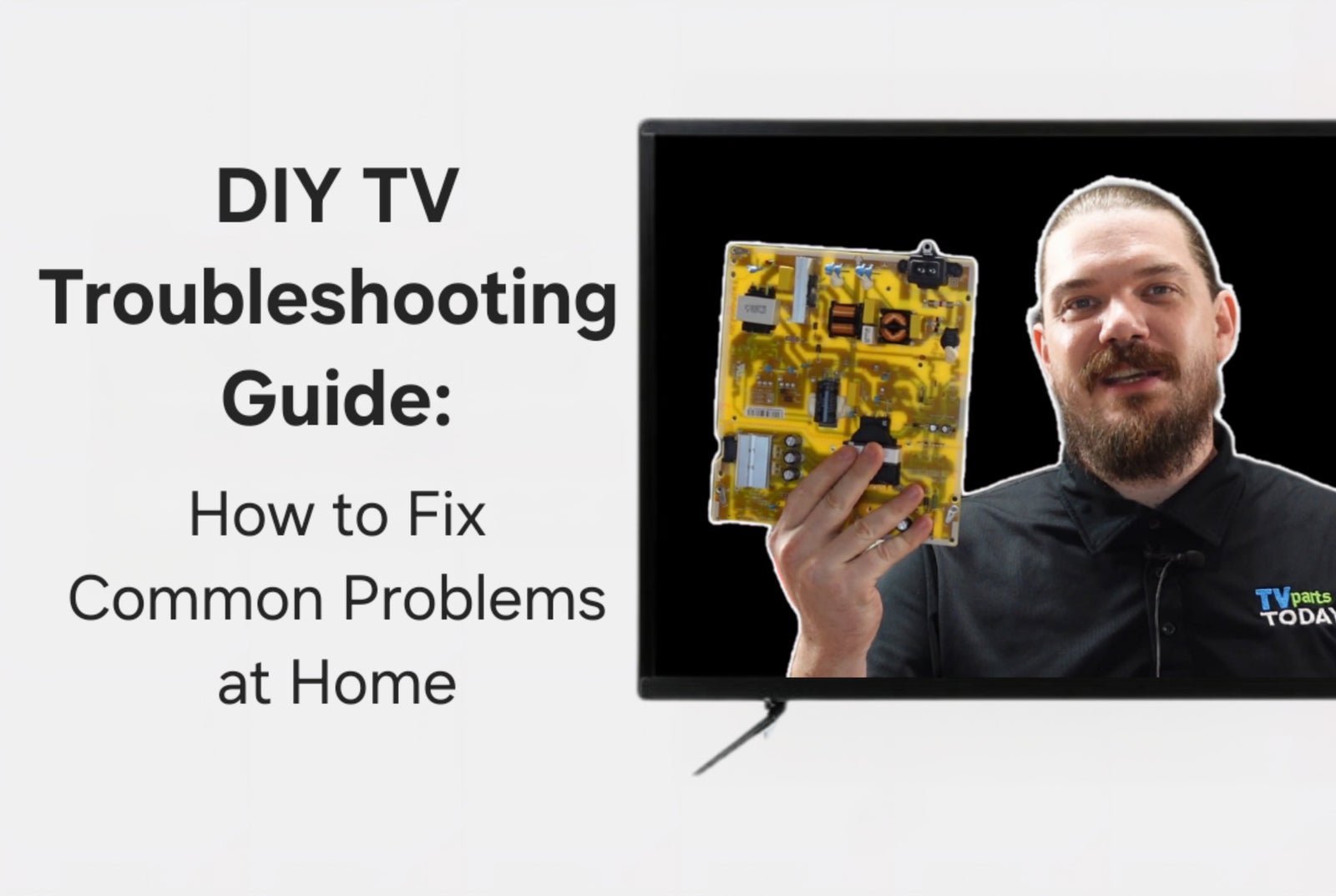
Software errors on modern televisions occur because the internal operating system runs many background tasks simultaneously. Over time, these processes can conflict, leading to system hangs or network drops. This is especially common if you leave the television in “standby” mode for weeks at a time without ever fully shutting it down. Think of it like a smartphone that hasn’t been restarted in months; the memory becomes cluttered with leftover data from closed apps.
Another frequent cause involves network handshake failures. Your router and your television must agree on an IP address and security key every time they connect. If the router updates its firmware or the television experiences a minor power fluctuation, this connection can drop. The television might report that it’s connected to the local network, but it can’t reach the internet because the authentication token has expired.
Finally, hardware degradation is a reality for older units. Components like the power supply board can develop heat-related fatigue, which leads to intermittent power cycling or screen flickering. This varies by model — check the label on the back of your unit for the manufacturing date and model number. If your television is aging, these symptoms often point to internal hardware wear rather than simple software bugs.
Perform a hard power cycle
This fix is for users experiencing frozen screens, unresponsive remotes, or stuttering playback. A hard power cycle forces the motherboard to discharge all stored electricity, which resets the logic controllers.
To perform this, pull the power cord directly from the wall outlet while the television is still turned on. Don’t use the remote to turn it off first. Once the cord is out, wait for at least sixty seconds. This wait is vital because it allows the capacitors on the main power board to fully drain their charge. After the minute has passed, plug the power cord directly back into the wall outlet. Avoid using power strips or surge protectors during this step, as faulty power strips can cause inconsistent voltage delivery that mimics internal failure.
If the television starts up with the Samsung logo, the fix was successful. If the screen remains black, check that your power outlet is actually providing electricity by plugging a lamp into that same socket. If the lamp doesn’t turn on, the problem is likely your home’s electrical circuit, not the television. This isn’t for units that show physical damage to the screen, such as cracks or liquid spots, as these require professional panel replacement.
Reset the network settings
If your applications load slowly or fail to connect to your Wi-Fi, the network configuration is likely the culprit. This fix is for users who have confirmed their internet works on other devices like phones or laptops.
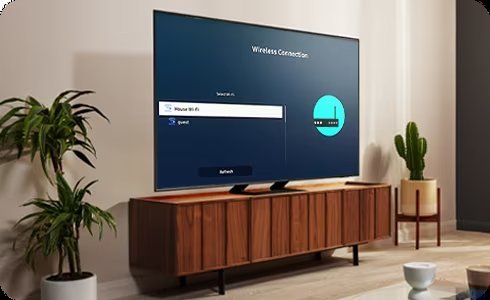
Navigate to the Settings menu using your remote. Select the General tab, then look for Network. Choose the option to Reset Network Settings. This action will wipe your saved Wi-Fi passwords and DNS configurations. You’ll need to re-enter your network credentials once the process finishes. After the reset, choose your Wi-Fi network again and re-enter the password.
If the connection still fails, manually set your DNS server to a public address like eight-point-eight-point-eight-point-eight. This bypasses potential issues with your Internet Service Provider’s (ISP) default servers. You can confirm the connection is restored by opening the built-in web browser or a streaming app. If you still can’t connect, log into your router’s administrative page to ensure your router isn’t blocking the television’s MAC address. If you’re unsure how to access your router settings, contact your ISP for support. This fix isn’t for users who have a “wired” connection that’s physically broken or frayed, as software resets can’t repair damaged cables.
Update the system firmware
Sometimes, the television software version contains known bugs that only a manufacturer-issued update can resolve. This fix is for users who have a stable internet connection but experience consistent, repeatable app crashes.
Go to the Settings menu, select Support, and then choose Software Update. Select “Update Now.” The television will check the official Samsung servers for a newer version of the operating system. If an update is available, it will download and install automatically. Don’t turn off the power or pull the cord during this process, as interrupting a firmware flash can corrupt the main board.
Once the update completes, the television will restart itself. If you notice the menu feels snappier and the apps no longer force-close, the update was successful. If the update fails, check your internet speed; a slow or unstable connection often causes the update file to reach the television incomplete. If you have no internet access, you can download the firmware file onto a USB drive from a computer and install it via the television’s USB port, though this requires more technical comfort.
What not to do
- Don’t use a hairdryer or heat gun to “fix” a flickering screen, as this will melt the plastic housing and permanently damage internal components.
- Don’t open the back panel of the television to touch internal boards, as the high-voltage electricity stored in capacitors can cause severe injury even when the unit is unplugged.
- Don’t use liquid screen cleaners directly on the panel, as moisture can seep into the bottom bezel and corrode the delicate ribbon cables that control the display.
- Don’t perform a full Factory Reset as a first step, because it deletes all your apps, account logins, and calibrated picture settings, which is unnecessary for minor glitches.
How to stop it happening again
Regular maintenance prevents software bloat and network conflicts from recurring.
| If you’re doing this | Do this instead | Why |
|---|---|---|
| Using outdated apps | Enable auto-update for apps | Prevents compatibility crashes |
| Using weak Wi-Fi signals | Use a wired Ethernet cable | Ensures a stable, constant data stream |
| Ignoring software alerts | Run updates when prompted | Fixes known bugs and security gaps |
Frequently asked questions
Can I fix a cracked screen by myself?
No, you can’t fix a cracked screen yourself. A crack damages the liquid crystal display panel, which is the most expensive component of the television. In almost every case, the cost of replacing this panel exceeds the price of buying a new unit.
Why is my remote not working?
Your remote often stops working due to dead batteries or a blocked infrared sensor. Replace the batteries first to rule out power loss. If that fails, ensure there’s a clear line of sight between the remote and the television or attempt to re-pair the device.
How long should a smart TV last?
A smart television typically lasts for several years under normal daily use. This lifespan depends on how often the backlight is set to maximum brightness, as high heat accelerates the degradation of the LED components. If you notice the screen getting dimmer over time, it’s usually a sign that the backlight array is reaching the end of its functional life.
Is it safe to leave my TV on all night?
It’s safe to leave your television on, but it isn’t recommended for the long term. Keeping the unit powered on for extended periods generates heat and burns through the lifespan of the internal components faster than necessary. If you fall asleep with the television on, use the “Sleep Timer” feature in the General settings to ensure the device turns itself off after a set amount of time.
What happens if I interrupt a firmware update?
If you interrupt a firmware update, the television may become stuck in a “boot loop” or fail to turn on entirely. The firmware is the brain of the device, and a partial installation leaves the system with corrupted instructions. If this happens, you’ll likely need to contact professional support to have the software manually re-flashed onto the main board.
Why does my TV lose Wi-Fi every day?
Your television loses Wi-Fi daily because of signal interference or an unstable IP address lease from your router. Try moving your router closer to the television or switching to a 5GHz band if your router supports it, as this band is less crowded. You can also assign a static IP address to your television within your router’s settings to prevent the connection from dropping during the daily IP renewal process.
Final Thoughts
If your screen remains unresponsive after trying these fixes, it’s a good idea to check for available software updates in the settings menu. Keeping your firmware current helps prevent future bugs from appearing. Don’t hesitate to reach out to official support if you’re still having trouble getting your picture back.
Related guides
- Samsung Smart Tv Troubleshooting Guide: Fix Glitches Fast
- Samsung Clothes Washer Troubleshooting: Fix Common Error Codes