
To solve most screen, app, or power glitches immediately, this Samsung Smart Tv Troubleshooting Guide recommends a cold reboot: unplug the TV power cord from the wall outlet for 60 seconds, then plug it directly back in. A clogged temporary memory cache causes most freezing and black-screen issues, and draining residual power clears it completely.
Troubleshooting common causes on your Samsung Smart TV
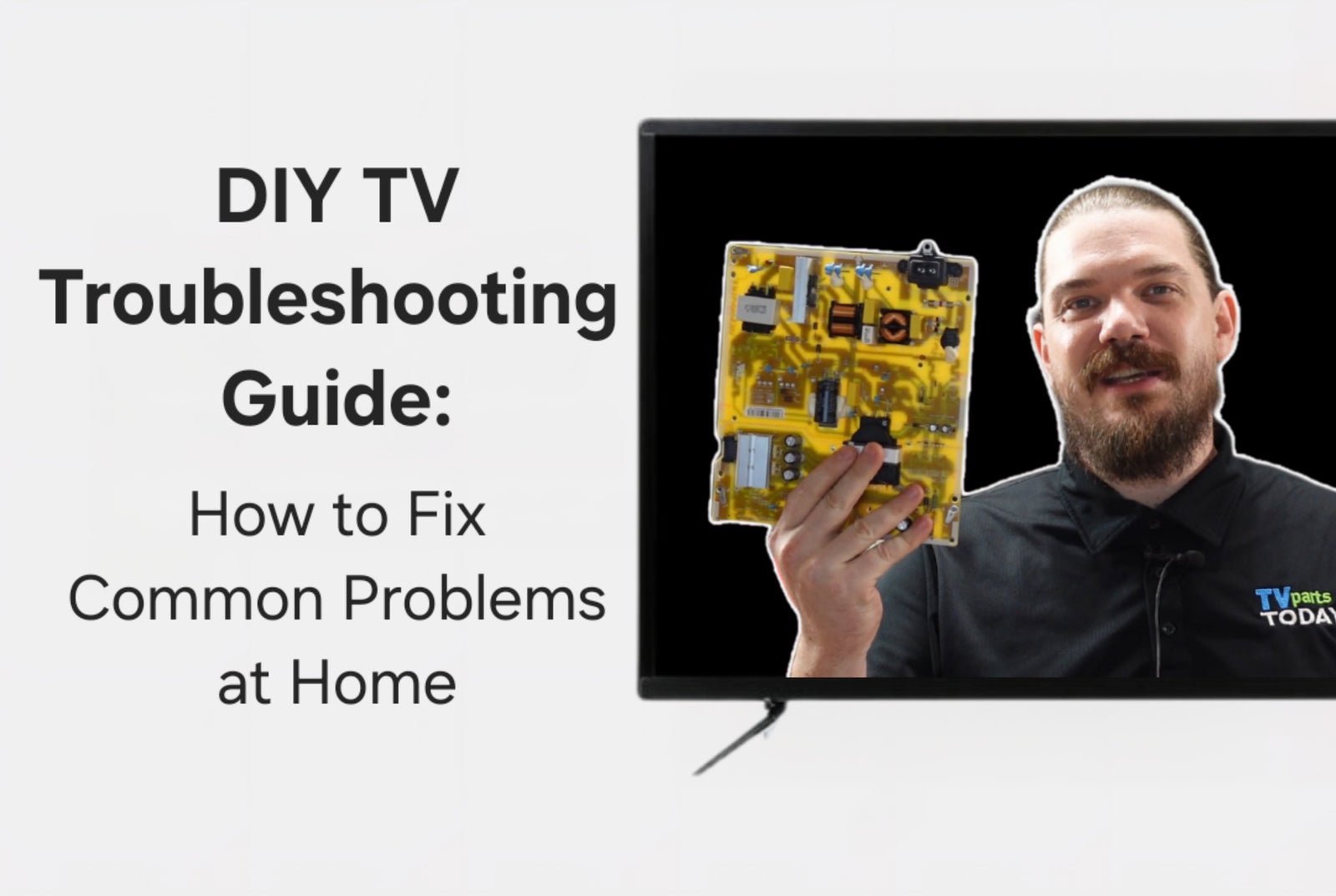 Photo: tvpartstoday.com on Google
Smart TVs run small computers inside their frames, and they face the same problems as laptops or phones. Three main issues trigger almost all common faults.
First, background applications store temporary files that don’t clear when you tap the remote’s power button. Turning the TV off with the remote only puts the set into standby mode, keeping corrupt cache files trapped in memory.
Second, your home Wi-Fi signal drops packets or renegotiates its local IP address, making streaming apps freeze or report network errors.
Third, outdated system software creates conflicts between older operating system files and newly updated third-party streaming apps. Internal hardware failures—like a dead backlight strip or a blown power board—happen much less often than these software stalls.
Power cycle the television completely
This fix is for sets stuck on a black screen, freezing inside menus, or refusing to open any apps.
Grab the physical power cord running from the television and pull it out of the wall outlet. Don’t just turn off the surge protector switch; pull the plug completely. While it stays unplugged, walk over to the TV frame, locate the physical power button on the bottom bezel, and press and hold it down for 30 seconds. This step drains the electricity stored inside the internal power board.
Wait another 30 seconds, then plug the cable directly into a working wall outlet without an extension lead. Turn the TV on. You’ll know it worked when the screen shows the red standby light blink once and the Samsung logo appears from a complete cold start.
Reset the Smart Hub network settings
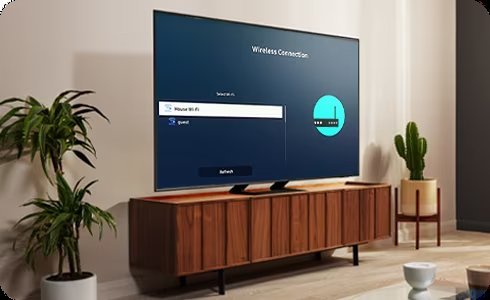 Photo: www.samsung.com on Google
This fix targets streaming drops, slow buffering, and errors that claim the TV has no internet access while your phone works fine.
Open Settings using your remote, select General, click Network, and choose Reset Network. This action wipes saved DNS servers and old Wi-Fi handshakes without erasing your downloaded applications. Once finished, reconnect to your home Wi-Fi network.
If apps still stall, open Settings, select Support, click Device Care, and open Self Diagnosis. Select Reset Smart Hub. You must enter your PIN, which is 0000 on factory default sets. This clears app data, so the trade-off is that you’ll have to sign in to all your streaming accounts again.
Update the firmware via USB drive
This step is for stubborn sets that freeze repeatedly, reboot on a loop, or can’t connect to the internet to download standard software patches.
Download the latest firmware from the maker’s website onto a formatted USB flash drive using your computer. Plug that drive into the USB port on the back panel of your TV. Go to Settings, select Support, select Software Update, and choose Update Now. The system will scan your drive and ask to install the update package.
This process takes between 5 and 15 minutes depending on the file size. Don’t touch the remote or unplug the TV while the progress bar moves. If your screen stays completely black and shows no red standby light at all, this isn’t for you—that indicates an internal hardware failure, and you should contact a licensed repair technician.
What not to do
- Don’t hit, twist, or press hard on the panel to fix horizontal lines, because physical force will crack the liquid crystal layers permanently.
- Don’t leave the TV connected to a loose or daisy-chained extension cord, which causes voltage drops that trigger random power resets.
- Don’t unscrew the back casing of the TV to inspect circuit boards yourself, since internal capacitors can hold dangerous electrical charges even when unplugged.
- Don’t run a full factory reset if only one single app crashes, because you’ll lose all picture settings when simply reinstalling that single app fixes it.
How to stop it happening again
 Photo: remotetv.begamob.com on Google
Simple maintenance habits keep your TV running fast and prevent memory errors.
| If you’re doing this | Do this instead | Why |
|---|---|---|
| Leaving the TV on standby for months | Hold the remote power button until the logo appears | Standby mode never clears temporary memory junk |
| Running twenty apps at once | Delete unused apps from the settings menu | Extra apps consume limited local flash storage |
| Connecting over a weak 5 GHz Wi-Fi link | Switch to a 2.4 GHz band or use an Ethernet cable | Thick walls block high frequencies and drop video streams |
| Skipping regular firmware prompts | Enable auto-update inside the support menu | Old firmware causes bugs with new streaming protocols |
| Plugging the TV into crowded power strips | Use a wall socket or dedicated surge protector | Shared power strips cause voltage spikes during startup |
Frequently asked questions
Why is my Samsung TV screen black but sound still works?
Your backlight array has likely failed or shut down. Shine a bright flashlight directly against the glass at an angle while sound plays; if you see faint shapes, the panel works but the LED backlights need professional replacement.
Can I factory reset my Samsung TV without a remote?
Yes. Locate the small physical control button under the front logo or behind the bottom-right corner.
How long should a Samsung smart TV last?
A standard LED TV runs for roughly 40,000 to 60,000 hours under normal use. Setting the brightness slightly below maximum reduces heat build-up on the power board and helps prevent early LED burnout.
Is it safe to leave a smart TV plugged in all the time?
Yes, it’s designed for continuous standby power. However, if severe electrical storms hit your area, unplug the power cord completely to protect the sensitive internal motherboards from grid power surges.
Why does my Samsung TV keep turning off by itself?
An active Sleep Timer, Eco Mode shut-off, or an overheating processor usually causes this. Check your General settings to disable the auto-power-off timer, and clear dust away from the rear air vents.
What happens if I unplug my TV while it’s updating?
You’ll corrupt the operating system memory. The TV might refuse to turn on again or become stuck on a permanent boot loop, which requires a mainboard service call to fix.