
Is your Dish Network remote control acting up when you need it the most? You’re not alone, and the good news is that most remote issues are easier to fix than you might think.
Whether your remote won’t respond, buttons are sticking, or it’s just not connecting to your receiver, this guide will walk you through simple, effective troubleshooting steps. Keep reading, and you’ll be back in control in no time—no tech expertise needed.
Your next binge-watch session depends on it!
Common Remote Issues
Dish Network remotes sometimes stop working properly. This can cause frustration during your TV time. Several common issues can affect the remote’s performance. Understanding these problems helps you fix them quickly.
Remote Not Responding
The remote may not respond to button presses. This often happens if the batteries are dead. Try replacing them with fresh ones. Dirt or dust on the remote’s sensor can also cause problems. Clean the sensor gently with a soft cloth. Another cause is interference from other electronic devices nearby.
Buttons Not Working
Some buttons might stop working while others work fine. This can be due to dirt or sticky residue under the buttons. Clean the buttons carefully to remove any grime. Wear and tear from frequent use can also cause buttons to fail. In some cases, the remote may need repair or replacement.
Remote Not Pairing
The remote may fail to pair with the Dish receiver. This often happens after changing the receiver or remote. Make sure the remote is compatible with your Dish system. Follow the pairing instructions exactly. Sometimes, resetting the remote or receiver can help. Check for software updates on your receiver as well.

Credit: www.youtube.com
Basic Fixes To Try
Dish Network remote control issues can disrupt your TV time. Many problems have simple solutions. These basic fixes help restore your remote’s function fast. Try these steps before calling support or buying a new remote.
Replace Or Check Batteries
Dead or weak batteries cause most remote problems. Remove the back cover and take out the batteries. Use new, fresh batteries and insert them correctly. Check if the battery contacts are clean and not corroded. This small step solves many remote issues.
Reset The Remote
Resetting clears any glitches in the remote. Remove the batteries. Press and hold any button for 10 seconds. Release the button and put the batteries back in. This resets the remote’s internal circuits. Try the remote again after this simple reset.
Clean The Remote
Dirt and dust can block buttons or sensors. Use a soft cloth to wipe the remote’s surface. Clean around the buttons with a cotton swab dipped in rubbing alcohol. Avoid using too much liquid. A clean remote improves button response and signal strength.
Reprogramming The Remote
Reprogramming your Dish Network remote can solve many control issues. It helps the remote communicate correctly with your devices. This process is simple and can be done at home. Follow the steps carefully to avoid frustration. Proper programming ensures smooth operation of your Dish receiver and TV.
Pairing With Dish Receiver
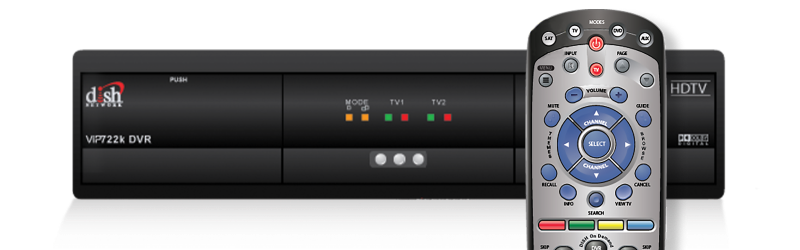
Start by turning on your Dish receiver. Hold the “Select” and “Mute” buttons together for five seconds. The remote’s light will blink green twice. Enter the three-digit code for your receiver model. The light will blink twice again if the code is accepted. Press “Exit” to finish pairing. Test the remote to check if it controls the receiver.
Programming For Tv Control
Turn on your TV before programming. Press and hold “Setup” until the remote’s light blinks. Enter the TV’s code from the Dish manual. Watch for two green blinks to confirm the code. Point the remote at the TV and press the “Power” button. The TV should turn off. If not, try another code. Repeat these steps until the TV responds correctly.
Credit: www.hunker.com
Advanced Troubleshooting
Advanced troubleshooting helps solve tough problems with your Dish Network remote. Basic fixes may not work. This section guides you through detailed steps to get your remote working again. Follow each step carefully for best results.
Check For Interference
Interference can block signals between your remote and receiver. Wireless devices, lights, or metal objects nearby may cause this. Move other electronics away from your Dish receiver. Turn off nearby devices that use infrared or wireless signals. Try using the remote again after reducing interference.
Inspect Remote Sensor
The remote sensor on the Dish receiver might be dirty or damaged. Look for dust or dirt on the sensor window. Clean it gently with a soft cloth. Make sure nothing blocks the sensor’s line of sight. Test the remote from different angles and distances to check sensor response.
Update Receiver Software
Outdated software can cause remote control problems. Check if your Dish receiver has the latest software update. Go to the settings menu and select software update. Follow on-screen instructions to download and install updates. Restart your receiver after the update completes to improve remote function.
Remote Replacement Options
Replacing a Dish Network remote can solve many common issues. There are several easy options to get a new remote or an alternative control method. Choose what fits best with your needs and budget.
Ordering A New Remote
Dish Network offers replacement remotes directly on their website. You can select the remote model that matches your receiver. It usually arrives within a few days. This option ensures full compatibility and original features.
Using A Universal Remote
Universal remotes work with many devices, including Dish receivers. They are often cheaper and available at stores or online. Look for one that supports Dish Network codes. Setup is simple by entering the correct code from the manual.
Mobile App As Remote
Dish Network has a free mobile app that acts as a remote control. The app connects to your receiver using Wi-Fi. It offers all the buttons and functions of a physical remote. This option is convenient if you prefer using your phone.
Tips For Remote Maintenance
Keeping your Dish Network remote control in good shape helps it work better and last longer. Small efforts in maintenance can prevent many common problems. Follow these simple tips to keep your remote ready to use every time.
Proper Storage
Store the remote in a safe, dry place. Avoid areas with direct sunlight or heat. Keep it away from liquids and food spills. Use a designated spot to reduce the chance of losing it. Proper storage protects the remote from damage and wear.
Regular Cleaning
Clean your remote often to remove dirt and dust. Use a soft, dry cloth or a slightly damp cloth if needed. Avoid harsh chemicals or soaking the remote. Pay special attention to buttons and crevices. Regular cleaning keeps the remote responsive and looking new.
Battery Care
Check the batteries regularly to avoid leaks and power loss. Replace old batteries promptly with the correct type. Remove batteries if you won’t use the remote for a long time. Proper battery care prevents damage and ensures smooth operation.
Credit: support.dish.com
Frequently Asked Questions
How Do I Reset My Dish Network Remote Control?
To reset, press and hold the ‘SAT’ and ‘Select’ buttons together for 5 seconds. The remote will blink twice. This clears old settings and starts fresh.
Why Is My Dish Remote Not Controlling The Receiver?
Check if the remote is set to the correct device mode (SAT). Make sure there are no obstacles blocking the signal path. Also, try replacing the batteries.
How Can I Reprogram My Dish Network Remote?
Press and hold ‘Setup’ until the LED blinks twice. Enter the 3-digit device code found in the manual. Press ‘Setup’ again to save the code.
What Should I Do If My Dish Remote Buttons Don’t Work?
Dirty or stuck buttons cause issues. Clean the remote gently with a soft cloth. If that doesn’t help, try changing the batteries.
How Do I Sync My Dish Remote With A New Tv?
Press and hold ‘Setup’ until the LED blinks. Enter your TV brand code and press ‘Power’ to test. Save the code if the TV responds.
Can A Dish Remote Control Other Devices?
Yes, many Dish remotes can control TVs, DVD players, and sound systems. Use the device codes to program each device separately. This reduces the number of remotes needed.
Conclusion
Troubleshooting your Dish Network remote can save time and frustration. Check the batteries first and replace them if needed. Clean the remote sensor and point it directly at the receiver. Resetting the remote can fix many common problems. If issues continue, contact Dish Network support for help.
Small fixes often restore your remote’s function quickly. Stay patient and follow simple steps carefully. You can enjoy your TV without delays or interruptions.