
Is your Sony TV not connecting to WiFi? It can be really frustrating when your favorite shows won’t stream, and you don’t know why.
You’re not alone—many people face this exact problem. But don’t worry, you’re just a few simple steps away from fixing it. You’ll discover easy solutions that anyone can try, even if you’re not tech-savvy. Keep reading, and you’ll have your Sony TV back online in no time.
Common Causes Of Wifi Issues
Many users face issues with their Sony TV not connecting to WiFi. These problems often stem from common causes. Understanding these causes can help fix the connection quickly. Below are some frequent reasons for WiFi connection issues.
Network Interference
Network interference happens when other devices disrupt the WiFi signal. Microwaves, cordless phones, and nearby routers cause this. Thick walls and floors also weaken the signal strength. Interference leads to slow or dropped connections on your Sony TV.
Router Problems
Routers sometimes face glitches or become overloaded. Old routers may not support the latest WiFi standards. Incorrect router settings can block your TV from connecting. Restarting or updating the router often helps fix these problems.
Software Glitches
Software glitches in the TV can stop WiFi from working properly. Outdated firmware or corrupted software causes these issues. Regular updates keep the TV software stable and secure. Resetting the TV’s network settings may also resolve glitches.
Incorrect Settings
Wrong network settings on the Sony TV prevent WiFi connection. Entering the wrong password is a common mistake. Using the wrong network type or IP settings can block access. Double-checking the settings ensures a smooth connection process.
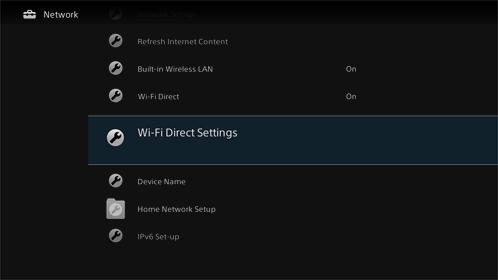
Credit: info.tvsideview.sony.net
Basic Troubleshooting Steps
Basic troubleshooting steps help fix most Sony TV WiFi problems. They are simple and quick to do. Follow these easy tips to try and restore your TV’s connection.
Start with small checks before moving to complex fixes. These steps can save time and avoid frustration. Let’s explore some basic methods to get your Sony TV online again.
Restarting Your Tv And Router
Turn off your Sony TV and unplug it from power. Wait 30 seconds before plugging it back in. Restart your WiFi router the same way. This refreshes connections and clears temporary issues.
Power cycling your devices often fixes network glitches. After restarting, try to connect your TV to WiFi again.
Checking Wifi Password
Make sure you enter the correct WiFi password on your TV. Check for typos or wrong characters. Passwords are case-sensitive, so use uppercase and lowercase carefully.
Incorrect passwords stop your TV from joining the network. Double-check to avoid this simple but common error.
Moving Closer To Router
Distance affects WiFi signal strength. Move your Sony TV closer to the router if possible. Walls and furniture can block the signal and cause connection drops.
A stronger signal helps your TV connect faster and stay online. Try this if your TV shows weak or no WiFi signal.
Adjusting Network Settings
Adjusting network settings can fix many WiFi connection problems on your Sony TV. Sometimes the TV struggles to connect because of incorrect or outdated settings. Changing these settings can help the TV find and join your WiFi network more easily.
Start by checking the network configuration. This is the basic setup your TV uses to connect. Resetting it can clear errors or conflicts that stop the connection. After resetting, the TV will try to connect fresh, which often solves the issue.
Resetting Network Configuration
Go to your TV’s settings menu and find the network section. Select the option to reset network settings. This deletes saved WiFi details and restores default network setup. After resetting, reconnect to your WiFi by entering your password again. This step can clear glitches and refresh the connection process.
Assigning Static Ip Address
Sometimes, your TV may have trouble getting an IP address from the router. Assigning a static IP address can solve this. In the network settings, choose manual IP setup. Enter an IP address that fits your home network range. This prevents conflicts and keeps your TV connected reliably.
Changing Dns Settings
DNS helps your TV find websites and apps on the internet. Changing DNS servers can improve connection speed and stability. In network settings, select manual DNS entry. Use public DNS servers like Google’s 8.8.8.8 or 8.8.4.4. This can fix issues related to slow or failed WiFi connections.
Updating Tv Software
Updating your Sony TV software can fix many WiFi connection problems. Software updates improve the TV’s performance and security. They also fix bugs that stop the TV from connecting to the internet. Regular updates keep your TV running smoothly.
Checking For Firmware Updates
Turn on your Sony TV and open the Settings menu. Find the “About” or “Support” section. Select “Software Update” or “System Update.” The TV will check for the latest firmware online. If an update is available, follow the on-screen instructions to install it. Keep the TV connected to WiFi during this process. Restart the TV after the update finishes.
Manual Update Methods
Sometimes, automatic updates fail. In this case, you can update manually. Visit the Sony support website on your computer. Download the latest firmware file for your TV model. Copy the file to a USB drive. Insert the USB into your TV’s port. Go to Settings, then “System Update,” and choose “Update via USB.” Follow the steps to complete the update. This method works without a WiFi connection.
Advanced Fixes
Advanced fixes tackle tough issues with Sony TV WiFi problems. They go beyond basic troubleshooting steps. These fixes help when simple resets and checks fail.
Follow these methods carefully. They can restore your TV’s internet connection and improve performance.
Factory Resetting The Tv
Resetting your Sony TV restores original settings. This clears any wrong network configurations. Navigate to the settings menu and find the reset option. Confirm the reset and wait for the TV to restart. After reset, set up WiFi again from scratch. This often solves deep software glitches affecting connection.
Using Ethernet Connection
Try a wired connection for a stable internet link. Connect an Ethernet cable from your router to the TV. This bypasses WiFi issues completely. Ethernet connections are faster and more reliable. It helps check if WiFi hardware on the TV is faulty.
Contacting Sony Support
Sony support offers expert help for unresolved problems. Reach out via phone, chat, or their website. Provide your TV model and detailed issue description. Support can guide you through advanced solutions or repairs. They may identify hardware issues needing professional service.
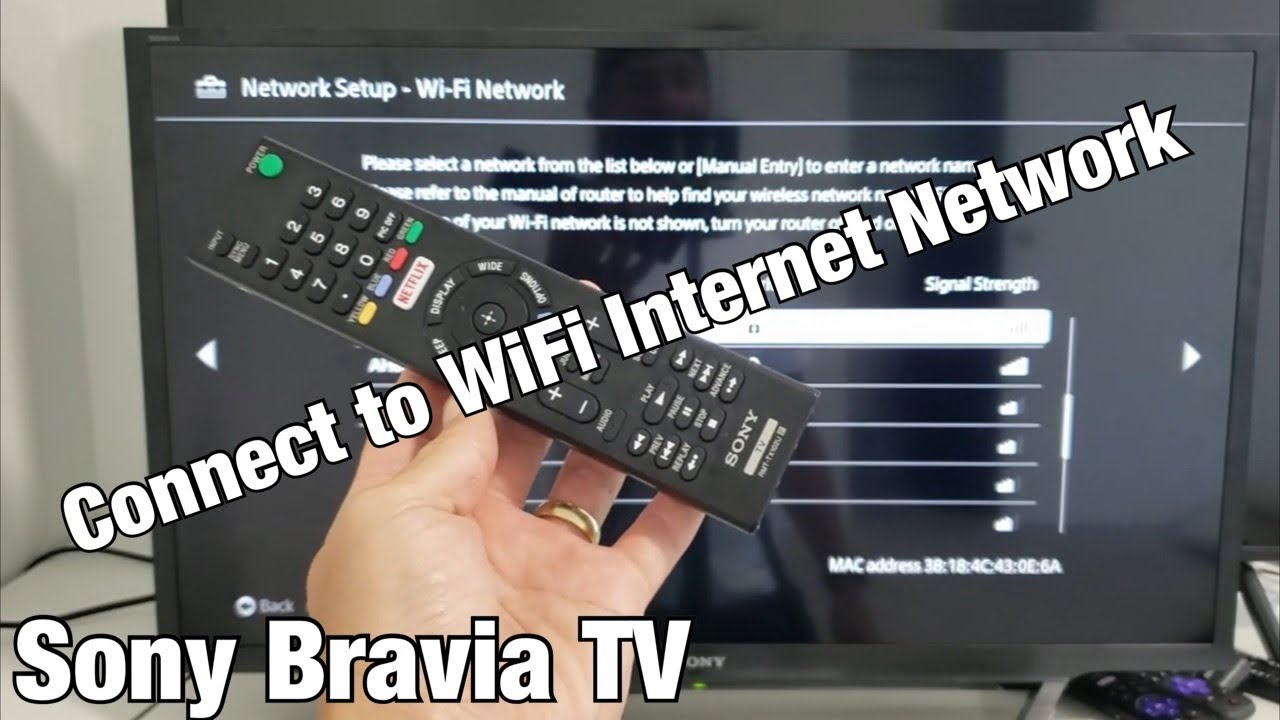
Credit: www.youtube.com

Credit: www.youtube.com
Frequently Asked Questions
Why Is My Sony Tv Not Connecting To Wifi?
Sony TV may not connect due to weak signal, wrong password, or network issues.
How Do I Fix Sony Tv Wifi Connection Problems?
Restart TV and router, check password, and update TV software for better connection.
Can A Software Update Solve Sony Tv Wifi Issues?
Yes, software updates often fix bugs that cause WiFi connection problems.
What Should I Do If Sony Tv Says “wifi Unavailable”?
Check if router is on, TV is in range, and network settings are correct.
How To Improve Wifi Signal For Sony Tv Connection?
Place router closer to TV or use a WiFi extender for a stronger signal.
Conclusion
Sony TV not connecting to WiFi can be frustrating. Try simple fixes first like restarting the TV and router. Check your network settings carefully. Make sure your password is correct and your signal is strong. Sometimes, updating the TV software helps.
If problems continue, reset your network settings or contact support. Staying patient and following these steps usually solves the issue. Enjoy smooth streaming once your connection works again. Don’t give up—your Sony TV can connect to WiFi with a little effort.