
Have you ever walked into your room only to find your Samsung TV turning on by itself? It’s confusing, a bit spooky, and can even waste your electricity.
If your TV keeps powering up without you touching the remote, you’re not alone—and there are simple reasons behind it. Keep reading to discover why this happens and how you can stop your Samsung TV from turning on unexpectedly. You’ll be surprised how easy the fix can be!

Credit: www.wikihow.com
Common Causes Of Automatic Power-on
Samsung TVs turning on by themselves can confuse many users. This issue happens due to several common reasons. Understanding these causes helps solve the problem fast. Here are the main reasons why your Samsung TV powers on automatically.
Software Glitches
Software bugs often cause TVs to turn on without warning. Sometimes updates fail or files get corrupted. These glitches make the TV behave oddly, including powering on alone. Restarting or updating the TV software can fix this issue.
Remote Control Issues
A stuck button on the remote can send power signals repeatedly. Old or damaged remotes may malfunction and turn the TV on. Other nearby remotes or devices using infrared signals might also trigger the TV.
Connected Devices
Devices linked via HDMI can control your TV. Features like HDMI-CEC allow devices to turn the TV on automatically. A Blu-ray player or game console may send power commands without your knowledge.
Power Supply Problems
Unstable power or faulty cables can cause the TV to turn on. Electrical surges or loose connections may trigger the power circuit. Checking the power source and cables can help stop this issue.
Scheduled Settings
Some Samsung TVs have timers or sleep settings that turn the TV on. These scheduled features might activate by mistake. Reviewing and disabling any timers can prevent unexpected power-ons.
Simple Troubleshooting Steps
Samsung TVs turning on by themselves can be frustrating. Simple troubleshooting steps can help fix this issue fast. Follow these easy methods to find the cause and solve the problem.
Restart The Tv
Turn off your Samsung TV completely. Unplug it from the power outlet. Wait for about one minute. Plug the TV back in and turn it on. Restarting can clear minor glitches causing the issue.
Check Remote Batteries
Old or weak batteries may send signals accidentally. Remove the batteries from your remote control. Wait a few seconds, then put new batteries in. Test if the TV still turns on by itself.
Disconnect External Devices
External devices can cause your TV to power on unexpectedly. Unplug all devices like gaming consoles, streaming sticks, and USB drives. Watch your TV for some time. If the problem stops, reconnect devices one by one.
Update Firmware
Outdated firmware can cause strange TV behavior. Go to the settings menu on your TV. Find the “Software Update” option. Download and install any available updates. Updated software often fixes bugs and improves performance.
Reset To Factory Settings
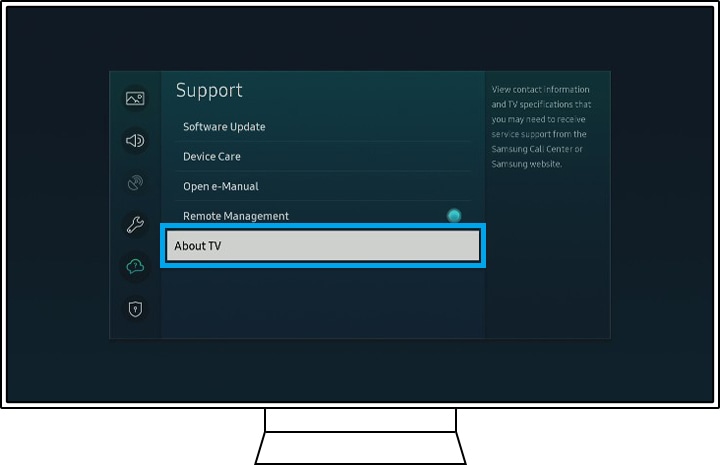
Factory reset clears all settings and returns the TV to original state. Open the settings menu and select “Support.” Choose “Self Diagnosis” and then “Reset.” Enter your PIN and confirm. Use this step only if other fixes don’t work.
Adjusting Tv Settings
Adjusting your Samsung TV settings can stop it from turning on by itself. Small changes in the settings help control this behavior. This section guides you through simple steps to fix the issue.
Disable Anynet+ (hdmi-cec)
Anynet+ lets your TV control connected devices through HDMI. Sometimes, other devices can wake your TV without your knowledge. Turning off Anynet+ stops this automatic power on. Go to Settings > General > External Device Manager > Anynet+ (HDMI-CEC). Switch it off to prevent the TV from turning on by itself.
Turn Off Quick Start Mode
Quick Start Mode makes your TV start fast but can cause it to turn on unexpectedly. Disabling this feature can help. Find Quick Start Mode under Settings > General > Start-up Settings. Turn it off to reduce random power-ons.
Manage Wake-on-lan Features
Wake-on-LAN lets your TV turn on through network signals. This feature may cause power issues if you do not use it. To manage this, go to Settings > General > Network > Expert Settings. Look for Wake-on-LAN and switch it off if not needed.
Check For Timers And Alarms
Timers or alarms can turn your TV on at set times. Check these settings to avoid surprises. Navigate to Settings > General > System Manager > Time. Review all timers and alarms. Delete or adjust any that might cause the TV to power on alone.
Credit: www.youtube.com
Preventing Future Power-on Issues
Preventing your Samsung TV from turning on by itself saves time and frustration. Simple care steps help keep your TV working right. Small habits make a big difference in avoiding power issues.
Follow these tips to keep your TV running smoothly and avoid unexpected power-ons.
Regular Software Updates
Keep your TV’s software up to date. Updates fix bugs that may cause power problems. Check for updates in the settings menu. Set the TV to update automatically if possible. This helps prevent glitches that turn the TV on alone.
Proper Remote Storage
Store your remote in a safe place. Avoid placing it where buttons can get pressed by accident. Keep it away from heat and moisture. Faulty signals from a remote often cause the TV to power on unexpectedly.
Avoid Using Faulty Power Strips
Use good-quality power strips or surge protectors. Faulty strips can send wrong signals to your TV. Plug the TV directly into a wall outlet if unsure. Reliable power sources help stop random turn-ons.
Routine Maintenance Tips
Clean your TV and remote regularly. Dust and dirt can affect sensors and buttons. Check all cables and connections to ensure they are secure. Routine care reduces the chance of power issues and keeps your TV in good shape.
When To Contact Samsung Support
Knowing when to contact Samsung support is important for your TV’s health. Some issues need expert help. Others you can fix at home. This section helps you decide when it’s time to call Samsung.
Persistent Power-on Problems
Your Samsung TV turns on by itself often. It happens even after resets and unplugging. This problem is persistent and disrupts your use. Contact Samsung support if the issue does not stop. They can guide you with advanced troubleshooting or service.
Hardware Malfunction Signs
Look for signs of hardware issues. Strange noises, flickering screen, or unusual heat are warning signs. The TV may also fail to respond to the remote properly. These signs suggest a hardware malfunction. Samsung support can help diagnose and fix hardware problems.
Warranty And Repair Options
Check if your TV is under warranty. Samsung offers repair or replacement for many defects. Support can explain your warranty status and repair options. Use their service to avoid extra costs and get expert repairs. This ensures your TV works well for a long time.
Credit: www.samsung.com
Frequently Asked Questions
Why Does My Samsung Tv Turn On By Itself?
Your TV may turn on due to software updates, HDMI signals, or power settings.
Can Remote Control Cause Samsung Tv To Power On Alone?
Yes, a stuck button or nearby remote can trigger the TV to switch on.
Does Samsung Tv’s Quick Start Mode Affect Auto Power On?
Quick Start mode can cause the TV to turn on faster after standby.
How To Stop Samsung Tv From Turning On Randomly?
Disable features like Anynet+ (HDMI-CEC) and check for scheduled updates.
Could Power Surges Make Samsung Tv Switch On By Itself?
Power surges or unstable electricity can cause your TV to power on unexpectedly.
Conclusion
A Samsung TV that turns on by itself can be annoying. Check settings like Anynet+ and timers first. Sometimes, a software update fixes the problem. Unplugging the TV for a short time may help too. Make sure no remote or device sends signals accidentally.
If issues continue, contacting Samsung support is a good step. Small fixes often solve the problem quickly. Keep your TV working smoothly with simple care. Don’t let unexpected power-ons spoil your viewing time.