
Is your Vizio TV not recognizing HDMI connections? It’s frustrating when you plug in your device, but the screen stays blank or says “No Signal.” You might feel stuck, wondering what’s wrong and how to fix it quickly.
Don’t worry—this problem is more common than you think, and you can solve it without calling a technician. You’ll discover simple, effective steps to get your HDMI ports working again. Keep reading, and you’ll be back to enjoying your favorite shows in no time.

Credit: www.youtube.com
Common Causes Of Hdmi Issues
HDMI problems with Vizio TVs often stem from a few common causes. Understanding these issues helps fix the problem faster. Many users face HDMI recognition errors due to simple errors or hardware issues. Identifying the root cause is the first step to solving HDMI troubles.
Loose Or Damaged Cables
Loose HDMI cables can stop the TV from recognizing the signal. A cable not fully plugged in may cause flickering or no picture. Damaged cables with bent pins or cuts also cause connection failures. Checking cables and replacing broken ones often resolves the issue.
Incorrect Input Settings
The TV must be set to the right HDMI input to display content. Choosing the wrong HDMI port on the TV menu causes no signal errors. Double-check the input source matches the connected HDMI port. Switching inputs correctly can restore the picture quickly.
Firmware Glitches
Vizio TV firmware controls HDMI functions and can have bugs. Outdated or corrupted firmware may block HDMI recognition. Updating the TV’s software often fixes these bugs. Restarting the TV after an update refreshes the system and clears glitches.
Hdmi Port Damage
Physical damage to the HDMI port can prevent proper connections. Ports may loosen or break after frequent plugging and unplugging. Dust or debris inside the port also disrupts the signal. Inspecting and cleaning ports helps; severe damage may need professional repair.
Basic Troubleshooting Steps
When your Vizio TV does not recognize the HDMI connection, basic troubleshooting helps find simple fixes fast. These steps solve common problems without needing expert help. Start with easy checks before moving to advanced solutions.
Check Cable Connections
Check if the HDMI cable is firmly plugged into both the TV and the device. Loose connections cause signal loss. Unplug and replug the cable to ensure a good fit. Look for damaged or bent pins on the cable ends.
Switch Hdmi Ports
Try plugging the HDMI cable into a different port on your Vizio TV. Sometimes, one port might stop working properly. Switching ports helps identify if a single port is faulty. Use a port you know works with other devices.
Restart Your Tv And Devices
Turn off your TV and the connected device. Unplug both from the power outlet. Wait about one minute. Plug them back in and turn them on. Restarting resets connections and clears minor glitches.
Verify Input Source
Make sure your TV is set to the correct HDMI input. Use the remote to select the input that matches the port used. Wrong input selection causes the TV to show no signal. Double-check the input name on screen.
Advanced Fixes To Try
Sometimes basic fixes do not solve the HDMI recognition issue on your Vizio TV. Advanced fixes offer deeper solutions to clear hidden problems. These steps help refresh your TV’s software and settings.
Try these advanced methods carefully. They often fix stubborn HDMI connection errors. Follow each step in order for the best results.
Update Vizio Tv Firmware
Outdated firmware can cause HDMI problems. Updating your TV’s firmware improves performance and fixes bugs. Go to the TV’s settings menu, select “System,” then “Check for Updates.” Download and install any available updates. This can resolve HDMI recognition issues quickly.
Reset Hdmi Settings
Resetting HDMI settings clears errors and refreshes the connection. Find “HDMI Settings” in the TV’s menu. Choose the option to reset or clear HDMI settings. After resetting, unplug all HDMI cables. Wait a few minutes, then reconnect. This step often restores normal HDMI function.
Perform A Factory Reset
A factory reset returns your TV to original settings. It removes all customized settings and can fix deep software glitches. Go to “System” in the TV menu. Select “Reset & Admin” then “Factory Reset.” Confirm your choice and wait for the TV to restart. This should fix persistent HDMI recognition problems.
Credit: www.costco.com
Preventing Future Hdmi Problems
Preventing future HDMI problems with your Vizio TV saves time and stress. Simple habits help keep connections stable and strong. Taking care of cables and software avoids most issues. Follow easy steps to enjoy smooth HDMI use every time.
Use High-quality Hdmi Cables
Choose HDMI cables with good build and shielding. Cheap cables often fail or cause signal loss. High-quality cables last longer and provide clear signals. Look for cables that support your TV’s resolution and features. This small choice prevents many common HDMI problems.
Regularly Update Firmware
Keep your Vizio TV’s firmware up to date. Updates fix bugs that affect HDMI connections. Check for updates in the TV menu often. Updated software improves compatibility with devices. This simple step helps your TV recognize HDMI inputs better.
Avoid Frequent Cable Switching
Plug and unplug HDMI cables only when needed. Constant switching can wear out ports and cables. Damaged ports cause loose connections and signal loss. Use a switcher device if you change inputs often. Gentle handling protects your TV’s HDMI ports for longer.
When To Contact Support
Knowing when to contact support for your Vizio TV HDMI issues saves time and effort. Some problems need expert help to fix properly. Trying to fix serious issues alone can cause more damage. Support teams have tools and knowledge to diagnose and solve complex problems quickly.
Persistent Connection Failures
Sometimes, the HDMI connection fails repeatedly. Restarting the TV or checking cables may not help. If the TV never recognizes any HDMI device, this is a sign to call support. Persistent issues could mean a deeper software or hardware problem. Experts can guide you through advanced troubleshooting steps.
Physical Port Damage
Visible damage to the HDMI port needs professional care. Bent pins or loose ports can stop the TV from detecting HDMI signals. Trying to force a connection risks worsening the damage. Support can advise on safe repair or replacement options. Avoid using damaged ports to prevent short circuits.
Warranty And Repair Options
Check if your Vizio TV is under warranty before fixing it yourself. Warranty coverage can save money on repairs or replacements. Support staff explain your warranty status and available services. Authorized repairs keep your warranty valid and protect your TV. Knowing repair options helps in making the right choice fast.
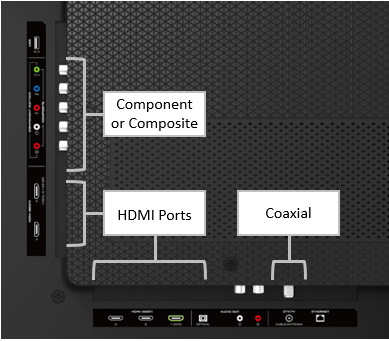
Credit: support.vizio.com
Frequently Asked Questions
Why Is My Vizio Tv Not Detecting Hdmi Input?
Check if the HDMI cable is firmly plugged in and not damaged. Also, ensure the TV input matches the HDMI port.
How Do I Fix Hdmi Connection Issues On Vizio Tv?
Try restarting your TV and the connected device. Replace the HDMI cable if the problem continues.
Can A Faulty Hdmi Cable Cause Detection Problems?
Yes, a broken or low-quality HDMI cable can stop the TV from recognizing the signal.
Does Updating Vizio Tv Software Help Hdmi Detection?
Software updates can fix bugs. Keep your TV’s firmware updated for better HDMI support.
What Hdmi Settings Should I Check On Vizio Tv?
Make sure the HDMI port is enabled in the TV settings and select the correct input source.
Conclusion
Troubles with Vizio TV not recognizing HDMI can be fixed step by step. Check cables, ports, and input settings carefully. Restart devices to refresh connections. Update the TV’s software for better compatibility. Small adjustments often solve the issue quickly. Keep calm and follow these easy tips.
Your TV should work well soon. Enjoy clear, smooth viewing without hassle. Simple fixes save time and frustration. Stay patient and try each method. The solution is often closer than you think.