
Is your TCL Roku TV acting up or running slow? Sometimes, a simple reset is all it takes to fix glitches and get your TV working like new again.
But how exactly do you reset your TCL Roku TV without losing your settings or apps? In this guide, you’ll discover easy, step-by-step instructions to reset your TV safely and quickly. Keep reading—you’re just moments away from bringing back smooth streaming and clear picture quality.
Credit: support.tcl.com
Reasons To Reset Your Tcl Roku Tv
Resetting your TCL Roku TV can solve many common problems. It helps refresh the system and clear errors. Many users reset their TVs to fix issues and improve performance. Knowing the reasons to reset can save time and frustration.
Resetting often restores the TV to its normal working state. It is a simple step that can fix different types of problems quickly. Here are some main reasons to reset your TCL Roku TV.
Performance Issues
The TV may run slow or freeze during use. Apps might take longer to open or not respond. Resetting clears temporary files and frees up memory. This can speed up the TV and improve its performance.
Software Glitches
Sometimes the software may crash or act strangely. Menus might not load correctly or settings fail to save. Resetting restores the TV’s software to default settings. This removes glitches and restores smooth operation.
Network Connectivity Problems
Connection issues often disrupt streaming or app updates. The TV may fail to connect to Wi-Fi or drop the connection. Resetting resets network settings and refreshes the connection. This fixes many common internet problems on the TV.

Credit: www.youtube.com
Types Of Resets For Tcl Roku Tv
Resetting your TCL Roku TV can solve many common issues. Different types of resets serve different purposes. Knowing which reset to use helps fix problems quickly.
There are three main types of resets for TCL Roku TVs. Each one varies in impact and method. Choose the right reset based on your situation.
Soft Reset
A soft reset restarts your TV without deleting any settings. It clears minor glitches and refreshes the system. To do this, simply unplug the TV from power for about 10 seconds. Then, plug it back in and turn it on. This reset is quick and safe.
Factory Reset
A factory reset erases all your settings and personal data. It returns the TV to its original state, like new. Use this reset if the TV has serious issues or you want to start fresh. You can perform a factory reset through the TV’s settings menu.
Hard Reset
A hard reset is similar to a factory reset but done using physical buttons. This method is useful if the TV screen is frozen or you cannot access the menu. Usually, it involves pressing and holding specific buttons on the TV for several seconds. Check your user manual for exact steps.
Resetting Tcl Roku Tv Using Remote
Resetting your TCL Roku TV using the remote is simple and quick. It helps fix many issues without needing extra tools. You can choose between a soft reset or a factory reset. Each method uses your remote to guide you through the process.
Soft Reset Steps
A soft reset refreshes your TCL Roku TV without deleting any data. It solves minor problems like freezing or slow response. Follow these steps:
- Press the Home button on your Roku remote.
- Navigate to Settings and select it.
- Choose System from the menu.
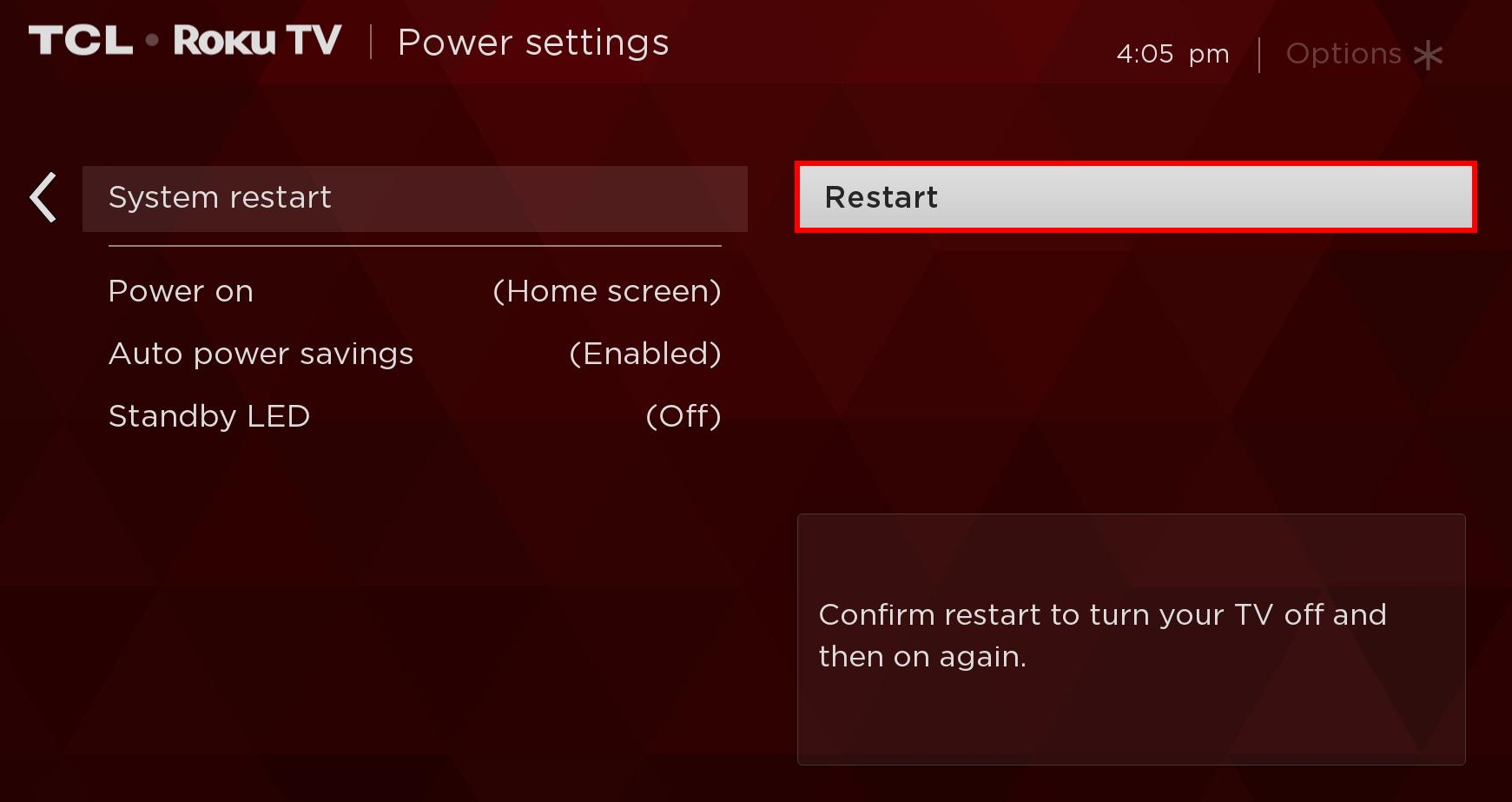
- Select Power, then click System restart.
- Confirm by clicking Restart.
The TV will turn off and back on automatically. This clears temporary glitches and improves performance.
Factory Reset Via Settings Menu
A factory reset erases all your settings and data. Use this only if the soft reset does not solve the problem. Here is how to do it:
- Press the Home button on your remote.
- Go to Settings and select it.
- Open System from the list.
- Choose Advanced system settings.
- Select Factory reset.
- Enter the code shown on screen to confirm.
- Click OK to start the reset.
This process restores the TV to its original factory condition. It fixes deep software issues but deletes all personal data.

Credit: www.wikihow.com
Resetting Tcl Roku Tv Without Remote
Resetting a TCL Roku TV without a remote can seem difficult. Many users think the remote is needed for every function. Yet, there are simple ways to reset the TV using only the TV’s buttons or by power cycling. These methods help solve many common issues without extra tools.
Resetting the TV can fix freezing, slow performance, or network problems. It restores the TV to its original settings. This guide explains two easy ways to reset your TCL Roku TV without a remote.
Using Tv Buttons
Most TCL Roku TVs have physical buttons on the side or back. These buttons control power, volume, and input. To reset the TV, find the reset button or use a combination of buttons.
Press and hold the power button for 20 seconds. While holding, press the volume down button. Keep both pressed until the screen goes black and the Roku logo appears. This starts the reset process. Release the buttons and wait for the TV to restart.
This method performs a factory reset. All settings and apps will be removed. Use it only if you want a fresh start.
Power Cycle Method
Power cycling the TV is another way to fix minor issues. It does not reset the TV but clears temporary bugs. First, turn off the TV using the power button on the TV itself. Next, unplug the TV from the wall outlet.
Wait for at least 60 seconds. This allows the TV to fully power down. After the wait, plug the TV back in. Press the power button to turn it on. The TV will start fresh and may work better.
This method helps if the TV is frozen or slow. It is a quick fix without deleting any settings.
After Reset: Reconfiguring Your Tv
Resetting your TCL Roku TV brings it back to factory settings. This means all previous settings and preferences are erased. After the reset, the TV needs to be set up again. Reconfiguring your TV ensures smooth use and a better viewing experience. Follow the simple steps below to get your TV ready.
Network Setup
First, connect your TV to the internet. Choose your Wi-Fi network from the list shown. Enter the password carefully. A strong connection is important for streaming without interruptions. Wired connections via Ethernet cable also work well. Confirm the connection to move on.
Account Sign-in
Next, sign in to your Roku account. This links your TV to your purchased channels and settings. Use your email and password to log in. Creating an account is easy if you don’t have one. Signing in helps keep your preferences saved for future use.
Installing Channels
After signing in, install your favorite channels. Browse the Roku Channel Store on your TV. Add channels you like by selecting and confirming them. You can install streaming apps like Netflix, Hulu, or Disney+. Organize your channels for easy access. This step makes your TV ready to enjoy.
Troubleshooting Common Reset Problems
Resetting your TCL Roku TV can fix many issues, but sometimes problems occur during the reset process. Troubleshooting these common problems helps you complete the reset successfully. Below are some frequent issues and easy fixes.
Reset Not Initiating
When the reset does not start, check if the TV is properly plugged in. Make sure the power cable is secure. Try pressing and holding the reset button longer. Some models need you to hold it for about 10-15 seconds. If the reset button is hidden, use a paperclip to press it gently. Also, ensure the TV remote is working correctly if you use remote commands to reset.
Tv Stuck On Loading Screen
Your TV may freeze on the loading screen after a reset. Unplug the TV from the power outlet. Wait for 60 seconds to let the TV clear any temporary errors. Plug the TV back in and turn it on. This simple power cycle often solves loading issues. If the TV still freezes, try a factory reset using the physical reset button on the TV itself.
Remote Not Responding
The remote might not work after a reset. Replace the remote batteries with fresh ones. Clean the battery contacts to ensure good connection. Point the remote directly at the TV sensor when pressing buttons. If the remote still fails, try using the Roku mobile app as a remote. This app connects via Wi-Fi and can control your TV without the physical remote.
Tips To Avoid Frequent Resets
Frequent resets can disrupt your viewing experience on a TCL Roku TV. Avoiding these resets helps keep your TV running smoothly. Simple habits can reduce the need for constant restarts. Follow these tips to maintain your TV’s performance and enjoy hassle-free entertainment.
Regular Software Updates
Keep your TCL Roku TV’s software up to date. Updates fix bugs that cause crashes or slowdowns. Check for updates in the settings menu often. Installing the latest version improves stability and adds new features. Regular updates prevent many problems that lead to resets.
Proper Shutdown Practices
Turn off your TV using the remote or power button. Avoid unplugging the TV while it is on. Sudden power cuts can damage the system and cause errors. Let the TV fully shut down before disconnecting power. Proper shutdown keeps your TV’s software healthy and stable.
Maintaining Network Stability
Ensure your internet connection is strong and stable. A weak connection can cause apps to freeze and force resets. Use a wired connection or position your router close to the TV. Restart your router regularly to clear network issues. Stable internet improves streaming and reduces TV resets.
Frequently Asked Questions
How Do I Perform A Soft Reset On My Tcl Roku Tv?
Press the Home button, go to Settings > System > System restart, then select Restart to soft reset.
What Steps Reset Tcl Roku Tv To Factory Settings?
Go to Settings > System > Advanced system settings > Factory reset, then follow the on-screen instructions.
Can I Reset Tcl Roku Tv Without The Remote Control?
Yes, use the physical reset button on the TV, usually found at the back or bottom edge.
Will Resetting Tcl Roku Tv Delete All My Apps And Data?
Yes, factory reset removes all apps, settings, and personal data from your TV.
How Long Does A Tcl Roku Tv Reset Usually Take?
A reset typically takes 5 to 10 minutes to complete and restart fully.
Conclusion
Resetting your TCL Roku TV can fix many common issues. It helps clear errors and refresh settings. Follow the steps carefully to avoid mistakes. After reset, you may need to set up the TV again. This process is simple and quick.
Keep your remote handy during the reset. Remember to back up any important data first. A reset can improve TV performance and responsiveness. Try this method when your TV acts slow or glitches. Stay patient and follow instructions step by step.
Your TCL Roku TV will work better soon.