
Is your Vizio TV acting up or freezing at the worst moments? Resetting it might be the quick fix you need to get back to enjoying your favorite shows without frustration.
But how exactly do you reset your Vizio TV without making things worse? In this guide, you’ll discover simple, step-by-step methods to reset your TV safely and effectively. Keep reading, and you’ll have your Vizio running smoothly again in no time.

Credit: www.wikihow.com
Reasons To Reset Your Vizio Tv
Resetting your Vizio TV can solve many common problems. It helps bring the TV back to normal working order. Sometimes, a reset is the easiest way to fix issues without expert help. Below are key reasons why you might need to reset your Vizio TV.
Fixing Performance Issues
Over time, your Vizio TV may start to slow down. Apps might freeze or crash. The picture or sound may act strangely. A reset clears temporary files and errors. This helps the TV run smoothly again. It often fixes glitches and bugs quickly.
Resolving Connectivity Problems
Wi-Fi or Bluetooth may stop working properly. The TV might lose connection to streaming services. Resetting can refresh network settings. It helps the TV find and connect to devices again. This solves most connection troubles without extra steps.
Clearing Personal Data
Resetting removes all your saved settings and accounts. This is useful before selling or giving away your TV. It ensures your personal information stays private. A reset also clears app logins and preferences. Your TV returns to its original factory state.
Types Of Resets For Vizio Tvs
Resetting a Vizio TV can solve many common problems. Different reset types fix different issues. Knowing which reset to use saves time and effort.
Vizio TVs offer three main reset options. Each type affects the TV differently. Choose the reset that fits your situation best.
Soft Reset
A soft reset refreshes your TV without deleting settings. It clears temporary glitches. To do this, turn off the TV, unplug it for one minute, then plug it back in and turn it on. This method fixes minor issues like frozen screens or sound problems.
Factory Reset
A factory reset erases all data and restores default settings. Use this if your TV has serious problems or slow performance. The process removes all apps, accounts, and custom settings. You can do this through the TV menu or with the reset button on the back of the TV. Make sure to back up any important information first.
Network Reset
A network reset clears all network settings and connections. This is helpful if your TV cannot connect to Wi-Fi or has streaming issues. After the reset, you need to re-enter your Wi-Fi details. This reset only affects internet settings, not your apps or other TV data.
Preparing For The Reset
Preparing to reset your Vizio TV helps avoid problems later. It makes the process smooth and quick. Taking simple steps before the reset saves time and effort. This preparation ensures you do not lose important information.
Follow these steps carefully. They help you get ready to reset your TV without trouble.
Backing Up Important Settings
Some settings on your Vizio TV are easy to lose during a reset. Picture and sound preferences, network details, and app logins are examples. Write these settings down or take photos for reference. This way, you can restore them after the reset.
Backing up prevents the need to set everything from scratch. It also keeps your favorite channels and apps ready to use again.
Gathering Remote And Power Information
Find your Vizio TV remote before starting the reset. The remote controls the process and allows you to navigate menus. Without it, resetting can be difficult or impossible.
Also, check the TV’s power source. Make sure the TV is plugged in and has a steady power supply. Avoid resetting during storms or power outages to prevent damage. Having everything ready helps the reset finish without interruptions.
Credit: www.youtube.com
Resetting Using The Remote Control
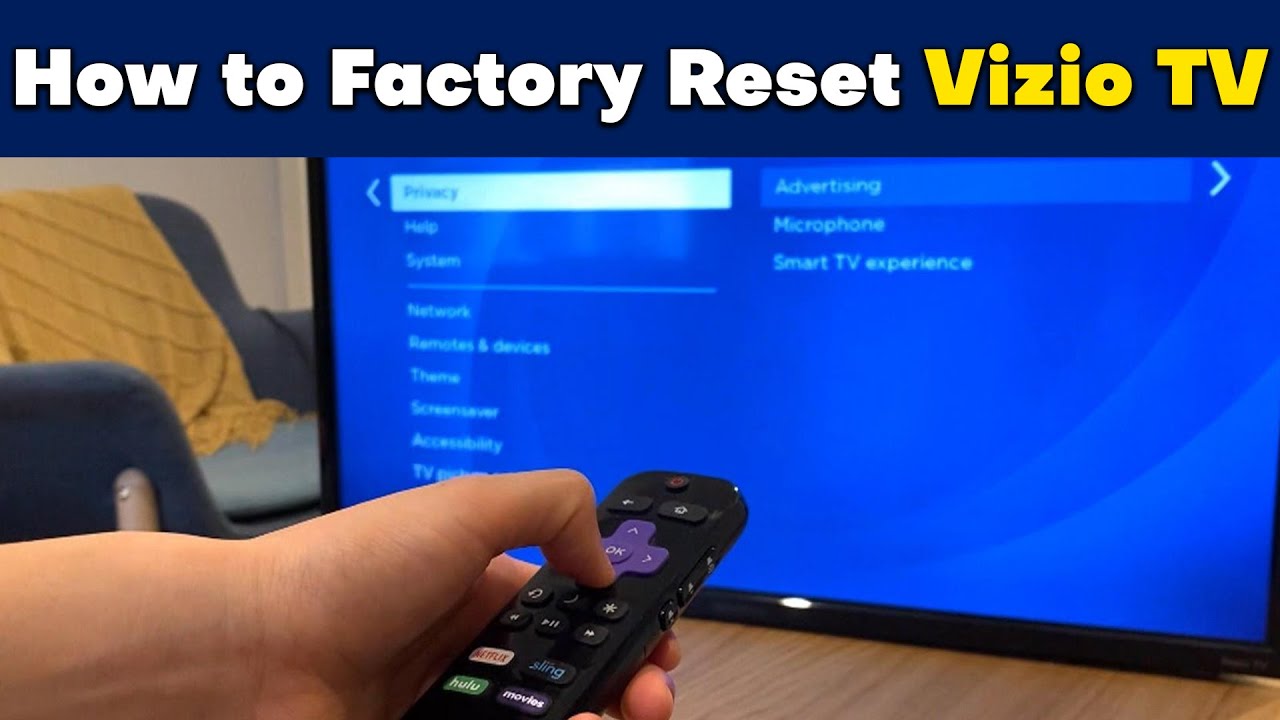
Resetting your Vizio TV using the remote control is a quick way to fix many issues. This method does not need any tools or complex steps. You can perform two types of resets with the remote: a soft reset and a factory reset. Each serves a different purpose and can help improve your TV’s performance.
A soft reset refreshes the TV’s system without deleting your settings or apps. A factory reset restores the TV to its original settings. Use the factory reset only if other methods do not work.
Steps For Soft Reset
- Press the Vizio remote’s Power button to turn off the TV.
- Unplug the TV from the power outlet for about 60 seconds.
- Plug the TV back in and press the Power button on the remote.
- The TV will restart and clear minor glitches.
Steps For Factory Reset
- Press the Menu button on the remote.
- Navigate to System using the arrow keys and press OK.
- Select Reset & Admin and press OK.
- Choose Reset to Factory Settings.
- Enter the TV’s PIN (default is 0000) if asked.
- Confirm the reset by selecting OK.
- The TV will restart and erase all your settings.
Resetting Without The Remote
Resetting a Vizio TV without the remote is possible and useful in many situations. Maybe your remote is lost, broken, or the batteries are dead. You can still reset your TV using the buttons on the TV itself or other easy ways. This guide helps you reset your Vizio TV without needing the remote control.
Using Tv Buttons
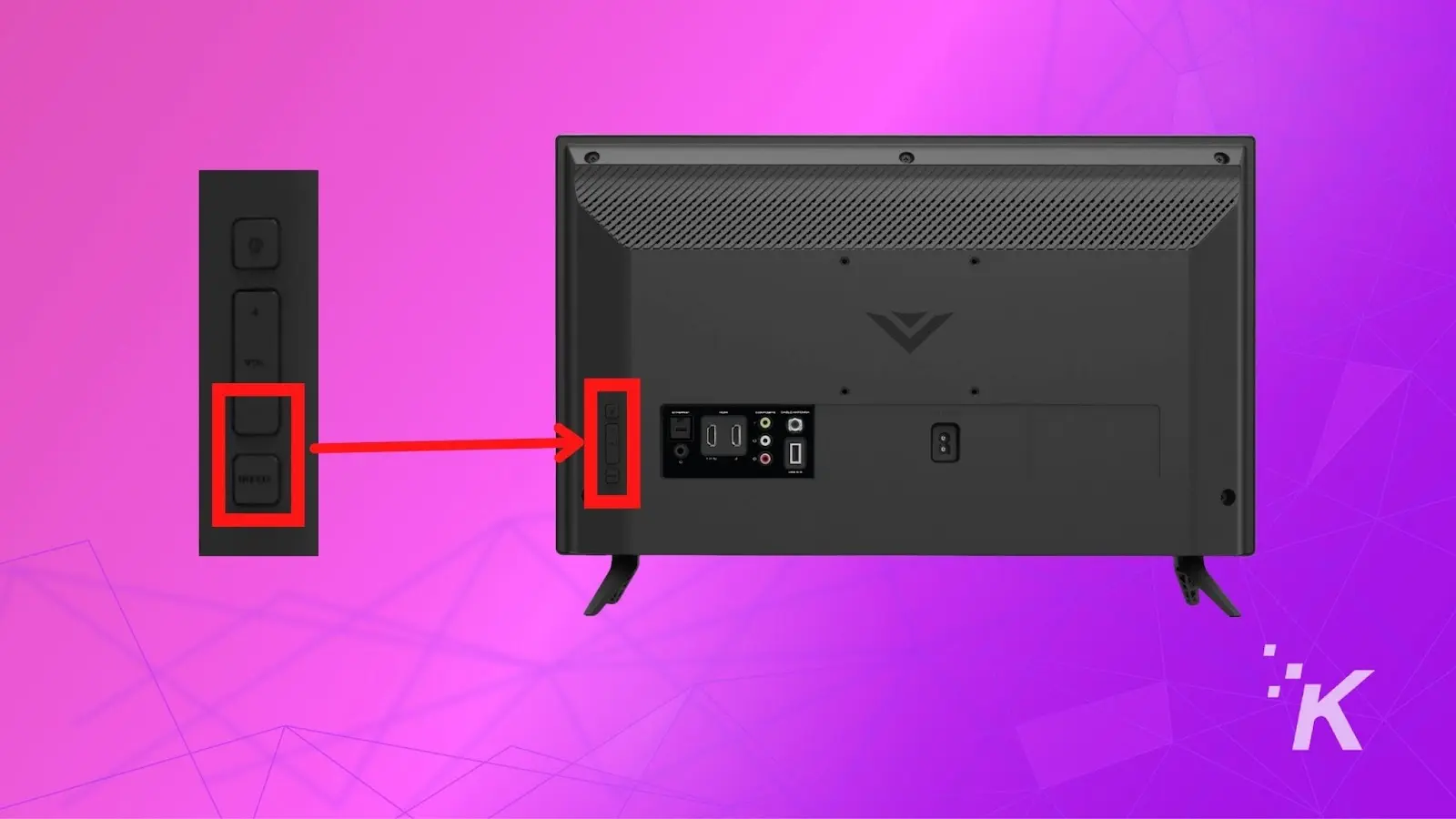
Most Vizio TVs have buttons on the side or back panel. Look for buttons like Power, Volume, and Input. To start, turn off the TV and unplug it from power.
Press and hold the Power button on the TV for about 10 to 15 seconds. While holding the button, plug the TV back into the power socket. Keep holding the Power button until the TV turns on and shows a reset screen or logo.
This action resets the TV to factory settings. Your TV will restart and clear all previous settings. Use the TV buttons to navigate menus if needed after reset.
Alternative Methods
Another way is to use a USB keyboard or mouse if your TV supports USB input. Connect the device to the TV and use it to access the settings menu. From there, select the reset option.
You can also try the Vizio SmartCast app on your phone. This app can control your TV if both devices share the same Wi-Fi. Use the app to open the settings and reset the TV.
These methods work without the original remote. They help keep your TV working even when the remote is not available.
After The Reset: Setup Tips
After resetting your Vizio TV, setting it up correctly is important. This ensures smooth use and the best performance. Follow these tips to get your TV ready to use again. The process is simple and quick. You will enjoy your TV like new.
Reconnecting To Wi-fi
Start by connecting your TV to your Wi-Fi network. Open the settings menu on your Vizio TV. Select the network option and find your Wi-Fi name. Enter your Wi-Fi password carefully. Make sure the connection is strong. This step is key for streaming and updates.
Restoring Preferences
Next, customize your TV settings. Set the picture and sound to your liking. Adjust brightness, contrast, and volume. Add your favorite channels or apps again. This makes your TV feel personal and comfortable to use.
Updating Firmware
Check for the latest software update. Go to the system settings and select update. This keeps your TV running smoothly and adds new features. Updates fix bugs and improve security. Always keep your TV software up to date.
Troubleshooting Common Reset Issues
Resetting your Vizio TV often fixes many issues. Still, some users face problems during or after the reset process. Troubleshooting these common reset issues helps get your TV working smoothly again. This section covers common problems and simple fixes.
Reset Not Working
Sometimes, the TV does not respond to the reset command. First, check if the TV is plugged in properly. Unplug the TV for a minute, then plug it back in and try again. Ensure you follow the correct reset steps for your model. Use the TV menu or the reset button as required. If the reset still fails, try a factory reset via the settings menu.
Tv Stuck In Reset Loop
Your TV may keep restarting after a reset. This happens if the firmware is corrupted or the reset did not complete. Unplug the TV and wait five minutes. Plug it back in and try turning it on. If the loop continues, update the TV firmware using a USB drive or contact Vizio support. Avoid interrupting the reset process to prevent this issue.
Remote Control Problems
The remote may not work after a reset. Check if the batteries are fresh and inserted correctly. Try using the buttons on the TV itself to navigate. Reset the remote by removing batteries for a minute. Reinsert them and test the remote. If it still fails, pair the remote again or use the Vizio SmartCast app as a remote alternative.
Credit: knowtechie.com
Preventing Future Issues
Preventing future issues with your Vizio TV starts with good care and attention. Taking simple steps can keep your TV running smoothly. These actions reduce the chance of problems and extend the TV’s life.
Regular Maintenance Tips
Clean your TV screen gently using a soft, dry cloth. Avoid harsh chemicals or sprays that may damage the screen. Keep the area around your TV dust-free. Dust can block vents and cause overheating. Check cables and connections often to ensure they are secure. Loose cables can cause picture or sound problems. Turn off your TV when not in use to save power and reduce wear.
Updating Software Frequently
Check for software updates regularly. Updates fix bugs and improve your TV’s performance. Use the settings menu to find and install updates. Connect your TV to the internet for easy updates. Avoid skipping updates, as they can prevent future errors. Keeping software current helps your TV work better and last longer.
Frequently Asked Questions
How Do I Reset My Vizio Tv To Factory Settings?
Press the Menu button, go to System, select Reset & Admin, then choose Reset to Factory Settings.
Can I Reset Vizio Tv Without The Remote Control?
Yes. Use the physical buttons on the TV, usually found on the side or bottom, to access reset options.
What Happens After I Reset My Vizio Tv?
All settings and apps return to original factory state. You will need to set up the TV again.
How Long Does A Vizio Tv Reset Take?
The reset usually takes about 5 minutes to complete before the TV restarts.
Why Should I Reset My Vizio Tv?
Resetting fixes software bugs, unresponsive screens, or network issues by restoring default settings.
Conclusion
Resetting your Vizio TV can fix many common issues fast. Follow the simple steps carefully to avoid mistakes. This process helps clear glitches and restore settings. Your TV will work smoother and respond better afterward. Keep this guide handy for future use.
Enjoy watching your favorite shows without interruptions. Simple fixes often save time and money. Try resetting before calling for help. Your Vizio TV will thank you.