
Are you frustrated because your HP Deskjet 3720 is suddenly printing blurry, streaky, or faded pages? Poor print quality can turn a simple task into a big headache.
But don’t worry—you’re not alone, and fixing this issue might be easier than you think. You’ll discover the most common reasons behind your printer’s poor performance and simple steps you can take right now to get crisp, clear prints again.
Keep reading, because your printer—and your patience—deserve better.

Credit: www.amazon.sa
Common Print Quality Issues
Print quality issues can be frustrating with the HP Deskjet 3720. Many users face problems that affect the sharpness and clarity of their prints. These common problems reduce the overall print experience. Understanding these issues helps in finding the right solutions fast.
Below are the most frequent print quality problems and what they look like.
Faded Prints
Faded prints appear light and dull. The colors seem washed out and lack vibrancy. This problem often results from low ink levels or clogged print heads. It also happens if the printer settings are incorrect. Checking ink cartridges and cleaning the print heads often improves print darkness.
Streaks And Lines
Streaks or lines show up as unwanted marks across the print. These can be horizontal or vertical. They usually occur due to dirty or damaged print nozzles. Using low-quality paper can also cause this issue. Running the printer’s cleaning cycle often removes these lines.
Blurry Text And Images
Blurry prints make text and images hard to read or see. This problem happens when the printer is out of alignment. It may also occur if the paper moves during printing. Using the correct paper type and aligning the printer can fix this blur.
Color Inconsistencies
Colors that do not match the original look are common. Prints may have wrong or uneven colors. This happens due to old or empty ink cartridges. Incorrect color settings in the printer software can also cause this. Replacing cartridges and adjusting color settings helps restore true colors.
Credit: support.hp.com
Basic Troubleshooting Steps
Poor print quality can frustrate anyone using the HP Deskjet 3720. Basic troubleshooting steps can often fix common issues quickly. These steps help identify simple problems before seeking professional help.
Start with easy checks. They save time and often restore clear printing. Follow the steps below carefully for better results.
Check Ink Levels
Low ink causes faded or streaky prints. Check ink levels through the printer’s control panel or software. Replace cartridges if ink is near empty. Avoid printing with low ink as it harms print quality.
Clean Print Heads
Clogged print heads block ink flow. Use the printer’s cleaning tool found in settings. Run the cleaning cycle once or twice. This clears dried ink and improves print sharpness.
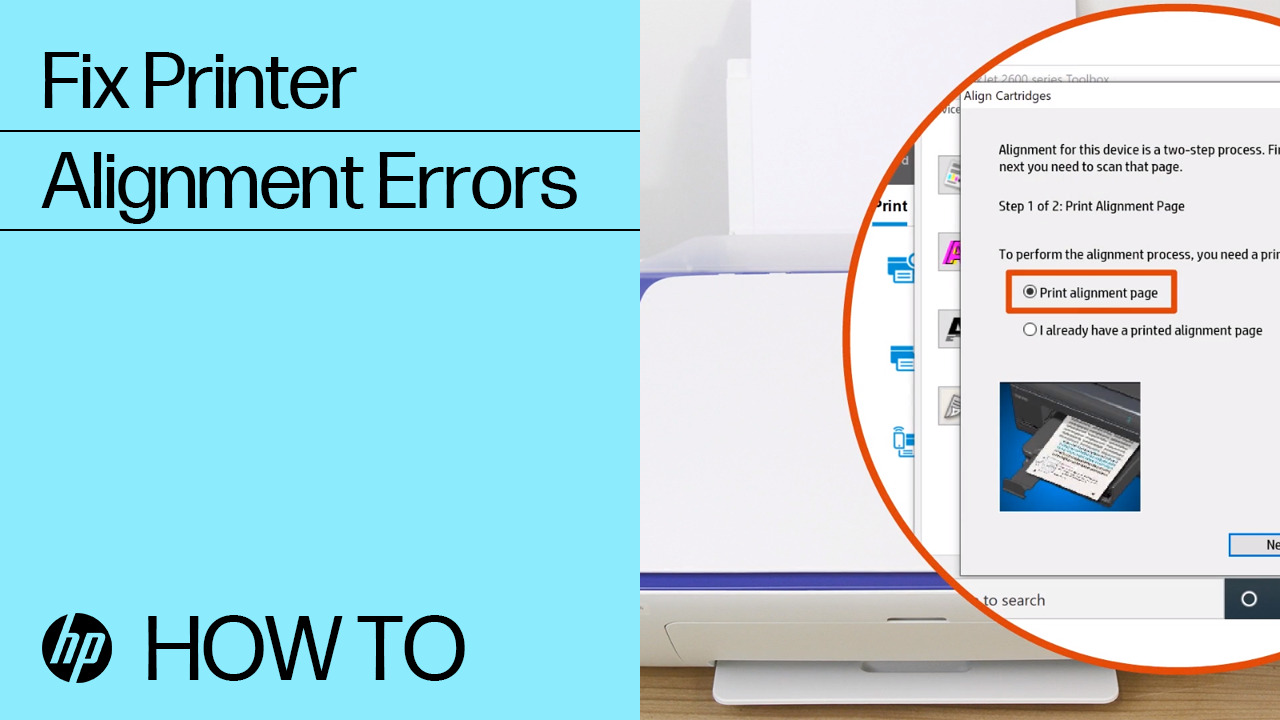
Align Cartridges
Misaligned cartridges cause blurry or uneven prints. Use the printer’s alignment feature to fix this. Follow the on-screen instructions carefully. Proper alignment ensures smooth and clear printing.
Use Quality Paper
Poor paper affects ink absorption and print clarity. Choose paper designed for inkjet printers. Avoid old, damp, or cheap paper types. Good paper supports sharp and vibrant prints.
Advanced Fixes
Advanced fixes can solve serious print quality problems on the HP Deskjet 3720. These methods dive deeper than basic steps. They help restore sharp, clear prints.
Try these fixes only after simple cleaning and checks fail. They require more effort but often fix stubborn issues. Follow each step carefully for best results.
Deep Cleaning Process
Deep cleaning removes dried ink and clogged nozzles inside the printer. Use the printer’s control panel or software to start this process. It may take several minutes. Don’t turn off the printer during cleaning. Repeat the process if print quality does not improve. Avoid running deep cleaning too many times. It uses a lot of ink and may waste cartridges.
Replace Faulty Cartridges
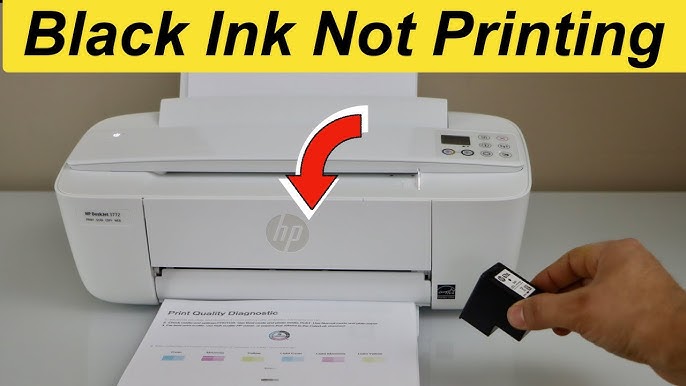
Old or damaged cartridges cause poor print quality. Check the cartridges for leaks, cracks, or low ink levels. Replace any cartridge that looks faulty. Use only genuine HP cartridges for best results. Install them carefully to avoid damage. After replacement, run a test print to check quality.
Update Printer Drivers
Outdated drivers can cause printing errors and poor output. Visit the official HP website to download the latest drivers for Deskjet 3720. Install updates on your computer following the instructions. Restart the computer and printer after updating. Updated drivers improve compatibility and fix bugs.
Reset Printer Settings
Resetting printer settings clears any incorrect configurations. Use the printer menu to find the reset option. Choose “Restore Factory Defaults” or similar. This restores original settings and removes errors. After resetting, set up the printer again. Print a test page to confirm quality has improved.
Preventive Tips
Preventing poor print quality in the HP Deskjet 3720 is easier than fixing it. Small steps taken regularly keep your prints clear and sharp. These tips save time and money by avoiding common printing problems.
Regular Maintenance Routine
Clean the print heads often to stop ink clogs. Use the printer’s cleaning tool found in settings. Wipe the exterior gently to remove dust. Check paper trays for jammed sheets. Perform test prints to catch issues early.
Proper Storage Of Ink Cartridges
Store cartridges in a cool, dry place. Avoid direct sunlight or heat exposure. Keep cartridges sealed until installation. Use original packaging for best protection. Proper storage prevents ink drying and damage.
Avoid Using Expired Ink
Check ink cartridge expiration dates before use. Expired ink causes streaks and faded prints. Replace old cartridges quickly to maintain quality. Using fresh ink helps the printer work smoothly.
Keep Printer Firmware Updated
Update the printer firmware regularly through HP’s website. Firmware updates fix bugs and improve performance. Updated software helps prevent print errors. Stay current to keep your printer reliable.
When To Seek Professional Help
Knowing when to get professional help for your HP Deskjet 3720 saves time and stress. Some print quality issues clear up with basic fixes. Others need expert care to avoid damage or wasted supplies. Watch for signs that your printer needs more than simple troubleshooting.
Persistent Print Quality Problems
Prints still look bad after cleaning and replacing cartridges. Lines, smudges, or faded prints remain. This shows a deeper problem. Professionals can diagnose issues inside the printer. They use tools and skills that home users lack.
Hardware Malfunctions
Strange noises, paper jams, or the printer not turning on need expert checkups. Broken parts cause poor print quality too. Repairing hardware requires special parts and knowledge. Trying to fix it yourself might cause more damage.
Warranty And Service Options
Check if your printer is under warranty. Authorized service centers offer repairs that keep warranty valid. Professional repairs often come with service guarantees. Using them protects your investment and ensures quality work.
Credit: www.youtube.com
Frequently Asked Questions
Why Is My Hp Deskjet 3720 Print Quality Poor?
Poor print quality can be caused by low ink, dirty nozzles, or incorrect print settings.
How Can I Fix Blurry Prints On Hp Deskjet 3720?
Clean the printhead using the printer’s maintenance menu for clearer and sharper prints.
What Causes Streaks Or Lines In Hp Deskjet 3720 Prints?
Streaks often come from clogged nozzles or low ink levels in the cartridges.
How Do I Improve Faded Print Output On Hp Deskjet 3720?
Replace empty ink cartridges and use the printer’s cleaning function to boost print darkness.
Can Wrong Paper Type Affect Hp Deskjet 3720 Print Quality?
Yes, using the wrong paper can cause poor ink absorption and reduce print sharpness.
Conclusion
Poor print quality on the HP Deskjet 3720 can be frustrating. Regular cleaning of the print heads helps improve output. Always check ink levels before printing important documents. Using original ink cartridges often gives better results. Avoid printing on damaged or poor-quality paper.
Small fixes can make a big difference in print clarity. Keep your printer drivers updated for smooth performance. These simple steps help maintain good print quality. Print with confidence and avoid waste. Your printer can deliver clear pages again.