
Is your iRobot Roomba s9 acting up? You invested in a top-of-the-line robot vacuum, and you expect it to work flawlessly.
But what happens when it doesn’t? Don’t let a malfunctioning Roomba s9 ruin your clean floors. This guide is here to help you quickly identify and fix the most common issues. You’ll get your smart cleaning companion back on track in no time.
Let’s dive into the solutions!
Common Irobot Roomba S9 Issues
Your Roomba S9 is a smart device. It helps keep your floors clean. Sometimes, it acts up. These are common Roomba S9 issues. We will help you fix them. Learn how to solve these problems easily.
Not Charging Or Draining Fast
Is your Roomba not charging? Check the charging contacts. Make sure they are clean. Dust can block the connection. Also, check the power outlet. Is it working? Try a different outlet. The battery might be old. Batteries have a lifespan. Consider replacing an old battery. A fast-draining battery needs attention. Clean the robot thoroughly. Remove debris from sensors.
Wi-fi Connection Problems
Does your Roomba lose Wi-Fi? This is frustrating. First, check your router. Is it on and working? Restart your router. Restart your Roomba too. Ensure the Roomba is close. Proximity to the router matters. Too many devices can cause issues. Try disconnecting other devices. Reconnect the Roomba to Wi-Fi. Follow the app’s instructions carefully. A strong signal is key.
Navigation And Mapping Errors
Is your Roomba confused? It might miss spots. Or it might bump into things. Clean the cliff sensors. These prevent falls. Dirty sensors cause errors. Clear the robot’s path. Remove obstacles like cords. Ensure good lighting. Roomba needs light to see. Reset the map if needed. A fresh start can help. Check for software updates. Updates often fix bugs.
Suction Power Loss
Is your Roomba not picking up dirt? Suction power may be low. Empty the dustbin. A full bin reduces suction. Clean the filter. A clogged filter blocks airflow. Wash the filter if possible. Check the brushes. Are they tangled with hair? Clean the brushes completely. Ensure they spin freely. Inspect the vacuum path. Remove any blockages there.
Unusual Noises
Does your Roomba sound strange? Listen to the noise. Where does it come from? Debris can get stuck. Check the brushes and wheels. Clean them thoroughly. Something might be loose. Tighten any loose parts. A foreign object could be present. Inspect the entire unit. Ensure nothing is obstructing movement. A quiet Roomba is a happy Roomba.
Error Codes Explained
Your Roomba shows error codes. These codes tell you problems. For example, “Error 6.” It means a sensor is dirty. Refer to your manual. The manual lists all codes. It explains what each means. It also suggests solutions. Common codes relate to sensors. Others point to brush issues. Some indicate charging problems. Knowing the codes helps quickly. Fix the issue shown.

Credit: www.internationalcompetitionnetwork.org
Power And Charging Solutions
Your Roomba S9 needs power. Charging is key for clean floors. Problems here stop cleaning. We fix power and charging woes. Get your Roomba running again. Simple steps help a lot. Let’s solve these issues.
Checking The Charging Base
Is the base plugged in? Check the power cord. Make sure it is secure. The light on the base should show power. No light? Try a different outlet. Is the base on a hard floor? Obstacles block the Roomba. Clear space around the base. The Roomba must reach it easily. Ensure the base is not damaged. A damaged base needs replacement.
Cleaning Charging Contacts
Dust collects on contacts. This stops charging. Find metal contacts. They are on the base. They are on the Roomba. Use a dry cloth. Gently wipe the contacts. A pencil eraser works too. Rub gently. Remove all dirt and debris. Clean contacts ensure good connection. A clean connection means charging. Check them often. Keep them spotless.
Battery Health And Replacement
Batteries do not last forever. Roomba batteries degrade. Over time, they hold less charge. Your Roomba may run shorter. It might not return to base. Check the battery status. The iRobot Home App shows this. If battery health is low, consider replacement. Get a genuine iRobot battery. Follow instructions carefully. Battery replacement is a fix. It restores full power.
Troubleshooting Docking Issues
Roomba not docking? Look for issues. Is the path clear? No furniture in the way. No rugs to trip it. Is the base in the right spot? It needs open space. Clean the base and Roomba contacts. Ensure battery has some charge. A dead battery won’t dock. Try moving the base slightly. Sometimes a small shift helps. Reset your Roomba. This can clear errors. Docking should be automatic. Make sure it can find home.
Connectivity Fixes
Is your iRobot Roomba S9 offline? Troubleshoot common connectivity issues easily. Quick fixes bring your smart vacuum back online.
Here are some fixes. Your Roomba S9 needs Wi-Fi. Sometimes it loses connection. These steps help it reconnect.Resetting Wi-fi Settings
Your Roomba has Wi-Fi settings. You can reset them. This often solves connection problems. Find the reset button. Press and hold it. Follow your manual’s instructions. Your vacuum will restart. Connect it to Wi-Fi again.Router Compatibility
Your router might be the issue. Older routers may not work. Check your router’s manual. Ensure it supports your Roomba. Most modern routers are fine. You may need to update your router. This is an important step.App Reinstallation
The iRobot Home app manages your Roomba. The app might have errors. Uninstall the app from your phone. Then, download it again. This refreshes the connection. Log back into your account. Try connecting your Roomba.Signal Strength Optimization
Wi-Fi signals can be weak. Obstacles block the signal. Walls and furniture interfere. Move your router closer. Place it in an open area. Avoid placing it near metal. A strong signal helps your Roomba. It keeps it online.Navigation And Mapping Remedies
Your Roomba S9 is a smart device. It maps your home. Sometimes, it gets lost. Navigation issues can be frustrating. Mapping problems happen. Fear not. Here are some quick fixes. These remedies help your Roomba find its way.
Cleaning Sensors
Dust can block sensors. This affects navigation. Clean the cliff sensors. Use a dry cloth. Clean the floor tracking sensors too. They are on the bottom. Keep them clean for best results.
Clearing The Home Base
The Home Base is important. It helps Roomba recharge. It also helps it remember its map. Obstacles near the base can confuse it. Move furniture away. Ensure clear space around it. This helps Roomba dock easily. It also helps mapping accuracy.
Resuming Mapping Runs
Did your Roomba stop mapping? It might have lost its place. Try restarting the mapping run. Ensure the Home Base is visible. Let Roomba explore again. It should create a new map. Or it might find its old one.
Obstacle Detection Adjustments
Roomba might bump into things. Or it might avoid areas. This is obstacle detection. Check for stuck debris. Clean the bumper sensor. Ensure nothing is blocking it. Sometimes, new furniture causes issues. Adjust the map in the app. Block off problem areas. This helps Roomba navigate better.
Restoring Suction Power
Is your Roomba S9 struggling to pick up dirt? Suction power is key. A clean machine works best. You can restore its power. Follow these simple steps. Your floors will thank you.
Emptying The Dust Bin
A full dust bin reduces suction. Remove the dust bin. Press the release button. Empty it into a trash can. Ensure all debris is gone. A clean bin helps air flow. This boosts cleaning performance. Your Roomba will work better.
Cleaning The Filter
The filter traps fine dust. A clogged filter blocks airflow. Remove the filter. Tap it gently. This dislodges trapped dirt. You can rinse the filter. Use cool water only. Do not use soap. Let it air dry completely. A dry filter works best. Replace it if damaged.
Inspecting And Cleaning Brushes
Hair and debris tangle brushes. This hinders suction. Turn the Roomba over. Remove the brush frame. Take out the brushes. Clear away all tangled items. Use a cleaning tool. Ensure brushes spin freely. Reinstall them correctly. Clean brushes improve pickup.
Checking For Blockages
Obstructions can reduce airflow. Check the vacuum path. Look for any blockages. Inspect the intake port. Ensure it is clear. Check the brush housing too. Remove any lodged debris. A clear path means strong suction. Your Roomba will clean efficiently.
Quieting The S9
Is your iRobot Roomba S9 making too much noise? Don’t worry. This section helps you quiet your S9. We will find the noise source. We will fix it easily. Enjoy a quieter clean.
Identifying Noise Sources
Your S9 might be loud. Listen closely. What kind of sound is it? A grinding sound is common. A rattling sound is also possible. These sounds point to problems. Pinpoint the noise area. This guides your next steps. A loud motor is concerning. A scraping sound is different. Each sound tells a story.
Checking For Debris In Brushes
Debris can cause noise. Check the main brushes. Look for tangled hair. Small objects get stuck there. Inspect the brush ends. They spin very fast. Obstructions create loud sounds. Remove any lodged debris. This is a simple fix. Clean brushes work best. A quiet S9 starts here.
Brush Maintenance
Regular brush care is key. Remove the brushes often. Clean them thoroughly. Wash them with water. Dry them completely. Check for wear and tear. Damaged brushes make noise. Replace worn-out brushes. This ensures smooth operation. Proper maintenance prevents issues. Your S9 will run quieter. Enjoy the peace.
Advanced Troubleshooting
Experiencing issues with your Roomba s9? This guide offers solutions. Find answers for common Roomba s9 problems. Get your robot vacuum working again.
Your Roomba S9 is smart. Most issues resolve easily. Sometimes, you need more steps. This section covers advanced fixes. These steps can solve stubborn problems.Factory Reset Procedure
A factory reset erases all data. It returns your Roomba to default settings. This often fixes software glitches. Press and hold the CLEAN button. Hold it for about 20 seconds. The robot will make a sound. It will then power off. Release the button. Your Roomba is now reset. You will need to set it up again.Firmware Updates
Software updates improve performance. They also fix bugs. Ensure your Roomba is connected. Connect it to your Wi-Fi network. Open the iRobot Home app. The app checks for updates. It will prompt you to install them. Keep your firmware current. This prevents many issues.When To Contact Support
Some problems need expert help. If advanced steps fail, seek assistance. Your Roomba might have a hardware defect. Contact iRobot customer support. They can guide you further. They offer repair or replacement. Do not attempt complex repairs yourself.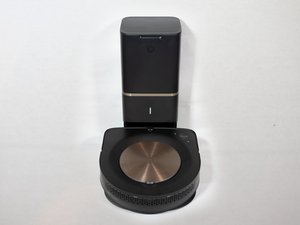
Credit: www.ifixit.com
Frequently Asked Questions
Why Won’t My Roomba S9 Connect To Wi-fi?
Check your Wi-Fi network. Ensure it’s a 2. 4GHz network. Restart your router and the Roomba. Try connecting again through the app.
How Do I Reset My Roomba S9 Vacuum?
Press and hold the CLEAN button. Keep holding it for about 20 seconds. The robot will make a sound. Release the button when you hear it.
Why Is My Roomba S9 Not Charging?
Make sure the charging contacts are clean. Wipe them with a dry cloth. Check if the power cord is secure. Place the robot firmly on the base.
What Does The Red Light On Roomba S9 Mean?
A red light usually signals an error. It might be a stuck brush or wheel. Check for any debris. Consult the iRobot Home app for details.
How Often Should I Clean Roomba S9 Brushes?
Clean the brushes weekly. Remove hair and debris regularly. This keeps the vacuum working best. It ensures a thorough clean every time.
Why Is My Roomba S9 Making Strange Noises?
Foreign objects might be stuck. Check the brushes and wheels carefully. Remove any tangled debris. This often solves the noise issue.
How Do I Update My Roomba S9 Software?
Connect your Roomba to Wi-Fi. The app will notify you of updates. Ensure the robot is on the home base. Updates usually happen automatically then.
Conclusion
Your Roomba S9 is a smart device. Problems can happen. Don’t worry. Many issues have simple fixes. Check the brushes. Ensure the bin is empty. Clean the sensors regularly. A full charge helps. Consult the manual for details. Keep your S9 running smoothly.
Enjoy a clean home.