
Is your Samsung TV remote acting up? You point, you press, but nothing happens.
It’s frustrating, right? You just want to relax and watch your favorite show, but a dead remote stands in your way. Don’t worry, you’re not alone. Many Samsung TV owners face this issue. This guide will help you fix your Samsung TV remote control, fast.
We’ll walk you through simple steps to get you back to binge-watching in no time.
Remote Not Working?
Your Samsung TV remote stopped working. This is a common problem. Do not worry. We can fix this. Here are simple steps.
Check Batteries
First, check the batteries. Are they dead? Replace them. Use fresh batteries. Make sure they are inserted correctly. The plus and minus signs matter. Try new batteries first. This often solves the issue. It is an easy fix.
Obstructions In The Way
Is something blocking the remote? Look at the TV sensor. It is usually on the front. Remove any objects. Clear the path. Do not hold the remote too far. Keep a clear line of sight. This helps the signal.
Pairing Issues
Your remote might lose connection. It needs to pair with the TV. Press and hold the Return button. Hold the Play/Pause button too. Do this for about 10 seconds. The remote should re-pair. Try it again. This resets the connection. Your remote might work now.
Buttons Lagging Or Unresponsive
Is your Samsung TV remote acting slow? Do buttons take time to respond? This is a common problem. You press a button. Nothing happens right away. It can be very frustrating. Let’s fix this annoying issue. We will explore simple solutions.
Clean The Remote
Dirt and grime build up. This affects button performance. Turn the remote over. Remove the battery cover. Use a dry, soft cloth. Gently wipe the buttons. Pay attention to the edges. A cotton swab works well. It can reach tight spots. Clean around each button. This removes sticky residue. Reinsert the batteries. Test the remote again. This simple step often works.
Software Glitches
Your remote uses software. Sometimes this software glitches. It can cause unresponsiveness. Try a quick reset. Remove the remote batteries. Wait for about 30 seconds. Put the batteries back in. This forces a restart. It clears minor software errors. Your remote should work better now. Test all the buttons. See if they respond faster. This is an easy fix.
Factory Reset Remote
A factory reset is more drastic. It returns the remote settings. This erases any accumulated errors. The process varies slightly. Check your Samsung TV manual. It will have specific instructions. Usually, you press and hold buttons. Hold them for several seconds. This initiates the reset. The remote will likely blink. This confirms the reset action. Afterward, re-pair the remote. Connect it to your TV again. This often resolves stubborn issues. Your buttons should feel responsive.
Voice Commands Failing
Your Samsung TV remote’s voice commands not working? Try re-pairing the remote. Ensure the microphone is clear of obstructions. Sometimes, a simple restart fixes it.
When your Samsung TV remote’s voice commands stop working, it’s frustrating. You just want to change the channel or find a show. Don’t worry. We can fix this. Let’s troubleshoot together.Microphone Check
Your remote has a microphone. Is it blocked? Check for debris. Clean the microphone opening gently. A soft brush works well. Ensure nothing is covering it. This simple step often solves the issue.Internet Connection
Voice commands need internet. Is your TV connected? Check your Wi-Fi. A stable connection is crucial. Restart your router if needed. Confirm other apps use internet. This verifies your network.Voice Recognition Settings
Settings can impact voice control. Access your TV’s settings menu. Find the voice recognition option. Ensure it is enabled. Check language settings too. Make sure they match your speech. Sometimes, a reset helps. Go back to default settings. This often restores functionality.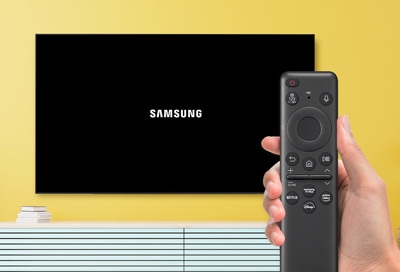
Credit: www.samsung.com
Smart Hub Or App Issues
Smart Hub and app problems can stop your TV fun. Your remote might not work with these features. This section helps you fix those issues. Let’s get your Samsung TV working right.
Remote App Connection
Your phone app is a remote. It needs to connect to your TV. Check your Wi-Fi. Both devices must be on the same network. Restart your phone. Restart your TV too. Try connecting the app again. Sometimes you need to re-pair the devices. Open the app settings. Follow the pairing steps. This often solves the problem.
Tv Software Update
Outdated software causes problems. Your TV needs the latest updates. Go to TV settings. Find the support section. Look for software updates. Select “Update Now.” Your TV will check for updates. Download and install any found updates. This can fix Smart Hub glitches. It also improves app performance. A simple update can do wonders.
When To Seek Help
You tried all the fixes. Your Samsung TV remote still acts up. It is time for expert help. Do not waste more time. These steps guide you next.
Contact Samsung Support
Your remote is stubborn. Samsung support can help. They know their products best. Visit their official website. Look for the support section. You can find contact options there. Chat is often available. Phone support is another choice. Explain your remote issue clearly. Have your TV model ready. Samsung support offers solutions. They may guide you through advanced steps.
Consider A Replacement
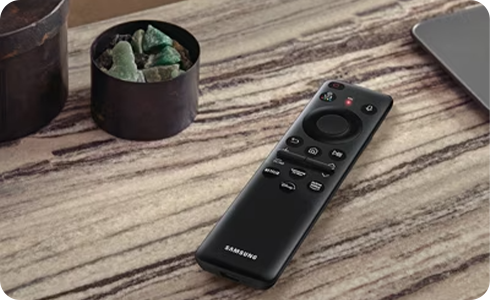
Sometimes, a remote is just broken. Troubleshooting will not fix it. A replacement remote is needed. Check your TV warranty first. It might cover a new remote. If not, buy a new one. Look for genuine Samsung parts. Third-party remotes exist. Ensure they are compatible. A new remote is often cheap. It solves persistent problems fast. Enjoy your TV again.

Credit: www.youtube.com
Credit: www.samsung.com
Frequently Asked Questions
My Samsung Tv Remote Isn’t Working. What Now?
Check the batteries first. Replace them with new ones. Ensure they are inserted correctly.
Why Is My Samsung Tv Remote Unresponsive?
Obstructions can block the signal. Move anything between the remote and TV. Try standing closer to the TV.
How Do I Reset My Samsung Tv Remote?
Unplug your TV from power. Wait for 30 seconds. Plug the TV back in. Then, try the remote again.
My Samsung Remote Buttons Are Stuck. What To Do?
Gently clean around the buttons. Use a dry, soft cloth. Avoid using liquids on the remote.
Can I Use My Phone As A Samsung Tv Remote?
Yes, many Samsung TVs support this. Download the Samsung SmartThings app. Connect your phone to the same Wi-Fi.
How Do I Pair A New Samsung Tv Remote?
Turn on your TV. Point the new remote at it. Press and hold the “Back” and “Play/Pause” buttons. Do this for about 10 seconds.
My Samsung Remote’s Voice Control Fails. Why?
Ensure the TV is connected to Wi-Fi. Check if the microphone is unmuted. Try speaking clearly and closer to the remote.
Conclusion
Your Samsung TV remote should work now. Simple fixes often solve problems. Try these steps first. A working remote improves your viewing. Enjoy your TV without interruption. Troubleshooting can be easy. Get back to watching your favorite shows.