
Is your HP LaserJet 4100 printer acting up? Don’t let frustrating error messages or blank pages stop your workflow.
You rely on your printer, and we’re here to help you get it back up and running smoothly. This guide will walk you through common HP LaserJet 4100 troubleshooting steps. You’ll discover simple fixes for the problems you’re facing, so you can get back to printing with confidence.
Let’s tackle those printer issues together!
Printer Not Powering On
Your HP LaserJet 4100 won’t turn on. This is frustrating. Do not worry. We will fix this. Let’s find the problem. We will get your printer running again.
Check Power Cord And Outlet
First, check the power cord. Is it plugged in firmly? Try a different outlet. The outlet might be bad. Test another device there. Make sure the power switch is on. Some printers have a main switch. Find it. Flip it to the ‘on’ position.
Inspect Power Supply Unit
Next, look at the power supply. Is it connected securely? Sometimes it is internal. Sometimes it is external. If external, check its connections. Ensure it fits snugly. If internal, you may need a technician. A faulty power supply stops power. This is a common issue.
Credit: livethroughthis.org
Paper Jams And Feed Issues
Paper jams plague many printers. Your HP LaserJet 4100 is no exception. Feed issues cause frustration. Let’s fix them.
Locate And Remove Jammed Paper
Turn off the printer. Open all access doors. Look for the paper. Gently pull it out. Make sure to get all pieces. A small scrap can cause trouble. Close all doors securely. Turn the printer back on.
Clean Paper Tray Rollers
Paper jams happen often. Dirty rollers cause this. Remove the paper tray. Find the rubber rollers. Use a damp, lint-free cloth. Wipe them clean. Let them dry completely. Put the tray back in. Test printing again.
Check Paper Type And Condition
Wrong paper causes jams. Use good quality paper. Avoid wrinkled or torn sheets. Ensure paper is dry. Do not overfill the tray. Check the paper guides. They should hold paper snugly. Reload paper correctly. Try printing one page.
Print Quality Problems
Print quality issues can be frustrating. Your HP LaserJet 4100 might produce blurry text. Or maybe faint images appear. Streaks can mar your documents. This section helps you fix these problems. We will examine common causes. Then we will provide clear solutions.
Toner Cartridge Inspection
A faulty toner cartridge is a frequent culprit. Remove the toner. Check for any damage. Look for leaks or toner spills. Ensure the cartridge sits correctly. Reseat it firmly in its place. A worn-out cartridge needs replacement. Try a new, genuine HP cartridge. This often resolves print quality woes.
Drum Unit Check
The drum unit transfers toner to paper. Inspect its surface carefully. Look for scratches or scuffs. These can cause lines or spots. Clean the drum gently. Use a lint-free cloth. Avoid touching the drum surface directly. A damaged drum unit needs replacement. This is a common fix for poor prints.
Fuser Assembly Issues
The fuser melts toner onto the paper. A worn fuser causes smudging. Toner might not stick properly. Check for any visible damage. Listen for unusual noises. A failing fuser needs professional attention. Sometimes, a simple cleaning helps. Consult your printer manual for guidance. Proper fuser function is vital.
Print Driver Settings
Incorrect print driver settings matter. Open your printer properties. Verify the correct paper type is selected. Ensure the print quality setting is appropriate. High quality settings use more toner. Low quality settings save toner. Adjust these settings for better results. Sometimes, reinstalling the driver helps. This ensures proper communication.
Connectivity And Network Errors
Connectivity issues can halt your printing. Network errors are common. Your HP LaserJet 4100 might not print. This section helps you fix it. We will look at common connection problems. Simple steps can solve them. Get your printer working again.
Usb Cable Connection
A loose USB cable causes problems. Check both ends. Ensure it is secure. Try a different USB port. Your computer might have issues. Use a new USB cable. Test the printer with it. This often fixes the problem.
Ethernet Cable And Port
Network printing uses Ethernet. Check your Ethernet cable. Is it plugged in firmly? Look at the printer’s port. Lights should be on. Try a different cable. Test the port on your router. A bad port stops connection. Restart your router. This can clear network issues.
Network Configuration Settings
Printer settings matter. Verify the network setup. Your printer needs the correct settings. Check the IP address. Ensure it is valid. Re-enter network details. Consult your network administrator. They can confirm settings. Proper configuration is key.
Ip Address Conflicts
Two devices cannot share an IP. This causes a conflict. Your printer needs a unique IP. Check your router’s DHCP settings. It assigns IP addresses. Sometimes it assigns duplicates. Restarting the router can help. Manually assign a new IP. Ensure it is not in use. This resolves the conflict.
Error Codes And Lights
Printers can be tricky. Sometimes they show errors. These errors use lights and codes. Understanding them helps fix problems. Your HP LaserJet 4100 is no different. Pay attention to its signals.
Interpreting Error Lights
Your printer has lights. They blink or stay lit. Each pattern means something. A solid red light often signals a serious issue. A blinking orange light might mean low toner. Green lights usually mean good status. Check your printer’s manual. It shows light meanings.
Common Error Code Meanings
Error codes appear on the screen. They are usually numbers or letters. For example, E1 often means a paper jam. C4 might indicate a communication error. D5 could mean a bad fuser. These codes guide your repair. They point to the specific problem.
Resource For Error Code Lookup
Don’t guess error codes. Look them up. HP’s website is a good source. Search for “HP LaserJet 4100 error codes.” Many tech forums also help. Other users share solutions. You can find detailed explanations there. This knowledge saves time. It also saves frustration.

Credit: printertechs.com
Slow Printing Speed
Is your HP LaserJet 4100 printer slow? This is a common problem. Many things can cause slow printing. We will help you fix it. Let’s find out why your printer is slow. Then, we will make it fast again.
Print Job Complexity
Complex documents take longer. Graphics and many pages slow printing. Try simplifying your document. Remove unnecessary images. Break large documents into smaller parts. This helps your printer process faster.
Printer Memory Status
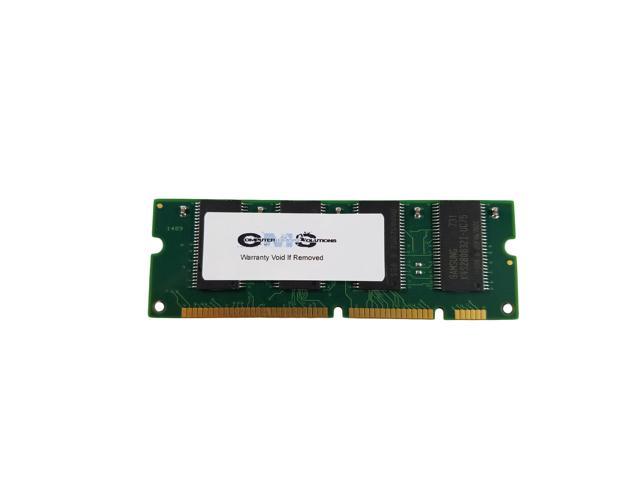
Low printer memory causes slowness. Your printer needs enough memory. Check your printer’s memory level. You can often see this on the display. Add more memory if needed. This is a simple upgrade. It greatly improves speed.
Driver Optimization
Outdated drivers cause issues. Update your printer driver. Go to the HP website. Download the latest driver. Install it correctly. This optimizes performance. It ensures smooth communication. Your printer will work better.
Scanner Not Working (if Applicable)
Scanner issues can be frustrating. Troubleshoot your HP LaserJet 4100 scanner problems. Follow these steps for quick fixes.
Your HP LaserJet 4100 scanner might stop working. This can be frustrating. Many things can cause this issue. Let’s troubleshoot your scanner problems. We will cover common fixes.Scanner Software Installation
First, check the scanner software. Is it installed correctly? You might need to reinstall it. Download the latest version from HP’s website. Follow the on-screen installation steps. Ensure you choose the correct model. A clean install often solves problems.Connection To Printer
Verify the scanner’s connection. Is it plugged in securely? Check both ends of the USB cable. Try a different USB port on your computer. Sometimes, a faulty cable causes issues. Use a known good cable. Ensure the printer is also powered on.Scanner Driver Updates
Outdated drivers cause many problems. Update your scanner drivers. Go to the HP support page. Find your LaserJet 4100 model. Download the newest drivers. Install them carefully. Restart your computer after installation. This usually fixes scanner errors.Preventative Maintenance Tips
Preventative maintenance keeps your HP LaserJet 4100 running smoothly. It stops problems before they start. This saves you time and frustration. Follow these simple tips.
Regular Cleaning Schedule
Dust and debris cause issues. Clean your printer often. Use a soft, dry cloth. Wipe the exterior. Open the covers. Remove any loose paper. Clean the paper path gently. Avoid harsh chemicals. They can damage parts. A clean printer works better. It prints clearer pages.
Firmware Updates
Firmware is printer software. Updates fix bugs. They improve performance. Check HP’s website. Download the latest firmware. Follow the update instructions carefully. This keeps your printer current. It prevents common errors.
Toner Cartridge Replacement Best Practices
Use genuine HP toner. It ensures best quality. Never force a cartridge. Open the printer cover. Remove the old cartridge. Gently insert the new one. Close the cover securely. Shake the new cartridge. Do this before installing. It distributes the toner. This avoids streaky prints. Store spare cartridges properly. Keep them cool and dry.

Credit: printertechs.com
Frequently Asked Questions
Why Is My Hp Laserjet 4100 Not Printing?
Check the printer’s power connection. Ensure the USB or network cable is secure. Restart both the printer and your computer.
How Do I Clear A Paper Jam In Hp 4100?
Open all printer doors gently. Remove any visible jammed paper. Close doors firmly to reset.
Why Is My Hp 4100 Printing Blank Pages?
The toner cartridge might be empty. Check if the protective seal was removed. Install a new toner cartridge if needed.
How To Fix Hp 4100 Print Quality Issues?
Clean the printer’s internal components. Replace the toner cartridge if old. Adjust print settings for better results.
What Does Hp 4100 Error Code E1 Mean?
This error usually indicates a paper jam. Follow the steps to clear any jams. Ensure all doors are closed properly.
How Do I Connect Hp Laserjet 4100 To Wi-fi?
This model does not support Wi-Fi. Use a USB or network cable connection. Connect it directly to your router or computer.
Why Is My Hp 4100 Printing Slowly?
Check your computer’s print queue. Close unnecessary programs running. Ensure the printer driver is up to date.
Conclusion
Your HP LaserJet 4100 printer problems are now solved. You can fix common issues yourself. Check power and connections first. Clear paper jams carefully. Replace the toner cartridge when needed. Update your printer drivers. These steps keep your printer running.
Enjoy printing without worry.