
Are you frustrated because your HP Deskjet 2540 is printing blurry, streaky, or faded pages? Poor print quality can turn simple tasks into annoying obstacles.
But don’t worry—your printer doesn’t have to stay this way. You’ll discover easy and effective ways to fix those print problems quickly. By the end, you’ll get crisp, clear prints that make your documents look professional every time. Keep reading to find out how to bring your printer back to life.
Common Causes Of Poor Print Quality
Poor print quality is a common issue with the HP Deskjet 2540 printer. It can cause faded text, streaks, or blurry images. Understanding the common causes helps fix the problem quickly. Here are the main reasons your prints may look bad.
Low Ink Levels
Low ink levels often cause poor print quality. When ink runs out, colors fade and printouts look dull. The printer may still print, but the results are weak. Check ink cartridges regularly to avoid this issue.
Clogged Printhead Nozzles
Printhead nozzles can get clogged with dried ink. This blockage stops ink from flowing properly. Prints may show streaks, missing lines, or faded areas. Cleaning the printhead can restore clear printing.
Incorrect Paper Type
Using the wrong paper affects print quality. Some papers absorb ink poorly or cause smudging. Choose paper recommended for inkjet printers like the HP Deskjet 2540. Proper paper helps sharp and vibrant prints.
Outdated Printer Drivers
Old printer drivers may cause printing errors. Drivers control how the printer works with your computer. Updating drivers ensures smooth communication and better print results. Check HP’s website for the latest driver updates.
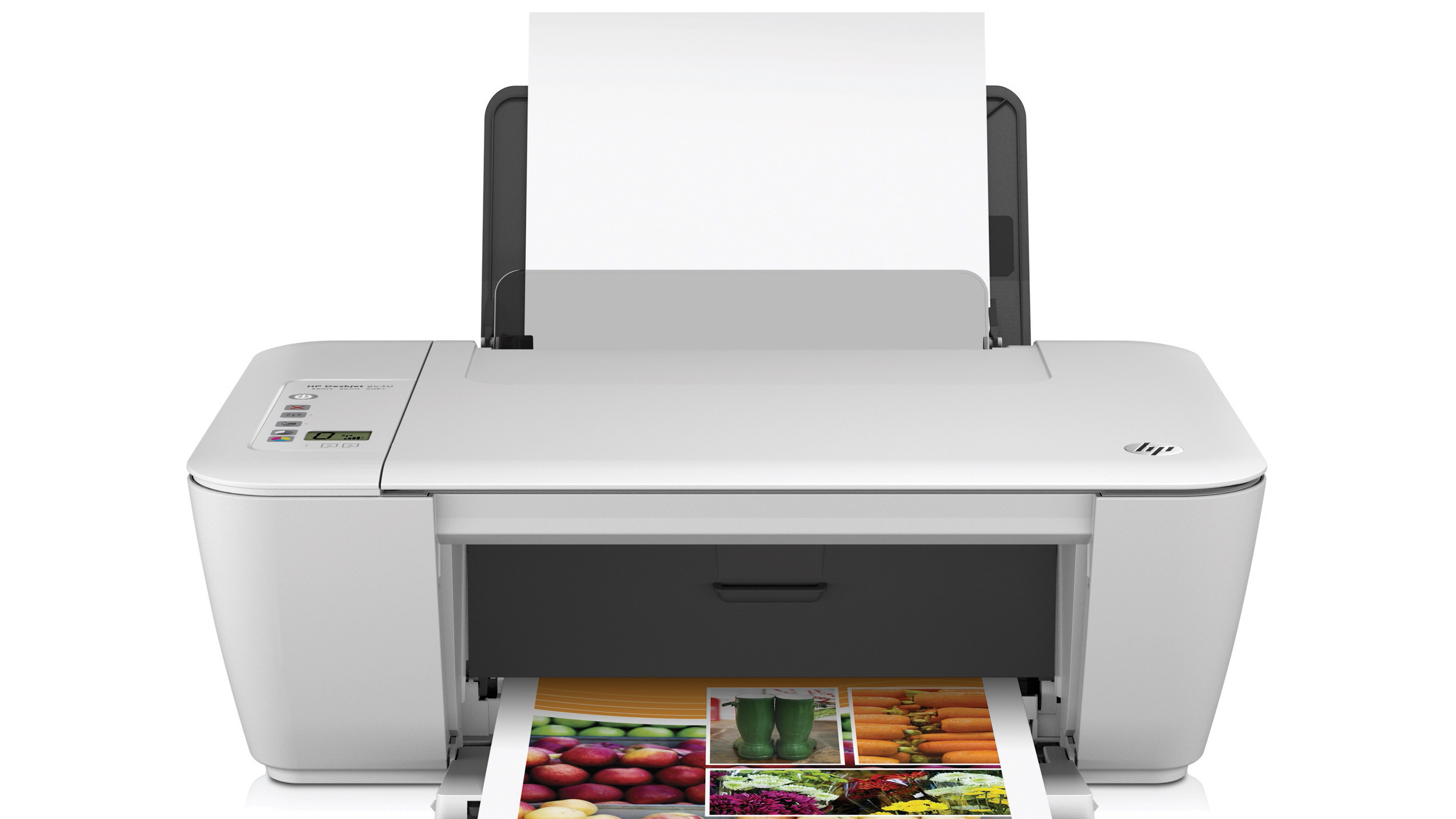
Credit: www.techradar.com
Checking Ink Cartridges
Checking the ink cartridges is a key step to fix poor print quality on the HP Deskjet 2540. Ink cartridges hold the ink needed to print clear text and images. Problems with cartridges often cause blurry, faded, or streaky prints. This section covers how to inspect ink levels, replace empty or damaged cartridges, and use genuine HP cartridges for the best results.
Inspecting Ink Levels
Low ink levels often cause poor print quality. Check the ink levels on your printer’s control panel or through the HP software on your computer. The software shows if the cartridges are running low or empty. Replace cartridges that have low ink to avoid faded prints and missing colors.
Replacing Empty Or Damaged Cartridges
Empty cartridges must be replaced quickly. Damaged cartridges can leak or clog the printhead. Turn off the printer before removing cartridges. Take out the empty or damaged cartridge carefully. Insert a new cartridge firmly in its slot. Close the printer cover and run a test print.
Using Genuine Hp Cartridges
Genuine HP cartridges work best with your Deskjet 2540. They provide consistent ink flow and prevent clogs. Non-genuine cartridges may cause poor print quality or damage the printer. Choose original HP cartridges for better colors and sharp prints every time.
Cleaning The Printhead
Cleaning the printhead helps fix poor print quality on the HP Deskjet 2540. The printhead may get clogged with dried ink or dust. This stops the ink from flowing properly. Cleaning clears the blockages and improves print results.
There are two main ways to clean the printhead. You can use the printer’s automatic cleaning tool or clean it manually. Both methods help restore clear and sharp prints.
Automatic Cleaning Process
Turn on your HP Deskjet 2540 printer. Open the printer software on your computer. Find the maintenance or tools section. Select the printhead cleaning option. The printer will start the cleaning process. It uses ink to flush out clogs. Wait for the process to finish. Print a test page to check quality. Repeat cleaning if needed.
Manual Printhead Cleaning Steps
Turn off the printer and unplug it. Open the cartridge access door. Remove the ink cartridges carefully. Use a soft cloth dampened with warm water. Gently wipe the printhead nozzles and contacts. Avoid touching electrical parts directly. Let the printhead dry for 10 minutes. Reinstall the cartridges and close the door. Plug in and turn on the printer. Print a test page to check results.
Credit: support.hp.com
Adjusting Printer Settings
Adjusting the printer settings can fix poor print quality on the HP Deskjet 2540. These settings control how the printer uses ink and paper. Correct settings improve the sharpness and color of prints. Small changes can make a big difference in your print results.
Selecting The Right Paper Type
Choose the correct paper type in the printer settings. Different paper needs different ink amounts. Using the wrong paper type can cause smudges or faded prints. Select plain paper for everyday printing. For photos, choose photo paper. This helps the printer adjust ink flow properly.
Choosing The Best Print Quality
Set the print quality to match your needs. Higher quality uses more ink but gives clearer prints. For draft copies, choose a lower quality to save ink. For important documents or photos, select high quality. This setting affects the sharpness and detail of your printouts.
Enabling Color Management
Turn on color management in your printer settings. This controls how colors appear on paper. Without it, colors may look dull or wrong. Color management adjusts ink use for true color prints. It helps photos and graphics look better and more accurate.
Updating Printer Software
Updating the printer software can fix many print quality problems with the HP Deskjet 2540. Outdated drivers or software may cause poor print results. Keeping the software current ensures the printer works smoothly and prints clearly.
Software updates often include bug fixes and improvements. These help the printer handle new files better and avoid errors. Updating is a simple way to improve print quality without extra cost.
Downloading Latest Drivers
Start by visiting the official HP website. Search for the HP Deskjet 2540 in the support section. Find the latest driver version available for your computer’s system. Download the driver file to your computer.
Once downloaded, open the file and follow the installation steps. Restart your computer after installing the driver. This process replaces old files and can solve many printing issues.
Using Hp Support Tools
HP offers special support tools to help update and fix printers. Download the HP Print and Scan Doctor tool from the HP site. Run the tool and let it detect your printer.
The tool checks for software updates and prints problems. It guides you to install updates or fix errors automatically. Using these tools saves time and improves print quality fast.
Performing Printer Maintenance
Performing regular maintenance on your HP Deskjet 2540 can greatly improve print quality. It keeps the printer parts working well and avoids common printing issues. Simple steps can make a big difference in the output.
Maintaining your printer does not take much time. It helps the printer work smoothly and saves you from frustration.
Aligning The Printhead
Aligning the printhead ensures the ink lands in the right place on the paper. Misalignment causes blurry or uneven prints. Use the printer’s built-in tool to start alignment. It guides you through the process step-by-step. This task improves sharpness and clarity of text and images.
Running Diagnostic Tests
Diagnostic tests check the printer’s health and identify problems. The printer runs test pages to show if any parts need attention. These tests reveal clogged nozzles or low ink levels. You can run diagnostics from the printer’s control panel or software. Regular checks keep your printer in good shape.
Regular Cleaning Tips
Dust and dried ink cause poor print quality. Clean the printer’s exterior and interior gently with a soft cloth. Use a cotton swab dipped in water for small areas. Avoid harsh chemicals that may damage parts. Clean the printhead nozzles using the printer’s cleaning function. Doing this often prevents streaks and spots on prints.
When To Seek Professional Help
Poor print quality in the HP Deskjet 2540 can sometimes signal deeper problems. At times, simple fixes do not work. Knowing when to seek professional help saves time and avoids frustration. Experts can identify and fix issues beyond basic troubleshooting.
Signs Of Hardware Damage
Hardware damage causes print problems that software fixes cannot solve. Look for physical issues like broken parts or unusual noises. Paper jams that happen often may indicate damaged rollers. Faded or streaky prints might mean clogged or damaged print heads. If the printer won’t turn on or stops mid-print, hardware damage could be the cause. These signs suggest a need for expert repair or replacement parts.
Contacting Hp Support
HP Support offers professional help for complex printer problems. Contact them when troubleshooting steps fail or hardware damage is suspected. They provide guidance on repairs, parts, and warranty options. Use official HP channels like their website or phone support for reliable help. Have your printer model and purchase details ready for faster service. HP technicians can offer solutions that ensure your printer works well again.

Credit: www.amazon.com
Frequently Asked Questions
Why Is My Hp Deskjet 2540 Printing Blurry Or Faded?
Blurry or faded prints often mean low ink levels or clogged print heads. Clean the print heads and check ink cartridges.
How Can I Fix Streaks Or Lines On Hp Deskjet 2540 Prints?
Streaks usually come from dirty or damaged print heads. Run the printer’s cleaning cycle to clear them.
What Causes Poor Color Quality On Hp Deskjet 2540 Prints?
Poor color quality can result from old ink cartridges or incorrect print settings. Replace cartridges and check settings.
How Do I Improve Print Resolution On Hp Deskjet 2540?
Use the highest print quality setting in the printer preferences. Also, print on good quality paper for sharper prints.
Why Does My Hp Deskjet 2540 Print Smudges Or Ink Spots?
Smudges happen if the paper is damp or ink is not drying. Use dry, clean paper and avoid touching prints immediately.
Conclusion
Poor print quality on the HP Deskjet 2540 can be frustrating. Simple steps like cleaning the printhead can help. Checking ink levels and replacing cartridges may improve prints. Using the right paper also matters a lot. Regular maintenance keeps the printer working well.
Small fixes often bring big changes. Keep these tips in mind to enjoy better prints. Don’t let print issues slow your work. A little care goes a long way.