
Is your Sony TV acting up or not responding like it used to? You’re not alone.
Sometimes, the simplest fix is a quick reset, but knowing exactly how to do it can save you time and frustration. In this guide, you’ll learn easy, step-by-step methods to reset your Sony TV and get it back to perfect working order.
Keep reading—you’ll be surprised how quickly you can solve common issues and enjoy your TV again without any hassle.
Reasons To Reset Your Sony Tv
Resetting your Sony TV can solve many common problems. It often helps restore the TV to its normal working state. Sometimes, a reset is needed to clear bugs or glitches that affect performance. Other times, it helps fix network or connectivity issues. A reset also removes your personal data, which is important before selling or giving away the TV.
Fixing Performance Issues
Over time, your Sony TV may slow down or freeze. Apps might crash or not open properly. A reset clears temporary files and refreshes the system. This often improves speed and responsiveness. It can fix bugs that cause freezing or lagging. Resetting gives your TV a fresh start.
Resolving Network Problems
Network problems stop your Sony TV from connecting to the internet. Streaming apps may not work or buffer a lot. Resetting the TV can fix Wi-Fi or Ethernet connection issues. It clears network settings and errors. This helps the TV find and connect to your network again.
Clearing Personal Data
Resetting your Sony TV deletes all personal information. This includes login details, saved passwords, and app data. It is important before you sell or give away the TV. Clearing your data protects your privacy. It also removes any settings or preferences you made.
Types Of Resets For Sony Tvs
Resetting a Sony TV can solve many common problems. Different types of resets serve different purposes. Knowing which reset to use helps fix issues quickly.
Some resets refresh the TV without losing settings. Others erase all personal data and restore factory defaults. You can also reset just the network settings to fix connection problems.
Soft Reset
A soft reset restarts the TV without deleting anything. It clears temporary glitches and refreshes the system. To do this, turn off the TV and unplug it for about one minute. Then plug it back in and turn it on. This simple step often fixes minor issues.
Factory Reset
A factory reset erases all settings and personal data. The TV returns to the state it was in when first bought. Use this reset if the TV has serious problems. To do this, go to Settings > Storage & Reset > Factory Data Reset. Confirm your choice to start the process.
Resetting network settings clears all saved Wi-Fi data. This helps fix internet connection problems. To reset, open Settings > Network > Network Reset. The TV will forget all networks and restart. After that, you must reconnect to your Wi-Fi manually.
Preparing For The Reset
Preparing for a reset on your Sony TV helps avoid problems. It makes sure your data is safe and the process goes smoothly.
Follow these steps carefully to get ready before pressing the reset button.
Backing Up Important Data
Saving your important files and settings is the first step. This includes apps, preferences, and any downloaded content. Some Sony TVs allow backing up data to a USB drive or cloud. Check your TV’s menu for backup options. This step protects your information from being lost during reset.
Checking Tv Model And Software Version
Knowing your TV model helps find the correct reset method. The software version shows if updates are needed before reset. Go to Settings > About or System Information to find this data. Write down or take a picture of the details for reference. This ensures you follow the right reset instructions for your TV.
Credit: www.youtube.com
Step-by-step Soft Reset Guide
Resetting your Sony TV can fix many common problems. A soft reset is a simple way to refresh the system without losing your settings. It clears minor glitches and helps the TV run smoothly again.
This guide shows two easy methods to perform a soft reset. Follow the steps carefully to reset your Sony TV with no hassle.
Using The Remote Control
Press and hold the power button on your remote. Keep it pressed for about 5 to 10 seconds. The TV will turn off and restart automatically. Wait for the TV to power back on completely. This method clears temporary issues quickly without unplugging the TV.
Power Cycle Method
Turn off the TV using the power button. Unplug the TV from the wall outlet. Wait for at least 60 seconds to drain power. Plug the TV back into the outlet. Press the power button to turn the TV on. This method resets the TV’s hardware and can fix frozen screens or no sound.
Step-by-step Factory Reset Guide
Resetting your Sony TV to factory settings can fix many issues. It clears all changes and restores original setup. This guide shows you easy steps to reset your TV safely. Follow each method carefully for best results.
Reset Via Tv Settings Menu
Turn on your Sony TV and press the Home button on the remote.
Navigate to the Settings menu using the arrow keys.
Select the “Device Preferences” or “Storage & Reset” option.
The TV will restart and erase all your personal data.
Wait for the process to finish before using the TV again.
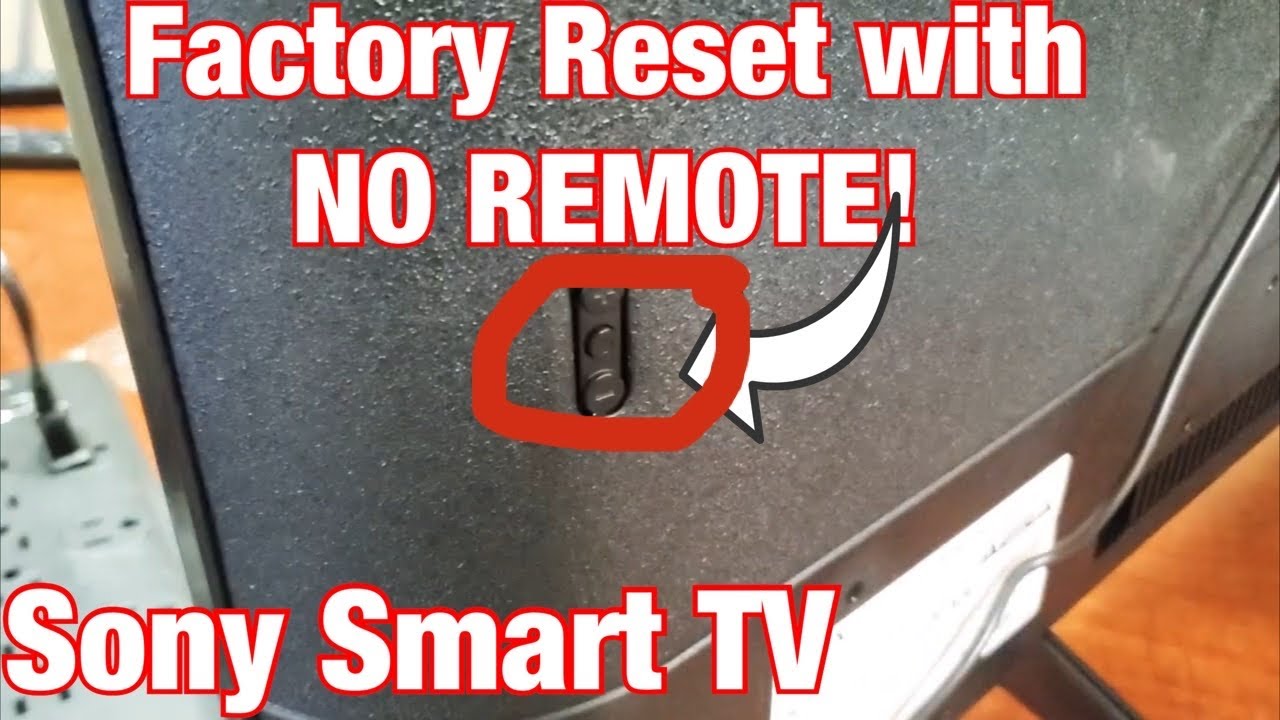
Reset Using Remote Button Combination
Turn off your Sony TV.
Press and hold the Power button on the TV itself.
While holding the Power button, press and hold the Volume Down button on the TV.
Keep holding both buttons for about 10 seconds.
Release the buttons when the TV turns on and shows the reset screen.
Follow the on-screen instructions to complete the factory reset.
This method works if you cannot access the Settings menu.
Credit: www.sony-mea.com
Resetting Network Settings
Resetting network settings on your Sony TV can fix many connection problems. It clears old Wi-Fi data and helps the TV connect fresh to your network. This process is quick and simple, improving your streaming experience.
Accessing Network Settings
Start by turning on your Sony TV. Press the Home button on the remote. Scroll down to find the Settings menu. Select Network or Network & Internet. This section controls all your network options. Choose it to open the network settings page.
Reconnecting To Wi-fi
In the network settings, find the option to reset or clear network data. Confirm the reset to erase saved Wi-Fi connections. Next, select the Wi-Fi network you want to join. Enter the password carefully and connect. Your Sony TV will now use the fresh network settings.
Troubleshooting Reset Issues
Resetting a Sony TV can solve many problems. Sometimes, the reset does not fix the issue. Troubleshooting reset issues helps find the next steps to take. It saves time and avoids frustration.
When Reset Doesn’t Work
Try powering off the TV completely. Unplug it from the wall for at least one minute. Plug it back and turn it on. This often clears minor glitches.
Check if the TV firmware is up to date. Outdated software can cause problems. Use the menu to find software update options.
If the TV still shows errors, try a factory reset again. Follow the exact steps in the user manual. Sometimes small mistakes can stop the reset.
Look for stuck buttons on the remote or TV. These can block the reset process. Clean or replace batteries if needed.
Contacting Sony Support
Contact Sony support if problems continue after troubleshooting. Provide the TV model and serial number. Explain all steps already tried.
Use Sony’s official website or phone number. Support teams offer expert advice and solutions. They can guide you through advanced resets or repairs.
Keep your purchase receipt handy. It helps with warranty claims or service requests. Be patient and clear when describing the problem.
Credit: www.sony.com
Tips To Maintain Your Sony Tv
Maintaining your Sony TV helps keep it working well for a long time. Simple care steps improve picture quality and sound. Regular attention prevents problems and saves money on repairs.
Follow easy tips to keep your Sony TV in top shape. These steps help you enjoy clear images and smooth performance every day.
Regular Software Updates
Check for software updates often. Sony releases updates to fix bugs and add features. Installing updates keeps your TV secure and fast. Use the settings menu to find and apply updates easily.
Updates improve compatibility with apps and devices. They also enhance smart TV functions. Never skip updating to ensure the best experience.
Safe Usage Practices
Place your TV on a sturdy surface. Avoid direct sunlight or heat near the screen. Clean the screen gently with a soft cloth. Do not use strong chemicals or sprays.
Turn off the TV when not in use. Protect it from power surges with a surge protector. Avoid touching the screen with sharp objects. These habits extend your TV’s lifespan and keep it looking new.
Frequently Asked Questions
How Do I Reset My Sony Tv To Factory Settings?
Press the Home button, go to Settings > Storage & Reset > Factory data reset, and confirm.
Can I Reset Sony Tv Without A Remote Control?
Yes, use the physical buttons on the TV to access the reset menu and follow on-screen instructions.
What Happens After I Reset My Sony Tv?
All personal data, apps, and settings are erased, and the TV returns to original factory state.
How Long Does A Sony Tv Reset Take?
The reset process usually takes 5 to 10 minutes to complete fully.
Will Resetting Fix My Sony Tv’s Software Issues?
Resetting can solve many software glitches by restoring original settings and clearing temporary data.
Conclusion
Resetting your Sony TV can fix many common issues fast. Follow the steps carefully to avoid mistakes. A reset clears glitches and restores settings to default. It helps improve TV performance and responsiveness. Keep your remote handy and be patient during the process.
After resetting, you may need to set up the TV again. Regular resets can keep your TV running smoothly. Try this simple solution before seeking technical help. Enjoy clear pictures and better sound once the reset finishes. Small actions can make a big difference for your TV.