
Are you frustrated because your Verizon texts aren’t sending or receiving properly? You’re not alone.
When your messages get delayed, fail to deliver, or disappear, it can disrupt your day and leave you feeling stuck. But don’t worry—this article will help you understand why these Verizon text problems happen and show you simple, effective ways to fix them fast.
Keep reading to get your messaging back on track and stay connected without the hassle.
.png)
Credit: telecloud.net
Common Verizon Text Issues
Verizon users often face text messaging issues that disrupt communication. These problems can affect both sending and receiving messages. Understanding common Verizon text issues helps to find quick solutions.
Messages Not Sending
Sometimes texts fail to send on Verizon. This can happen due to poor signal or network glitches. Another cause is incorrect message center settings. Users may see error messages or the text stays stuck.
Delayed Text Delivery
Text messages may arrive late or out of order. Network congestion often slows down message delivery. Delays can also occur if the recipient’s phone is off. This issue causes confusion in conversations.
Group Text Failures
Group texts sometimes do not reach all members. Messages might be missing or show errors. This problem happens due to device compatibility or network limits. Group chat features may not work properly on some phones.
Multimedia Message Problems
Sending pictures or videos can fail on Verizon. Multimedia messages might not load or show broken links. Large file sizes and weak connections cause these issues. Also, wrong APN settings block multimedia messages.
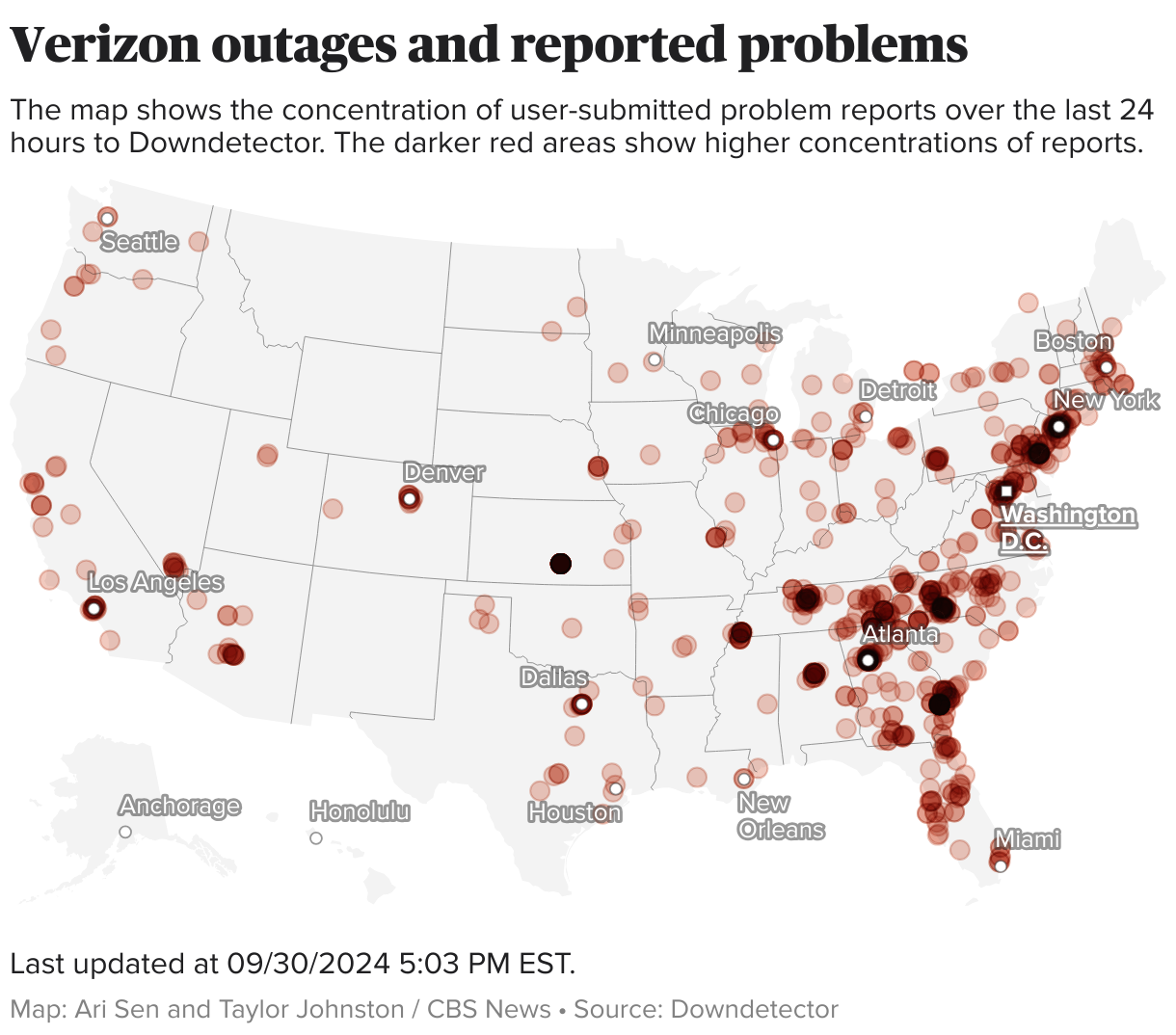
Credit: www.cbsnews.com
Basic Troubleshooting Steps
Verizon text problems can be frustrating. Many issues can be fixed with simple steps. These basic troubleshooting steps help solve common texting errors fast. Try them before calling support or visiting a store. Each step takes only a few minutes.
Restart Your Phone
Turn off your phone and wait 10 seconds. Then turn it back on. Restarting clears minor glitches. It refreshes your phone’s system. This step often fixes sending or receiving text issues.
Check Network Connection
Look at your signal bars on the screen. A weak or no signal stops texts from sending. Move to a place with better reception. Try turning airplane mode on and off. This resets your phone’s connection to Verizon’s network.
Verify Message Settings
Open your messaging app settings. Check if texting service center number is correct. Make sure SMS and MMS options are enabled. Incorrect settings can block messages. Fix them to restore texting service.
Clear Messaging App Cache
Go to your phone settings, then Apps. Find your messaging app and tap Storage. Tap “Clear Cache” to remove temporary files. Cached data can cause app errors. Clearing it often improves app performance and fixes text problems.
Advanced Fixes For Messaging
Verizon text problems can be frustrating, especially when simple fixes do not work. Advanced fixes target deeper issues that affect messaging. These steps help restore smooth texting and improve overall message delivery. Try these solutions to fix persistent problems with your Verizon messages.
Update Carrier Settings
Carrier settings control how your phone connects to Verizon’s network. An outdated setting can cause text issues. Check for updates in your phone’s settings menu. Installing the latest carrier update can fix message sending or receiving problems quickly.
Reset Network Settings
Resetting network settings clears saved Wi-Fi, Bluetooth, and cellular data. This often resolves hidden network conflicts. Go to your phone’s settings and select “Reset Network Settings.” This action refreshes your connection to Verizon’s network and can improve messaging performance.
Switch Messaging Apps
Sometimes, the default messaging app causes trouble. Try using a different messaging app from the app store. A new app may handle Verizon’s network better. This simple test helps find out if the problem is with your current app.
Check For Software Updates
Phones need regular software updates to fix bugs. Outdated software can disrupt texting functions. Check your phone settings for system updates. Installing the latest software version often solves messaging issues on Verizon networks.
When To Contact Verizon Support
Knowing when to contact Verizon support can save time and reduce frustration. Some problems need expert help to fix. Understanding the signs can guide you to get help faster.
Persistent Messaging Errors
Text messages that fail to send or arrive late often point to a deeper issue. Restarting your phone may help once or twice. If errors continue, Verizon support can check network or account problems. They can also help reset your messaging settings remotely.
Account Or Service Issues
Billing errors or service outages affect texting ability. If your messages stop working after a payment or plan change, contact Verizon. Support can verify your account status and fix service interruptions. They can also explain charges or update your plan details.
Device Compatibility Problems
Older phones or new devices might face texting issues with Verizon’s network. Some phones need software updates or specific settings to work correctly. Verizon support can confirm if your device is fully compatible. They can guide you through updates or recommend solutions to improve texting.
Preventing Future Text Problems
Preventing future text problems with Verizon helps keep your messages flowing smoothly. Simple habits can reduce errors and delays in texting. A few small steps protect your phone from common issues.
Focus on regular care and attention to your device and network. Avoid frustration and stay connected with clear, easy messages.
Regular Software Maintenance
Keep your phone’s software updated. Updates fix bugs and improve messaging apps. Check for updates weekly to avoid glitches. Restart your phone after updates for best results.
Monitor Network Status
Network problems can block texts. Check Verizon’s network status often. Use the Verizon app or website for alerts. Move to a better signal area if messages fail.
Manage Messaging Storage
Full storage slows down texting apps. Delete old messages and media regularly. Clear app cache to free up space. Keep your messaging app light for faster use.

Credit: www.whec.com
Frequently Asked Questions
Why Are My Verizon Texts Not Sending?
Check your signal, restart your phone, and ensure texting service is active on your plan.
How Can I Fix Verizon Text Message Delays?
Clear message app cache, update your phone software, or reset network settings to fix delays.
What Causes Verizon Text Messages To Show As Undelivered?
Poor signal, incorrect number, or network issues often cause undelivered texts on Verizon.
How Do I Enable Group Texting On Verizon?
Go to your messaging app settings and turn on the group messaging feature.
Can Verizon Text Problems Affect International Messaging?
Yes, network restrictions or settings may block or delay international Verizon texts.
Conclusion
Verizon text problems can disrupt daily communication. Fixing simple issues often restores smooth texting quickly. Check your phone settings and network first. Restart your device to clear minor glitches. Contact Verizon support if problems continue. Staying calm helps you solve issues faster.
Clear texts keep you connected with friends and family. Don’t let texting troubles slow you down. Small steps can make a big difference. Keep your phone updated for better performance. Reliable texting matters in today’s busy world.