
Is your Hewlett Packard wireless keyboard suddenly not working? You rely on it every day, and when it stops responding, it can bring your work or entertainment to a frustrating halt.
But don’t worry—this problem is more common than you think, and you can fix it. You’ll discover simple steps to get your keyboard back in action quickly. Keep reading, because the solution might be easier than you expect.
Credit: www.youtube.com
Common Causes
The Hewlett Packard wireless keyboard may stop working for several reasons. Knowing the common causes helps fix the problem faster. This section covers the main issues that can cause the keyboard to fail. Each cause is easy to check and often easy to fix.
Battery Issues
Weak or dead batteries often stop wireless keyboards from working. Replace old batteries with fresh ones. Check if the battery contacts are clean and not rusty. Sometimes, the keyboard may turn off to save power if batteries run low.
Connection Problems
Wireless keyboards connect via Bluetooth or a USB receiver. If the connection is lost, the keyboard stops working. Check if the receiver is plugged in properly. Try reconnecting the keyboard to the computer. Interference from other devices can also block the signal.
Driver Conflicts
Keyboard drivers help the computer understand the device. If drivers are outdated or corrupted, the keyboard may not work. Update drivers from the official Hewlett Packard website. Sometimes, uninstalling and reinstalling the driver fixes the issue.
Hardware Damage
Physical damage affects keyboard performance. Spills, drops, or rough handling can harm internal parts. Keys may stop responding or the keyboard may fail completely. Inspect the keyboard for visible damage. Replacement might be needed if damage is severe.
Troubleshooting Steps
Troubleshooting your Hewlett Packard wireless keyboard can solve many common issues. Follow these simple steps to identify and fix the problem quickly. Each step targets a specific cause and helps restore your keyboard’s functionality.
Check And Replace Batteries
Start by checking the keyboard’s batteries. Weak or dead batteries often cause the keyboard to stop working. Remove the battery cover, take out the old batteries, and replace them with fresh ones. Make sure the batteries are inserted correctly with the right polarity. After replacing, turn on the keyboard and test it again.
Re-establish Wireless Connection
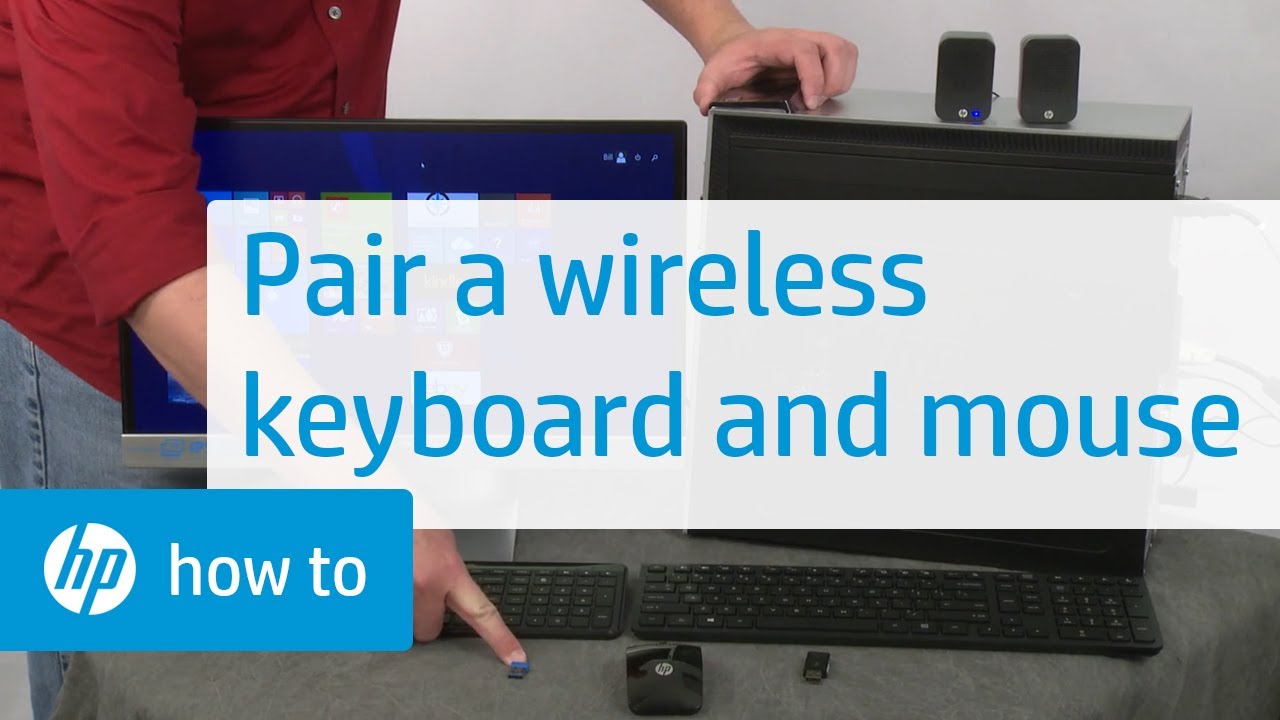
Sometimes the wireless connection between the keyboard and computer breaks. Turn off the keyboard and unplug the wireless receiver from the USB port. Wait for a few seconds, then plug the receiver back in. Turn the keyboard on and press the connect button if available. This process helps the devices pair again and may fix connection issues.
Update Or Reinstall Drivers
Outdated or corrupted drivers can cause the keyboard to stop working. Open the Device Manager on your computer. Find the keyboard under “Keyboards” or “Human Interface Devices.” Right-click and select “Update driver.” If updating does not help, uninstall the driver and restart your computer. Windows will reinstall the driver automatically.
Test Keyboard On Another Device
Testing the keyboard on a different computer or laptop can confirm if the issue is with the keyboard or your device. Connect the keyboard to another device and check if it works. If it does, the problem lies with your original computer settings or hardware. If it does not, the keyboard may need repair or replacement.
Advanced Fixes
Advanced fixes can solve complex issues with your Hewlett Packard wireless keyboard. These steps go beyond basic troubleshooting. They target deeper settings and tools that control your keyboard’s function.
Follow these methods carefully to restore your keyboard’s performance. Each fix addresses common causes that simple steps may miss. This approach saves time and avoids unnecessary hardware replacement.
Reset Keyboard Settings
Resetting keyboard settings can clear hidden errors. Go to the device manager and find your keyboard. Right-click and choose “Uninstall device.” Restart your computer. Windows will reinstall the keyboard driver automatically. This process restores default keyboard settings and fixes software conflicts.
Use Hp Diagnostic Tools
HP offers built-in diagnostic tools for hardware checks. Download the HP Support Assistant from the official website. Run the keyboard test to detect faults. The tool reports any hardware or driver issues. Follow the suggested fixes to repair detected problems.
Adjust Power Management Settings
Power settings can affect wireless keyboard performance. Open Device Manager and locate your keyboard. Right-click and select “Properties.” Under the Power Management tab, uncheck “Allow the computer to turn off this device to save power.” This stops Windows from disabling the keyboard to save battery, ensuring a stable connection.
Credit: www.youtube.com
Preventive Tips
Preventive tips help keep your Hewlett Packard wireless keyboard working well. Simple actions can avoid many common problems. These tips save time and effort later. Follow easy steps to protect your keyboard and improve its lifespan.
Regular Maintenance
Clean the keyboard often to remove dust and dirt. Use a soft cloth slightly dampened with water. Avoid harsh chemicals that may damage the keys. Check the batteries regularly and replace them when low. Keep the keyboard dry and away from spills. Store the keyboard in a safe place when not in use.
Safe Usage Practices
Use the keyboard on a flat, stable surface. Avoid pressing keys too hard to prevent damage. Keep food and drinks away to reduce risk of spills. Handle the keyboard gently when moving it. Turn off the keyboard before changing batteries or cleaning. Avoid exposing the keyboard to extreme heat or cold.
Keep Software Updated
Update the keyboard drivers regularly for smooth performance. Check the Hewlett Packard website for the latest software. Install updates as soon as they become available. Updated software fixes bugs and improves compatibility. Use trusted sources to download any required software. Restart your computer after installing updates to apply changes.
Credit: support.hp.com
Frequently Asked Questions
Why Is My Hewlett Packard Wireless Keyboard Not Connecting?
Check the keyboard’s battery and USB receiver. Make sure both are properly plugged in and powered.
How Do I Fix Keyboard Lag On Hp Wireless Keyboards?
Try replacing the batteries and moving the receiver closer to the keyboard.
Can Bluetooth Interference Cause Hp Wireless Keyboard Problems?
Yes, other wireless devices nearby can interfere. Keep the keyboard away from routers or phones.
How Do I Update Hp Wireless Keyboard Drivers?
Visit HP’s official website, find your keyboard model, and download the latest drivers.
What To Do If Hp Wireless Keyboard Types Wrong Characters?
Reset the keyboard connection and check your computer’s language settings for correct input.
Conclusion
Troubleshooting your Hewlett Packard wireless keyboard can be simple. Check the batteries and connection first. Make sure the keyboard is within range of the computer. Restarting your device often helps. Updating drivers can fix many issues. Keep your keyboard clean and dry.
These steps often solve common problems fast. Stay patient and try each tip carefully. Your keyboard should work smoothly again soon. Don’t give up; small fixes make a big difference.