
Are you thinking about switching to Verizon 5G Home Internet but worried about possible issues? You’re not alone.
Many users have faced unexpected problems that can slow down your connection or disrupt your online activities. Understanding these common challenges before you commit can save you time and frustration. You’ll discover the main Verizon 5G Home Internet problems and how they might affect your experience—so you can make a smarter choice for your home network.
Keep reading to find out what to watch out for and how to avoid surprises.
Common 5g Home Internet Issues
Verizon 5G Home Internet offers fast connections but may face some common problems. These issues can affect your daily online activities and cause frustration. Understanding these problems helps you find quick solutions.
Connectivity Drops
Connection drops happen when the internet suddenly stops working. This can occur due to signal interference or hardware glitches. Frequent drops disrupt streaming, gaming, and video calls.
Slow Speeds
Slow internet speeds reduce loading times and cause buffering. Many factors cause slow speeds, such as network congestion or distance from the 5G tower. This issue affects browsing and downloading files.
Router Malfunctions
Routers control your internet connection, but they can malfunction. Problems include overheating, firmware bugs, or poor setup. A faulty router leads to weak signals and unstable internet.
Coverage Gaps
Coverage gaps are areas with weak or no 5G signal. Buildings, trees, and terrain can block signals. These gaps cause interruptions and limit where you can use the internet effectively.
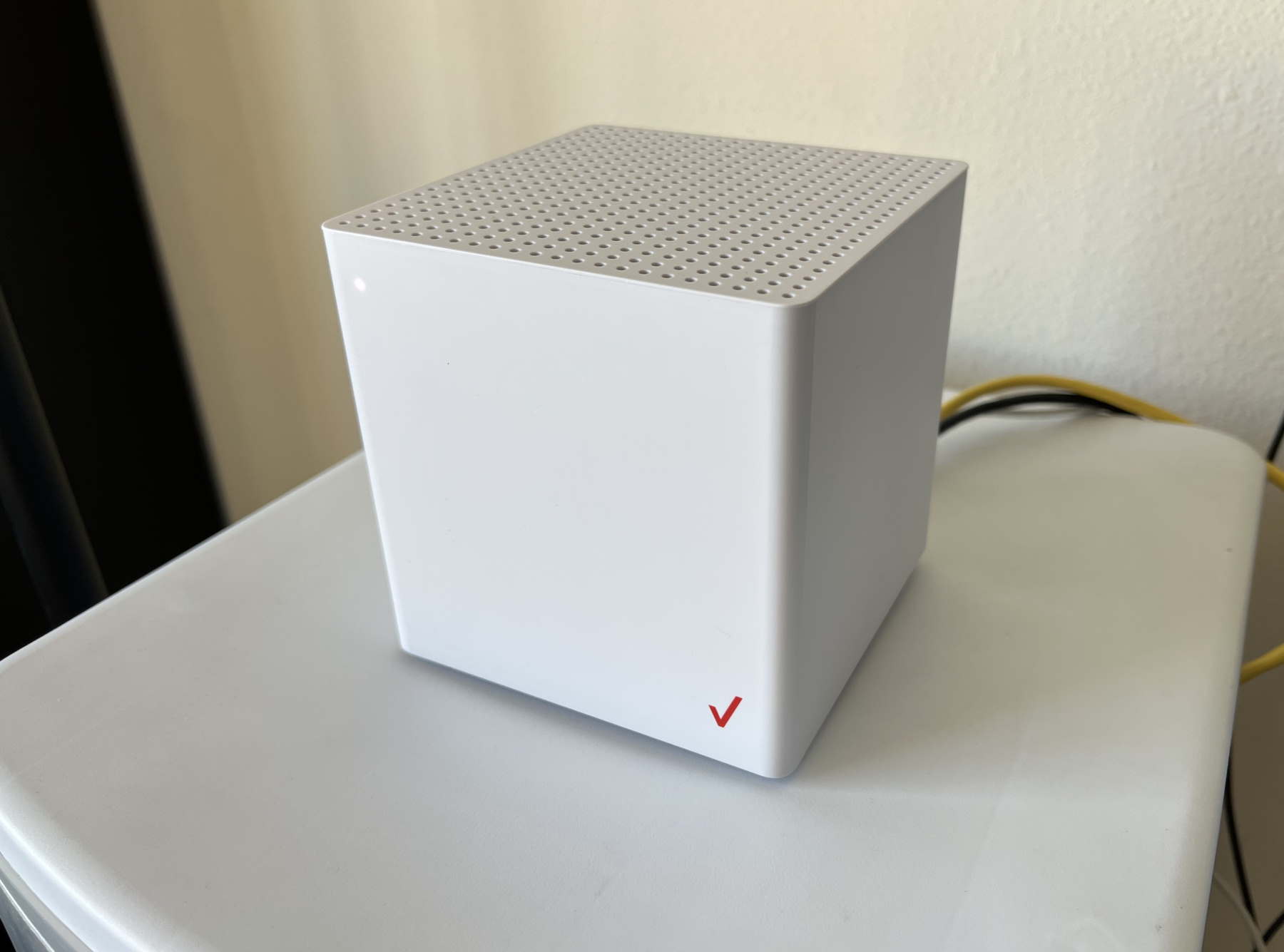
Credit: www.disablemycable.com
Diagnosing Network Problems
Diagnosing network problems is the first step to fix Verizon 5G Home Internet issues. It helps find the root cause quickly. This process saves time and avoids frustration.
Checking key factors like signal strength and router status gives a clear picture of your connection health. Using simple tools can show if speeds match your plan. Identifying interference sources helps improve performance.
Signal Strength Check
Signal strength is vital for a stable 5G connection. Use your router’s app or settings page to view signal bars or dBm values. A strong signal usually means better speeds and fewer drops. Weak signals cause slow internet or disconnections. Try moving the router to a different spot for better reception.
Speed Test Tools
Speed tests measure your download and upload rates. Use trusted websites or apps like Ookla Speedtest. Run tests multiple times at different day times. Compare results with your Verizon plan speeds. Consistently low speeds indicate a network or hardware problem. Sharing results with support speeds up troubleshooting.
Router Status Indicators
Most Verizon routers have LED lights showing connection status. Check if lights for power, internet, and 5G are green or blinking. Red or no lights signal issues. Restarting the router often fixes minor glitches. Keep firmware updated for best performance. The router’s manual helps understand each indicator.
Interference Sources
Electronic devices can interfere with 5G signals. Microwaves, cordless phones, and baby monitors cause disruptions. Thick walls and metal objects also weaken signals. Place the router away from these objects for a clearer signal path. Reducing interference improves speed and connection stability.
Quick Fixes For 5g Issues
Verizon 5G Home Internet can face occasional problems. Quick fixes often solve these issues fast. Simple steps can improve your connection and reduce downtime.
Try these easy methods before calling support. They save time and bring your internet back quickly.
Restarting Equipment
Turn off your modem and router. Wait for 30 seconds. Turn them on again. This clears temporary glitches and refreshes the connection. Restarting often fixes slow speeds and dropped signals.
Repositioning Router
Move your router to a central location. Keep it away from walls and metal objects. Higher placement helps signals reach every corner of your home. This reduces weak spots and improves speed.
Updating Firmware
Check for router firmware updates regularly. Updates fix bugs and improve performance. Log into your router’s settings to find update options. Apply updates to maintain a smooth connection.
Resetting Network Settings
Reset network settings on your device. This clears old data and errors. It can fix issues with connecting to the 5G network. Remember to save important network passwords before resetting.

Credit: www.youtube.com
Advanced Troubleshooting Techniques
Advanced troubleshooting techniques can help solve common Verizon 5G Home Internet problems. These methods go beyond basic fixes and target deeper issues. They improve connection stability and speed. Follow these steps carefully for better results.
Using Ethernet Connections
Ethernet cables create a direct link between your device and the router. This reduces interference and increases speed. Connect your computer or smart TV to the router using an Ethernet cable. Test if the internet is faster and more stable. This step helps find out if Wi-Fi is the problem.
Adjusting Router Channels
Wireless routers broadcast on different channels. Sometimes, neighbors use the same channel, causing interference. Log in to your router’s settings. Change the Wi-Fi channel to a less crowded one. Channels 1, 6, and 11 are usually best for 2.4 GHz. This can reduce lag and dropouts.
Optimizing Network Settings
Proper network settings improve your internet quality. Check your router’s firmware and update it if needed. Disable unused features like guest networks or extra security layers that slow down speeds. Set your router to use automatic channel selection for better performance. These small changes help your connection stay smooth.
Factory Reset Procedures
A factory reset restores the router to its original state. This clears all errors and misconfigurations. Find the reset button on the back of your router. Hold it down for 10-15 seconds until the lights blink. After reset, set up your network again. Only do this if other steps fail.
When To Contact Verizon Support
Knowing when to contact Verizon support can save time and frustration. Some problems need quick help from the experts. Others you can fix on your own. This guide explains key moments to reach out to Verizon support. It helps you get the right help fast.
Service Outages
Service outages stop your internet completely. If your Verizon 5G Home Internet is down for a long time, call support. They can confirm if the outage is in your area. Support teams provide updates and estimate repair times. This helps you know when your service will return.
Hardware Replacement
Hardware issues cause slow or no internet. If your modem or router is faulty, contact Verizon. Support can test your devices remotely. They may send a replacement if needed. Do not try to fix hardware problems yourself. Getting a new device from Verizon ensures better service.
Account And Billing Issues
Billing mistakes happen. Check your bill carefully. If you see wrong charges, call Verizon support. They can explain fees and fix errors. Support can also help with account changes. This includes plan upgrades or address updates. Clear billing means no surprises each month.
Scheduling Technician Visits
Some problems need a technician’s visit. If remote help does not fix your issue, call Verizon. Support will set up an appointment for a technician. The expert can check your equipment and signal at home. This service helps fix complex problems quickly and safely.

Credit: www.youtube.com
Improving 5g Home Internet Experience
Improving your Verizon 5G Home Internet experience makes daily online activities smoother. Simple changes can enhance speed and reduce interruptions. These steps help you get the most from your connection.
Upgrading Equipment
Old routers or modems may limit your internet speed. Upgrading to a newer 5G-compatible router can boost performance. Check Verizon’s recommended devices to ensure compatibility. New equipment often handles signals better and supports faster speeds.
Using Signal Boosters
Signal boosters help strengthen weak 5G signals inside your home. They capture and amplify the signal for better coverage. Place boosters where the signal is strongest. This reduces dead zones and improves connection stability.
Optimizing Home Layout
Placement matters. Keep your router in an open, central spot. Avoid walls, metal objects, and electronic devices nearby. These can block or weaken signals. A clear path between the router and your devices improves speed and reliability.
Regular Maintenance Tips
Restart your router regularly to clear temporary issues. Keep your equipment dust-free and well-ventilated. Update firmware when available to fix bugs and improve performance. These small actions keep your internet running smoothly.
Frequently Asked Questions
What Common Issues Affect Verizon 5g Home Internet?
Users often face slow speeds, connection drops, and signal instability with Verizon 5G Home Internet.
How Can I Improve Verizon 5g Home Internet Speed?
Place the router near a window and away from thick walls or electronics to boost signals.
Why Does Verizon 5g Home Internet Keep Disconnecting?
Interference from other devices or weak 5G signals often cause frequent disconnections.
Can Verizon 5g Home Internet Work In Rural Areas?
Coverage varies; rural areas may have weaker signals and slower internet speeds.
How To Fix Verizon 5g Home Internet Slow Loading Problems?
Restart the router, check for firmware updates, and limit devices using the network simultaneously.
Conclusion
Verizon 5G Home Internet offers fast speeds but faces some issues. Signal drops and slow connections can frustrate users. Patience and proper setup might ease some problems. Checking coverage maps helps avoid weak signal areas. Staying updated on service fixes improves experience over time.
Many users find it useful despite occasional glitches. Keep tracking your connection and report issues promptly. Reliable internet matters, so choose wisely for your home needs.