
Are you frustrated because your Logitech video camera suddenly stopped working? You’re not alone.
When your camera fails at the worst moment, it can disrupt important meetings, online classes, or video calls with loved ones. But don’t worry—this problem is often easier to fix than you think. You’ll discover simple, step-by-step solutions to get your Logitech camera back up and running quickly.
Keep reading to regain control and never miss a moment again.
Check Camera Connections
Checking the camera connections is the first step to fix a Logitech video camera not working. Loose or damaged cables often cause connection problems. Ensuring the camera is properly connected helps identify the root of the issue quickly.
Start by examining the cables and ports carefully. Sometimes, a small problem like dirt or a loose plug can stop the camera from working. Taking a moment to check can save time and effort later.
Inspect Usb Cable And Port
Look closely at the USB cable connected to the camera. Check for any visible damage like cuts or bends. A damaged cable can stop the camera from sending video signals.
Also, inspect the USB port on your computer. Dust or debris in the port can block the connection. Clean the port gently with a soft brush or compressed air. Ensure the cable fits snugly into the port without any wiggle.
Try Different Usb Ports
Plug the camera into another USB port on your computer. Some ports might not work well due to hardware issues or power limits. Testing different ports helps find a working connection.
Use ports directly on the computer, not on a USB hub. Direct ports usually provide better power and stable connections. Switching ports often solves connection problems quickly.
Credit: www.drivereasy.com
Update Camera Drivers
Updating camera drivers is a key step to fix Logitech video camera issues. Outdated or missing drivers can stop the camera from working properly. Keeping drivers current ensures the camera connects smoothly with your computer. It also helps avoid errors and improves video quality. Here are two easy ways to update your Logitech camera drivers.
Use Device Manager
Device Manager is a tool built into Windows that manages hardware devices. To update your camera driver, open Device Manager first. Find “Imaging devices” or “Cameras” and click to expand the list. Right-click on your Logitech camera, then select “Update driver.” Choose “Search automatically for updated driver software.” Windows will look online and install the latest driver if available. Restart your computer after the update finishes. This method is quick and does not require downloading files manually.
Download From Logitech Website
Logitech offers official drivers on their support website. Visit the Logitech support page and enter your camera model number. Download the latest driver file compatible with your Windows version. After download, open the file and follow the installation steps. Installing drivers directly from Logitech ensures compatibility and reliability. Restart your PC after installation to complete the process. This method is useful if Device Manager cannot find the latest driver.
Adjust Camera Settings
Adjusting your Logitech video camera settings can fix many common problems. Small tweaks often restore proper function. This section guides you through key settings to check.
Set Camera As Default Device
Open your computer’s device manager or settings. Find the list of connected cameras. Make sure your Logitech camera is set as the default device. This ensures apps use the right camera. If another device is set as default, your Logitech camera won’t work properly.
To set it as default, select the Logitech camera from the list. Click the option to make it the default device. Restart your app or browser after setting the default. This step often solves recognition issues quickly.
Allow Camera Access In Privacy Settings
Your operating system controls which apps can use your camera. Check the privacy settings to ensure camera access is allowed. Without permission, your Logitech camera will stay off. Open privacy or security settings on your device. Find the camera access section and enable it for needed apps.
Look for individual app permissions too. Allow camera use for video calls or recording apps. After changing settings, close and reopen the app. This refreshes the permissions and helps your camera work correctly.
Test With Different Applications
Testing your Logitech video camera with different applications helps find the issue source. It shows if the problem is with the camera or the software you use. This step is key for fixing the camera not working.
Use Built-in Camera App
Start by opening the built-in camera app on your computer. It is simple and uses minimal settings. Check if the camera shows a video feed. No video here means a hardware or driver issue. Video present means the problem is likely software-related.
Try Video Conferencing Tools
Next, open video conferencing apps like Zoom or Microsoft Teams. These apps use the camera differently than the built-in app. Test your Logitech camera in these tools to see if it works. Problems here suggest app-specific settings or permissions causing trouble.
Restart And Reinstall
Restarting and reinstalling are simple fixes for many Logitech video camera issues. These steps refresh your system and software, clearing temporary problems. Follow these easy actions to get your camera working again quickly.
Restart Your Computer
Turn off your computer completely. Wait for about 30 seconds. Turn it back on and check the camera. Restarting helps clear memory and stops background conflicts. It often solves minor glitches affecting the camera.
Reinstall Logitech Software
Uninstall the current Logitech software from your computer. Visit the official Logitech website to download the latest version. Install the fresh software carefully. This removes corrupt files and updates drivers. A clean install ensures the camera works with your system.
Credit: www.youtube.com
Check For Hardware Issues
When your Logitech video camera stops working, hardware issues might be the cause. Checking the hardware first can save time and avoid confusion. It helps you find out if the camera itself has a problem. Start by looking at the camera carefully. Then, try it on another device to see if it works there. These simple steps often solve many common problems.
Inspect Camera For Physical Damage
Look closely at your Logitech camera for any signs of damage. Check for cracks, dents, or loose parts. See if the lens is clean and free from scratches. Check the cable for cuts or bends that might stop it from working. Physical damage can stop the camera from sending video properly. Fixing or replacing damaged parts might be necessary.
Test Camera On Another Device
Connect your Logitech camera to a different computer or laptop. This test shows if the problem is with the camera or your original device. If the camera works on the other device, the issue is likely software or settings on your first device. If it still does not work, the camera might be faulty. Testing on another device helps you decide the next step.
Troubleshoot Advanced Issues
Advanced troubleshooting helps fix complex problems with your Logitech video camera. Basic fixes may not solve deeper issues. This section guides you through advanced steps that often restore camera function.
Try these methods carefully. They target hidden conflicts and reset settings that might cause the camera to fail. Follow each step to improve your camera’s performance.
Disable Conflicting Software
Some software can block your Logitech camera. Video apps or security programs might use the camera at the same time. This causes conflicts and stops the camera from working.
Close all apps that may use the camera. Check your antivirus or firewall settings. Temporarily disable these programs to test if they cause the problem. Restart your computer after making changes.
Reset Camera Settings
Resetting camera settings can fix glitches or wrong configurations. Open the Logitech software or camera app on your PC. Find the option to reset settings to default.
If your camera has a physical reset button, press it as described in the manual. After resetting, test the camera again. This step often clears errors and restores normal operation.
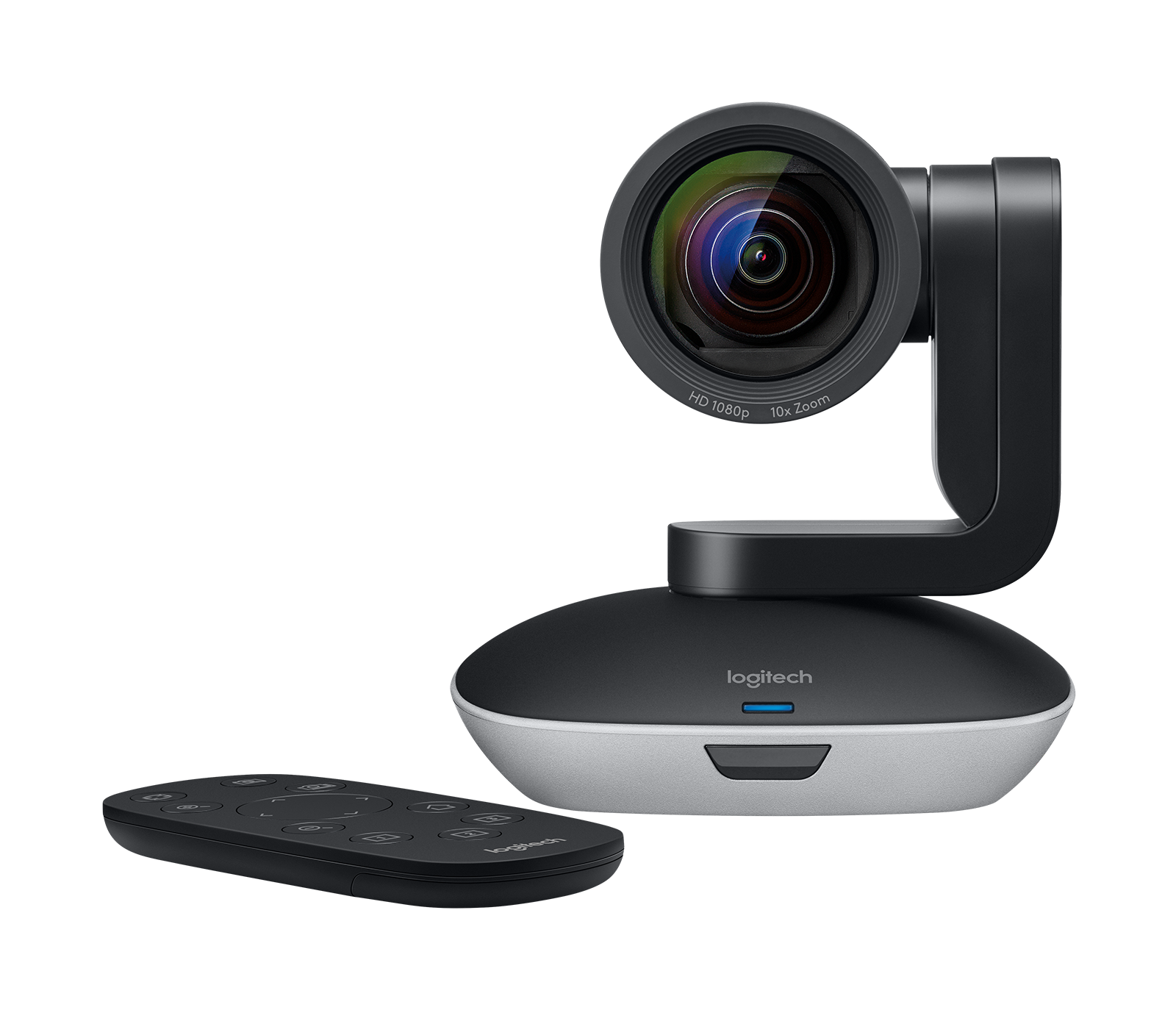
Credit: www.logitech.com
Frequently Asked Questions
Why Is My Logitech Video Camera Not Detected?
Check the USB connection and try a different port to ensure the camera is recognized by your PC.
How Do I Fix Blurry Video On Logitech Camera?
Clean the camera lens gently and adjust focus settings in the camera software for a clear image.
What To Do If Logitech Camera Shows Black Screen?
Restart your computer and update the camera driver to fix the black screen issue.
Can Outdated Drivers Cause Logitech Camera Problems?
Yes, outdated drivers often cause camera malfunctions; updating them usually resolves the issue quickly.
How To Test If Logitech Camera Hardware Is Faulty?
Try the camera on another device; if it still fails, the hardware might be defective.
Conclusion
Fixing your Logitech video camera can be simple with the right steps. Check connections, update drivers, and adjust settings first. Restart your computer to refresh the system. Try the camera on another device to spot issues. Remember, small problems often cause big headaches.
Keep your software current to avoid future glitches. With patience, you can restore clear video quickly. Don’t give up; solutions are often closer than they seem. Your meetings and calls deserve smooth, working video every time.