
Is your Turtle Beach Recon 70 mic not working when you need it most? It’s frustrating when you’re all set to chat with friends or join a game, only to find your voice isn’t coming through.
You’re not alone—many users face this issue, but the good news is that it’s often easy to fix. You’ll discover simple steps to get your mic back up and running quickly. Keep reading to regain clear communication and never miss a word again.
Credit: www.drivereasy.com
Common Mic Issues
The Turtle Beach Recon 70 mic is a popular choice for gamers. Sometimes, the mic may not work properly. Common issues can cause frustration during gameplay or chats. Understanding these problems helps to fix them quickly. Below are some typical mic problems users face.
No Sound Detected
The mic might not pick up any sound at all. This issue can happen if the headset is not fully plugged in. Sometimes, the mic is muted or the volume is too low. Check the device settings to make sure the mic is enabled. Also, try connecting the headset to another device to test it.
Mic Cuts Out Intermittently
The mic works but stops randomly. Loose connections often cause this problem. The cord might be damaged or not fully connected. Wireless interference can also affect sound quality. Try adjusting the cable or moving closer to the device. Reconnecting the headset may help restore steady audio.
Low Volume Or Distorted Audio
The mic picks up sound, but it is too quiet or unclear. Dirt or dust on the mic can reduce sound quality. The mic sensitivity might be set too low in the settings. Sometimes, the headset’s speakers cause distortion instead of the mic. Cleaning the mic and adjusting settings can improve audio clarity.
Basic Troubleshooting Steps
Basic troubleshooting helps find common problems quickly. It saves time and avoids frustration. Start with simple checks before complex fixes. These steps work for many headset mic issues. Follow each carefully to spot the issue.
Check Physical Connections
Ensure the headset plug is fully in the jack. Loose connections cause no sound from the mic. Look for dirt or damage on the cable and plug. Try unplugging and plugging the headset again. Use the right port on your device for the mic.
Adjust Volume And Mute Settings
Check the mic volume in your device settings. The mic might be muted or set too low. Also, check the headset’s inline mute switch, if it has one. Increase the volume slowly to hear if it works. Test the mic using a voice recorder app.
Test On Different Devices
Try the headset on another phone, PC, or console. This helps find if the problem is the headset or device. If the mic works on another device, fix your main device settings. If it does not work anywhere, the headset may need repair.
Software And Driver Fixes
Software and driver issues often cause the Turtle Beach Recon 70 mic not to work. Fixing these problems can restore clear voice chat quickly. Checking your system’s software and drivers is a smart first step. This section explains simple steps to update and adjust settings for better headset performance.
Update Audio Drivers
Outdated audio drivers may stop the mic from working. Visit your computer’s device manager to check driver status. Select the audio input device and click “Update driver.” This process installs the latest software needed for your headset.
Manufacturers often release new drivers to fix bugs. Regular updates keep your mic running smoothly. Use automatic update tools or download drivers from the official website.
Configure Sound Settings
Sound settings control the mic’s input and output on your device. Open the sound control panel and find recording devices. Ensure your Turtle Beach Recon 70 is set as the default mic.
Adjust the mic volume and boost levels for clear sound. Disable other microphones to avoid conflicts. Testing the mic here helps confirm it works properly.
Reset Headset Firmware
The headset firmware controls its internal functions. Resetting the firmware can fix software glitches causing mic issues. Check Turtle Beach’s support site for firmware update tools.
Follow instructions carefully to reset the headset’s firmware. This process restores default settings and can resolve hidden errors. After resetting, test the mic again to see if sound returns.
Advanced Solutions
Advanced solutions help fix tough problems with the Turtle Beach Recon 70 mic. These steps go beyond basic checks. They focus on hardware and connection issues that often cause mic failure. Try these methods carefully to improve your mic’s performance.
Inspect The Mic Boom
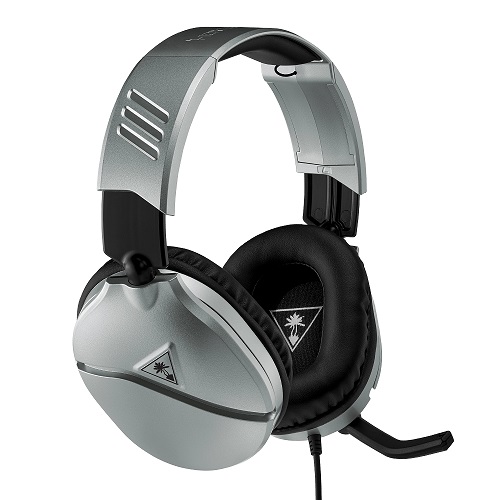
Check the mic boom for damage or looseness. Make sure it is firmly attached to the headset. Move the boom gently to test if the wires inside are broken. A broken wire can stop the mic from working. Replace the mic boom if it looks damaged or worn out.
Try A Different Audio Jack Or Usb Port
Use another audio jack or USB port on your device. Sometimes ports can fail or have dirt inside. A different port might fix the problem quickly. Test the mic on a different device to see if it works. This helps find if the issue is with your headset or the device.
Use External Sound Cards Or Adapters
External sound cards or adapters can improve mic input quality. They bypass faulty internal sound hardware. Connect your headset to an external sound card using the right adapter. This often solves connection issues. Choose a high-quality external sound card for the best results.
When To Seek Professional Help
Sometimes, the Turtle Beach Recon 70 mic stops working and simple fixes do not help. At that point, professional help becomes important. Professionals have the tools and knowledge to diagnose and fix deeper problems. Ignoring serious issues might cause more damage or waste time.
Warranty And Support Options
Check if your headset is still under warranty. Turtle Beach often offers a limited warranty for parts and repairs. Contact their customer support for guidance. They can provide repair services or replacement parts at no extra cost if covered. Always keep your purchase receipt to prove warranty status. Support teams can also offer troubleshooting advice that you might not know.
Repair Vs Replacement
Deciding between repair and replacement depends on the problem’s cost and severity. Small issues like broken wires might be cheap to fix. Major problems with the mic or internal parts can be expensive. Sometimes, buying a new headset is more practical than repairing an old one. Professionals can help evaluate your headset and suggest the best option. Their advice saves money and ensures you get a working mic again.
Credit: support.turtlebeach.com

Credit: www.youtube.com
Frequently Asked Questions
Why Is My Turtle Beach Recon 70 Mic Not Working?
The mic might be muted, unplugged, or the device settings need checking.
How Do I Fix Turtle Beach Recon 70 Mic Issues?
Check the mute button, reconnect the headset, and adjust audio settings.
Can Software Updates Affect Turtle Beach Recon 70 Mic?
Yes, outdated drivers or firmware can cause mic problems. Update them regularly.
Does Turtle Beach Recon 70 Mic Work On All Devices?
It works on most PCs and consoles but may need adapters for some devices.
How To Test If Turtle Beach Recon 70 Mic Is Faulty?
Try the mic on another device or use a different mic on your device.
Conclusion
The Turtle Beach Recon 70 mic not working can be fixed with simple steps. Check connections and settings first. Try unplugging and plugging the headset again. Make sure your device allows microphone access. Testing on another device helps find the problem.
Small fixes often solve the issue quickly. Keep your headset clean and updated. Don’t let technical problems stop your fun. With patience, you can enjoy clear chat again. Stay calm and follow these easy tips. Your gaming experience will improve with a working mic.