
Is your Logitech M325 mouse not working right when you need it most? That sudden stop can throw off your entire workflow and cause frustration.
But don’t worry—you’re not alone, and there are simple fixes you can try today. You’ll discover easy steps to get your mouse back in action quickly. Keep reading to regain control and avoid wasting time on guesswork.
Check Basic Connections
When the Logitech M325 mouse stops working, start by checking the basic connections. Many issues come from simple connection problems. Fixing these is quick and often solves the problem.
Verify Usb Receiver
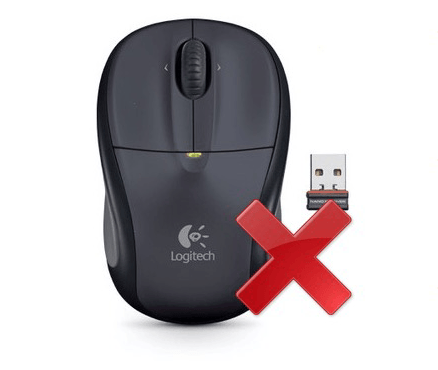
First, check the USB receiver. Make sure it is plugged into the computer firmly. Try another USB port to rule out a bad port. Clean the receiver and port from dust. Restart the computer after reconnecting. This can help the mouse work again.
Replace Or Recharge Batteries
The mouse needs power to work. Check the batteries next. Remove old batteries and test with new ones. Use fresh batteries for better results. Some M325 models have rechargeable batteries. Charge them fully before use. Weak or dead batteries often cause the mouse to stop.
Restart Your Computer
Restarting your computer often fixes small problems. It clears memory and stops stuck processes. This simple step can make your Logitech M325 mouse work again.
Sometimes, software or drivers freeze. Restarting refreshes these and helps devices connect properly. It takes only a minute or two but solves many issues.
How To Restart Your Computer Properly
Click the Start menu on your screen.
Select the Power button.
Choose Restart from the options.
Wait while your computer shuts down and turns on again.
Why Restart Helps With Mouse Issues
Restart clears temporary files that may cause conflicts.
It resets the USB ports and Bluetooth connections.
Restart also reloads the mouse drivers fresh.
After Restarting: Check Your Mouse
Try moving the mouse to see if the cursor moves.
Click the buttons to test their response.
Check if the mouse light is on, showing it’s powered.
Re-pair The Mouse
Re-pairing the Logitech M325 mouse can fix connection problems. This process helps the mouse communicate again with your computer. It often solves issues without needing new hardware or software updates.
Follow the steps below to re-pair your mouse quickly and easily.
Remove And Reconnect Receiver
Start by unplugging the USB receiver from your computer. Wait for about 10 seconds. Plug it back into a different USB port if possible. This can refresh the connection.
Turn off your mouse, then turn it on again. The mouse and receiver should try to connect automatically. Check if the cursor moves after this step.
Use Logitech Unifying Software
Download the Logitech Unifying Software from the official website. Open the software and follow the instructions to add a new device.
Turn off your mouse and then turn it back on during the pairing process. The software will search for your mouse and connect it. This method works well if the receiver and mouse lost their link.
Update Or Reinstall Drivers
Updating or reinstalling drivers can fix many issues with your Logitech M325 mouse. Drivers help your computer communicate with the mouse. If drivers are missing or outdated, the mouse may stop working properly. This section shows how to check and update drivers step-by-step. Follow these simple steps to get your mouse working again.
Check Device Manager
Open Device Manager on your computer. Find “Mice and other pointing devices” in the list. Look for your Logitech M325 mouse. If you see a yellow triangle or question mark, it means there is a driver problem. Right-click the mouse name and select “Update driver.” Choose “Search automatically for updated driver software.” Windows will check for the latest driver. If no issues appear, the driver is likely fine. If problems remain, try reinstalling the driver.
Download Latest Drivers
Visit the official Logitech website. Go to the support or downloads section. Search for the Logitech M325 mouse drivers. Download the latest driver version for your operating system. Open the downloaded file and follow the installation instructions. Restart your computer after installation. This process ensures your mouse has the newest software. It can solve many connection and performance problems.
Adjust Mouse Settings
Adjusting your mouse settings can fix many common problems with the Logitech M325 mouse. Small changes can improve how the mouse responds. These tweaks help the mouse work smoothly and avoid issues.
Check Pointer Speed
Pointer speed controls how fast the cursor moves on the screen. Too slow or too fast speed can cause trouble. To check, open your computer’s mouse settings. Find the pointer speed slider and move it left or right. Test the cursor movement after each change. Set it to a speed that feels natural and easy to control.
Disable Conflicting Devices
Other devices may interfere with your Logitech M325 mouse. Wireless keyboards or other mice can cause conflicts. Check your device manager or Bluetooth settings. Turn off or disconnect other input devices one by one. This helps find if any device is causing the problem. Removing conflicts can restore the mouse’s normal function quickly.

Credit: www.youtube.com
Try The Mouse On Another Device
Trying the Logitech M325 mouse on another device helps find the source of the problem. This step shows if the issue is with the mouse or the original computer. Testing on a different device gives clear information for the next fix steps.
Check Compatibility With The Other Device
Make sure the other device supports the Logitech M325 mouse. Most computers and laptops with USB ports or Bluetooth work well. If the mouse connects and works, it shows the first device might have a problem.
Test The Mouse Connection
Connect the mouse to the second device. Watch if the cursor moves or clicks register. If the mouse works smoothly, it means the mouse is fine. If it still does not work, the mouse might be broken or need repair.
Observe Battery And Power Issues
Check the mouse battery before testing on another device. Weak batteries cause connection problems. Replace the battery and test again. Sometimes a simple battery change solves the issue quickly.
Use Different Usb Ports Or Bluetooth Settings
Try different USB ports on the other device. Ports can fail or have dirt inside. For Bluetooth mice, turn Bluetooth off and on again. Re-pair the mouse to the device for a fresh connection.
Clean The Mouse Sensor
Cleaning the mouse sensor is an important step to fix the Logitech M325 mouse not working. Dirt and dust can block the sensor. This stops the mouse from tracking movement correctly. A clean sensor helps the mouse work smoothly and respond well.
Cleaning is easy and takes only a few minutes. It can solve many common problems without needing extra tools. Here is how to clean the mouse sensor safely and effectively.
Gather The Right Cleaning Tools
Use a soft, lint-free cloth. Avoid rough materials that can scratch the sensor. A cotton swab works well for small areas. Isopropyl alcohol can help remove stubborn dirt. Use it sparingly and never pour it directly on the mouse.
Turn Off The Mouse Before Cleaning
Switch off the Logitech M325 mouse. Remove the batteries if possible. This prevents damage and accidental clicks. It also keeps you safe while cleaning around the sensor.
Gently Clean The Sensor Area
Lightly dampen the cloth or cotton swab with alcohol. Wipe the sensor area carefully. Avoid pressing too hard. Move the cloth in small circles to lift dirt. Make sure the sensor lens is clear and shiny.
Check For Debris Inside The Sensor
Look inside the sensor opening. Remove any visible dust or lint. Use a dry cotton swab or a soft brush. Do not poke inside with sharp objects. Keep the sensor clear for accurate tracking.
Let The Sensor Dry Completely
Allow the sensor to dry before turning the mouse back on. This prevents short circuits and damage. Wait at least five minutes for the alcohol to evaporate. Once dry, test the mouse on a clean surface.
Reset The Mouse
Resetting the Logitech M325 mouse can fix many common problems. It refreshes the connection and clears small glitches. This step often restores normal mouse function quickly.
Resetting is simple. You do not need special tools or skills. Just follow a few easy actions to bring your mouse back to life.
Turn Off The Mouse
Start by switching off the mouse. Look for the power switch on the bottom. Slide it to the off position. This stops all power to the device.
Remove The Battery
Next, open the battery cover. Take out the battery carefully. Wait for about 10 seconds. This allows the mouse to fully reset.
Press And Hold The Left Button
While the battery is out, press and hold the left mouse button. Keep it pressed for 5 seconds. This helps clear the mouse’s memory.
Reinsert The Battery And Turn On
Put the battery back in the mouse. Close the battery cover. Slide the power switch to the on position. Your mouse should now reset.
Reconnect The Mouse To The Receiver
Press the connect button on the receiver. Then press the connect button on the mouse. Wait a few seconds for them to link. The mouse should work again.
Contact Logitech Support
Contacting Logitech Support is a reliable way to fix your M325 mouse. The support team helps with technical problems and guides you through solutions. They offer advice tailored to your specific issue.
Support is available through various channels. You can reach out by phone, chat, or email. Each method provides quick and clear help.
How To Reach Logitech Support
Visit the official Logitech website to find support options. Choose your country for the right contact details. Use the support page to start a chat or find phone numbers.
Information To Provide
Have your mouse model and purchase date ready. Describe the problem clearly and mention any troubleshooting steps taken. This helps support give faster answers.
What To Expect From Support
The team may guide you through fixes or offer replacement options. They explain each step simply. Expect polite and patient assistance focused on solving your problem.
Credit: www.drivereasy.com

Credit: dalvikplanet.blogspot.com
Frequently Asked Questions
Why Is My Logitech M325 Mouse Not Responding?
The mouse may have a dead battery or a loose USB receiver connection. Check both first.
How Do I Fix Logitech M325 Mouse Connection Issues?
Try replugging the USB receiver or replacing the battery to restore connection.
Can Software Cause Logitech M325 Mouse To Stop Working?
Yes, outdated or missing drivers can cause problems. Update or reinstall the mouse driver.
What Should I Do If Logitech M325 Cursor Is Jumpy?
Clean the sensor underneath the mouse and use it on a smooth, flat surface.
How To Reset Logitech M325 Mouse To Factory Settings?
Remove the battery and USB receiver, wait 10 seconds, then reconnect both to reset.
Conclusion
Troubles with the Logitech M325 mouse can disrupt your work. Simple checks often fix common issues fast. Try replacing batteries or reconnecting the mouse first. Cleaning the sensor or updating drivers helps too. Keep your device’s software up to date.
Small steps can restore smooth mouse movement. Stay patient and follow easy fixes carefully. Soon, your mouse will work like before. Don’t let minor glitches stop your flow. A little care goes a long way.