
Is your Logitech M585 mouse suddenly not working? It’s frustrating when your reliable mouse stops responding right in the middle of important work or play.
You might feel stuck, unsure of what to do next. But don’t worry—this guide is here to help you fix the issue quickly. By the end of this article, you’ll know exactly how to get your Logitech M585 back in action, so you can avoid downtime and stay productive.
Keep reading to discover simple, effective solutions that anyone can follow.
Common Causes Of Logitech M585 Issues
The Logitech M585 mouse is popular for its smooth performance and ease of use. Still, users often face issues that disrupt their work. Understanding common causes helps fix problems quickly. This section explains the main reasons behind Logitech M585 mouse issues.
Battery And Power Problems
Low or dead batteries cause the mouse to stop working. Weak power means the mouse might lag or disconnect. Sometimes, the battery is not installed correctly. Check the battery level and replace old batteries. Ensure the battery contacts are clean and secure.
Connectivity Glitches
The Logitech M585 connects via Bluetooth or the Unifying Receiver. Connection problems occur if the mouse is out of range. Wireless interference from other devices can also disrupt signals. Sometimes, the receiver is not plugged in properly. Re-pairing the mouse with the computer may solve connection issues.
Driver And Software Conflicts
Outdated or corrupted drivers cause the mouse to malfunction. Software conflicts with other programs can stop the mouse from working. Check for driver updates on Logitech’s website. Restart the computer after installation to apply changes. Uninstall conflicting software to improve mouse performance.
Hardware Malfunctions
Physical damage to the mouse can cause it to fail. Dirt or debris inside the mouse may block sensor movement. Buttons may stop working due to wear and tear. Inspect the mouse for damage and clean it gently. If hardware problems persist, professional repair or replacement may be needed.
Basic Troubleshooting Steps
When the Logitech M585 mouse stops working, start with basic troubleshooting steps. These steps help solve common problems quickly. They focus on power, connection, and simple resets. Follow each step carefully for the best results.
Check And Replace Batteries
First, check the mouse batteries. Weak or dead batteries often cause issues. Open the battery compartment and remove the batteries. Test the batteries with a battery tester or replace them with new ones. Insert fresh batteries and close the compartment tightly. This step fixes most power-related problems.
Restart The Mouse And Computer
Turn off the mouse by switching the power button. Wait for about 10 seconds. Turn the mouse back on. Restart your computer as well. This refreshes the system and clears minor glitches. Restarting helps the mouse reconnect properly.
Re-establish Bluetooth Or Unifying Connection
Check the connection type of your mouse. For Bluetooth, turn off Bluetooth on your computer. Then turn it back on. Pair the mouse again through the device settings. For Unifying Receiver, unplug the receiver from the USB port. Plug it back in after a few seconds. Use Logitech’s Unifying Software to reconnect the mouse if needed.
Advanced Fixes For Connectivity
When the Logitech M585 mouse stops connecting properly, basic fixes might not help. Advanced fixes for connectivity dig deeper. These steps address driver issues, Bluetooth problems, and software conflicts. Follow them carefully to restore smooth mouse function.
These methods take more time but often solve persistent problems. They ensure your mouse communicates well with your computer or laptop. Let’s explore these advanced solutions step by step.
Update Or Reinstall Drivers
Drivers control how your mouse talks to your computer. Outdated or corrupted drivers cause connection problems. Open Device Manager on your PC. Find the mouse under “Mice and other pointing devices.”
Right-click the mouse name and select “Update driver.” Choose “Search automatically for updated driver software.” Wait for the process to finish. Restart your computer to apply changes.
If updating fails, uninstall the driver. Restart your PC. Windows will reinstall the driver automatically. This refresh often fixes hidden issues.
Reset The Bluetooth Module
Bluetooth issues block wireless connection. Resetting the Bluetooth module refreshes its settings. On Windows, open “Settings” and go to “Devices.” Select “Bluetooth & other devices.”
Turn Bluetooth off and wait 10 seconds. Turn it on again. This simple reset often restores connectivity. For Mac users, hold Shift + Option and click the Bluetooth icon. Choose “Reset the Bluetooth module.”
After resetting, try reconnecting your Logitech M585 mouse. This step clears glitches that stop pairing.
Use Logitech Unifying Software
The Logitech Unifying Software manages devices connected via Logitech’s USB receiver. Download and install it from Logitech’s official site. Open the software and follow prompts to pair your mouse again.
This software finds and fixes connection conflicts. It ensures the USB receiver links properly with your mouse. If your mouse uses the Unifying receiver, this step is key to restoring function.

Credit: www.youtube.com
Addressing Speed And Responsiveness
Speed and responsiveness are key to a smooth mouse experience. Problems with these can make the Logitech M585 frustrating to use. Slow pointer movement or lag can reduce productivity and cause irritation. Fixing these issues often improves overall performance significantly.
Several simple steps can help adjust the mouse’s speed and responsiveness. These fixes do not require technical skills and take just a few minutes. Start by checking settings on your computer and your mouse’s environment.
Adjust Pointer Speed Settings
Open your computer’s mouse settings panel. Find the pointer speed option. Move the slider to increase or decrease speed. Test the mouse after each change to find the best setting. Too fast or too slow can both cause problems. Aim for smooth control that matches your hand movement.
Calibrate Tracking Surface
The surface where you use your mouse affects tracking. A rough or reflective surface can confuse the sensor. Use a mouse pad or a plain, non-glossy surface. Clean the surface to remove dust or dirt. This helps the sensor track movements accurately and improve responsiveness.
Disable Conflicting Software
Some software can interfere with mouse performance. Background apps or drivers might conflict with Logitech’s software. Check running programs and close any that are not needed. Disable unnecessary mouse drivers in device manager. This can prevent lag and improve pointer speed.
Hardware Checks And Repairs
Hardware problems often cause the Logitech M585 mouse to stop working. Checking the hardware is a good first step. This helps find damage or dirt that blocks the mouse’s parts.
Simple fixes can restore your mouse’s function. Some issues need cleaning or small repairs. Other problems may require expert help.
Inspect For Physical Damage
Look over the mouse carefully. Check for cracks, dents, or loose parts. Examine the buttons and scroll wheel. See if the USB receiver or cable is broken.
Physical damage can stop the mouse from working. Broken parts need repair or replacement. Avoid using a damaged mouse to prevent more harm.
Clean The Sensor And Buttons
Dust and dirt can block the sensor and buttons. Use a soft cloth or brush to clean the mouse. Remove debris around the sensor under the mouse. Wipe the buttons gently to ensure they click well.
Cleaning often fixes mouse problems. Avoid using water or harsh chemicals. Keep the mouse dry to protect its parts.
When To Seek Professional Help
If the mouse still does not work after checks, get expert help. Professionals can open and fix internal parts safely. Trying to fix complex problems alone may cause more damage.
Contact Logitech support or a trusted repair shop. A professional can diagnose and repair the mouse correctly.
Credit: www.systweak.com
Preventive Tips For Long-term Performance
Maintaining your Logitech M585 mouse can extend its life and keep it working smoothly. Simple steps help avoid common problems and improve performance over time. Focus on care routines and updates to prevent issues before they start.
Regular Maintenance Routine
Clean the mouse surface and sensor often. Use a soft, dry cloth to remove dust and dirt. Avoid harsh chemicals that can damage the mouse.
Check the scroll wheel and buttons for smooth action. Remove any debris that might block movement. Replace batteries regularly to keep power steady.
Safe Storage Practices
Store the mouse in a dry, cool place when not in use. Keep it away from direct sunlight or heat sources. Use a protective case to avoid scratches and damage.
Do not place heavy objects on the mouse. Avoid leaving it on uneven surfaces to prevent wear and tear. Handle the mouse gently to avoid internal damage.
Keep Software Updated
Download the latest Logitech software and drivers. Updates fix bugs and improve mouse compatibility. Check for updates regularly to maintain smooth operation.
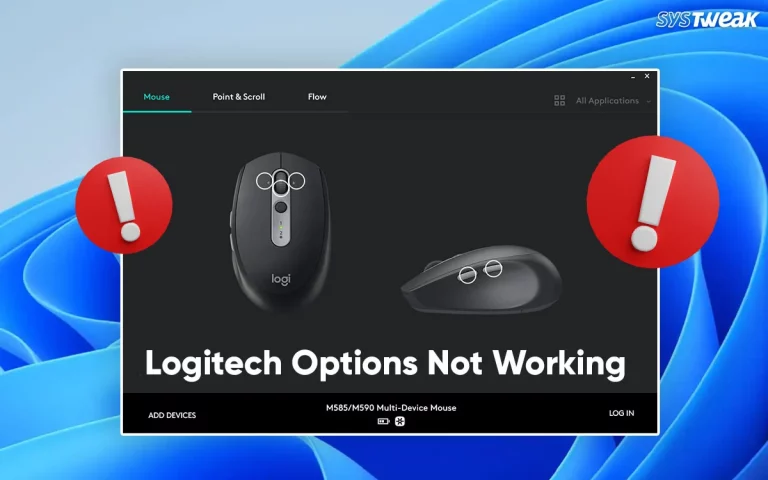
Use the Logitech Options software to customize settings and enhance function. Updated software helps the mouse work well with your computer system.
Credit: www.youtube.com
Frequently Asked Questions
Why Is My Logitech M585 Mouse Not Connecting?
Check the battery, USB receiver, and Bluetooth settings for proper connection.
How Do I Fix Logitech M585 Mouse Lag Issues?
Try changing batteries, moving closer to the receiver, or restarting your computer.
Can Logitech M585 Mouse Work On Multiple Devices?
Yes, it can connect to two devices and switch easily between them.
What Should I Do If Logitech M585 Mouse Scroll Stops Working?
Clean the scroll wheel and update the mouse driver software.
How To Reset Logitech M585 Mouse To Factory Settings?
Turn off the mouse, hold down the left and right buttons, then turn it on.
Conclusion
Troubles with the Logitech M585 mouse can be fixed with simple steps. Check the battery and connection first. Make sure the mouse is paired correctly. Restart your computer to clear small glitches. Update drivers to keep the mouse working well.
Clean the mouse sensor and buttons gently. These tips help your mouse run smoothly again. Stay patient and follow each step carefully. Your mouse will work fine soon. No need to worry or rush to replace it. Small fixes often solve common mouse problems fast.