
Are you struggling with MetroPCS WiFi calling not working on your iPhone? It’s frustrating when you rely on this feature to stay connected, only to find it suddenly stops working.
You might be missing important calls or texts just when you need them most. But don’t worry—this problem has solutions. You’ll discover simple steps to fix your WiFi calling issue and get your iPhone back to full strength. Keep reading, because the answer is easier than you think.
Why Wifi Calling Fails On Iphone
WiFi calling on iPhone offers a way to make calls using a WiFi network instead of cellular signals. It helps in areas with poor cell coverage. Yet, the feature can stop working for various reasons. Understanding why WiFi calling fails on iPhone helps fix the issue quickly.
Common Wifi Calling Issues
WiFi calling may not work due to weak WiFi signals or network interruptions. Sometimes, incorrect settings on the iPhone block the feature. Outdated software can cause glitches that prevent calls. Call drops and poor audio quality are also common problems. Restarting the phone or toggling the WiFi calling setting can help.
Iphone Compatibility Factors
Not all iPhones support WiFi calling. Older models may lack this feature. The iPhone must run the latest iOS version for best results. Carrier settings updates are also necessary. Incompatible phones or outdated software often cause failures. Checking device compatibility is essential before using WiFi calling.
Metropcs Network Limitations
MetroPCS may have network restrictions affecting WiFi calling. The service might not be available in all areas. Some plans do not support WiFi calling. Network outages or maintenance can disrupt the feature. MetroPCS sometimes requires activation of WiFi calling on your account. Confirming plan details and network status can solve many problems.

Credit: www.reddit.com
Basic Troubleshooting Steps
Basic troubleshooting steps can fix many issues with MetroPCS WiFi calling on your iPhone. Follow these simple methods to get your WiFi calling working again. They do not require special tools or skills.
Start with these easy checks before trying more complex solutions. Most problems resolve quickly this way. Let’s look at the key steps to try first.
Check Wifi Connection
Make sure your iPhone is connected to a stable WiFi network. Weak or no signal can stop WiFi calling from working. Open a web page or app to test internet access. Try switching to a different WiFi network if possible. Strong WiFi is essential for clear calls.
Restart Your Iphone
Turn off your iPhone and turn it back on. Restarting clears temporary glitches that block WiFi calling. Press and hold the power button, slide to power off, wait a few seconds, then turn it on again. This simple step often fixes many phone issues.
Toggle Wifi Calling Off And On
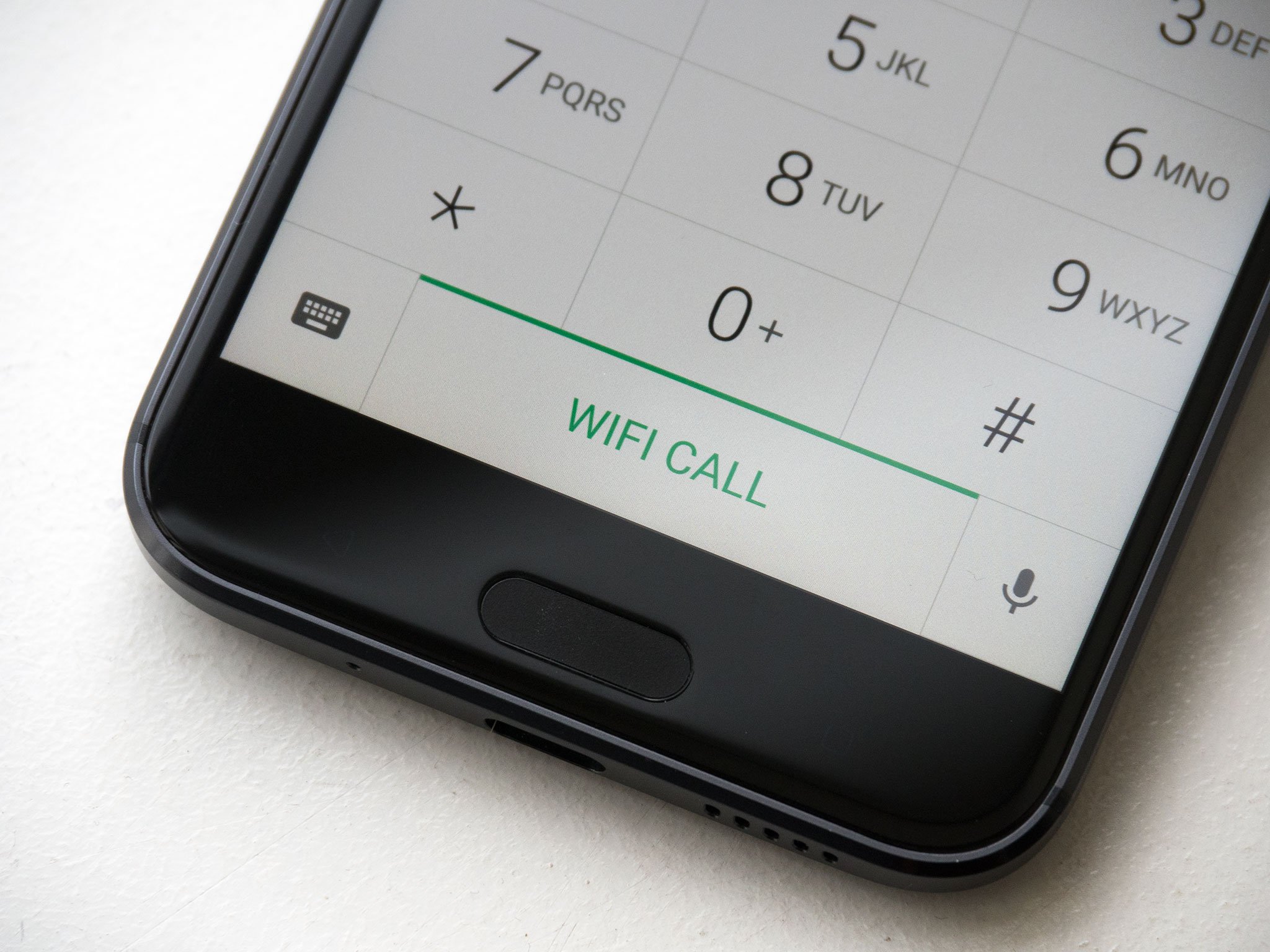
Go to Settings, then Phone, and find WiFi Calling. Turn WiFi Calling off, wait a moment, and turn it back on. This refreshes the WiFi calling feature and resets connection settings. Check if calls work better after toggling the option.
Update Software And Carrier Settings
Updating your iPhone’s software and carrier settings can fix issues with MetroPCS WiFi calling. These updates improve your phone’s performance and connection to the network. They also fix bugs that may cause WiFi calling to stop working.
Keeping your device current helps avoid many common problems. Let’s look at how to install iOS updates and update carrier settings.
Install Ios Updates
Open the Settings app on your iPhone. Tap on “General.” Next, select “Software Update.” Your iPhone will check for new updates. If an update is available, tap “Download and Install.”
The update will download and your phone will restart. This process installs the latest iOS version. New updates often fix WiFi calling bugs and improve network features.
Update Carrier Settings
Carrier settings updates improve how your phone connects to MetroPCS. To check, open Settings. Tap “General,” then “About.”
If an update is available, a prompt will appear. Tap “Update” to install the new carrier settings. This can solve many network issues including WiFi calling problems.
Regularly checking for these updates keeps your phone working smoothly with MetroPCS services.
Credit: www.androidcentral.com
Reset Network Settings
Resetting network settings can fix many iPhone wifi calling issues. It clears old settings that might cause problems. This step often helps restore proper connection for MetroPCS wifi calling.
Resetting network settings is simple and safe. It does not delete your personal data but removes saved network details. This helps your iPhone start fresh with new network configurations.
How To Reset Network
Open the Settings app on your iPhone. Scroll down and tap on “General.” Next, find and tap “Reset.” Choose “Reset Network Settings” from the list. Enter your passcode if asked. Confirm by tapping “Reset Network Settings” again. Your iPhone will restart, and network settings will be reset.
What Resets Affect
Resetting network settings deletes saved Wi-Fi passwords. It removes Bluetooth connections and VPN settings too. Cellular settings return to default. Personal data like photos and apps stay safe. You must reconnect to Wi-Fi networks after the reset. This helps fix network conflicts causing wifi calling issues.
Verify Account And Plan Compatibility
Verifying your account and plan compatibility is a key step to fix MetroPCS WiFi calling issues on your iPhone. Sometimes, the problem comes from settings or plan limits. Checking these details helps ensure your service supports WiFi calling. This avoids confusion and saves time.
Confirm Wifi Calling Is Enabled
Start by checking if WiFi calling is turned on in your iPhone settings. Go to Settings, then Phone, and tap WiFi Calling. Make sure the feature is enabled. Without this, calls won’t route through WiFi. Sometimes, the option may be off after updates or resets.
Also, check your device for any prompts to activate WiFi calling. Follow on-screen instructions if needed. This simple step often solves the problem fast.
Check Metropcs Plan Features
Not all MetroPCS plans include WiFi calling. Verify your current plan supports this feature. Visit MetroPCS website or call customer service to confirm. Using a plan without WiFi calling will prevent it from working.
Switching to a compatible plan might be necessary. Some plans need activation or extra fees for WiFi calling. Clear information helps avoid wasted effort on troubleshooting device issues.
Advanced Fixes For Persistent Issues
Advanced fixes help solve tough wifi calling issues on iPhones with MetroPCS. These steps address deeper problems that basic fixes miss. Follow each carefully to improve your calling experience.
Sometimes, the issue lies with the SIM card connection or account settings. Other times, only MetroPCS support can fix network-related problems. Keep trying the steps below for better results.
Remove And Reinsert Sim Card
Start by turning off your iPhone. Locate the SIM card tray on the side of your phone. Use a SIM eject tool or a small paperclip to open the tray. Gently remove the SIM card and check for dirt or damage.
Clean the SIM card softly with a dry cloth. Reinsert it carefully into the tray. Push the tray back into the phone until it clicks. Turn your iPhone back on and check wifi calling again.
This simple step can fix connection problems between your phone and the network.
Contact Metropcs Support
If removing the SIM card does not fix the issue, contact MetroPCS support. They can check your account for service restrictions or outages. They can also reset your network settings from their side.
Explain the wifi calling problem clearly. Provide details about your iPhone model and software version. Support may guide you through advanced troubleshooting or schedule a service appointment.
Speaking with MetroPCS ensures your account and network are working properly.
Credit: discussions.apple.com
Frequently Asked Questions
Why Is Metropcs Wifi Calling Not Working On My Iphone?
WiFi calling may be off or your iPhone might need a restart to refresh settings.
How Can I Enable Wifi Calling On My Metropcs Iphone?
Go to Settings > Phone > WiFi Calling and turn on the option.
Does Metropcs Support Wifi Calling On All Iphone Models?
Most newer iPhones support it, but check your model and iOS version first.
What Should I Do If Wifi Calling Drops During Calls?
Check your WiFi signal strength and switch to a stronger network if needed.
Can Software Updates Fix Metropcs Wifi Calling Issues On Iphone?
Yes, updating iOS often resolves bugs affecting WiFi calling functions.
Conclusion
Metropcs wifi calling on iPhone can face issues sometimes. Restart your phone and check your wifi connection first. Make sure wifi calling is turned on in settings. Updating your iPhone software often fixes many problems. Contact Metropcs support if problems continue.
Small steps can solve most wifi calling troubles. Stay patient and try simple fixes one by one. Clear and strong wifi helps calls work better. Keep your phone updated and settings correct for best results.