
Is your Vizio sound bar remote suddenly stopped working? It’s frustrating when you can’t control the volume or switch inputs with the click of a button.
You rely on your remote for easy access to your favorite shows and music, and when it stops responding, it can throw off your entire entertainment experience. But don’t worry—there are simple fixes you can try right now to get your remote back in action.
Keep reading, and you’ll discover easy steps to solve the problem quickly and enjoy your sound bar again without hassle.
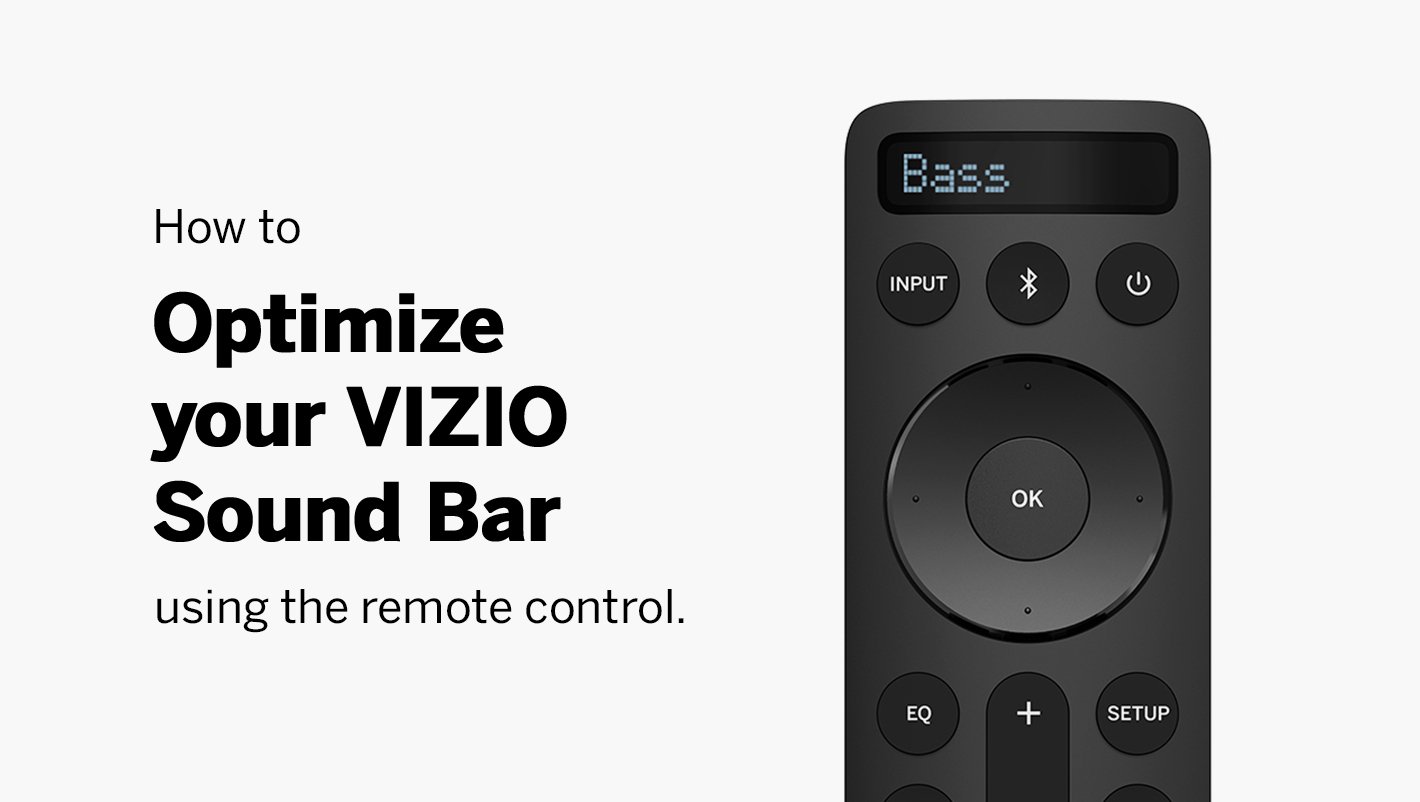
Credit: www.vizio.com
Common Causes
When a Vizio sound bar remote stops working, several common causes might be behind the issue. Identifying the cause helps fix the problem quickly. Understanding these causes avoids unnecessary frustration and saves time.
Battery Issues
Weak or dead batteries are the top reason for remote failure. Old batteries lose power and cannot send signals. Check and replace the batteries with fresh ones. Make sure the batteries are inserted correctly. Corroded battery contacts can also stop the remote from working.
Signal Interference
Objects blocking the remote’s signal can cause problems. Walls, furniture, or other electronics may interfere with the signal. Bright sunlight or fluorescent lights sometimes disrupt the remote’s infrared beam. Keep the path between the remote and sound bar clear. Avoid using the remote from too far away.
Remote Sensor Problems
The sound bar’s sensor may be dirty or damaged. Dust or dirt on the sensor blocks the remote signal. Clean the sensor gently with a soft cloth. If the sensor is broken, the remote will not work. Check for sensor issues if the remote works on other devices.
Software Glitches
Occasional software bugs can stop the remote from working. The sound bar or remote may need a reset. Restart the sound bar to clear minor glitches. Firmware updates can fix software problems. Check for updates on the Vizio support website.
Basic Troubleshooting
Basic troubleshooting helps fix common issues with your Vizio sound bar remote. Start with simple steps. These often solve the problem quickly. Save time and avoid frustration by checking these first.
Replace Batteries
Old or weak batteries can stop the remote from working. Take out the batteries and replace them with new ones. Use fresh, high-quality batteries for best results. Test the remote after changing the batteries.
Check Remote Sensor
The remote sensor on the sound bar must be clear and clean. Dirt or dust can block signals. Wipe the sensor gently with a soft cloth. Make sure nothing covers the sensor on the sound bar.
Remove Obstructions
Objects between the remote and sound bar can block signals. Move any items like furniture, decorations, or electronics away. Keep a clear line of sight between the remote and sensor. Try using the remote again after clearing obstructions.
Restart Sound Bar
Sometimes, the sound bar needs a reset. Turn off the sound bar and unplug it from the power source. Wait about 30 seconds, then plug it back in and turn it on. This can fix minor glitches affecting the remote.
Resetting The Remote
Resetting the Vizio sound bar remote can fix many common issues. It clears errors and restores default settings. This process can help if the remote stops working suddenly. Resetting is simple and does not need special tools. Follow the steps carefully for the best results.
Factory Reset Steps
Remove the batteries from the remote. Press and hold the power button for 10 seconds. Release the button and wait for 30 seconds. Insert the batteries back into the remote. The remote is now reset to factory settings.
Re-pairing With Sound Bar
Turn on the sound bar manually. Hold the “Pair” or “Bluetooth” button on the sound bar. Press and hold the power button on the remote until the LED blinks. The remote will connect to the sound bar. Test the remote to confirm the pairing is successful.

Credit: www.amazon.com
Using The Vizio App
Using the Vizio app can solve problems with your Vizio sound bar remote. This app acts as a backup remote on your phone. It offers easy control and quick fixes for common issues. You can change volume, switch inputs, and adjust settings without the physical remote.
The app is simple to use and connects directly to your sound bar. It helps keep your sound bar working well even if the remote stops working. Below are steps to install and use the app, along with tips to keep the connection strong.
App Installation
Download the Vizio app from the Apple App Store or Google Play Store. The app is free and takes just a few minutes to install. After installing, open the app and follow on-screen instructions. You will need to connect your phone to the same Wi-Fi network as your sound bar. This connection allows the app to communicate with your device.
Remote Control Features
The Vizio app lets you control your sound bar like a normal remote. You can change the volume, mute the sound, or switch inputs. The app also has extra features like sound mode settings and firmware updates. These options help improve sound quality and keep your device updated. The interface is simple, showing big buttons for easy use.
Connectivity Tips
Ensure your phone and sound bar stay on the same Wi-Fi network. Restart your router if the app cannot find the sound bar. Keep the app updated for best performance. Turn off other Bluetooth devices that may cause interference. If the connection drops, close the app and reopen it. These steps help maintain a strong link between your phone and sound bar.
When To Contact Support
Sometimes, fixing a Vizio sound bar remote at home is not possible. Troubleshooting steps might fail to restore its functions. This is the time to contact support. Reaching out to experts can save time and avoid frustration. They provide help that matches your specific problem.
Warranty Options
Check if your sound bar is still under warranty. Many Vizio products come with a limited warranty. This can cover repair or replacement costs. Support can guide you through the warranty claim process. Having your purchase details ready speeds up the help you get.
Repair Services
Support can direct you to authorized repair centers. Skilled technicians can fix complex issues safely. Using official repair services keeps your warranty intact. It also ensures the use of genuine parts. Repairing might be cheaper than buying a new remote.
Replacement Remotes
If the remote cannot be fixed, support can help order a replacement. They provide the correct model that fits your sound bar. Buying from support avoids compatibility problems. New remotes come with instructions for easy setup. This ensures your sound bar works smoothly again.

Credit: www.youtube.com
Frequently Asked Questions
Why Did My Vizio Sound Bar Remote Stop Working Suddenly?
Battery drain or signal interference often causes sudden remote failure.
How Can I Fix A Vizio Sound Bar Remote Not Responding?
Try replacing batteries, resetting the remote, or pointing it directly at the bar.
Can A Dirty Remote Sensor Cause Vizio Remote Issues?
Yes, dust or dirt on the sensor can block signals and stop remote working.
Does Distance Affect Vizio Sound Bar Remote Performance?
Yes, being too far or having obstacles reduces remote signal strength and response.
How Do I Reset My Vizio Sound Bar Remote?
Remove batteries, press all buttons for 10 seconds, then reinsert batteries to reset.
Conclusion
A Vizio sound bar remote can stop working for many reasons. Check the batteries first and replace them if needed. Make sure nothing blocks the remote’s signal to the sound bar. Try resetting the remote or the sound bar to fix minor issues.
If problems continue, consider using the Vizio app as a remote. Small steps often solve the problem quickly. Stay calm and try these easy fixes before thinking about buying a new remote. Getting your sound bar working again is possible with a little patience.