
Is your Kindle Paperwhite frozen and the reset button just isn’t doing the trick? You’re not alone, and it’s frustrating when your favorite e-reader won’t respond.
But don’t worry—there are simple steps you can take to fix this issue and get back to enjoying your books. You’ll discover practical solutions that work even when a regular reset fails. Keep reading, because the answer to unfreezing your Kindle Paperwhite is closer than you think.
Common Causes Of Kindle Paperwhite Freezing
Kindle Paperwhite freezing can stop your reading experience. Understanding the common causes helps fix the problem faster. Freezing often results from issues inside the device or its software. Identifying the root cause can prevent future freezes and improve performance.
Software Glitches
Software glitches are a frequent cause of freezing. Bugs in the operating system may disrupt normal functions. Sometimes, app updates or corrupted files cause the device to hang. Restarting may not always clear these glitches. Keeping the software updated reduces the chance of errors.
Battery Issues
Battery problems also lead to freezing. A weak or damaged battery cannot power the device properly. Low battery levels might cause the Kindle to freeze unexpectedly. Charging with faulty cables or chargers can harm the battery. Monitoring battery health helps avoid these issues.
Overheating Problems
Overheating affects the Kindle’s performance and causes freezing. Using the device for long hours in hot conditions raises its temperature. Dust or blocked vents reduce cooling efficiency. Overheating triggers automatic shutdowns or freezes to protect internal parts. Giving the device breaks and cooling it down helps maintain stability.
Basic Troubleshooting Steps
Kindle Paperwhite freezing can interrupt your reading. Basic troubleshooting helps fix common issues fast. Try simple steps before seeking professional help. These checks often solve the problem quickly.
Force Restart Method
Press and hold the power button for 20 seconds. Release the button and wait for the screen to turn on. This forces the device to restart and clear minor glitches. If the screen stays frozen, try the next step.
Charging And Battery Check
Connect your Kindle to a charger using the original cable. Let it charge for at least 30 minutes. A low battery can cause the screen to freeze. Check if the charging light is on. If not, try a different outlet or cable.
Screen Timeout Settings
Check the screen timeout settings on your Kindle. Short timeout settings may cause the screen to go black quickly. Adjust the settings to a longer time or disable sleep mode temporarily. This can prevent the device from freezing due to screen timeout.
Advanced Fixes For Unresponsive Kindle
Advanced fixes help bring your Kindle Paperwhite back to life. These steps work when basic resets fail. They target deeper software and system issues. Follow each method carefully for best results.
Be patient and allow your device to respond after each step. This approach saves time and avoids unnecessary resets.
Reset Via Device Settings
Navigate to the Kindle’s menu and find the settings option. Look for the “Device Options” tab and select it. Tap “Restart” or “Reset” to begin the process. This soft reset clears temporary glitches without losing data. Wait for the device to power off and on again.
Using Kindle Software Update
Updating Kindle software fixes many bugs and freezes. Connect your Kindle to Wi-Fi and check for updates. Go to “Settings,” then “Device Options,” and choose “Update Your Kindle.” Follow on-screen instructions to install the latest software. This update often solves freezing issues by improving system stability.
Factory Reset Process
Factory reset erases all data and restores original settings. Only use this if other fixes fail. Back up your books and documents first. Go to “Settings,” then “Device Options,” and tap “Reset to Factory Defaults.” Confirm your choice and wait for the reset to complete. Your Kindle will restart like new but requires re-setup.

Credit: www.reddit.com
Preventing Future Freezing Issues
Preventing freezing issues on your Kindle Paperwhite keeps your reading smooth and uninterrupted. Small care steps help avoid the hassle of resets and lost progress. Follow simple habits to keep the device working well for a long time.
Regular Software Updates
Keep your Kindle’s software up to date. Updates fix bugs that cause freezing. They also improve device speed and security. Check for updates in the settings menu often. Install them as soon as they are available.
Proper Charging Habits
Use the original charger or a certified one. Avoid charging with low-quality cables or adapters. Charge your Kindle fully before unplugging. Do not let the battery drop to zero too often. This helps protect the battery and device stability.
Avoiding Overuse And Overheating
Give your Kindle short breaks after long reading sessions. Avoid using it in hot places or direct sunlight. Overheating can cause the device to freeze or shut down. Store the Kindle in a cool, dry place when not in use.
When To Seek Professional Help
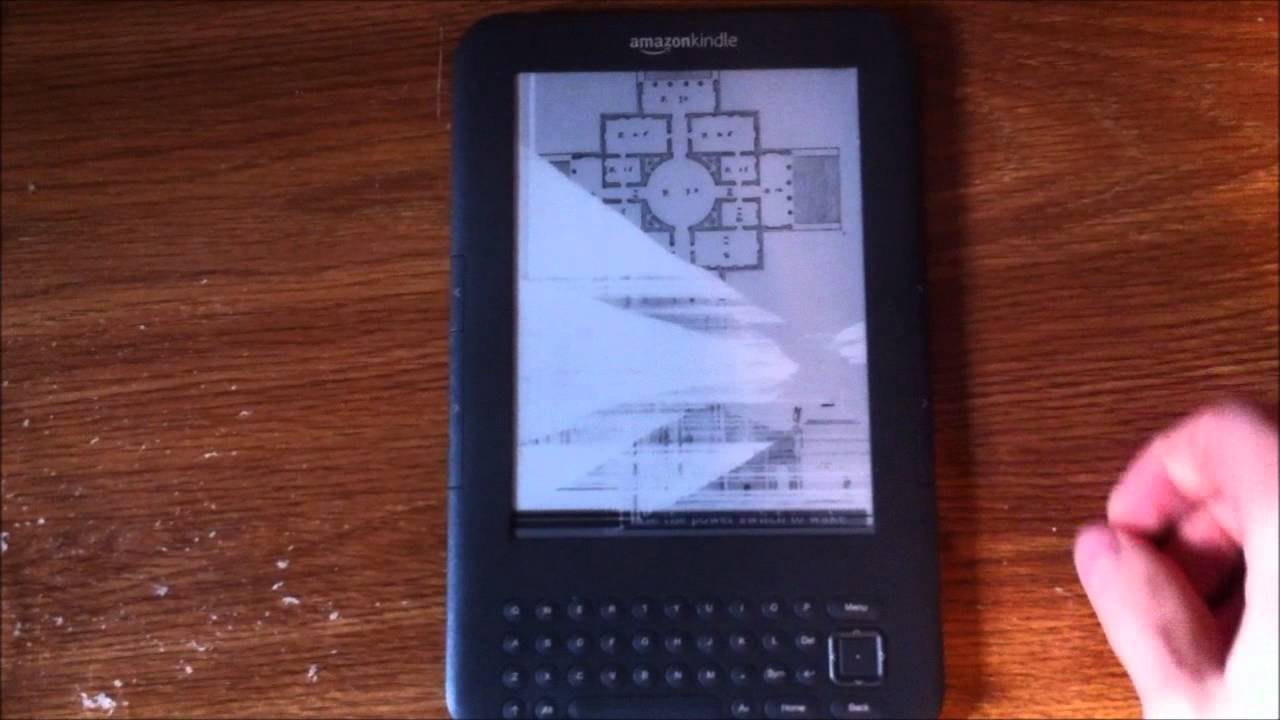
Sometimes, a frozen Kindle Paperwhite may not respond to resets. This situation can be frustrating. It may need expert help. Knowing when to seek professional support can save time and avoid further damage. Recognizing the right moment is important for effective repair.
Warranty And Support Options
Check if your Kindle Paperwhite is still under warranty. Amazon offers support for devices with valid warranties. Contact Amazon customer service for troubleshooting help. They may guide you through advanced steps. If the device is covered, repairs or replacements might be free. Using warranty services avoids extra costs and risks.
Authorized Repair Services
Authorized repair centers have trained technicians for Kindle devices. They use genuine parts for repairs. Professional repairs ensure your device works properly again. Avoid unverified repair shops that may cause more harm. Authorized services provide reliable fixes and protect your device’s condition. Seek them when the issue is complex or persists after resets.

Credit: www.reddit.com
Credit: m.giraseducativascostarica.com
Frequently Asked Questions
Why Is My Kindle Paperwhite Frozen And Unresponsive?
A frozen Kindle often happens due to software glitches or low battery levels.
How Can I Force Restart A Frozen Kindle Paperwhite?
Press and hold the power button for about 40 seconds until it restarts.
What To Do If Kindle Paperwhite Reset Does Not Work?
Try charging it fully and then attempt the reset again after 30 minutes.
Can A Frozen Kindle Paperwhite Be Fixed Without Service?
Yes, most issues can be fixed by resetting or charging the device properly.
How To Prevent Kindle Paperwhite From Freezing In The Future?
Keep your Kindle updated and avoid running too many apps at once.
Conclusion
A frozen Kindle Paperwhite can be frustrating. Try basic resets first to fix the issue. Check the battery and charge your device fully. Sometimes, a simple restart solves the problem. If these steps fail, consider contacting Amazon support. Keep your software updated for smoother use.
Remember, patience helps when troubleshooting tech problems. Your Kindle will likely work again soon. Don’t lose hope or rush repairs. Small fixes often bring big relief.