
Is your LG microwave touchpad not working when you need it the most? It’s frustrating when you try to heat your food, and the buttons just don’t respond.
You might feel stuck, unsure if it’s a simple fix or a sign of something bigger. Don’t worry—you’re not alone, and there are easy steps you can take right now to get your microwave back in action. Keep reading, and you’ll discover practical solutions that anyone can try, saving you time, stress, and possibly even a repair bill.
Your microwave should make life easier—not harder. Let’s fix this together.
Common Causes Of Touchpad Failure
The touchpad on an LG microwave is vital for easy operation. When it stops working, the device becomes hard to use. Understanding common causes of touchpad failure helps in quick troubleshooting. Several issues may lead to this problem, from simple to complex. Identifying the cause can save time and effort in fixing it.
Power Supply Issues
Power problems often cause the touchpad to stop working. A loose plug or faulty outlet can interrupt power flow. Sometimes, internal power components fail, cutting off electricity to the touchpad. Without power, the touchpad cannot respond to your touch. Checking the power supply is the first step to fix the issue.
Dirt And Debris
Dirt or grease can build up on the touchpad surface. Food splashes or dust block the sensors beneath the buttons. This layer prevents the microwave from sensing your touch accurately. Cleaning the touchpad gently with a soft cloth may restore its function. Avoid harsh chemicals that could damage the surface.
Software Glitches
Microwave software controls the touchpad response. Sometimes, software bugs cause the touchpad to freeze or ignore input. A simple reset or power cycle often clears these glitches. Updating the microwave’s firmware can fix persistent software errors. Software issues are less common but still important to consider.
Hardware Damage
Physical damage to the touchpad or its circuit board stops it from working. Cracks, water spills, or impact can break internal parts. Worn-out buttons lose their sensitivity over time. Repair or replacement may be necessary for hardware failures. Inspecting the microwave closely helps detect visible damage.

Credit: www.youtube.com
Basic Troubleshooting Steps
When the LG microwave touchpad stops working, start with basic troubleshooting. These steps can solve many common problems quickly. Follow each step carefully to avoid damage.
Power Reset
Unplug the microwave from the power outlet. Wait for about one minute. Plug it back in. This simple reset can clear minor electronic glitches. Try using the touchpad again after the reset.
Cleaning The Touchpad
Turn off the microwave and unplug it. Use a soft, damp cloth to clean the touchpad gently. Dirt, grease, or moisture can block touch signals. Avoid harsh chemicals or too much water. Dry the touchpad fully before plugging it back in.
Checking For Error Codes
Look at the microwave’s display for any error codes. These codes help identify problems. Check the LG microwave manual or website for code meanings. Follow the suggested fixes for specific error codes. This step helps target the exact issue quickly.
Advanced Fixes For Touchpad Problems
Advanced fixes for LG microwave touchpad problems require more detailed steps. These solutions often need some technical skill and careful handling. They target issues beyond basic troubleshooting.
Sometimes, a simple reset or update can solve hidden software bugs. Other times, the touchpad or internal wiring may need inspection or replacement. Each step helps narrow down the cause of the problem.
Software Reset And Firmware Update
Start with a software reset to clear temporary glitches. Unplug the microwave from power for about five minutes. Plug it back in and test the touchpad again.
Check for firmware updates on LG’s official website. Updated firmware can fix bugs affecting the touchpad. Follow the instructions carefully to avoid errors during the update.
Inspecting And Replacing The Touchpad
Remove the microwave’s outer cover carefully. Locate the touchpad assembly behind the control panel. Look for visible damage or wear on the touchpad.
Use a multimeter to test the touchpad’s electrical connections. If the touchpad is faulty, order a replacement part from LG. Install the new touchpad following the manual’s guidance.
Examining Internal Wiring
Check the wiring that connects the touchpad to the control board. Look for loose, frayed, or broken wires. Secure or replace damaged wiring as needed.
Ensure connectors are firmly attached on both ends. Poor connections can cause the touchpad to stop working. Test the microwave after rewiring to confirm the fix.

Credit: www.youtube.com
When To Contact Professional Support
Knowing when to contact professional support for your LG microwave touchpad saves time and stress. Some problems need expert tools and skills. DIY fixes might cause more damage or void warranties. Recognizing clear signs helps you decide the right moment to get help.
Signs You Need Expert Help
The touchpad does not respond at all. Buttons work only sometimes. The microwave shows error codes on display. There is a burning smell or unusual noise. Your microwave powers on but won’t start cooking. Touchpad feels stuck or physically damaged. These are clear signals that experts should check the microwave.
Warranty And Repair Options
Check if your microwave is still under warranty. Repairs done by unauthorized technicians might void it. Use authorized service centers for repairs. They use original parts and follow LG’s guidelines. Warranty repair can save money on parts and labor. Keep your purchase receipt and warranty papers ready. This helps speed up the repair process.
Preventing Future Touchpad Issues
Preventing future touchpad issues on your LG microwave helps keep it working well. Small actions make a big difference. Taking care of the touchpad stops problems before they start. This saves time and money on repairs.
Regular Cleaning Tips
Clean the touchpad often to avoid dirt build-up. Use a soft cloth slightly dampened with water. Avoid harsh chemicals or abrasive materials. Wipe gently to protect the sensitive surface. Dry the touchpad completely after cleaning. This keeps the touchpad responsive and smooth.
Safe Usage Practices
Press buttons with a light touch. Heavy or sharp objects can damage the touchpad. Keep the microwave away from moisture and steam. Avoid placing hot or wet items near the control panel. Turn off the microwave if you spill liquids on the touchpad. These habits extend the life of your microwave’s controls.
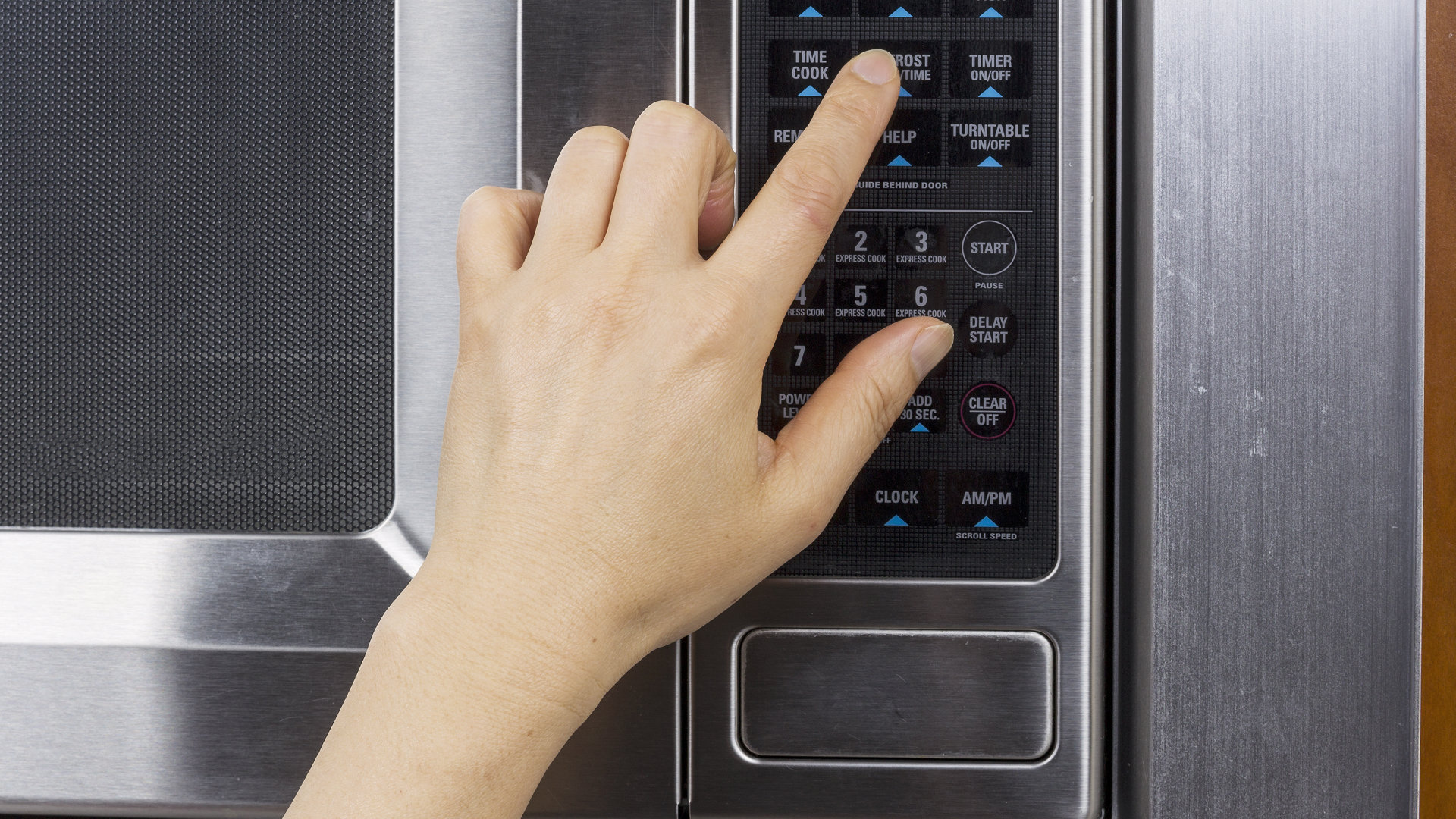
Credit: authorizedco.com
Frequently Asked Questions
Why Is My Lg Microwave Touchpad Not Working?
A dirty or damaged touchpad often causes it to stop working. Clean it gently or check for damage.
How Can I Reset The Lg Microwave Touchpad?
Unplug the microwave for one minute, then plug it back in to reset the touchpad.
Can A Power Surge Cause Lg Microwave Touchpad Failure?
Yes, power surges can damage the touchpad’s electronics, making it unresponsive.
Is It Safe To Repair The Lg Microwave Touchpad Myself?
Only attempt simple cleaning. For electrical repairs, contact a professional to avoid risks.
What If The Microwave Touchpad Still Doesn’t Respond After Cleaning?
The touchpad or control board might need replacement by a qualified technician.
Conclusion
LG microwave touchpad problems can be frustrating and slow cooking. Try cleaning the touchpad first to remove dirt and grease. Reset the microwave by unplugging it for a few minutes. Check for any physical damage or stuck buttons. Sometimes, a simple fix can solve the issue quickly.
If these steps do not help, contacting a professional technician is wise. Regular maintenance can keep your microwave working well. Don’t ignore small problems; they might get worse over time. Keep your microwave in good shape for easy and safe use every day.