
Is your Apple TV not connecting to WiFi? It’s frustrating when you’re ready to stream your favorite shows or movies, but your device won’t get online.
You might feel stuck, unsure of what to do next. Don’t worry—this problem is more common than you think, and there are simple fixes you can try right now. Keep reading, and you’ll discover easy steps to get your Apple TV back online fast.
Your next binge-watch session is just a few clicks away!
Credit: discussions.apple.com
Check Your Network Settings
Checking your network settings is a key step to fix Apple TV WiFi issues. Network problems often stop Apple TV from connecting. Simple checks can save time and effort. Start with basic settings before trying complex fixes.
Focus on the WiFi password and device restarts. These actions often solve connection errors fast. Follow easy steps to get your Apple TV back online quickly.
Verify Wifi Password
Make sure the WiFi password is correct. A wrong password blocks Apple TV from joining the network. Enter the password carefully. Check for uppercase letters, numbers, and symbols. Even one wrong character causes failure. Double-check the password on your router or network settings.
Restart Router And Apple Tv
Restarting clears temporary glitches in your network devices. Turn off your router first. Wait 30 seconds, then turn it back on. Next, restart your Apple TV by unplugging it. Wait a few seconds and plug it back in. This refresh helps both devices communicate well.
Credit: administrivia.com
Reset Network On Apple Tv
Resetting the network on your Apple TV can fix many WiFi connection issues. It helps clear errors and refresh settings. This process is simple and quick. You can try it before other complex steps.
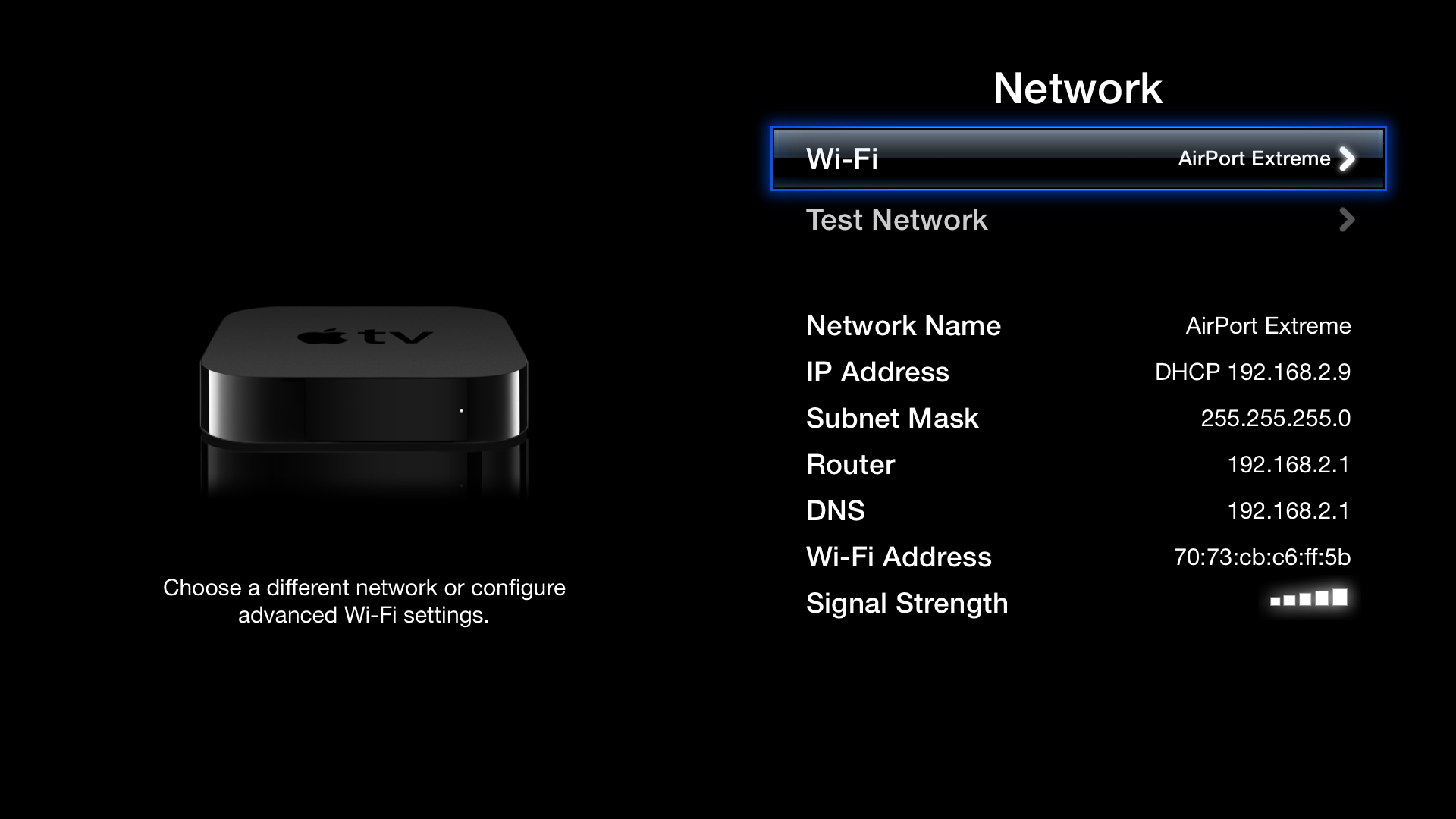
Two key actions in resetting network are forgetting the WiFi network and renewing the DHCP lease. Both help your Apple TV connect fresh to your router. Follow these steps carefully for better results.
Forget Wifi Network
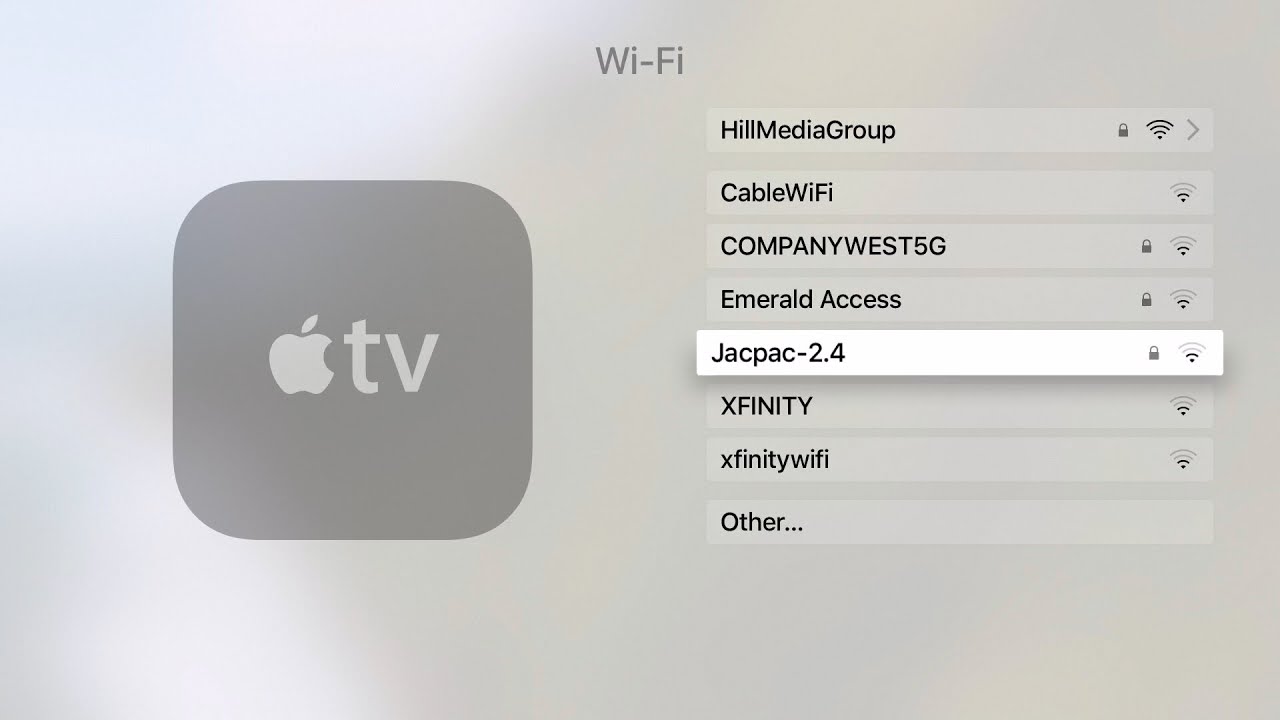
Start by going to Settings on your Apple TV. Select Network, then choose your current WiFi network. Click on Forget Network. This removes saved WiFi data and passwords. After this, reconnect by selecting the network again. Enter your WiFi password carefully. This step clears any wrong settings stored.
Renew Dhcp Lease
In the Network settings, find the option called Renew DHCP Lease. Select it to refresh your device’s IP address. This can fix IP conflicts or errors. Your Apple TV asks the router for a new address. Wait for the process to finish. Then, test if the WiFi connection works better.
Update Apple Tv Software
Updating your Apple TV software can solve many connection issues. Old software may cause WiFi problems. Keeping your device updated ensures smooth performance and better security. Follow these steps to check and install the latest version of Apple TV software.
Check For Updates
Start by turning on your Apple TV. Go to the Settings menu. Select System, then click Software Updates. Your Apple TV will search for available updates. If an update is available, you will see a message. This step ensures you know if your software needs updating.
Install Latest Version
After finding an update, select Download and Install. The update will begin downloading automatically. Keep your Apple TV connected to the internet during this process. Do not turn off the device until the update finishes. Installing the latest software can fix bugs and improve WiFi connectivity.
Improve Wifi Signal Strength
Improving your WiFi signal strength can fix connection problems with Apple TV. A stronger signal means faster, smoother streaming. Small changes in your setup can make a big difference.
Move Closer To Router
Placing your Apple TV near the WiFi router improves signal strength. Walls and furniture block signals and reduce speed. The shorter the distance, the better the connection. Try to keep the path between Apple TV and router clear.
Reduce Interference
Other devices can cause WiFi interference. Microwaves, cordless phones, and Bluetooth gadgets use similar frequencies. Keep these devices away from your router and Apple TV. Changing the router’s channel might also help reduce interference. A cleaner signal boosts connection quality and speed.
Check Router Settings
Checking your router settings is a key step to fix Apple TV Wi-Fi issues. Sometimes, the problem lies in the router configuration, not the Apple TV itself. Adjusting a few settings can help your device connect smoothly.
Routers often broadcast on two bands: 2.4GHz and 5GHz. Your Apple TV may need one band enabled to connect properly. Also, some routers block devices by their MAC address. This feature can stop Apple TV from accessing the network.
Enable 2.4ghz Or 5ghz Band
Routers use 2.4GHz and 5GHz frequency bands for Wi-Fi. Apple TV supports both but may prefer one band over the other. Check your router to ensure the correct band is enabled. The 2.4GHz band covers a larger area but is slower. The 5GHz band is faster but covers less area. Enabling both bands allows your Apple TV to choose the best connection.
Disable Mac Address Filtering
MAC address filtering blocks devices not on the allowed list. Your Apple TV has a unique MAC address. If this filter is on, it may block your Apple TV from connecting. Access your router settings and find the MAC filtering option. Turn it off or add your Apple TV’s MAC address to the allowed list. This step can solve many connection problems.
Credit: www.youtube.com
Restart And Reset Options
Restarting or resetting your Apple TV can fix many WiFi connection issues. These steps clear temporary glitches and refresh the system. Start with a simple restart. If that does not work, try a factory reset.
Restart Apple Tv
Restarting your Apple TV is quick and easy. It closes all apps and reloads the system. Press and hold the Menu and Home buttons on the remote. Keep holding until the Apple TV light blinks. The device will turn off and then back on. This often fixes small network problems.
Factory Reset Apple Tv
A factory reset erases all settings and data. It returns the Apple TV to its original state. Go to Settings > System > Reset. Choose “Reset” to erase everything and reinstall software. This step fixes deeper software issues. Use it only if restarting does not help. Remember, you must set up your Apple TV again after this.
Frequently Asked Questions
Why Is My Apple Tv Not Connecting To Wifi?
Network issues or incorrect settings often block Apple TV from joining WiFi. Restart devices and check passwords.
How Do I Reset Wifi Settings On Apple Tv?
Go to Settings > Network > Wi-Fi and choose “Forget Network. ” Reconnect with the correct password.
Can Outdated Software Cause Wifi Connection Problems On Apple Tv?
Yes, old software can cause bugs. Update Apple TV to the latest tvOS version for better WiFi.
Does Router Placement Affect Apple Tv Wifi Connection?
Yes, walls and distance weaken signals. Place the router near the Apple TV for stronger WiFi.
How To Fix Apple Tv Wifi After Changing Router Password?
Update Apple TV with the new password in Settings > Network > Wi-Fi to restore connection.
Conclusion
Troubles with Apple TV and WiFi can be frustrating. Restart your device and router first. Check for software updates often. Make sure your WiFi password is correct. Move closer to the router for better signal. Reset network settings if problems continue.
These steps usually fix most connection issues. Stay patient and try each solution carefully. Soon, your Apple TV will connect smoothly again. Enjoy streaming without interruptions or delays. Simple fixes can save a lot of time. Keep your devices updated for best performance.