
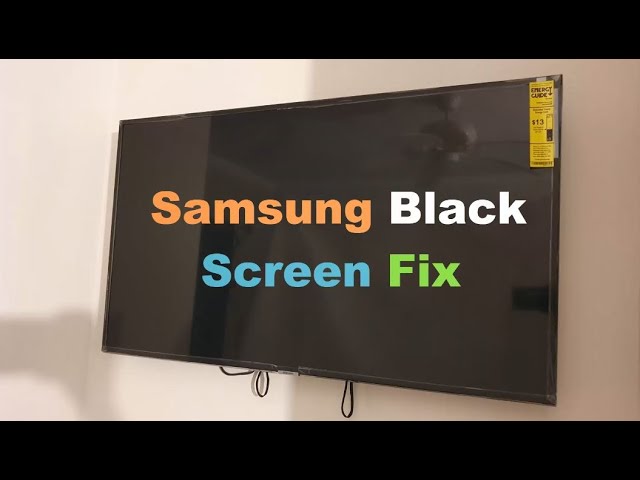
Is your Samsung TV turning on but the screen stays black? It’s frustrating when you want to relax and enjoy your favorite shows, but all you see is darkness.
You might wonder if your TV is broken or if there’s a simple fix you can try right now. Don’t worry—you’re not alone, and this problem can often be solved without calling a technician. Keep reading, and you’ll discover easy steps to bring your screen back to life and get your Samsung TV working perfectly again.
Credit: www.youtube.com
Common Causes Of Black Screen
A Samsung TV that turns on but shows a black screen can be very frustrating. This problem has several common causes. Knowing these causes helps you find the right fix faster.
Some issues are easy to spot, while others need more attention. The main reasons include power supply problems, backlight faults, connection troubles, and software glitches.
Power Supply Issues
The TV needs steady power to work properly. If the power supply is weak or faulty, the screen may stay black. Loose power cables or a bad power board can cause this. Sometimes, the TV turns on but cannot light the screen due to power faults.
Faulty Backlight
The backlight lights up the screen so you can see images. If the backlight breaks, the screen stays dark even if the TV is on. This is a common issue in older Samsung TVs. The picture is there but hidden by the dark screen.
Connection Problems
Bad connections between the TV and other devices can cause a black screen. Loose HDMI cables or damaged ports stop the signal from reaching the screen. Check all cables and ports to make sure they fit well and work properly.
Software Glitches
Software errors can stop the TV from showing images. Bugs or failed updates may cause the screen to go black. Restarting the TV or resetting it to factory settings often fixes these glitches.

Credit: eu.community.samsung.com
Basic Troubleshooting Steps
When your Samsung TV turns on but the screen stays black, basic troubleshooting helps find the problem fast. These simple steps can fix common issues without extra tools or help. Start with easy checks to save time and avoid frustration.
Check Power And Cables
Make sure the TV is plugged in correctly. Look at the power cord and wall outlet for damage. Try a different outlet if needed. Check all cables connected to the TV. Loose or broken cables can cause a black screen. Secure or replace any faulty cables.
Perform A Soft Reset
A soft reset can clear glitches causing the black screen. Turn off the TV and unplug it from the outlet. Wait for 60 seconds to let it reset fully. Plug the TV back in and turn it on. This step often solves temporary software issues.
Inspect External Devices
Check if external devices like a DVD player or game console cause the problem. Disconnect all devices from the TV. Turn the TV on without any connected device. If the screen works, connect devices one by one. This helps find the device causing the black screen.
Adjusting Picture Settings
Adjusting your Samsung TV’s picture settings can fix a black screen issue. Sometimes the screen is on, but settings like brightness or contrast cause darkness. Tweaking these settings helps bring the picture back to life quickly.
Start by checking the brightness and contrast levels. Next, try resetting the picture mode. These steps often solve display problems without needing expert help.
Brightness And Contrast
Low brightness makes the screen look black even if the TV is on. Use the remote to open the menu and find brightness settings. Increase brightness slowly to see if the picture appears. Contrast controls the difference between light and dark areas on the screen. Set contrast too low, and the picture looks dull or black. Adjust contrast to a medium or higher level for better visibility.
Keep the settings balanced. Too much brightness or contrast can harm your eyes. Test different levels until the screen looks clear and natural.
Picture Mode Reset
Samsung TVs have different picture modes like Standard, Movie, or Dynamic. Some modes might cause the screen to look darker than usual. Resetting the picture mode puts all settings back to default. Open the picture settings menu and select “Reset” or “Restore Default.” This step clears any accidental changes causing a black screen.
After reset, check if the screen brightness and contrast return to normal. Adjust again if needed to get the best picture quality.
Advanced Fixes For Black Screen
Advanced fixes for a black screen on your Samsung TV can help when basic steps fail. These methods involve more detailed actions but can solve deeper issues. Follow these steps carefully for a better chance to restore your TV’s display.
Each fix targets different parts of your TV’s system. Updating firmware, resetting the factory settings, and using the service menu are key methods. These steps can bring your TV back to normal without needing a technician.
Update Firmware
Firmware controls how your TV works. Outdated software may cause the screen to stay black. Check for new updates in your TV’s settings menu. Use a stable internet connection to download the update. Installing the latest firmware can fix bugs and improve performance.
Factory Reset
A factory reset returns your TV to original settings. This removes all changes and data. It can clear errors causing the black screen. Access the reset option in the settings menu. Confirm the reset and wait for the TV to restart. Note that you will need to set up your TV again after this step.
Service Menu Diagnostics
The service menu offers advanced diagnostic tools. It can identify hardware or software problems. Entering this menu usually requires a specific remote control code. Use it to run tests on the display and other parts. These tests help find the cause of the black screen. Only proceed if you are comfortable with technical settings.
When To Call A Technician
Knowing when to call a technician is key if your Samsung TV turns on but shows a black screen. Some problems need expert help. Trying to fix complex issues alone might cause more damage. Recognizing signs of hardware failure helps decide the right time for a repair call.
Identifying Hardware Failures
Hardware failures often cause a black screen on your Samsung TV. Signs include no sound, flickering lights, or the screen staying dark even after restarting. Loose cables rarely cause these issues. Problems inside the TV like a broken backlight or faulty power board need a technician. These parts are not safe or easy to fix yourself.
Warranty And Repair Options
Check if your TV is still under warranty before calling for repairs. Samsung offers warranty coverage for many hardware problems. Using authorized service centers keeps your warranty valid. Out-of-warranty repairs can be costly but may restore your TV’s function. Always ask about repair costs and parts before agreeing to service.
Preventive Tips For Samsung Tvs
Samsung TVs may show a black screen even when powered on. Preventive care helps avoid this issue. Simple steps keep your TV running smoothly. Protect your investment with regular maintenance. Small habits reduce the risk of screen problems.
Regular Software Updates
Keep your Samsung TV software up to date. Updates fix bugs and improve performance. Check for updates in the settings menu. Install them as soon as they are available. This helps prevent glitches that cause black screens.
Proper Power Management
Turn off your TV with the remote, not by unplugging. Use a surge protector to avoid power spikes. Avoid frequent power cycling on and off. Let the TV rest for a few minutes if it feels warm. Good power habits extend the TV’s lifespan and prevent screen issues.
Credit: www.reddit.com
Frequently Asked Questions
Why Does My Samsung Tv Screen Stay Black When Turned On?
A black screen may mean a connection issue, power problem, or faulty display component.
How Can I Fix A Samsung Tv Black Screen Issue?
Check cables, reset the TV, and test with another input source or device.
What Causes Samsung Tv To Power On But Show No Picture?
Loose cables, wrong input, or hardware failure can cause the screen to stay black.
Can A Software Update Fix Samsung Tv Black Screen Problems?
Updating TV software can solve bugs that cause display issues like a black screen.
When Should I Call A Technician For Samsung Tv Black Screen?
Call a technician if the screen stays black after trying cables, reset, and updates.
Conclusion
A Samsung TV with a black screen can be frustrating. Small issues often cause this problem. Check the power and connections first. Restart the TV to see if it helps. Sometimes, a simple reset fixes the screen. If the problem stays, contact a technician.
Don’t ignore warning signs or strange sounds. Acting early can save your TV. Keep these tips in mind for quick troubleshooting. Your TV can work well again with some care. Stay patient and try these easy steps.