
Is your LG TV giving you sound but no picture? It’s frustrating when your favorite show plays without any images.
You might wonder if your TV is broken or if there’s a simple fix you can try yourself. Don’t worry—this problem is more common than you think, and there are easy steps you can take to bring your screen back to life.
Keep reading to discover why your LG TV has no picture but still has sound, and how you can solve it quickly.
Check The Power And Connections
When your LG TV has sound but no picture, the issue might be with power or connections. Checking these first can save time and avoid costly repairs. Power problems or loose cables often cause the screen to stay black.
Start with the basics. Make sure your TV gets power and all cables connect tightly. This step helps find simple fixes fast.
Verify Power Supply
Check if the TV is properly plugged into the outlet. Try a different socket to rule out power issues. Look for the power light on your TV. If it is off, the TV might not get power. Sometimes, power strips or surge protectors fail. Plug the TV directly into the wall for testing. Press the power button on the remote and the TV. A working power supply is the first step to show picture.
Inspect Hdmi And Av Cables
Loose or damaged cables cause no picture but sound issues. Unplug and replug all HDMI and AV cables firmly. Check each cable for visible damage or bends. Use another cable if you suspect damage. Dust or dirt in ports can block signals. Clean ports gently with a soft brush or cloth. Proper cable connections are key for the picture to appear.
Try Different Input Sources
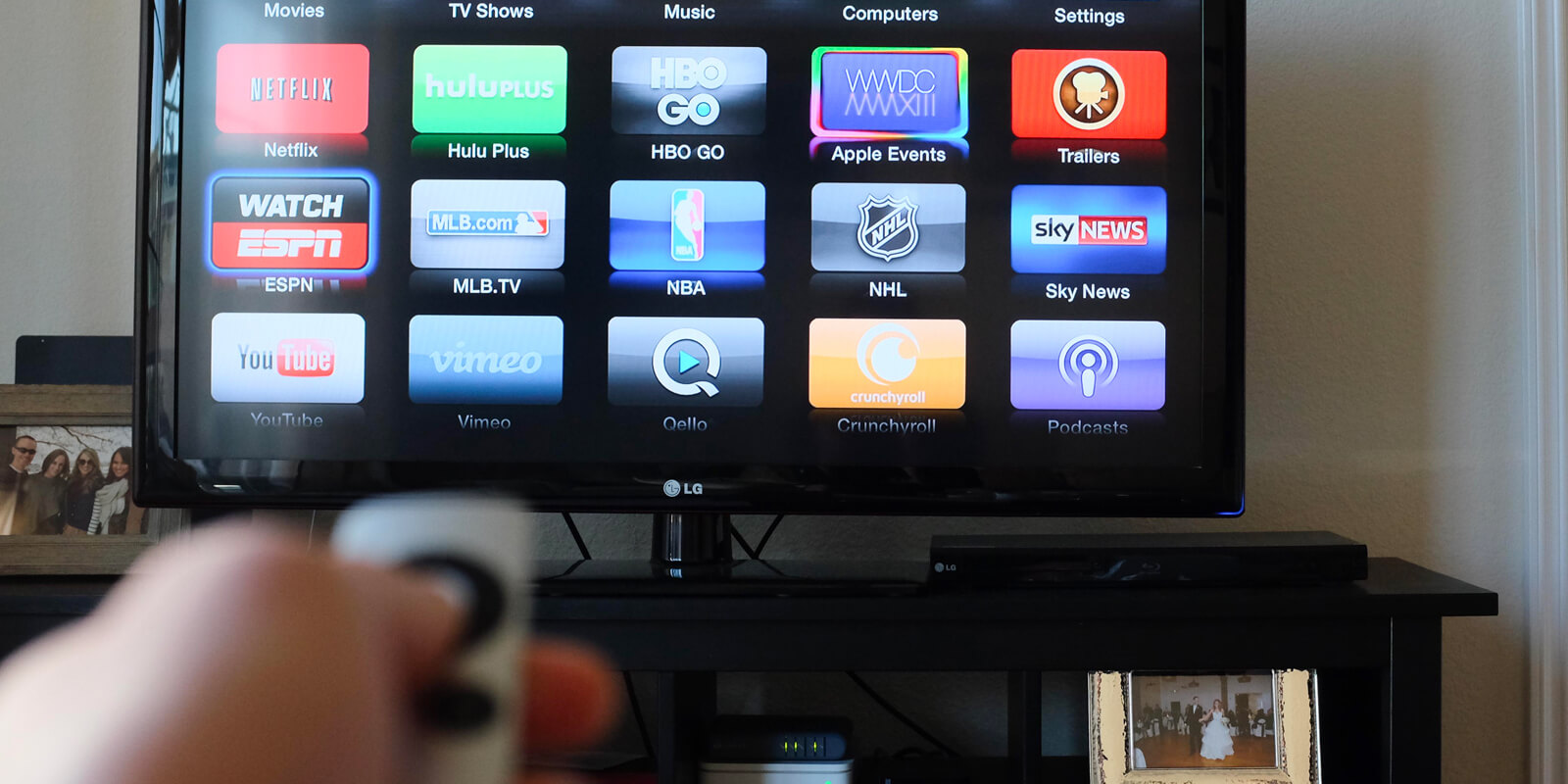
Your TV might be set to the wrong input. Press the input or source button on your remote. Cycle through HDMI1, HDMI2, AV, and other sources. Test each input with a connected device. If one input shows picture, the problem may be with the other device or port. This step helps identify where the issue lies quickly.
Credit: tvrepairny.com
Adjust Picture Settings
Adjusting the picture settings can fix your LG TV’s no-picture issue. Sometimes, the screen looks blank, but the sound still works. This means the TV is on, but the picture settings might be wrong. Small changes in settings can make the picture appear again.
Reset Picture Mode
Resetting the picture mode sets your TV back to default. This clears any wrong changes made earlier. Go to the settings menu and find the picture or display options. Choose the reset option to restore the original picture mode. This simple step often solves the no-picture problem.
Increase Brightness And Contrast
Low brightness or contrast can make the screen look black. Check these settings in the picture menu. Slowly increase brightness and contrast until the picture shows up clearly. Adjusting these settings helps your eyes see the image better. Avoid setting them too high to keep the picture natural.
Disable Energy Saving Mode
Energy saving mode can dim the screen to save power. Sometimes, it turns the screen almost off. Find this mode in the settings under general or eco options. Turn off energy saving mode to brighten the screen. This can bring the picture back without affecting sound.
Perform A Soft Reset
Performing a soft reset is a simple way to fix your LG TV’s picture problem. It helps clear minor errors that cause the screen to stay black. This method does not erase any settings or apps on your TV. It just restarts the TV and refreshes its system. Try a soft reset before calling for repairs. It often solves the issue fast.
Unplug And Replug Tv
Start by unplugging your LG TV from the power outlet. Wait for about one minute. This pause lets the TV’s internal parts fully power down. After the wait, plug the TV back in. Turn it on and check the screen. This simple step can clear hidden faults. It often brings the picture back.
Use Remote To Restart
Press and hold the power button on your LG remote. Keep holding it for about 10 seconds. The TV will switch off and then restart. This method forces the TV to refresh its system. It can fix small software glitches causing no picture. Make sure to use the remote, not the TV’s power button.
Clear Temporary Glitches
Temporary glitches can block the picture from showing. A soft reset clears these glitches quickly. It stops the TV’s current processes and restarts fresh. This action often restores both picture and sound. Repeat the soft reset if the picture doesn’t return right away. It can help reset the TV’s display settings.
Update Tv Firmware
Updating your LG TV firmware can fix many problems. It often resolves issues with the picture not showing while sound plays. Firmware updates improve your TV’s software and fix bugs. Keep your TV software current to enjoy better performance and fewer glitches.
Check For Updates
Turn on your LG TV and open the settings menu. Find the section labeled “All Settings” or “Support.” Select “Software Update” or “Check for Updates.” The TV will search for the latest firmware version available.
Download And Install Firmware
If an update is available, choose to download it. The TV will start downloading the new firmware. Do not turn off the TV or unplug it during this process. After downloading, the TV will install the update automatically.
Restart After Update
Once the installation finishes, the TV will restart itself. This step applies the new firmware to the system. If the TV does not restart automatically, do it manually. Check if the picture problem is resolved after the restart.
Test With External Devices
Testing your LG TV with external devices helps find the cause of no picture but sound. This step checks if the problem is with the TV or the source device. It also shows if cables or settings cause the issue. Follow these simple tests to narrow down the problem.
Connect A Different Device
Try plugging a different device into your TV, like a DVD player or game console. Use the same HDMI or AV port you used before. If the new device shows picture and sound, the original device might be faulty. If there is still no picture, the issue could be with the TV or cable.
Use Built-in Tv Apps
Open any app built into your LG TV, such as YouTube or Netflix. These apps do not need external devices or cables. If the apps show picture and sound, your TV screen works fine. This means the problem is with the external device or its connection.
Check For Signal Issues
Make sure your TV is set to the right input source for your device. Check if all cables are firmly connected and not damaged. Try using a different HDMI or AV cable to rule out cable problems. Weak or no signal from the device can cause no picture but sound on your TV.
Inspect Backlight And Display Panel
When your LG TV has sound but no picture, the problem might be inside the screen. The backlight and display panel help create the image you see. Checking these parts can help find the cause of the issue.
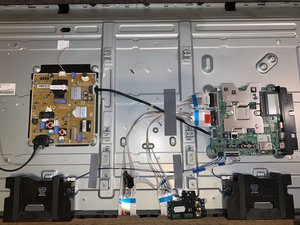
The backlight lights up the screen. The display panel shows the picture. If either one fails, the screen may stay dark even with sound playing.
Look For Dim Or No Backlight
The backlight may be too dim or completely off. This causes no picture on the screen. Turn on your TV in a dark room to check. A faint glow means the backlight is working but weak.
No glow means the backlight is off. This problem often comes from a broken lamp or power issue inside the TV.
Use Flashlight Test
The flashlight test helps check the backlight without special tools. Turn on the TV and shine a flashlight very close to the screen. Look for faint images or shadows on the screen.
If you see shapes or pictures moving with the sound, the display panel works. The backlight is likely the issue.
Identify Panel Damage
The display panel may be damaged or broken. Cracks, lines, or color blocks show panel damage. This damage can cause no picture or strange images.
Damage to the panel often requires professional repair or replacement. You may need to contact LG support for help.
When To Contact Support
Knowing when to contact support can save time and effort. Some problems with your LG TV need professional help. If the screen stays blank but sound plays, it might be a serious issue. Trying to fix it without help can cause more damage. Here are some tips on when to reach out to LG support.
Check Warranty Status
First, check if your LG TV is still under warranty. A valid warranty means free repairs or replacements. Find your purchase date and look up the warranty period. You can check this on LG’s official website. This step helps you avoid extra costs.
Find Authorized Service Centers
Use only authorized service centers for repairs. These centers have trained technicians and original parts. Using unauthorized repair shops may void your warranty. Visit LG’s website to find centers near you. Choose one with good reviews and quick service.
Prepare For Repair Or Replacement
Before contacting support, gather essential details. Note your TV model number and purchase date. Write down the problem clearly, like “no picture but sound.” Back up your TV settings if possible. This helps technicians diagnose the issue faster. Be ready to explain the problem calmly.

Credit: www.youtube.com
Credit: www.ifixit.com
Frequently Asked Questions
Why Does My Lg Tv Have Sound But No Picture?
This often happens due to loose cables, wrong input settings, or a screen issue.
How Can I Fix No Picture On My Lg Tv?
Check all cables, try another input source, or restart the TV to fix it.
Can A Software Update Cause No Picture On Lg Tv?
Yes, sometimes updates cause glitches. Restarting or resetting the TV may help.
Is It A Hardware Problem If Lg Tv Shows Sound Only?
It could be a faulty screen or internal part needing professional repair.
How Do I Check If The Lg Tv Screen Is Damaged?
Look for cracks, lines, or flickers on the screen when the TV is on.
Conclusion
A TV with sound but no picture can be frustrating. Start by checking the cables and connections first. Try resetting the TV to fix simple glitches. Sometimes, adjusting the brightness or input source helps. If the problem stays, it may need a professional check.
Don’t ignore the issue, as it could get worse. Taking these steps can save time and money. Stay calm and follow the tips carefully. Your LG TV can work well again soon.