
Is your Samsung TV refusing to connect to WiFi? It’s frustrating when you’re ready to stream your favorite show, but the connection just won’t happen.
You might feel stuck, wondering what’s wrong and how to fix it fast. Don’t worry—you’re not alone, and there’s a simple way to get your TV back online. Keep reading, and you’ll discover easy steps to solve the problem and enjoy seamless streaming again.
Your entertainment is just a few clicks away!
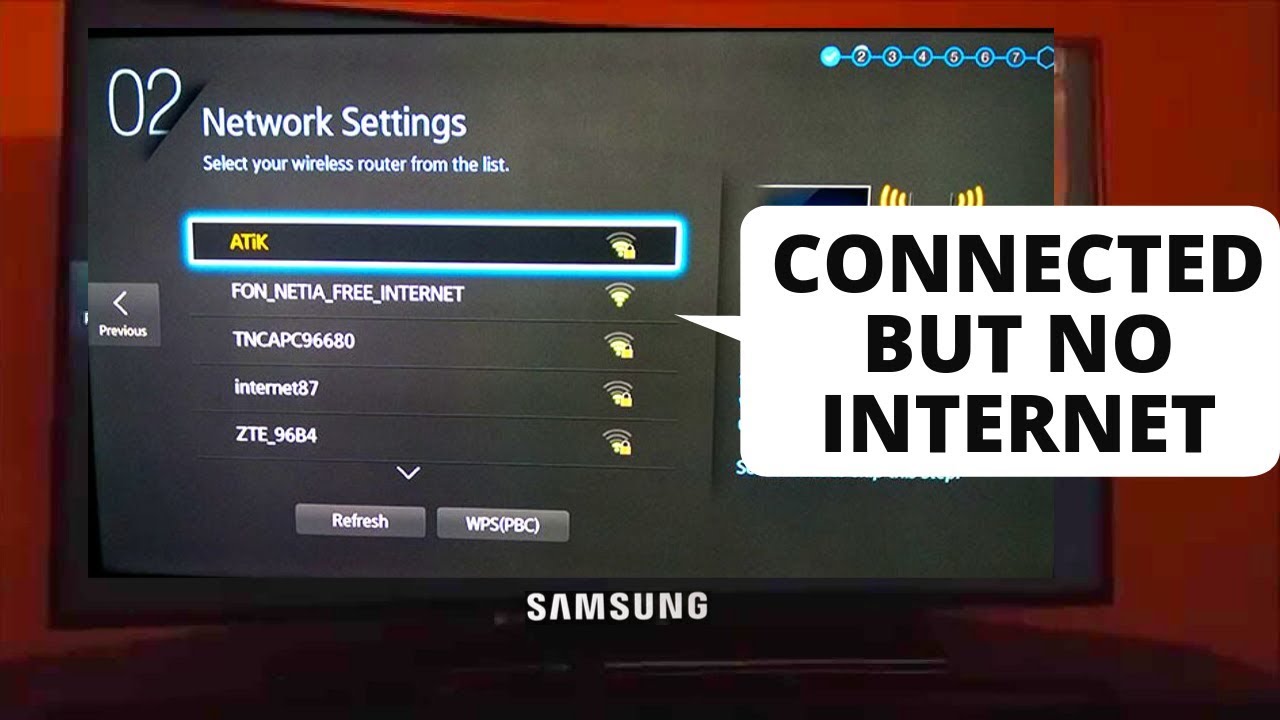
Check Network Status
Checking the network status is the first step to fix your Samsung TV not connecting to WiFi. This helps find the problem quickly. You can see if the TV detects your network and how strong the connection is.
It also shows if the router or TV needs a simple restart. This quick check often solves many connection issues.
Verify Wifi Signal Strength
Go to your TV’s network settings. Look for WiFi signal strength. A strong signal is above 50%. Below that can cause connection problems. Walls and distance can weaken the signal. Move your router closer to the TV. Remove any obstacles between them. Check if the TV connects better with a stronger signal.
Restart Router And Tv
Turn off your router and unplug it. Wait 30 seconds to clear its memory. Plug it back in and turn it on. Restart your Samsung TV by turning it off and on. This refreshes the network connection for both devices. Try connecting to WiFi again. Many times, this simple step fixes connection issues fast.

Credit: www.youtube.com
Reset Network Settings
Resetting network settings can fix many connection problems on your Samsung TV. It clears old data and refreshes your TV’s link to WiFi. This step helps remove errors that stop your TV from connecting.
Try resetting network settings before other fixes. It is simple and often works fast.
Forget And Reconnect To Wifi
First, forget your current WiFi network on the TV. This removes saved settings that might be wrong.
Go to your TV’s network settings, find your WiFi name, and select “Forget.” Then, scan for networks again. Choose your WiFi and enter the password carefully. This creates a new connection with fresh settings.
Reset Tv Network Configuration
Another step is to reset the TV’s network configuration. This resets all network data on your TV to default. It can fix hidden errors blocking connection.
Open the Settings menu on your TV. Find the Network section and select “Reset Network.” Wait for the TV to finish. After that, reconnect to your WiFi as usual.
Update Firmware
Updating the firmware on your Samsung TV can fix many connection problems. Firmware updates improve TV performance and add new features. They also fix bugs that might stop the WiFi from working properly. Keeping your TV’s software up to date is important for a smooth online experience.
Check For Software Updates
Start by checking if your TV has a new update. Press the Home button on your remote. Go to Settings, then Support, and select Software Update. Click on Update Now. Your TV will search for the latest software. If an update is available, it will download and install automatically. This process may take a few minutes. Do not turn off the TV during the update.
Manual Firmware Update Steps
If your TV can’t connect to WiFi, try updating the firmware manually. Visit the Samsung support website on your computer. Enter your TV model number to find the right firmware file. Download the file and save it to a USB drive. Insert the USB drive into the TV’s USB port. Go to Settings, then Support, and select Software Update. Choose Update Now, then select Update from USB. The TV will read the file and update the firmware. Wait until the update finishes before removing the USB drive.

Credit: www.samsung.com
Adjust Router Settings
Adjusting your router settings can solve many WiFi connection problems with your Samsung TV. Small changes in the router can improve signal strength and compatibility. These tweaks help your TV connect more easily and stay connected longer.
Check Frequency Bands
Most routers offer two frequency bands: 2.4 GHz and 5 GHz. The 2.4 GHz band covers a larger area but is slower. The 5 GHz band is faster but has a shorter range. Samsung TVs often work better on the 2.4 GHz band. Try switching your router to broadcast on 2.4 GHz or both bands. Check your TV’s WiFi settings and select the correct band. This simple step can fix many connection issues.
Modify Security Settings
Router security settings may block your Samsung TV from connecting. Use WPA2 security instead of older or mixed modes. Avoid WEP, as it is outdated and less secure. Also, turn off MAC address filtering if it’s enabled. This feature can stop new devices from joining your network. Adjusting security settings to standard levels helps your TV connect smoothly.
Use Alternative Connection Methods
Sometimes, your Samsung TV may not connect to WiFi. Alternative connection methods can help you keep watching your favorite shows. These methods offer stable and fast internet access without using WiFi. Try these options to solve your connection problems quickly.
Try Ethernet Cable Connection
Using an Ethernet cable gives a strong and steady internet link. Connect one end of the cable to your TV and the other to your router. This method avoids WiFi issues like weak signals or interference. Your TV will get direct internet access for smooth streaming.
Ethernet connections are reliable and fast. No need to worry about signal drops or slow speeds. This setup is easy and works well if your TV is near your router.
Set Up Mobile Hotspot
Turn your smartphone into a WiFi hotspot to connect your TV. This method uses your phone’s data to provide internet access. Enable the hotspot feature on your phone and connect your TV to that network.
This option is good if your home WiFi is down. It offers a quick way to keep your TV online. Keep an eye on your phone’s data limits to avoid extra charges.
Perform Factory Reset
Performing a factory reset can fix many issues with your Samsung TV. It clears old settings and errors that may block Wi-Fi connection. This process restores the TV to its original state. Before starting, save your important settings. Resetting will erase all data on the device.
Backup Important Settings
Backup your settings to avoid losing them. Write down Wi-Fi passwords, app logins, and picture settings. Use a USB drive if your TV supports it. Some Samsung TVs let you sync settings with your Samsung account. Check your TV menu for backup options. Saving these details helps restore your setup quickly.
Reset Tv To Factory Defaults
Go to the TV menu and find the Settings option. Select General, then Reset. You may need to enter your PIN. The default PIN is usually 0000. Confirm the reset to start the process. The TV will restart and erase all custom settings. After reset, set up the TV as new. Connect to Wi-Fi and check if the problem is fixed.
Contact Support
Contacting support can solve your Samsung TV WiFi issues fast. Experts understand the problem better and offer clear steps. They guide you through fixes and help restore your connection.
Samsung Customer Service
Samsung customer service is ready to assist you. You can reach them by phone or online chat. They provide step-by-step help for WiFi connection problems. The team answers questions and offers solutions quickly. They also check if your TV needs software updates. Support is available in many languages to help all users.
Professional Repair Options
Professional repair is an option if the problem persists. Certified technicians can check hardware and software issues. Repairs might include fixing the WiFi module or other parts. Using professional repair ensures your TV stays in good condition. It also protects your warranty and prevents more damage.
Credit: www.youtube.com
Frequently Asked Questions
Why Is My Samsung Tv Not Connecting To Wifi?
Your TV may face WiFi issues due to weak signal, wrong password, or network problems.
How Do I Reset My Samsung Tv Network Settings?
Go to Settings > General > Network > Reset Network to clear old WiFi data.
Can Router Issues Cause Samsung Tv Wifi Problems?
Yes, router glitches or settings can block your TV from connecting to the WiFi.
How To Update Samsung Tv Software For Better Wifi?
Check Settings > Support > Software Update and install the latest version available.
What To Do If Samsung Tv Keeps Dropping Wifi Connection?
Restart your router and TV, move TV closer to the router, or check for interference.
Conclusion
Troubleshooting your Samsung TV’s WiFi can be simple. Check the network settings carefully. Restart your router and TV to refresh connections. Make sure your WiFi password is correct. Keep your TV software updated for better performance. Small fixes often solve connection problems fast.
Stay patient and try these steps one by one. Your TV will connect soon. Enjoy streaming your favorite shows without interruption.