
Is your Logitech K520 keyboard suddenly not working? You rely on it every day, and when it stops responding, it can bring your work or gaming to a halt.
Don’t worry—this problem is more common than you think, and there are simple steps you can take to fix it. You’ll discover easy solutions that get your keyboard back to normal quickly. Keep reading to regain control and get back to typing without frustration.
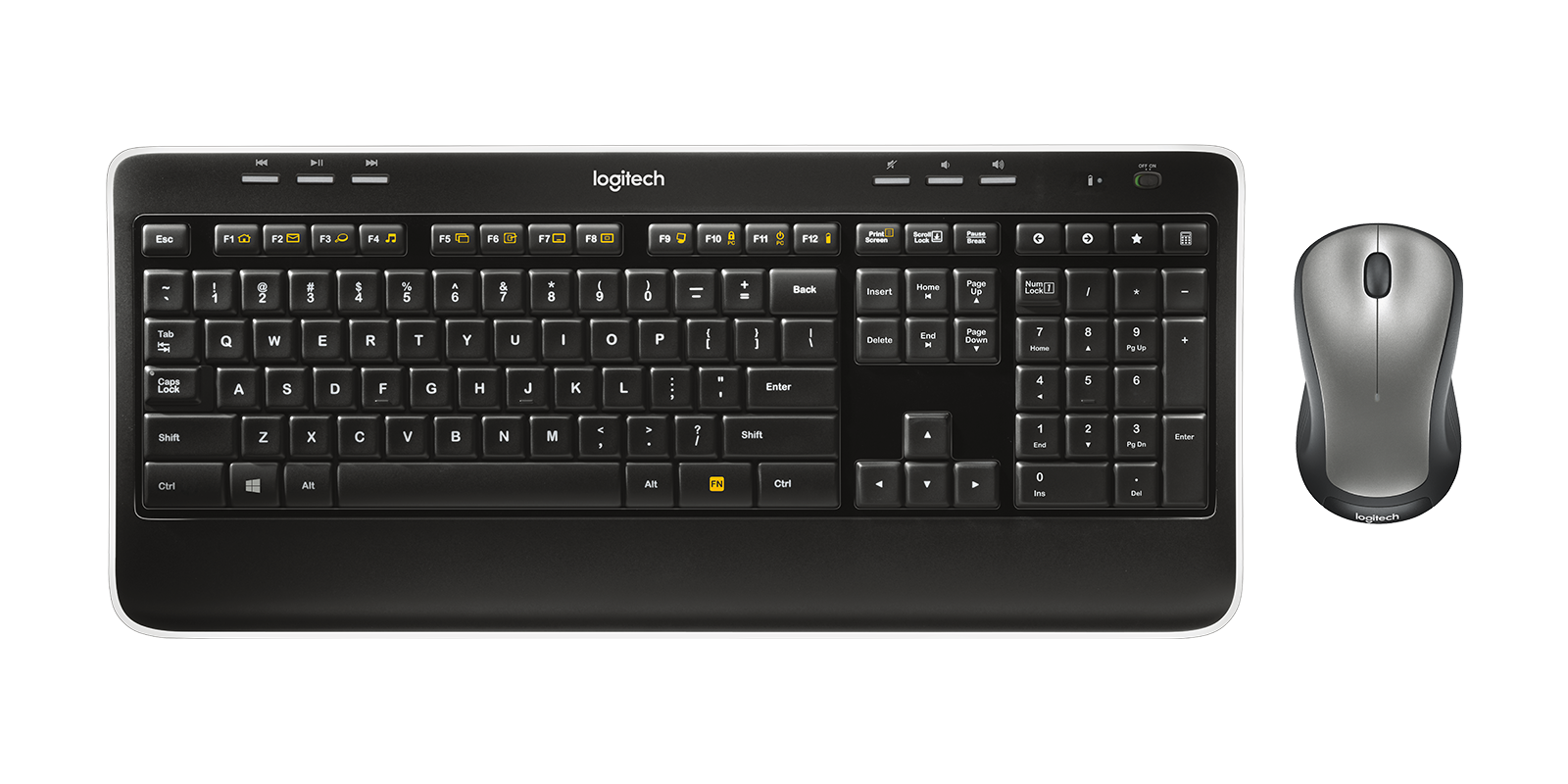
Credit: www.logitech.com
Common Causes
Many users face issues with the Logitech K520 keyboard not working. Understanding the common causes helps fix the problem fast. The issue can come from different areas. Checking these areas saves time and effort.
Connection Issues
The keyboard may not connect properly to the computer. Wireless signals can be weak or blocked by objects. The USB receiver might be loose or damaged. Restarting the connection or plugging the receiver into another port can help.
Battery Problems
Low or dead batteries cause the keyboard to stop working. Old batteries lose power quickly. Replacing the batteries with fresh ones often solves the problem. Always use the correct battery type recommended by Logitech.
Driver Conflicts
Drivers control how the keyboard works with the computer. Outdated or corrupted drivers cause malfunctions. Updating or reinstalling drivers fixes many problems. Use the official Logitech website to find the right drivers.
Hardware Damage
Physical damage can stop the keyboard from working. Spills, drops, or heavy use harm internal parts. Damage to keys or circuits requires repair or replacement. Handle the keyboard carefully to avoid hardware issues.
Basic Troubleshooting
Basic troubleshooting helps fix common problems with your Logitech K520 keyboard. It saves time and avoids extra costs. Start with simple steps to find the issue.
These easy checks often solve the problem fast. Follow each step carefully to get your keyboard working again.
Check Battery And Power
Low battery is a common cause of keyboard failure. Remove the battery cover and check if batteries need replacement. Use fresh batteries to ensure enough power.
Confirm the keyboard’s power switch is turned on. Sometimes, the switch is off by mistake. Power issues stop the keyboard from connecting properly.
Reconnect The Keyboard
Wireless keyboards can lose connection with the receiver. Unplug the USB receiver from your computer. Wait a few seconds, then plug it back in.
Press the connect button on the keyboard and receiver to pair them again. This helps restore communication between the devices.
Restart Your Device
Restarting your computer can fix many device problems. It clears temporary glitches and refreshes system settings. Save your work, then turn off and on your device.
After restart, check if the keyboard works. This simple step often resolves connection or driver issues.
Software Fixes
Software problems can cause the Logitech K520 keyboard to stop working. These issues often relate to drivers or settings in your computer. Fixing software issues usually takes just a few steps. Try these simple software fixes before considering hardware repairs.
Update Or Reinstall Drivers
Drivers help your computer communicate with the keyboard. Outdated or corrupted drivers can cause the keyboard to fail. Open Device Manager and find the keyboard section. Right-click on the Logitech K520 keyboard and select “Update driver.” Choose to search automatically for updated driver software. If updating does not work, uninstall the driver and restart your computer. Windows will reinstall the driver automatically. This can solve many keyboard problems quickly.
Adjust Keyboard Settings
Incorrect keyboard settings may block some keys or functions. Go to the Control Panel and open the Keyboard settings. Check the repeat delay and repeat rate. Set them to normal or default values. Also, review the language and input settings. Make sure the correct keyboard layout is selected. Resetting settings to default often fixes typing issues.
Run Troubleshooter
Windows has a built-in troubleshooter for keyboard problems. Open Settings and go to Update & Security. Click on Troubleshoot, then select Keyboard. Run the troubleshooter and follow the instructions. It will scan for common issues and try to fix them automatically. This tool is easy and helps find hidden software problems fast.
Advanced Solutions
Advanced solutions can fix complex issues with the Logitech K520 keyboard. These steps go beyond basic checks and help solve deeper problems. Follow each method carefully to restore your keyboard’s function.
Reset The Keyboard
Resetting the keyboard clears minor errors. Turn off the keyboard and remove the batteries. Wait for about 10 seconds. Insert the batteries and turn the keyboard back on. This simple reset often fixes connection problems.
Test On Another Device
Testing the keyboard on a different computer shows if the problem is with the keyboard or the original device. Connect the Logitech K520 to another PC or laptop. Check if the keys work properly. If the keyboard works, the issue is with your first device.
Check For Firmware Updates
Firmware updates improve keyboard performance and fix bugs. Visit the Logitech support website. Find the latest firmware for the K520 model. Download and install the update. Keep your keyboard software current to avoid future issues.
Preventive Tips
Preventive tips help keep your Logitech K520 keyboard working well. Small steps protect it from damage and problems. Follow simple habits to extend the keyboard’s life and avoid common issues.
Regular Cleaning
Dust and dirt can stop keys from working. Clean your keyboard often. Use a soft brush or cloth to remove debris. Avoid liquids that can harm the electronics. Keep the keyboard free from crumbs and spills.
Safe Storage
Store your keyboard in a dry, cool place. Avoid exposing it to heat or moisture. Keep it away from heavy objects that can press the keys. Use a cover or case when not in use. Safe storage prevents damage and keeps the keyboard ready.
Keep Software Updated
Update your keyboard’s software and drivers regularly. Updates fix bugs and improve performance. Check the Logitech website or software for new versions. Up-to-date software helps the keyboard work smoothly with your computer.

Credit: www.youtube.com
Credit: www.drivereasy.com
Frequently Asked Questions
Why Is My Logitech K520 Keyboard Not Responding?
The keyboard may have connection issues, low battery, or need a USB receiver reset.
How Do I Fix Logitech K520 Wireless Connection Problems?
Try replacing batteries, re-plugging the USB receiver, or re-pairing the keyboard.
Can Software Cause Logitech K520 Keyboard Malfunctions?
Outdated or missing drivers can cause issues. Update or reinstall Logitech software.
What To Do If Some Keys Stop Working On K520?
Clean the keyboard and check for debris. Test with another device if possible.
How Do I Reset The Logitech K520 Keyboard?
Turn off the keyboard, remove batteries, press keys for 10 seconds, then reinsert batteries.
Conclusion
Troubles with the Logitech K520 keyboard can feel frustrating. Small fixes often solve most problems quickly. Check batteries, connections, and drivers first. Restart your computer to refresh settings. Clean the keyboard gently to remove dust and debris. Testing on another device can help find issues.
Taking these steps saves time and effort. Keep your keyboard working well with simple care. Stay patient and try each tip carefully. Your keyboard can work like new again.