
Is your Toshiba TV not recognizing your HDMI device? It’s frustrating when you want to enjoy your favorite shows or games, but the screen stays blank or shows no signal.
You might be wondering why this keeps happening and how to fix it quickly. You’ll discover simple steps that can solve this common problem. Keep reading, and you’ll get your HDMI connection working smoothly again in no time.
Common Hdmi Issues
HDMI issues can stop your Toshiba TV from showing the picture. These problems are common and often easy to fix. Understanding the main causes helps you solve the problem fast. Here are some frequent HDMI issues to check on your TV.
Loose Connections
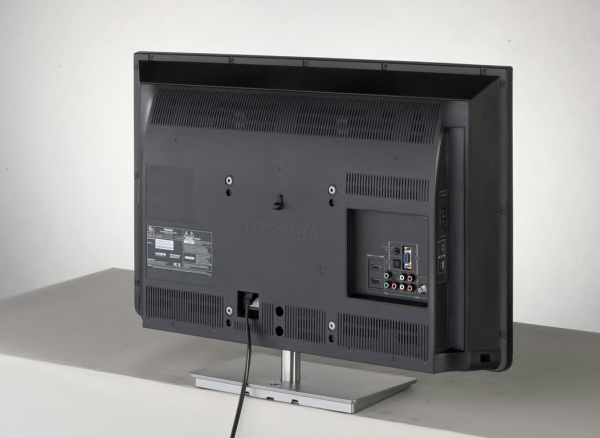
Loose HDMI cables can cause no signal or flickering. Check both ends of the cable. Make sure they fit tightly in the TV and device ports. A loose connection can break the signal and stop the TV from recognizing HDMI.
Incorrect Input Settings
The TV must be set to the right HDMI input. Press the input or source button on the remote. Cycle through the options until you find the correct HDMI port. Wrong input selection often causes no display.
Faulty Hdmi Cables
Old or damaged cables cause signal loss. Try a different HDMI cable to see if the problem stops. Use good quality cables for clear video and sound. Cheap cables often fail and cause connection issues.
Software Glitches
Sometimes, the TV software may have bugs. Restart the TV by unplugging it for 30 seconds. Check for system updates in the settings menu. Updating the software can fix recognition problems and improve HDMI performance.
Credit: www.consumerreports.org
Basic Troubleshooting Steps
When a Toshiba TV does not recognize an HDMI connection, basic troubleshooting helps find the problem fast. These steps are easy and do not need special tools. Follow each one carefully to check common issues. This saves time and often fixes the problem.
Check Cable And Port
Look closely at the HDMI cable for damage or bends. A broken cable can stop the signal. Check both ends of the cable. Make sure they fit tightly into the TV and device ports. Dust or dirt in the ports can also block the connection. Clean the ports gently if needed.
Restart Devices
Turn off the Toshiba TV and the connected device. Wait for about 30 seconds. This pause helps clear temporary glitches. Turn both devices back on. Sometimes, restarting resets the HDMI connection and fixes the issue quickly.
Switch Hdmi Ports
Try plugging the HDMI cable into a different port on the TV. One port might be faulty. Switching ports helps check if the problem is with a specific input. Remember to select the correct HDMI input on your TV after switching.
Test With Another Device
Connect a different device using the same HDMI cable and port. This test shows if the problem is with the original device or the TV. If the new device works, the issue is likely with the first device. If not, the TV or cable might need attention.
Adjusting Tv Settings
Adjusting your Toshiba TV settings can solve many HDMI connection problems. Small tweaks in settings often help your TV recognize the HDMI input. This section explains simple steps to adjust your TV and fix HDMI issues.
Selecting The Right Hdmi Input
Your Toshiba TV has multiple HDMI ports. Each port is numbered or labeled on the TV frame. Use your remote to select the HDMI input that matches the port where your device is connected. Press the “Input” or “Source” button. Scroll through the options until you find the correct HDMI port. Choosing the wrong input means the TV will not detect the device.
Updating Tv Firmware
Firmware updates improve your TV’s performance. They can fix bugs related to HDMI connections. To check for updates, open the TV menu. Navigate to “Settings” and then “Support” or “About.” Select “Software Update” and follow the prompts. Keep your TV connected to the internet during this process. Updated firmware ensures better compatibility with HDMI devices.
Resetting Picture Settings
Sometimes, picture settings interfere with HDMI detection. Resetting them can clear conflicts. Go to the TV menu and select “Settings.” Find the “Picture” or “Display” section. Look for an option to reset picture settings to default. Confirm the reset, and the TV will restore original picture modes. This step can help the TV recognize HDMI signals properly.
Credit: www.youtube.com
Advanced Fixes
Advanced fixes help solve tough HDMI issues on Toshiba TVs. These methods go beyond basic checks. They target hidden problems that block HDMI signals. Follow each step carefully to restore your TV’s HDMI function.
Factory Reset Of Tv
Factory reset clears all settings and errors. It restores the TV to original condition. This step can fix software glitches affecting HDMI detection. Access the TV menu and find the reset option. Confirm the reset and wait for the TV to restart. Reconnect the HDMI device and check if the issue is gone.
Inspecting Hdmi Port For Damage
Physical damage can stop HDMI signals. Look inside the HDMI port for bent pins or dirt. Use a flashlight for better view. Clean gently with a soft brush or compressed air. Avoid pushing objects inside the port. If pins are bent, a professional repair might be needed.
Using Hdmi Signal Boosters
Long cables or weak signals reduce HDMI performance. Signal boosters strengthen the HDMI signal. They help if the TV is far from the device. Connect the booster between the HDMI source and the TV. This can improve picture and sound quality. Choose a booster compatible with your HDMI version.
Preventive Tips
Preventing HDMI connection issues with your Toshiba TV is easier than fixing them. Small habits can stop problems before they start. Follow these tips to keep your HDMI ports and cables working well.
Handling Hdmi Cables Properly
Always hold HDMI cables by the plug, not the cord. Pulling the cord can damage wires inside. Avoid bending or twisting cables sharply. Keep cables away from heavy objects that can crush them. Store cables loosely coiled to prevent kinks and breaks.
Regular Firmware Updates
Check for Toshiba TV firmware updates often. Updates fix bugs that cause HDMI detection issues. Use the TV’s menu to find update options. Keep your TV connected to the internet for easy updates. Updated software improves HDMI signal handling and device compatibility.
Avoiding Power Surges
Use a surge protector to guard your TV and HDMI devices. Power surges can damage HDMI ports and internal circuits. Unplug devices during storms or power outages. Stable power supply extends the life of your TV’s HDMI connection. Protect your electronics from sudden voltage spikes.

Credit: www.youtube.com
Frequently Asked Questions
Why Is My Toshiba Tv Not Detecting Hdmi Input?
The HDMI cable might be loose, damaged, or the port may need cleaning. Check connections carefully.
How Can I Fix Hdmi No Signal On Toshiba Tv?
Try restarting your TV and device, and switch to the correct HDMI input source.
Can Outdated Software Cause Hdmi Issues On Toshiba Tvs?
Yes, outdated firmware can cause HDMI detection problems. Update your TV software to fix bugs.
What Hdmi Cable Type Works Best With Toshiba Tvs?
Use a high-speed HDMI cable that supports your device’s resolution for the best connection.
How Do I Reset Hdmi Settings On My Toshiba Tv?
Go to the TV’s settings menu and select the option to reset or auto-detect HDMI inputs.
Conclusion
Toshiba TV not recognizing HDMI can be frustrating. Start by checking all cables and ports for damage. Restart your TV and connected devices to refresh the connection. Try different HDMI ports or cables to find any faults. Updating your TV’s software may also fix the issue.
These simple steps often restore HDMI function quickly. Stay patient and test each solution carefully. This way, you can enjoy your favorite shows without interruptions. Keep your setup clean and connections secure for the best performance.