
Are you staring at your Samsung TV, hearing the sound loud and clear but seeing no picture? It’s frustrating and confusing, especially when you just want to relax and enjoy your favorite show.
You might wonder if your TV is broken or if there’s a simple fix you can try right now. Don’t worry—you’re not alone, and this problem is more common than you think. You’ll discover easy steps to bring your screen back to life and enjoy a full viewing experience again.
Keep reading, because the solution might be simpler than you expect.

Credit: www.youtube.com
Common Causes Of No Picture
Samsung TVs sometimes show sound but no picture. This problem can have several causes. Understanding these causes helps fix the issue quickly. Below are the common reasons your Samsung TV has no picture.
Loose Or Damaged Cables
Cables connect your TV to devices and power. Loose or broken cables stop the picture from showing. Check HDMI and power cables carefully. Secure them tightly and replace any damaged cables.
Incorrect Input Source
Your TV may be on the wrong input source. This means it is not showing the device you want. Use the remote to select the correct input. This often solves the no picture problem fast.
Backlight Issues
The backlight lights up your TV screen. If it fails, the screen stays dark but sound works. Sometimes the backlight needs repair or replacement. A dim or black screen with sound may mean this issue.
Software Glitches
Software bugs can cause display problems. Your TV’s software may freeze or crash. Restarting or updating the TV software can fix this. Keep software up to date for smooth operation.
Hardware Failures
Internal parts like the main board or T-con board can fail. This stops the picture from showing properly. Hardware problems need professional repair. Signs include flickering screen or total black screen with sound.

Credit: www.wikihow.com
Basic Troubleshooting Steps
When your Samsung TV has sound but no picture, basic troubleshooting can help. These steps check simple issues that cause the screen to go blank. Follow each step carefully. Most problems fix quickly with easy actions.
Check Cable Connections
Loose or damaged cables often cause no picture on your TV. Unplug and reconnect all HDMI, power, and antenna cables. Look for bent pins or frayed wires. Use a different HDMI port or cable if possible. Secure connections ensure the TV receives the signal properly.
Switch Input Sources
Sometimes the TV is set to the wrong input source. Press the Input or Source button on your remote. Cycle through available inputs like HDMI1, HDMI2, AV, or TV. The correct input shows the picture from your device. Changing inputs can fix no picture but sound issues.
Restart Your Tv
Restarting your Samsung TV can clear temporary glitches. Turn off the TV and unplug it from the power outlet. Wait for about one minute before plugging it back in. Turn the TV on and check if the picture returns. This step resets the system and often restores the display.
Reset Picture Settings
Your TV’s picture settings might cause the display to disappear. Open the TV menu and go to Settings. Find Picture or Display settings and select Reset or Restore Default. This action returns settings to factory defaults. It helps if brightness, contrast, or other settings are too low.
Advanced Fixes To Try
Advanced fixes help solve complex Samsung TV picture issues. These steps go beyond basic checks. They target software and hardware problems. Try these methods carefully for better results.
Update Tv Firmware
Firmware controls your TV’s software functions. Outdated firmware can cause display errors. Check the settings menu for updates. Download and install any available updates. This often fixes bugs and improves performance.
Perform A Factory Reset
A factory reset restores your TV to original settings. This removes any faulty configurations or glitches. Navigate to the reset option in the settings. Confirm the reset and wait for the TV to restart. Note: This erases all your personal settings.
Test With Different Devices
Connect other devices to your TV ports. Use another HDMI cable or different source. This checks if the issue is with the TV or device. If other devices show picture, your original device may be faulty. Narrowing the problem helps fix it faster.
Inspect Backlight Functionality
The backlight makes the screen visible. If it fails, you hear sound but see no picture. Shine a flashlight on the screen in a dark room. Look for faint images or shapes. If visible, backlight repair or replacement is needed. This usually requires professional help.
Credit: www.ifixit.com
When To Call A Technician
Knowing when to call a technician for your Samsung TV is important. Some problems need expert help to fix safely and correctly. This saves time and avoids further damage to your TV.
Signs Of Hardware Damage
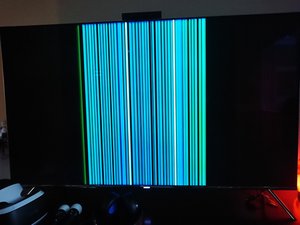
Hardware damage often causes no picture but sound issues. Look for cracks or broken parts on the screen. Flickering or lines on the display also signal damage. Unusual noises or burning smells come from inside the TV. The TV may fail to start or turn off suddenly. These signs mean a technician should check the TV soon.
Warranty And Service Options
Check if your Samsung TV is still under warranty. Warranty covers many repairs without extra cost. Contact Samsung support to learn about your service options. Using authorized service centers keeps your warranty valid. If the warranty expired, ask about repair costs before agreeing. A professional technician can give the right advice and fix your TV safely.
Preventive Tips For Future Issues
Preventing future problems with your Samsung TV saves time and money. Simple care steps keep your TV working well. Follow these easy tips to avoid issues like no picture but sound.
Regular Software Updates
Keep your TV software up to date. Updates fix bugs that may cause picture problems. Check for updates monthly in the TV settings. Install updates as soon as they are available. This helps your TV run smoothly and prevents glitches.
Proper Cable Management
Organize your cables neatly behind the TV. Loose or damaged cables cause signal loss and picture issues. Use cable ties or clips to hold cables together. Avoid bending or twisting the cables sharply. Good cable care improves picture quality and lasts longer.
Avoiding Power Surges
Protect your TV from power surges. Surges can damage the TV’s internal parts and cause display problems. Use a surge protector or a power strip with surge protection. Unplug the TV during storms or electrical problems. This simple step keeps your TV safe and working well.
Frequently Asked Questions
Why Does My Samsung Tv Have Sound But No Picture?
This issue often happens due to loose cables, faulty backlight, or incorrect input settings.
How Can I Fix Samsung Tv Screen Showing Black But Sound Works?
Try unplugging the TV for a few minutes, checking cables, and resetting picture settings.
Can A Software Update Fix Samsung Tv With No Picture Problem?
Yes, updating the TV’s firmware can solve bugs causing picture display issues.
Is A Faulty Hdmi Cable Causing Samsung Tv No Picture But Sound?
A damaged HDMI cable can cause no picture. Test with a different cable to confirm.
When Should I Call A Technician For Samsung Tv No Picture Issue?
Call a technician if basic fixes fail or if the backlight or internal parts are damaged.
Conclusion
Samsung TVs with sound but no picture often need simple fixes. Check your cables and connections first. Restart your TV and devices to refresh the system. Adjust the brightness and picture settings to ensure they are correct. Sometimes, updating the TV’s software solves the problem.
If the screen stays black, a hardware issue might exist. Contact a professional if you cannot fix it yourself. Taking quick steps can save time and frustration. Your TV can work well again with the right care. Keep these tips in mind for future problems.