
Is your Intel R Wireless AC 9560 suddenly not working? You’re not alone, and it can be incredibly frustrating when your internet connection drops without warning.
Whether you rely on your wireless adapter for work, streaming, or staying connected with friends, a malfunction can throw everything off balance. But don’t worry—this guide will help you quickly understand why your Intel R Wireless AC 9560 might be acting up and show you easy fixes to get it back on track.
Keep reading, and you’ll be back online in no time.

Credit: www.systweak.com
Common Causes Of Intel R Wireless Ac 9560 Issues
The Intel® Wireless AC 9560 is a popular wireless adapter known for its speed and reliability. Still, users often face issues that disrupt their internet connection. Understanding the common causes can help fix the problem quickly. This section explains key reasons behind Intel® Wireless AC 9560 issues.
Driver Problems
Outdated or corrupt drivers often cause wireless adapter failures. Drivers connect your hardware to the operating system. If the driver is missing or broken, the adapter stops working. Regular updates keep the driver compatible with new software. Installing the wrong driver version can also cause conflicts. Checking and updating drivers usually solves many connection issues.
Hardware Conflicts
Hardware conflicts happen when two devices try to use the same resources. This can block the wireless adapter from working properly. Other internal devices like Bluetooth or network cards may interfere. Faulty or loose connections inside the laptop can also cause problems. Testing hardware and removing conflicts often restores wireless functionality.
Software Interference
Some software programs block or disrupt wireless connections. Firewalls or antivirus tools may mistakenly block the adapter. Background apps using too much bandwidth can slow down the connection. System updates or changes can also cause interference. Closing unnecessary programs and adjusting security settings help reduce software conflicts.
Network Settings Errors
Incorrect network settings often stop the adapter from connecting to Wi-Fi. Wrong IP addresses, DNS settings, or proxy configurations create problems. Resetting network settings clears errors and refreshes connections. Sometimes, deleting saved networks and reconnecting solves the issue. Checking these settings ensures smooth wireless access.
Quick Troubleshooting Steps
Experiencing issues with the Intel R Wireless AC 9560 can be frustrating. Simple troubleshooting steps often solve common problems quickly. These steps help identify if the issue is with the device or settings.
Follow these quick fixes to restore your wireless connection. Each step is easy and takes just a few moments.
Restarting The Device
Turn off your laptop or desktop completely. Wait for about 30 seconds. Turn the device back on. Restarting refreshes the network settings and clears temporary glitches.
Checking Airplane Mode
Make sure Airplane Mode is off. This mode stops all wireless signals. Look for the airplane icon in the system tray or settings. If it is on, switch it off to enable Wi-Fi.
Reconnecting To Wi-fi
Disconnect from your current Wi-Fi network. Wait a few seconds. Then connect again using the correct password. This action resets the connection and often fixes network errors.
Updating And Reinstalling Drivers
Updating and reinstalling drivers is a key step to fix Intel R Wireless AC 9560 issues. Drivers help your computer communicate with the wireless card. Outdated or corrupted drivers can cause connection problems. Fresh drivers often improve performance and stability. This section shows how to update and reinstall your drivers safely.
Downloading Latest Drivers
Start by visiting Intel’s official website. Search for Intel Wireless AC 9560 drivers. Choose the correct driver for your operating system. Download the latest version available. Save the file in an easy-to-find folder. Avoid drivers from unknown sources to protect your device.
Using Device Manager To Update
Open Device Manager on your PC. Find “Network adapters” and expand it. Right-click on Intel Wireless AC 9560. Select “Update driver” from the menu. Choose “Search automatically for updated driver software.” Windows will look online and install the driver. Restart your PC to apply changes.
Performing A Clean Driver Reinstall
Sometimes, a clean reinstall fixes deeper driver problems. First, uninstall the current driver. In Device Manager, right-click the Intel Wireless AC 9560. Click “Uninstall device” and confirm. Check “Delete the driver software for this device” if available. Restart your PC after uninstalling. Then, install the latest driver you downloaded. Follow on-screen prompts to complete installation.
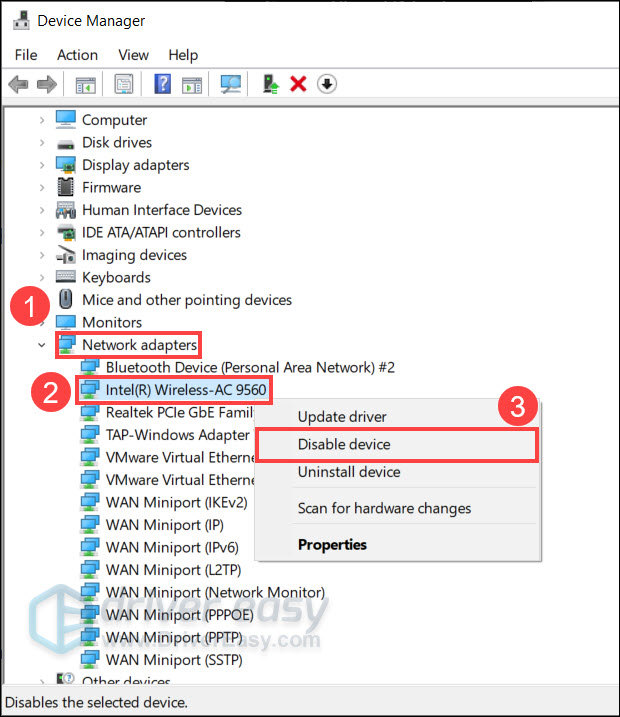
Credit: www.drivereasy.com
Adjusting Network Settings
Adjusting network settings can fix many connection problems with the Intel R Wireless AC 9560. Small changes can improve signal strength and speed. These tweaks help your device connect better to Wi-Fi. Follow these steps to adjust your network settings for a smoother experience.
Resetting Network Configurations
Resetting network settings removes all saved connections and resets your network adapter. This step clears old or corrupted data that may block your connection. To reset, open your device’s network settings and find the reset option. After resetting, reconnect to your Wi-Fi network. This often solves many common wireless issues.
Disabling Power Saving Mode
Power saving mode can limit your wireless adapter’s performance. It reduces power use but may cause weak or dropped connections. Disable this mode in your device’s power settings. Choose a balanced or high-performance power plan. This change lets your Intel Wireless AC 9560 work at full strength.
Changing Wi-fi Channel And Band
Wi-Fi interference can slow down your connection. Changing the Wi-Fi channel helps avoid crowded frequencies. Use your router’s settings to switch channels. Also, switch between 2.4 GHz and 5 GHz bands. The 5 GHz band is faster but covers less distance. The 2.4 GHz band reaches farther but is slower. Test both bands to find the best signal for your device.
Resolving Hardware Conflicts
Resolving hardware conflicts is key to fixing Intel R Wireless AC 9560 not working. Conflicts happen when devices try to use the same resources. This can cause your wireless adapter to stop working or act strangely. Checking for these conflicts helps restore smooth wireless function.
Checking Device Manager For Errors
Device Manager shows all hardware connected to your PC. It lists errors with a yellow triangle icon. Open Device Manager and find the Intel R Wireless AC 9560. Look for any error icons next to it. If you see one, right-click and select “Properties.” The error code there can guide you on what to fix.
Disabling Conflicting Devices
Some devices can interfere with the wireless adapter. Disable other network adapters temporarily. This helps identify if another device causes the problem. In Device Manager, right-click the conflicting device and choose “Disable.” Test your wireless after this to see if the issue clears up.
Running Hardware Diagnostics
Hardware diagnostics check your device for physical problems. Many PCs have built-in diagnostic tools. Run these tests to see if the wireless adapter has faults. You can also use Intel’s diagnostic tool for detailed checks. Fixing detected issues often restores wireless connectivity.
Advanced Fixes
Advanced fixes can help solve complex issues with the Intel R Wireless AC 9560. These steps go beyond basic troubleshooting. They require careful attention and some technical skills. Follow the instructions closely to avoid causing other problems.
These fixes target deep system settings and hardware controls. They can restore wireless functionality when simple steps fail. Proceed one step at a time and test your device after each fix.
Updating Bios And Firmware
BIOS and firmware updates can improve hardware compatibility. Visit your computer manufacturer’s website. Download the latest BIOS and firmware for your model. Follow the update instructions exactly. A successful update can fix wireless issues caused by outdated firmware.
Be cautious during the update. A power loss or interruption can harm your device. Ensure your laptop is plugged in and avoid closing the update window.
Modifying Registry Settings
The Windows Registry holds system configurations. Incorrect settings may block wireless functions. Open the Registry Editor carefully. Back up your registry before making changes.
Look for keys related to Intel Wireless AC 9560. Adjust values that disable or limit the device. Save changes and restart your computer. This fix can restore network connectivity by correcting hidden settings.
Rolling Back Windows Updates
Windows updates sometimes cause hardware conflicts. Rolling back recent updates can resolve these conflicts. Open Settings and navigate to Update & Security. Select ‘View update history’ and then ‘Uninstall updates.’
Choose the most recent update related to network drivers or system improvements. Remove it and restart your PC. This step often restores wireless functions disrupted by new updates.
Preventing Future Wireless Issues
Preventing future wireless issues with the Intel R Wireless AC 9560 helps keep your internet stable. Simple habits can avoid many common problems. Stay proactive to enjoy smooth connections without interruptions.
Regular Driver Maintenance
Keep your wireless drivers up to date. Check for new updates from Intel or your laptop maker. Updated drivers fix bugs and improve performance. Regularly reinstall drivers if you face frequent disconnections. This keeps your wireless card working well over time.
Optimizing Router Placement
Place your router in an open space, away from walls. Avoid metal objects and appliances that block signals. Higher and central locations give better coverage. This reduces dead spots and weak signals in your home or office. Better signal means fewer wireless problems.
Keeping System Software Updated
Update your computer’s operating system regularly. System updates include fixes for network issues. They improve compatibility with wireless hardware. Automatic updates help keep your PC secure and stable. A well-maintained system supports a strong internet connection.

Credit: www.youtube.com
Frequently Asked Questions
What Causes Intel R Wireless Ac 9560 To Stop Working?
Driver issues, software conflicts, or hardware problems often cause Intel Wireless AC 9560 to stop working.
How To Fix Intel Wireless Ac 9560 Driver Problems?
Update, reinstall, or roll back the driver using Device Manager to fix driver-related issues.
Can Windows Updates Affect Intel Wireless Ac 9560?
Yes, some Windows updates can cause compatibility problems with the Intel Wireless AC 9560.
How To Check If Intel Wireless Ac 9560 Hardware Is Faulty?
Run a hardware diagnostic test or check in BIOS to identify hardware faults.
Does Resetting Network Settings Help Intel Wireless Ac 9560 Issues?
Resetting network settings can resolve many connectivity problems with Intel Wireless AC 9560.
Conclusion
Troubles with Intel R Wireless AC 9560 can be fixed step by step. Check drivers, restart your device, and update software regularly. Simple fixes often solve common problems quickly. Keep your connection stable by avoiding interference. Staying patient helps when troubleshooting network issues.
Use these tips to get your wireless back on track. Wireless problems don’t have to last long. Stay calm, follow the steps, and enjoy smooth internet again.