
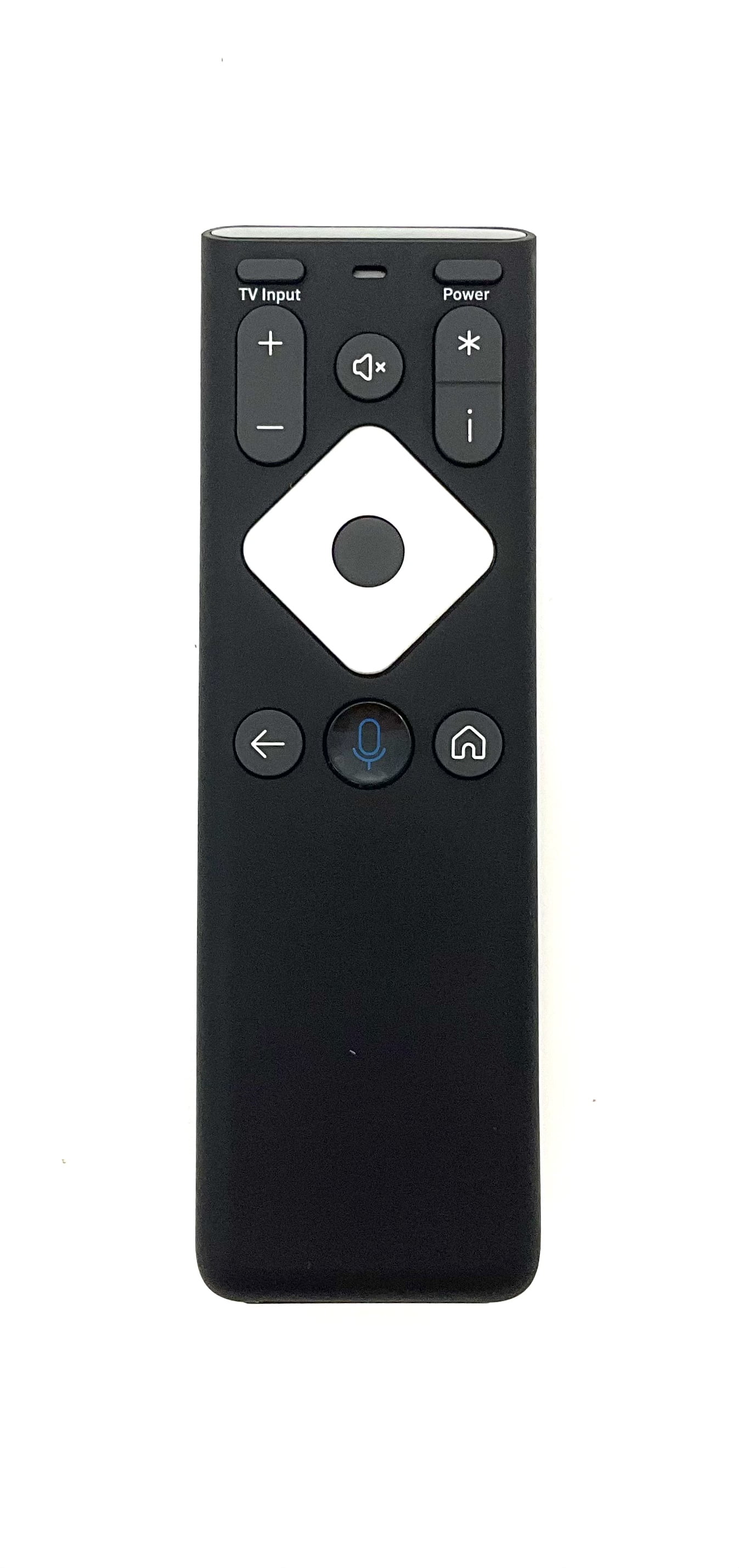
Is your Xfinity XR16 remote not working right when you need it most? You’re not alone, and it can be incredibly frustrating.
Whether it won’t respond, won’t pair, or just acts strangely, these issues can disrupt your TV time and leave you feeling stuck. But don’t worry—this guide is here to help you fix your remote fast. Keep reading, and you’ll learn simple, effective steps to get your Xfinity XR16 remote back in action—no tech skills needed.
Credit: www.walmart.com
Common Reasons For Remote Issues
The Xfinity XR16 remote may stop working for several common reasons. Knowing these issues can help you fix the remote quickly. Most problems are easy to solve and do not need expert help.
Battery Problems
Dead or weak batteries are the top cause of remote issues. The remote needs fresh batteries to send signals properly. Old batteries can cause slow or no response. Replacing batteries often solves the problem fast.
Signal Interference
Other devices can block the remote’s signal. Wireless routers, cordless phones, or microwaves nearby may cause interference. Thick walls or furniture can also weaken the signal. Keeping a clear path helps the remote work better.
Software Glitches
The remote or the TV box may have bugs. Sometimes the software needs a reset to work correctly again. Restarting the TV box or re-pairing the remote often fixes glitches. Updates might also improve remote performance.
Physical Damage
Drops or spills can harm the remote’s internal parts. Buttons may stop working or get stuck. Cracks can affect the remote’s ability to send signals. Checking for damage and cleaning the remote can help restore function.
Basic Troubleshooting Steps
Basic troubleshooting steps can often fix the Xfinity XR16 remote. These steps are easy to follow and take only a few minutes. Start with simple checks before trying complex solutions. This saves time and effort.
Check And Replace Batteries
Remove the back cover of the remote. Take out the old batteries. Check for any signs of leakage or corrosion. Insert new batteries, making sure to match the positive and negative ends. Test the remote to see if it works.
Reset The Remote
Press and hold the Setup button until the LED light blinks twice. Enter the code 9-8-1. The LED should blink twice again to confirm the reset. This clears any old settings. Try using the remote after the reset.
Reboot The Xfinity Box
Unplug the Xfinity box from the power outlet. Wait for about 30 seconds. Plug it back in and wait for it to restart fully. This refreshes the system and often fixes remote connection issues. Test the remote after the box restarts.
Re-pairing The Xr16 Remote
Re-pairing the Xfinity XR16 remote is a simple fix when it stops working. This process reconnects the remote to your set-top box. It helps restore control over your TV functions.
Follow the right steps to pair the remote correctly. This ensures quick and easy setup. Keep your remote and set-top box close during the process.
Pairing Process
First, turn on your TV and set-top box. Point the remote at the box. Press and hold the Setup button until the LED light blinks. Then, press the Xfinity button. Wait for the LED light to blink twice. This means the remote is paired.
If the light does not blink twice, try again. Sometimes it takes two or three attempts.
Troubleshooting Pairing Failures
Check if the remote has fresh batteries. Weak batteries can stop pairing. Remove any objects between the remote and the box. These can block signals. Restart your set-top box by unplugging it for 10 seconds, then plug it back in.
Try pairing again after the restart. If it still does not work, reset the remote by holding the Setup button for 20 seconds. After reset, repeat the pairing process.

Credit: support.zvox.com
Using The Xfinity App As An Alternative
Using the Xfinity app can solve problems with your XR16 remote. It works as a backup remote on your phone. You can control your TV and set-top box easily. The app is free and simple to use. It offers many features that your physical remote has. This option helps you keep watching without interruption.
Download And Setup
Start by downloading the Xfinity app from the App Store or Google Play. Open the app and sign in with your Xfinity account. Connect your phone to the same Wi-Fi network as your Xfinity device. The app will find your set-top box automatically. Follow the on-screen instructions to complete setup. It only takes a few minutes to get ready.
Remote Control Features
The app lets you change channels and adjust volume quickly. You can also use the keyboard for easy text entry. It has a guide to browse shows and movies. The app supports voice control for hands-free use. You can even set recordings directly from your phone. It makes watching TV more flexible and convenient.
When To Contact Support
Knowing when to contact support for your Xfinity XR16 remote is important. Some problems need expert help. This saves time and avoids frustration.
Try basic fixes first, like changing batteries or restarting devices. If these do not work, it might be time to get support. Support can guide you through advanced troubleshooting or arrange repairs.
Identifying Hardware Failures
Hardware issues often cause remote problems. Buttons may not respond or stick. The remote might not power on at all. Look for cracks or signs of damage. Check if the remote feels unusually warm. These signs show hardware failure.
Hardware failure means the remote’s internal parts are broken. Software fixes cannot solve this. Contact support if your remote shows these signs. They can confirm the problem and suggest next steps.
Warranty And Replacement Options
Your Xfinity XR16 remote likely has a warranty. This covers defects and hardware failures. Check the warranty period in your purchase documents. If your remote is under warranty, you may get a free replacement.
Support can help with warranty claims. They explain your options clearly. If your remote is out of warranty, support can still offer replacement plans. Knowing these options helps you make the best choice.
Credit: www.amazon.com
Frequently Asked Questions
Why Is My Xfinity Xr16 Remote Not Working?
The remote might have dead batteries, or it could be out of sync with the cable box.
How Do I Reset My Xfinity Xr16 Remote?
Hold the Setup button until the LED blinks twice, then enter the code 9-8-1.
Can Low Batteries Cause Xfinity Xr16 Remote Issues?
Yes, weak batteries often cause the remote to stop working properly.
How To Pair Xfinity Xr16 Remote With The Cable Box?
Press and hold the Setup button, then enter the correct pairing code for your device.
What If My Xfinity Xr16 Remote Still Doesn’t Work?
Try replacing batteries, resetting the remote, or contact Xfinity support for help.
Conclusion
Troubles with the Xfinity XR16 remote can be frustrating. Try basic fixes first like replacing batteries or resetting the remote. Check the remote’s connection to the TV or cable box. Sometimes, simple steps solve the problem quickly. If issues continue, contact Xfinity support for help.
Staying patient helps you avoid extra stress. Keep your remote in good condition to prevent future problems. Small efforts can restore your remote’s function soon. Don’t let a faulty remote ruin your viewing experience.