
Is your Samsung TV not recognizing HDMI ARC? It’s frustrating when your soundbar or home theater setup won’t connect properly, leaving you stuck with poor audio or no sound at all.
You might have checked all the cables and settings, yet the problem still won’t go away. Don’t worry—you’re not alone, and this issue can be fixed. Keep reading to discover simple, effective solutions that will get your HDMI ARC working perfectly again.
Your entertainment experience is about to improve, and it’s easier than you think.

Credit: www.reddit.com
Common Reasons For Hdmi Arc Issues
Many Samsung TV users face problems with HDMI ARC not working. Understanding common causes helps fix this issue faster. Problems often arise from simple mistakes or hardware faults. Checking these common reasons clears most HDMI ARC issues quickly.
Hdmi Cable Problems
Faulty or old HDMI cables stop ARC from working properly. Low-quality cables may not support ARC signals. Check if the cable is securely connected to both TV and audio device. Try a different high-speed HDMI cable to see if the problem goes away.
Incorrect Tv Settings
HDMI ARC needs specific TV settings to work. The TV’s HDMI-CEC or Anynet+ feature must be turned on. Audio output should be set to use ARC instead of TV speakers. Sometimes, resetting audio settings can solve the problem quickly.
Audio Device Compatibility
Not all soundbars or receivers support HDMI ARC correctly. Some older devices may lack full ARC features. Check the audio device manual to confirm ARC compatibility. Using devices designed for ARC ensures smoother connection and sound transfer.
Firmware And Software Glitches
Outdated TV software can cause HDMI ARC to fail. Firmware updates often fix bugs affecting ARC functionality. Check for updates in the TV’s settings menu. Restart the TV after updating to refresh the system and improve ARC performance.
Checking Hdmi Cable And Ports
When your Samsung TV does not recognize HDMI ARC, the issue may lie with the HDMI cable or ports. Checking these components helps find simple faults. This step can save time and avoid unnecessary expenses.
Start by closely examining the HDMI cable and the ports on your TV and connected devices. Small damages or dirt can cause connection problems. Ensuring the cable and ports are in good shape is the first step to fix the ARC issue.
Inspecting The Hdmi Cable
Look for visible signs of damage on the HDMI cable. Cracks, bends, or frayed ends reduce signal quality. Dirt or dust on the connectors can block the connection. Clean the connectors gently with a soft cloth. Replace the cable if you find any cuts or severe damage.
Testing Different Hdmi Ports
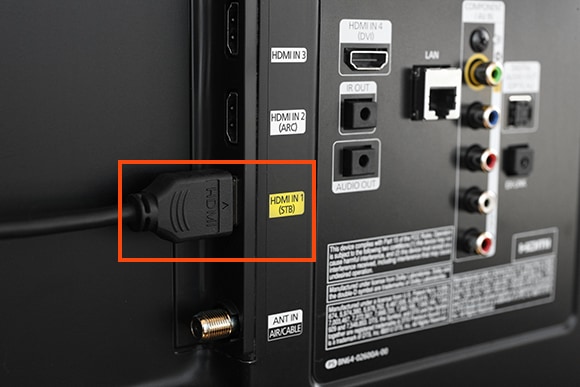
Try plugging the HDMI cable into different HDMI ports on your Samsung TV. Sometimes, one port may have a fault while others work fine. Switching ports can reveal if the port is the problem. Use the ARC-labeled port to ensure compatibility with the ARC function.
Using High-speed Hdmi Cables
Not all HDMI cables support ARC signals properly. High-speed HDMI cables are designed to carry audio return channel signals without issues. Use a certified high-speed HDMI cable for the best results. This type of cable improves sound and video quality.
Adjusting Samsung Tv Settings
Adjusting the settings on your Samsung TV can often fix issues with HDMI ARC not working. The right settings help the TV communicate with connected devices. Small changes can restore sound and video through the HDMI ARC port. Start by checking a few key settings to ensure everything is set correctly. This process is simple and takes only a few minutes.
Enabling Anynet+ (hdmi-cec)
Anynet+ is Samsung’s name for HDMI-CEC. It allows devices to control each other through HDMI. Enabling Anynet+ helps your TV recognize the HDMI ARC connection. Go to the TV’s main menu and open Settings. Find the General or System section. Look for Anynet+ and turn it on. This step lets your TV send audio signals properly to your soundbar or receiver.
Selecting The Correct Audio Output
Choosing the right audio output is crucial for HDMI ARC to work. Your TV might be set to use TV speakers instead of external devices. Open the Settings menu and go to Sound or Audio settings. Find the speaker list and select HDMI ARC or Receiver. This tells the TV to send sound through the ARC-enabled device. Without this, the TV may not send audio through HDMI.
Resetting Audio Settings
Resetting audio settings can clear any wrong configurations. Navigate to Settings, then Sound or Audio. Look for an option to Reset or Restore Default Audio settings. Confirm the reset and wait a few seconds. This restores the original sound settings and can fix conflicts. After resetting, recheck your HDMI ARC connection for proper function.
Configuring External Audio Devices
Configuring external audio devices is key to fixing HDMI ARC recognition issues on Samsung TVs. Proper setup ensures clear sound and smooth connection between your TV and audio equipment. This section covers simple steps to connect soundbars and receivers effectively.
Setting Up Soundbars And Receivers
Start by connecting the HDMI cable to the ARC port on both devices. Check the TV’s settings menu to enable HDMI ARC. Select the correct input on your soundbar or receiver to match the TV connection. Use original or high-quality HDMI cables for best results.
Ensuring Arc Support
Confirm that both your TV and audio device support HDMI ARC. Look for the “ARC” label near the HDMI ports. Some older models may not support ARC. Update the firmware on both devices to improve compatibility. Without ARC support, the devices cannot communicate properly.
Power Cycling Audio Equipment
Turn off your TV and audio device completely. Unplug them from the power outlet for about 30 seconds. Plug them back in and turn them on. This simple reset often clears connection errors. It helps the devices recognize each other through the ARC port.
Updating Firmware And Software
Updating the firmware and software of your Samsung TV and connected devices can solve many HDMI ARC issues. Software updates fix bugs and improve compatibility between devices. Keeping everything up to date ensures smooth communication through the HDMI ARC port.
Checking For Tv Updates
Start by checking your Samsung TV for the latest firmware updates. Go to Settings, then Support, and select Software Update. Choose “Update Now” to see if there is a new version available. Installing the latest firmware often resolves HDMI ARC recognition problems.
Updating External Devices
External devices like soundbars or AV receivers also need updated software. Visit the manufacturer’s website or use their app to download and install the newest firmware. Updated devices communicate better with your TV over HDMI ARC, reducing connection issues.
Performing A Tv Reset
If updates do not fix the problem, try resetting your Samsung TV. This clears temporary glitches that may block HDMI ARC detection. Go to Settings, select General, then Reset. Enter your PIN and confirm. After the reset, reconnect your devices and test the HDMI ARC connection again.
Credit: www.samsung.com
Additional Troubleshooting Tips
Sometimes the HDMI ARC issue on your Samsung TV needs more than basic checks. Extra steps can help find the exact problem. These tips give you ways to try other connections, check different devices, and get expert help.
Using Alternative Audio Connections
Try using other audio connections like optical cables or Bluetooth. These options can work if HDMI ARC fails. Optical cables carry good sound and connect easily. Bluetooth lets you link wireless speakers or soundbars. This way, you still enjoy clear audio without HDMI ARC.
Testing With Different Devices
Test your HDMI ARC port with another device. Use a different soundbar, receiver, or TV box. This helps find if the problem is with your TV or device. Swap cables to check if the wire is the cause. Testing different setups narrows down the issue fast.
Consulting Samsung Support
Contact Samsung support if problems continue. Their experts know Samsung TVs well. They can guide you through advanced fixes. Sometimes firmware updates or repairs are needed. Use Samsung’s official website or helpline for help.

Credit: www.youtube.com
Frequently Asked Questions
Why Is My Samsung Tv Not Detecting Hdmi Arc?
Check if HDMI ARC is enabled on both TV and sound device settings.
How To Fix Samsung Tv Hdmi Arc Connection Issues?
Try restarting devices, using high-speed HDMI cables, and selecting the correct HDMI port.
Can Hdmi Cable Quality Affect Samsung Tv Arc Detection?
Yes, low-quality or damaged HDMI cables often cause connection problems.
Does Tv Firmware Update Help With Hdmi Arc Problems?
Updating TV software can resolve bugs affecting HDMI ARC functionality.
How To Enable Hdmi Arc On Samsung Tv Settings?
Go to TV settings, select Sound, then enable HDMI ARC or Anynet+ (HDMI-CEC).
Conclusion
Samsung TV not recognizing HDMI ARC can be frustrating. Check cables and ports first. Restart your TV and audio device to refresh settings. Make sure HDMI-CEC and ARC options are enabled in the menu. Sometimes, updating your TV’s software fixes the issue.
Test with another HDMI cable if needed. Small changes often solve big problems. Keep trying these steps patiently. Soon, your sound will work perfectly through ARC. Enjoy better TV audio without hassle.