
Is your Nighthawk router not working when you need it most? You rely on a strong, steady internet connection every day, and when your router fails, it can feel frustrating and confusing.
But don’t worry—this guide will help you understand why your Nighthawk router might be acting up and show you simple steps to fix it fast. Keep reading to get your internet back on track without wasting time or money.
Common Reasons For Nighthawk Router Issues
Nighthawk routers usually work well but can sometimes face problems. These issues can stop your internet from working properly. Knowing the common reasons helps fix them fast. This saves time and avoids frustration.
Power And Connection Problems
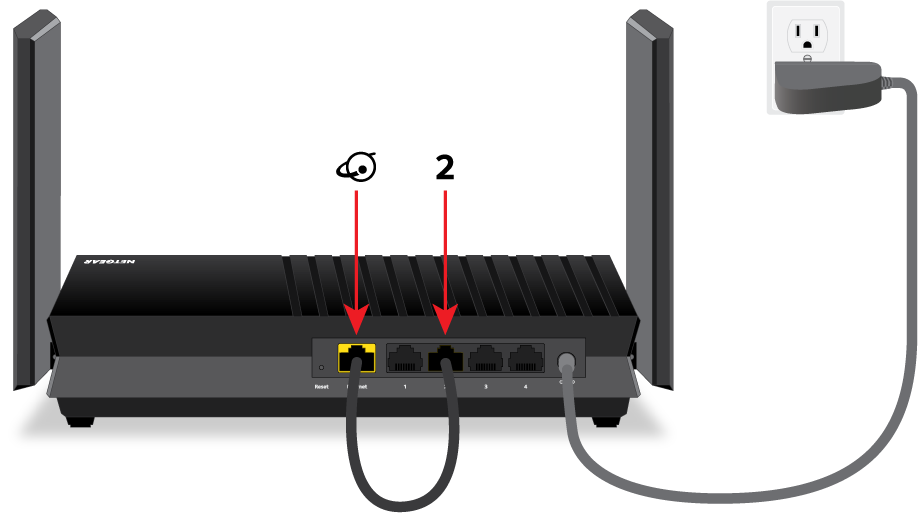
A router needs power to work. Check if the power cable is plugged in right. Sometimes, the power outlet may not work. Also, the cable that connects the router to the modem can be loose or broken. These simple issues cause the router to stop working.
Firmware Glitches
The router runs on software called firmware. Old or corrupted firmware can cause bugs. These bugs slow down the router or make it disconnect often. Updating the firmware to the latest version can fix many problems. Sometimes, a restart helps clear minor glitches too.
Interference And Signal Issues
Wireless signals can face interference from other devices. Microwaves, cordless phones, and walls can block signals. Distance from the router also matters. Far devices get weak signals and slow speeds. Changing the router’s location or channel can improve the signal.
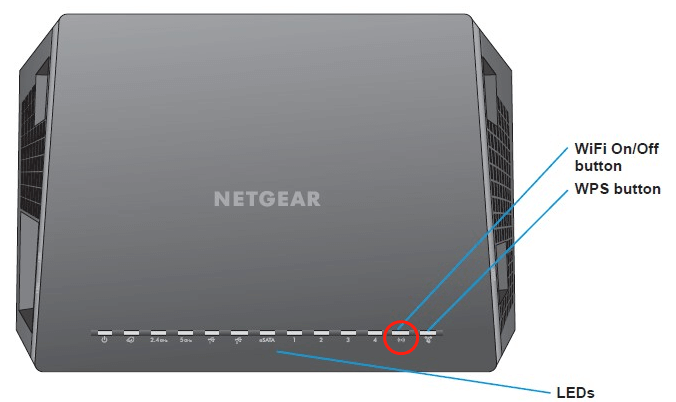
Credit: www.partitionwizard.com
Basic Troubleshooting Steps
Basic troubleshooting steps help fix common Nighthawk router problems. These steps are simple and quick. They often solve connection issues without extra tools or help. Follow these steps carefully to restore your internet fast.
Restarting The Router
Turn off the Nighthawk router. Wait for 30 seconds. Then, turn it back on. Restarting clears temporary glitches. This step refreshes the router’s system. It often fixes slow or no internet problems.
Checking Cable Connections
Look at all cables connected to the router. Make sure the power cable is plugged in tightly. Check the Ethernet cables between the modem and router. Loose or damaged cables cause connection failures. Replace any broken cables to maintain a stable network.
Verifying Internet Service
Confirm that your internet service is active. Contact your internet provider if needed. Sometimes, service outages or billing issues stop the connection. Knowing your service status avoids unnecessary router fixes. This step saves time and effort.
Advanced Fixes To Try
Advanced fixes can resolve complex issues with your Nighthawk router. These steps dig deeper than basic troubleshooting. They help restore your internet connection quickly and reliably. Follow these tips carefully to improve your router’s performance and stability.
Resetting To Factory Settings
Resetting the router clears all custom settings. It brings the device back to its original state. Find the reset button, usually at the back. Hold it down for about 10 seconds until lights blink. This process removes all previous configurations. You will need to set up your network again. This fix often resolves persistent connection problems.
Updating Router Firmware
Firmware updates fix bugs and improve router functions. Check the Nighthawk support site for the latest firmware. Download and install the update using the router’s admin page. Keep your device connected during the update. Do not turn off the router while updating. Updated firmware can enhance speed and security.
Changing Wireless Channels
Interference from other networks can slow your Wi-Fi. Changing the wireless channel reduces this interference. Access the router’s settings page and find the wireless section. Choose a channel with less traffic, usually 1, 6, or 11. Save changes and restart the router. This simple step can boost your wireless signal strength.

Credit: www.youtube.com
Optimizing Router Placement
Optimizing the placement of your Nighthawk router can improve its performance significantly. Proper location helps the router send a stronger, clearer signal to your devices. This reduces connection drops and slow internet speeds. Small changes in placement make a big difference.
Choosing The Best Location
Place your router in a central spot inside your home. This allows the signal to reach all rooms evenly. Keep it high, like on a shelf or table. Avoid placing it near the floor or in a cabinet. Open spaces work better than closed areas.
Avoiding Interference Sources
Keep your router away from electronic devices like microwaves and cordless phones. These devices can interrupt the Wi-Fi signal. Metal objects and thick walls also block signals. Avoid placing the router near large furniture or mirrors. Clear space around the router improves its signal strength.
When To Contact Support
Knowing when to contact support can save time and frustration with your Nighthawk router. Some problems need expert help beyond basic troubleshooting. Recognizing these signs helps you get the right assistance quickly.
Identifying Hardware Failures
Hardware failures show clear signs. The router may not power on at all. Lights might stay off or blink abnormally. Strange sounds or overheating are also warning signs. If resets and cable checks do not fix the issue, hardware failure is likely. Physical damage or age can cause parts to fail. At this point, professional repair or replacement is needed.
Using Netgear Support Resources
Netgear offers many tools to assist users. Their website has guides and FAQs for common router problems. You can download the latest firmware updates there. The support page also has a chat option to talk with experts. They may help diagnose the problem remotely. If you cannot fix the issue yourself, contacting Netgear support is the best step.
Credit: kb.netgear.com
Frequently Asked Questions
Why Is My Nighthawk Router Not Connecting To The Internet?
Check if the modem is working and all cables are securely connected to the router.
How Do I Reset My Nighthawk Router To Fix Issues?
Press and hold the reset button for 10 seconds until the router restarts.
Can Outdated Firmware Cause Nighthawk Router Problems?
Yes, outdated firmware can cause bugs. Update it through the router’s settings page.
What Should I Do If My Nighthawk Router Keeps Dropping Wi-fi?
Try changing the Wi-Fi channel to reduce interference from other devices nearby.
How Do I Know If My Nighthawk Router Hardware Is Faulty?
Look for blinking lights or no power. Contact support if problems persist after resets.
Conclusion
Nighthawk router issues can be frustrating but fixable. Restart your router first and check all cables. Update the firmware to keep it running smoothly. Reset settings only if needed. Test your internet connection after each step. Small actions often solve common problems quickly.
Stay patient and follow the easy fixes shared here. Your Nighthawk router can work well again soon. Keep your network stable and enjoy smooth browsing.