
Are you having trouble with your Samsung TV? Maybe it’s freezing, acting slow, or showing strange errors.
Resetting your Samsung TV can often fix these issues quickly and get it working like new again. But how exactly do you reset it without causing more problems? In this guide, you’ll discover simple, step-by-step instructions to reset your Samsung TV easily.
Keep reading, and you’ll be back to enjoying your favorite shows in no time.
Reasons To Reset Samsung Tv
Resetting a Samsung TV can fix many common problems. It helps clear errors and refresh the system. Sometimes, settings or apps stop working right. A reset can bring the TV back to normal.
Resetting also removes unwanted settings or glitches. It helps improve the TV’s speed and performance. Users often try a reset before calling for repairs. This simple step can save time and effort.
Common Issues Solved By Reset
TV not responding to the remote is common. A reset often fixes this issue quickly. Apps freezing or crashing can also improve after reset. Picture or sound problems sometimes clear up too.
Network connection errors may disappear after resetting. This helps the TV reconnect to Wi-Fi properly. If the TV runs slowly or lags, reset can help. It removes temporary files and clears memory.
When To Consider A Reset
Try resetting if the TV freezes or does not turn on. When apps stop working or keep crashing, reset is useful. If the TV has strange colors or sound, reset may help.
Use reset if you change internet settings or move to a new place. Resetting can fix connection problems in these cases. Also, reset before selling or giving away the TV. This removes personal data and settings.
Credit: www.samsung.com
Types Of Samsung Tv Resets
Samsung TVs offer different reset options to fix issues or restore settings. Each reset type serves a specific purpose. Knowing these types helps you choose the right method for your problem.
Soft Reset
A soft reset restarts the TV without deleting any settings. It clears temporary bugs and glitches. To perform it, turn off the TV and unplug it from power. Wait for about 30 seconds, then plug it back in and turn it on. This quick reset often solves minor issues.
Factory Reset
A factory reset restores the TV to its original settings. It deletes all personal data, apps, and preferences. Use this reset if the TV has serious problems or if you want to start fresh. Remember to back up important information before doing a factory reset.
Reset Via Remote Control
You can reset your Samsung TV using the remote control. This method is simple and fast. Navigate to the settings menu, find the reset option, and follow the on-screen instructions. The remote control reset can be either soft or factory, depending on the option you choose.
Preparing For A Reset
Preparing your Samsung TV for a reset is an important step. It helps protect your settings and avoids losing important information. Taking a few simple actions can make the reset process easier and safer.
Backing up your settings and checking for updates are key tasks. These steps ensure your TV works smoothly after the reset. Follow the tips below to get ready.
Backup Important Settings
Save your favorite channels and app logins before resetting. This avoids the need to set them up again later. Write down or take pictures of your custom settings. Many Samsung TVs allow exporting some settings to a USB drive. Check your TV menu for backup options. Keep this backup file safe for quick restoration.
Check For Software Updates
Update your TV software to the latest version. New updates fix bugs and improve performance. Open the settings menu and find the software update section. Connect your TV to the internet for the update. Install all available updates before resetting. This step can prevent problems after the reset.
Step-by-step Reset Instructions
Resetting your Samsung TV can fix many common issues. It clears temporary glitches and restores settings. Follow these step-by-step instructions to reset your TV safely. Choose the method that fits your problem and comfort level. Each method works for different situations. Read carefully and try the steps in order.
Soft Reset Method
Turn off your Samsung TV using the remote. Unplug the power cord from the wall outlet. Wait for 30 seconds to 1 minute. Plug the power cord back in. Turn on the TV with the remote. This soft reset clears temporary bugs without deleting any data.
Factory Reset From Settings Menu
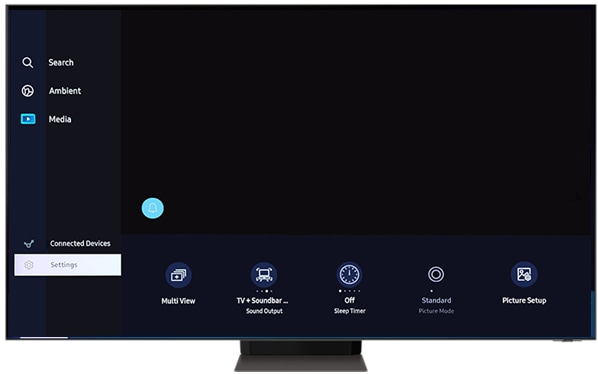
Press the Home button on your remote. Navigate to Settings and select it. Go to General and find Reset. Enter your TV PIN, usually 0000 if not changed. Confirm the factory reset option. The TV will restart and erase all personal settings. Use this to fix serious software issues.
Reset Using Remote Button Combination
Turn off the TV but keep the power on. Press and hold the Mute button on the remote. While holding Mute, press the Power button. Release both buttons when the TV turns on. This method resets the TV without using menus. It is useful if the screen is frozen or unresponsive.
Troubleshooting After Reset
Resetting your Samsung TV can fix many issues. After a reset, some settings return to default. This means you might lose saved preferences or network connections. Troubleshooting after a reset helps bring your TV back to full function quickly. Follow these steps to solve common problems and enjoy your TV again.
Reconnecting To Wi-fi
Your TV loses Wi-Fi connection after a reset. Go to the Settings menu. Find the Network option and select it. Choose your Wi-Fi network from the list. Enter your password carefully. Wait for the TV to connect. Check if the connection is stable by opening a streaming app.
Restoring Apps And Preferences
Reset removes all installed apps and preferences. Open the Samsung App Store on your TV. Reinstall your favorite apps one by one. Sign in to each app to restore your data. Adjust picture and sound settings to your liking. Save these preferences to avoid repeating the process.
Contacting Samsung Support
If problems persist after reset and troubleshooting, contact Samsung Support. Use the Samsung website or call their helpline. Provide your TV model and describe the issue clearly. Support staff can offer specific solutions or arrange repairs. Keep your purchase details ready for faster service.

Credit: www.youtube.com
Tips To Avoid Frequent Resets
Frequent resets of your Samsung TV can interrupt your viewing experience. Avoiding these resets helps keep your TV running smoothly. Simple steps can reduce the need to reset your device often.
Focus on keeping your TV updated and well-maintained. These small efforts improve performance and prevent common issues.
Regular Software Updates
Samsung releases updates to fix bugs and improve features. Check for updates regularly in the TV settings menu. Installing updates keeps your TV secure and stable. Ignoring updates may cause glitches that lead to resets.
Proper Tv Maintenance
Keep your TV clean and dust-free to avoid overheating. Use a soft cloth to wipe the screen and vents gently. Make sure the TV has enough space for air circulation. Avoid blocking vents with objects or walls. Power off the TV during storms to protect from electrical damage.

Credit: www.samsung.com
Frequently Asked Questions
How Do I Reset My Samsung Tv To Factory Settings?
Go to Settings > General > Reset, enter your PIN, and confirm to reset your TV.
What Happens When I Reset My Samsung Tv?
All settings return to default, and personal data is erased from the TV.
Can I Reset My Samsung Tv Without A Remote?
Yes, use the TV’s physical buttons or the Samsung SmartThings app on your phone.
Why Should I Reset My Samsung Tv?
Resetting fixes software issues and clears errors that may affect TV performance.
How Long Does A Samsung Tv Reset Take?
The reset process usually takes about 5 minutes to complete fully.
Conclusion
Resetting your Samsung TV can fix many common problems fast. Follow the steps carefully for the best results. Always back up your settings before starting the reset. This process helps improve your TV’s performance and clears glitches. Keep your remote handy and stay patient during the reset.
Regular resets can keep your TV running smoothly over time. Try these tips to enjoy a better viewing experience today.