
Is your TCL TV not turning on? It can be really frustrating when you just want to relax and enjoy your favorite show, but your screen stays black.
You might feel stuck, wondering what’s wrong and how to fix it quickly. Don’t worry—this guide is made just for you. By the end, you’ll know simple steps to get your TCL TV working again without wasting time or money.
Keep reading, and let’s bring your TV back to life!
Credit: www.airbeam.tv
Check Power Source
When your TCL TV does not turn on, the first step is to check its power source. A TV needs steady power to work. Problems with power can stop it from turning on at all.
Checking the power source helps find simple issues. These issues can be fixed quickly without needing expert help. Start by looking at the power cable and outlet. Then try another power source to be sure.
Inspect Power Cable And Outlet
Look closely at the power cable for any cuts or damage. A broken cable can block power flow. Make sure the cable is firmly plugged into the TV.
Check the wall outlet too. Sometimes outlets stop working. Plug another device into the same outlet. If it does not work, the outlet may be the problem.
Test With Different Power Source
Try plugging the TV into a different outlet. This helps check if the original outlet has power issues. Use an outlet in another room if possible.
If the TV turns on with a new power source, the first outlet is faulty. You may need to fix or replace the outlet for regular use.
Reset The Tv
Resetting your TCL TV can fix many power issues. It clears minor glitches that stop the TV from turning on. Resetting is easy and often solves the problem quickly.
There are two main ways to reset your TV: soft reset and hard reset. Each method has its own steps to follow. Start with a soft reset before trying a hard reset.
Soft Reset Steps
Unplug the TV from the power outlet. Wait for 60 seconds to let it cool down. Press and hold the power button on the TV for 10 seconds. Release the button and plug the TV back in. Press the power button to turn on the TV.
This method clears temporary errors without deleting settings. Soft reset works well for small glitches and freezes.
Hard Reset Methods
Hard reset restores the TV to factory settings. Use the remote control and go to the Settings menu. Find the System or Support section. Select Reset or Factory Reset option. Enter your PIN if asked (default is usually 0000). Confirm the reset and wait for the TV to restart.
Hard reset deletes apps and saved data. Use this only if the soft reset does not fix the problem. It gives the TV a fresh start by removing all errors.
Examine Remote And Buttons
When your TCL TV does not turn on, the remote and the TV buttons are the first things to check. Problems with the remote or buttons often cause the TV to stay off. Simple fixes here can save time and avoid frustration.
Start by checking the remote control. Sometimes, the remote stops working because of weak or dead batteries. Also, the remote buttons may get stuck or damaged. Testing the remote helps find the real issue.
If the remote is not the problem, try using the TV’s own power button. This step can tell if the problem is with the remote or the TV itself. The TV buttons are always a reliable backup.
Replace Remote Batteries
Remove the remote’s back cover. Take out the old batteries carefully. Use new batteries of the same type. Insert them correctly with the plus and minus signs matching. Check if the remote works now. Weak batteries often stop the remote from sending signals.
Use Tv Buttons For Power
Look for the power button on the TV frame. It is usually on the side or bottom edge. Press and hold it for a few seconds. See if the TV screen lights up. If it does, the remote may be faulty. Using the TV button can also reset some minor issues.

Credit: www.youtube.com
Look For Indicator Lights
When your TCL TV does not turn on, the indicator lights can tell you a lot. These small lights show the TV’s current state. Checking them is one of the easiest ways to start troubleshooting. They can help you know if the TV is in standby or if there is a power issue. Understanding what the lights mean can save time and effort.
Identify Standby Vs Power On
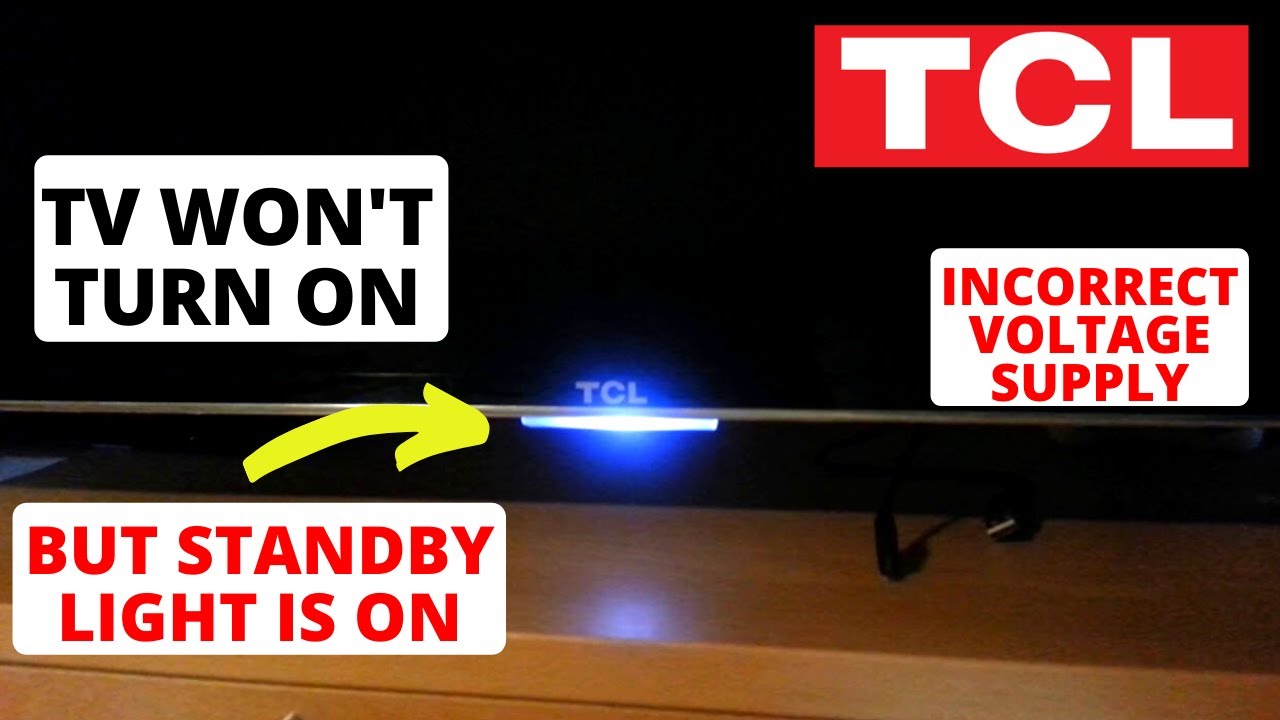
Indicator lights on a TCL TV often glow in different colors. A red or orange light usually means the TV is in standby mode. This means it is plugged in but not fully on. A green or white light shows the TV is powered on and working. No light at all might mean the TV has no power. Knowing these differences helps decide the next step.
Troubleshoot Based On Light Status
If the TV shows a red or orange light but won’t turn on, the remote or power button may be the problem. Try pressing the power button on the TV itself. If there is no light, check the power outlet and cable. A blinking light can mean the TV is updating or has an error. Watch the pattern and count the blinks to find clues. Each light status points to a specific issue to fix.
Check External Devices
Checking external devices is an important step when your TCL TV does not turn on. Sometimes, connected devices can cause problems. These devices may stop the TV from starting properly.
Try to isolate the issue by focusing on the external devices. Removing or disconnecting them can help find the cause. This step is simple and quick to do. It can save time and avoid unnecessary repairs.
Disconnect Hdmi And Usb Devices
Start by unplugging all HDMI cables from your TV. These cables connect devices like gaming consoles, DVD players, and streaming sticks. Also, remove any USB drives or devices. These can sometimes interfere with the TV’s startup process.
After disconnecting, try turning on the TV again. If the TV powers on, one of the devices may be causing the issue. Reconnect each device one by one to find the faulty one.
Test Tv Without External Inputs
Test the TV with no devices connected. Leave it unplugged from all external inputs. This means no HDMI, USB, or other cables attached.
Turn on the TV using only the remote or power button. This helps check if the TV itself works properly. If it turns on, external devices were likely the problem. If it still does not turn on, the issue might be inside the TV.
Update Firmware
Updating the firmware can fix many problems with your TCL TV. Firmware is the software inside your TV that controls how it works. Sometimes bugs or errors stop your TV from turning on. A firmware update can repair these issues and improve performance.
Keep your TV’s firmware up to date. It helps the TV run smoothly and stay compatible with new apps and devices. Follow the steps below to check and update your TCL TV’s firmware.
Check For Available Updates
Turn on your TCL TV and open the Settings menu. Look for the “Support” or “About” section. Find the option called “System Update” or “Software Update.” Select it to check if a new update is available for your TV.
The TV will connect to the internet and search for updates. If one is available, the screen will show details about the update. Note the version number and size of the update before downloading.
Update Via Usb Or Network
You can update your TCL TV firmware using two methods: USB or network. Updating via network is easier if your TV is connected to the internet. The TV downloads and installs the update automatically.
To update via USB, download the firmware update file from the TCL support website. Save it to a USB drive. Insert the USB into your TV’s port. Use the TV menu to find the update file and start the installation.
Do not turn off the TV during the update. The TV will restart once the update finishes. Your TV should work better after the firmware update is complete.
Inspect Internal Hardware
When your TCL TV does not turn on, checking the internal hardware can help find the problem. Many issues come from loose connections or damaged parts inside the TV. Opening the TV and looking closely can reveal signs of trouble. This step requires care and some basic knowledge of electronics.
It is important to be gentle and avoid causing more damage. You should also unplug the TV before opening it. Use a flashlight to see inside clearly. Look for anything unusual like broken wires, burnt areas, or bulging components. These signs often point to the source of the problem.
Look For Signs Of Damage
Check the circuit boards for burnt spots or discoloration. Burn marks mean a component has overheated or shorted out. Inspect the power supply board carefully. It often fails and stops the TV from turning on. Swollen or leaking capacitors are a common issue to spot.
Loose or disconnected cables inside can also stop the TV from powering up. Gently push all connectors to make sure they are tight. If you find any damaged parts, take note. This information will be useful if you need to get repairs done.
When To Seek Professional Repair
Some problems are hard to fix without the right tools and knowledge. If you see major damage or feel unsure, ask for help from a professional. Repair technicians can safely test and replace broken parts. Trying to fix complicated issues alone can make things worse.
Professional repair saves time and prevents more damage. It is a good idea when your TV is under warranty. Experts also know how to handle delicate components properly. They can give you a clear diagnosis and cost estimate for the repair.
Credit: www.youtube.com
Prevent Future Power Issues
Preventing power issues with your TCL TV helps keep it working longer. Simple steps protect your TV from common electrical problems. Follow these easy tips to avoid power troubles in the future.
Use Surge Protectors
Surge protectors shield your TV from sudden power spikes. These spikes can damage internal parts and stop your TV from turning on. Plug your TCL TV into a good surge protector. It reduces the risk of electrical damage during storms or power surges. Replace surge protectors every few years for best safety.
Regular Maintenance Tips
Clean your TV and its vents often. Dust blocks airflow and causes overheating. Overheating can lead to power failures. Use a soft cloth to wipe the screen and vents gently. Check cables and plugs for damage or loose connections. Tighten or replace any faulty parts. Keep your TV in a cool, dry place away from direct sunlight.
Frequently Asked Questions
Why Is My Tcl Tv Not Turning On At All?
Check if the power cord is plugged in and the outlet works. Try a different socket.
How Can I Fix A Tcl Tv That Won’t Power On?
Unplug the TV for 60 seconds, then plug it back in and try turning it on.
Could The Remote Control Cause Tcl Tv Power Issues?
Yes, dead batteries or a broken remote can stop the TV from turning on.
Is A Faulty Power Supply Common In Tcl Tvs?
Power supply problems can prevent the TV from starting and may need professional repair.
Can A Software Glitch Stop Tcl Tv From Turning On?
Yes, a software error might cause startup failure; a reset or update may help.
Conclusion
Tcl TV not turning on can feel frustrating. Check the power source and remote control first. Restarting the TV often solves the issue quickly. Sometimes, a simple reset fixes many problems. If the TV still won’t start, consider contacting support.
Small steps often bring big results. Don’t give up; your TV can work again soon. Keep these tips handy for future trouble. Staying calm helps you solve issues faster.