
Are you struggling with the COUNTIFS function not working in your spreadsheet? You’re not alone.
This frustrating issue can stop your data analysis dead in its tracks. But don’t worry—understanding why COUNTIFS isn’t giving you the results you expect is easier than you think. You’ll discover simple fixes and tips to get your formulas back on track, saving you time and hassle.
Keep reading to unlock the secrets behind COUNTIFS and make your spreadsheets work exactly the way you want.

Credit: www.wps.com
Common Countifs Issues
Countifs is a powerful Excel function used to count cells that meet multiple conditions. Many users face issues when their Countifs formula does not work as expected. These problems often stem from common mistakes or misunderstandings. Knowing these issues helps fix errors quickly.
Below are frequent problems that cause Countifs to fail. Understanding them improves your Excel skills and saves time.
Incorrect Criteria Syntax
Countifs requires specific criteria format. Text criteria must be inside double quotes. For example, use “"Apple"” instead of just Apple.
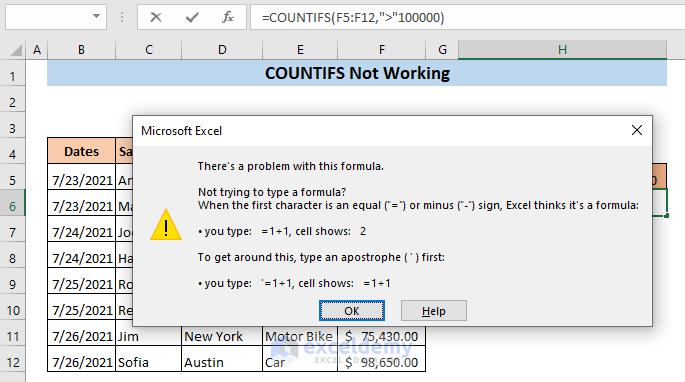
Using operators like greater than or less than needs quotes too. For example, “">10"” counts numbers larger than 10. Missing quotes break the formula.
Mismatched Range Sizes
Each range in Countifs must be the same size. If one range has 10 rows and another has 8, the formula returns an error.
Check that all ranges cover the same number of rows and columns. Consistent range size ensures correct results.
Hidden Characters And Spaces
Extra spaces or hidden characters in cells affect Countifs results. Cells may look clean but contain spaces at the end.
Use the TRIM function to remove extra spaces. Also, check for non-printing characters that can cause mismatches.
Data Type Conflicts
Countifs treats numbers and text differently. A number stored as text won’t match a numeric criterion.
Convert text numbers to actual numbers using VALUE or Paste Special. Ensure consistent data types across ranges.
Formula Troubleshooting Steps
When the COUNTIFS formula does not work, follow simple troubleshooting steps. These steps help find common problems fast. Fixing issues becomes easier with a clear approach. Try these methods to get accurate results.
Check Range Consistency
Make sure all ranges have the same size. Different row or column counts cause errors. Check if ranges cover the exact same cells. This keeps the formula working properly.
Verify Criteria Formatting
Look at how you write criteria. Text must be in quotes, like “Apple”. Numbers should not have quotes. Dates need correct formats or use DATE function. Wrong formatting stops COUNTIFS from counting.
Use Evaluate Formula Tool
Excel’s Evaluate Formula tool shows how the formula works step-by-step. It helps find where the error happens. Use it to check each part of COUNTIFS. This tool is great for learning formula behavior.
Test With Simple Examples
Create a small test table with easy data. Use COUNTIFS on this simple set. It helps confirm if the formula works correctly. This step finds problems in complex sheets.
Handling Text And Numbers
Handling text and numbers in the COUNTIFS function can cause confusion. This often leads to errors or unexpected results. Many users face challenges when their data mixes text and numbers. Correctly managing these types helps COUNTIFS work as expected.
Converting Text To Numbers
Sometimes numbers are stored as text in Excel. COUNTIFS does not count these as numbers. To fix this, convert text to numbers first. Use the VALUE function or multiply by 1. This changes the text format into a number format. Then, COUNTIFS can count them correctly.
Dealing With Date Criteria
Dates can be tricky because Excel stores dates as numbers. If you use text dates in COUNTIFS, it may not work. Always enter dates in a date format. Use the DATE function to create proper date criteria. This ensures COUNTIFS counts dates without errors.
Avoiding Case Sensitivity Issues
COUNTIFS is not case sensitive. It treats “apple” and “Apple” the same. But sometimes you want to check case. In that case, use other functions like SUMPRODUCT. For most tasks, case does not affect COUNTIFS results. This makes counting simpler and faster.
Avoiding Common Pitfalls
COUNTIFS is a powerful Excel function, but it can be tricky at times. Many users face issues because of small mistakes. Avoiding common pitfalls helps make COUNTIFS work correctly. Clear steps and careful checks improve your results.
Using Wildcards Correctly
Wildcards let you match text patterns in COUNTIFS. Use ? to match one character and to match any number of characters. Place wildcards inside quotes, like "a" for words starting with “a”.
Not using quotes or wrong placement causes errors. Check if wildcards fit your data patterns. Use wildcards only with text criteria. Numbers or dates don’t work well with wildcards.
Handling Blank Cells
Blank cells can confuse COUNTIFS results. Excel treats blanks differently from empty strings. To count blanks, use "" as a criterion. For example, COUNTIFS(A1:A10, "") counts empty cells.
Be clear about what “blank” means in your data. Sometimes cells look empty but have spaces or formulas returning “”. Remove hidden characters to avoid errors.
Avoiding Array Formula Mistakes
COUNTIFS is not an array formula. Do not enter it with Ctrl+Shift+Enter. Just press Enter after typing the formula. Using array entry can cause wrong results or errors.
Array formulas work differently and need special handling. Keep COUNTIFS simple and straightforward. Use array formulas only when necessary and understand how they function.
Alternative Functions To Try
Sometimes, COUNTIFS may not work as expected. This happens due to complex data or criteria limits. Try other functions to count data accurately. These alternatives handle different situations well. They offer flexibility and can solve many common issues.
Using Sumproduct For Complex Criteria
SUMPRODUCT works well with multiple conditions. It multiplies arrays and sums the results. You can check many criteria at once. Use it to count rows matching complex rules. It handles text, numbers, and logical tests easily. SUMPRODUCT is powerful for tasks COUNTIFS cannot do.
Applying Filter And Count Functions
Use FILTER to extract data that meets criteria. Then, use COUNT or COUNTA to count results. FILTER is great for dynamic data sets. It updates counts as data changes. This method is simple and clear. It helps with tasks that need visible filtered lists.
Leveraging Pivot Tables
Pivot Tables summarize data quickly and visually. They group and count data by categories. You can add filters and slicers for details. Pivot Tables work well with large data sets. They provide an easy way to analyze and count. No formulas needed, just drag and drop fields.

Credit: stackoverflow.com
Credit: www.exceldemy.com
Frequently Asked Questions
Why Is Countifs Not Counting All Matching Cells?
COUNTIFS may not count cells if criteria format differs from data format.
How To Fix Countifs Not Working With Text Criteria?
Check for extra spaces and use exact text match in your criteria.
Can Countifs Fail Due To Mixed Data Types?
Yes, mismatched data types like numbers stored as text can cause errors.
Does Countifs Work With Wildcards In Criteria?
Yes, use * or? Wildcards for partial text matching in COUNTIFS.
What Causes Countifs To Return Zero Unexpectedly?
Incorrect range sizes or misplaced criteria often make COUNTIFS return zero.
Conclusion
Countifs can stop working for many simple reasons. Check your formula carefully. Make sure all ranges are the same size. Look out for extra spaces or wrong data types. Fixing these small errors often solves the problem. Keep your data clean and organized.
This helps Countifs work smoothly every time. Practice these tips to avoid common mistakes. Your formulas will become more reliable and easier to use. Don’t give up—small fixes lead to big improvements.