
Are you frustrated because your Samsung TV isn’t recognizing your HDMI device? You’re not alone, and the good news is this problem can often be fixed quickly.
When your TV can’t detect HDMI connections, it stops you from enjoying your favorite shows, games, or movies. But don’t worry—this article will guide you step-by-step to get your HDMI working again. Keep reading to find simple solutions that anyone can follow and get your screen back to life.
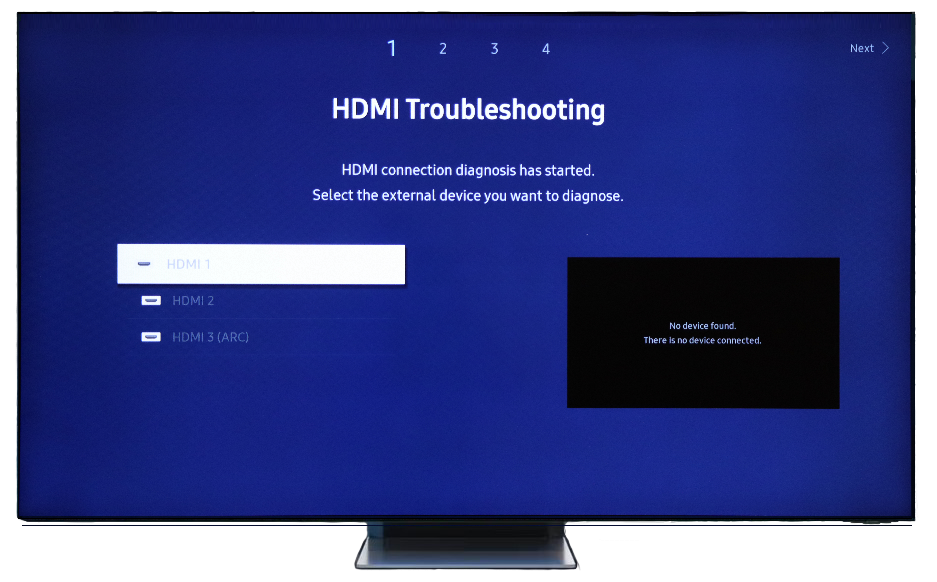
Credit: www.samsung.com
Common Reasons For Hdmi Issues
Many Samsung TV users face HDMI connection problems. These issues often stop the TV from recognizing the HDMI device. Knowing common causes helps fix the problem faster. Most HDMI issues fall into a few main categories. Understanding these can save time and frustration.
Loose Or Damaged Cables
Loose cables cause poor or no signal. Check if the HDMI cable is firmly plugged in. Damaged cables can break the connection. Look for cuts, bends, or worn spots on the cable. Replace any cable that looks damaged. Using a good cable keeps the connection stable.
Incorrect Input Source
Samsung TVs need the right input source selected. The TV won’t show anything if the input is wrong. Use the remote to choose the correct HDMI port. Each port is labeled HDMI 1, HDMI 2, etc. Make sure the source matches the port where the device is connected.
Software Glitches
Software bugs can cause HDMI detection errors. Restart the TV to clear minor glitches. Check for software updates and install them. Updated software improves compatibility and fixes bugs. Regular updates help the TV work smoothly with HDMI devices.
Hardware Problems
Sometimes the TV’s HDMI port can be faulty. A broken port stops the signal from reaching the TV. Internal hardware issues may also cause HDMI failure. Testing with another device or port helps identify hardware faults. Professional repair might be needed if hardware is damaged.
Basic Troubleshooting Steps
Samsung TV not recognizing HDMI can be frustrating. Start with basic troubleshooting steps to fix the issue. These steps are simple and often solve the problem quickly. Follow each step carefully and check if the HDMI connection works again.
Check Hdmi Cable And Ports
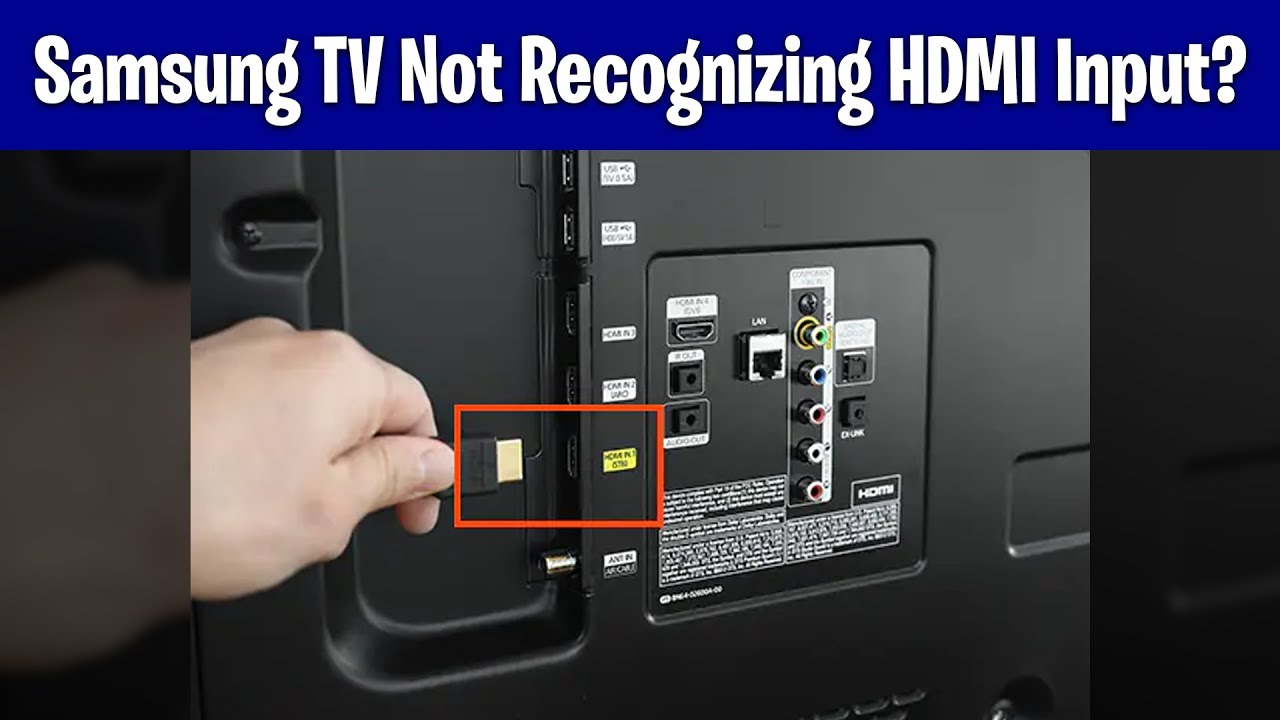
First, look at the HDMI cable. Make sure it is not damaged or loose. Try unplugging and plugging it back in firmly. Check the HDMI ports on the TV and the device. Clean any dust or dirt gently. Test the cable with another device if possible. This helps find out if the cable or port is faulty.
Switch Input Sources
Press the TV remote’s input or source button. Cycle through the input options to select the correct HDMI port. Sometimes the TV stays on the wrong input. Changing the source can make the TV recognize the HDMI device. Confirm the device is powered on during this process.
Restart Your Tv And Devices
Turn off the TV and the connected device. Unplug both from the power outlet. Wait for about one minute to clear any temporary issues. Plug them back in and turn them on. Restarting can reset the HDMI connection and solve detection problems.
Adjusting Tv Settings
Adjusting your Samsung TV settings can fix HDMI recognition problems. Small changes in settings often solve connection issues. Follow these steps to check and update your TV settings.
Enable Hdmi-cec
HDMI-CEC lets devices control each other through HDMI. Turn on HDMI-CEC in your TV settings to improve device communication. This helps your TV recognize connected HDMI devices automatically.
Go to Settings > General > External Device Manager. Find “Anynet+ (HDMI-CEC)” and turn it on. After enabling, restart your TV and connected devices.
Update Firmware
Old firmware can cause HDMI connection problems. Updating your TV firmware fixes bugs and improves compatibility. Always use the latest software for best performance.
Open Settings > Support > Software Update. Select “Update Now” to check for new versions. Download and install any available updates. Restart your TV after updating.
Reset Picture Settings
Incorrect picture settings may affect HDMI detection. Reset picture settings to default to clear any conflicts. This can restore proper HDMI functionality.
Go to Settings > Picture > Expert Settings. Scroll down and select “Reset Picture.” Confirm the reset and allow the TV to reboot if needed.
Advanced Fixes
Advanced fixes help solve HDMI problems that basic steps cannot. These methods dig deeper into the TV’s settings and hardware. They require careful attention but often restore full HDMI function.
Try these steps if simple checks don’t work. They help find hidden issues or reset the system for a fresh start.
Factory Reset Your Samsung Tv
Resetting your TV clears all custom settings. It returns the TV to its original state. This can fix software bugs affecting HDMI detection. Navigate to Settings > Support > Self Diagnosis > Reset. Enter your PIN and confirm. The TV restarts and resets all settings.
Note that a reset deletes saved channels and apps. You must set them up again after the reset.
Test With Different Devices
Try connecting various devices to the HDMI ports. Use a game console, Blu-ray player, or laptop. This checks if the problem is with the TV or the device.
If other devices work, the original device may have a fault. If none work, the TV HDMI ports might be damaged.
Inspect For Physical Damage
Look closely at the HDMI ports on your TV. Check for bent pins, dust, or debris inside the ports. Use a flashlight for better visibility.
Also, examine your HDMI cables for cuts or frayed ends. Damaged cables or ports can stop proper connection. Replace any faulty cables. If ports are damaged, professional repair might be necessary.
When To Seek Professional Help
Sometimes, Samsung TV HDMI issues do not fix with simple steps. Seeking professional help ensures the problem is properly diagnosed. Experts have tools and knowledge to find hidden faults. This saves time and prevents more damage. Knowing when to get help is important to avoid frustration and wasted effort.
Persistent Connection Problems
When HDMI connection drops often, it signals a deeper issue. Trying different cables and ports without success means the TV might need service. Internal HDMI ports can wear out or get damaged. Software glitches may also cause ongoing problems. Professionals can check hardware and update software safely. Persistent issues require expert attention to restore normal function.
Warranty And Repair Options
Check if your Samsung TV is still under warranty. Warranty covers repairs for manufacturing defects, often including HDMI problems. Contact Samsung support for authorized service centers. Avoid unauthorized repairs that can void warranty. If out of warranty, professionals can still offer repair options. They provide cost estimates and repair timelines. Using official repair services keeps your TV safe and working well.
Credit: www.youtube.com
Credit: www.youtube.com
Frequently Asked Questions
Why Is My Samsung Tv Not Detecting Hdmi Input?
The HDMI cable might be loose, damaged, or the TV input is not selected correctly.
How Can I Fix Hdmi Not Showing On Samsung Tv?
Try reconnecting the HDMI cable, switch ports, or restart your TV and connected device.
Can A Faulty Hdmi Cable Cause Recognition Issues?
Yes, a broken or low-quality HDMI cable often prevents the TV from recognizing the signal.
Does Updating Samsung Tv Software Help Hdmi Problems?
Updating software can fix bugs that cause HDMI detection issues on Samsung TVs.
What Hdmi Settings Should I Check On My Samsung Tv?
Ensure the correct HDMI input is selected and the HDMI-CEC feature is enabled if needed.
Conclusion
Samsung TV not recognizing HDMI can be fixed with simple steps. Check your cables and ports first. Restart your TV and connected devices. Try changing the HDMI port or cable. Make sure your TV software is up to date. These easy tips help solve most HDMI issues fast.
Stay patient and try each step carefully. Clear connections bring your devices back to life. Enjoy your viewing without HDMI troubles again.