
Is your Logitech M525 mouse suddenly not working? You rely on it every day, and when it stops responding, it can bring your work or gaming to a frustrating halt.
Don’t worry—you’re not alone, and this problem is fixable. You’ll discover simple, step-by-step solutions to get your mouse back in action quickly. Keep reading to take control and say goodbye to those annoying mouse issues for good.
Credit: www.youtube.com
Check Battery And Power
When the Logitech M525 mouse stops working, start by checking the battery and power. The mouse needs power to connect and work properly. A weak or dead battery can cause it to stop responding.
Sometimes, the issue is simple. The battery might need replacing or recharging. The power switch might also be off. These are easy fixes to try before other steps.
Replace Or Recharge Battery
Open the battery compartment on the bottom of the mouse. Remove the old battery carefully. If you use rechargeable batteries, recharge them fully. If you use disposable ones, replace them with new batteries. Always use the correct battery type for your mouse. Insert the battery with the right polarity. A fresh battery can bring your mouse back to life quickly.
Power Switch Position
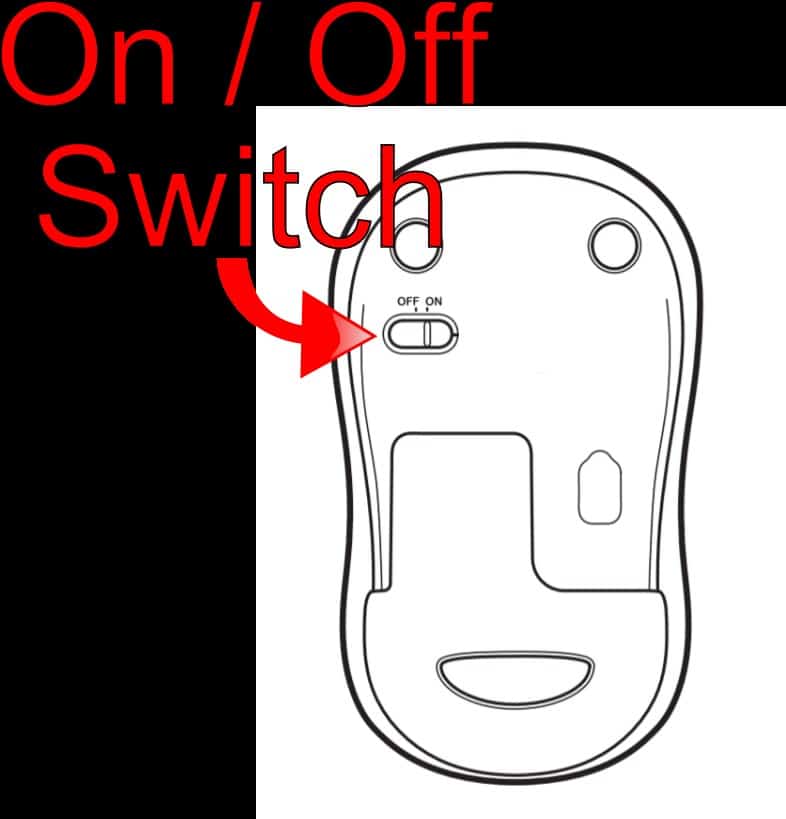
Check the power switch on the mouse’s underside. The switch should be in the “on” position. Sometimes, it moves to “off” during transport or storage. Slide the switch to turn the mouse on. You might see a light indicating it is powered. If the mouse stays off, try toggling the switch a few times. This can help fix connection issues.
Credit: www.driversupport.com
Inspect Usb Receiver
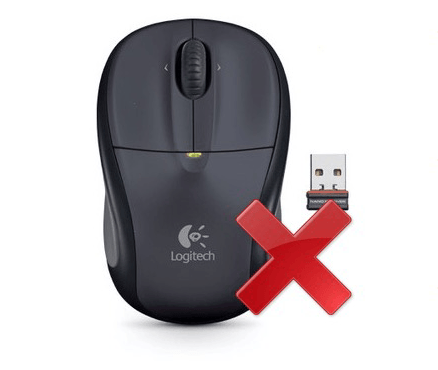
When the Logitech M525 mouse stops working, the USB receiver might be the cause. This small device connects your mouse to the computer. Checking it can fix many connection problems.
Start by making sure the receiver is properly connected. Sometimes, it may become loose or unplugged. Inspect the receiver carefully to see if it is damaged or dirty. A clean and secure receiver helps maintain a strong connection.
Reconnect The Receiver
Remove the USB receiver from the port. Wait a few seconds, then plug it back in firmly. This simple step can reset the connection between the mouse and computer. The mouse may start working again after reconnection. Try moving the receiver to a different angle for a better signal.
Try Different Usb Ports
Not all USB ports work the same way. Some ports might have low power or be damaged. Plug the receiver into another USB port on your computer. Test both front and back ports on a desktop. Laptops often have multiple USB ports. Changing ports can improve the connection and fix mouse issues.
Re-establish Connection
Sometimes, the Logitech M525 mouse stops working because it loses connection. Re-establishing this connection often fixes the issue quickly. This section explains two simple ways to reconnect your mouse and get it working again.
Use Logitech Unifying Software
The Logitech Unifying Software helps manage your mouse and other devices. Download and open the software on your computer. Follow the instructions to pair your M525 mouse again. This software finds your mouse and reconnects it automatically. It works well for fixing connection problems fast.
Reset The Mouse
Resetting the mouse can clear connection errors. Turn the mouse off by pressing the power switch. Wait for about 10 seconds. Turn it back on. This simple reset refreshes the connection and may solve the issue. Try this step before pairing with software.
Credit: www.drivereasy.com
Update Drivers And Software
Updating drivers and software can fix many problems with the Logitech M525 mouse. Old or missing drivers stop the mouse from working right. Software updates can also improve how the mouse works with your computer.
Keeping drivers and software current helps avoid connection issues and lag. It ensures the mouse stays compatible with your operating system. This step is simple but very effective.
Download Latest Drivers
Visit the official Logitech website to get the newest drivers. Use the search bar to find the M525 mouse drivers. Choose the correct version for your computer’s system.
Download the driver file and open it. Follow the instructions to install the update. Restart your computer after installing to apply changes.
Run Software Updates
Check your computer’s settings for system updates. These updates can include fixes for hardware issues. On Windows, open Settings and select Update & Security.
Click Check for updates and install any available ones. On Mac, open System Preferences and click Software Update. Keep your system updated to help the mouse work better.
Check Device Settings
Checking device settings is a key step to fix the Logitech M525 mouse not working. Sometimes, the mouse settings in your operating system can cause issues. Other devices connected to your computer may also create conflicts. Adjusting these settings can help your mouse work smoothly again.
Mouse Settings On Os
Start by opening the mouse settings on your computer. On Windows, go to the Control Panel or Settings app. Look for “Devices” or “Mouse” options. Check if the mouse is recognized and enabled. Adjust the pointer speed and click settings if needed. On Mac, open System Preferences and select “Mouse.” Make sure the tracking speed and buttons work correctly. Reset these settings to default if necessary. This step often solves simple connection problems.
Disable Conflicting Devices
Other devices may interfere with your Logitech M525 mouse. USB devices or wireless gadgets can cause conflicts. Open Device Manager on Windows or System Report on Mac. Look for any devices with warning symbols. Disable or disconnect any unnecessary devices. This can stop conflicts and restore mouse function. Reconnect your mouse after disabling others to check if it works. This method helps clear hardware clashes easily.
Test On Another Computer
Testing your Logitech M525 mouse on another computer helps find the root of the problem. It shows if the mouse itself is faulty or if the original computer has issues. This step saves time and avoids unnecessary fixes.
Isolate Hardware Issues
Connect the Logitech M525 mouse to a different computer. Check if the mouse pointer moves and clicks work normally. If the mouse still does not respond, the hardware may be damaged. This means the mouse needs repair or replacement.
Confirm Device Functionality
If the mouse works on the second computer, the problem lies with the first computer. The issue could be with drivers, USB ports, or system settings. Testing on another computer confirms the mouse is functional and narrows down the cause.
Clean And Maintain The Mouse
Cleaning and maintaining the Logitech M525 mouse helps keep it working well. Dirt and dust can stop the mouse from moving or clicking correctly. Regular care extends the mouse’s life and improves its performance.
Simple cleaning steps can fix many common problems. A clean mouse feels smooth and responds better. Maintenance also prevents long-term damage caused by dirt buildup.
Remove Dust And Debris
Turn off the mouse before cleaning. Use a soft cloth to wipe the surface gently. Avoid using wet cloths directly on the mouse. Use compressed air to blow out dust from the buttons and scroll wheel. Pay attention to crevices where dirt collects. Cleaning these areas stops the mouse from sticking or lagging.
Inspect For Physical Damage
Check the mouse for cracks or broken parts. Look at the buttons and scroll wheel closely. Damaged parts may cause the mouse to stop working. Look under the mouse for any loose or missing pieces. Damage can block sensors or affect clicks. Replace or repair damaged parts quickly to avoid further issues.
Contact Logitech Support
Contacting Logitech Support is a good step if your Logitech M525 mouse stops working. They offer help that can fix many common issues. You can get advice directly from the company that made your mouse.
Logitech Support can guide you through simple checks or complex fixes. They can also tell you about repair or replacement services. This saves time and avoids guesswork.
Warranty And Repair Options
Check your mouse’s warranty status first. Logitech usually provides a one- or two-year warranty. This covers defects and hardware problems.
If your mouse is under warranty, Logitech may repair it free of charge. They might also offer a replacement mouse. You only need to provide proof of purchase.
Out of warranty? Logitech still offers paid repair services. Contact support to learn about costs and shipping details. This can extend the life of your device.
Additional Troubleshooting
Logitech Support can help with more troubleshooting steps. They may suggest software updates or driver reinstallations. These often solve connection or tracking problems.
They can also check for compatibility issues with your computer. Support staff guide you through setting adjustments or battery checks. This helps identify simple fixes quickly.
Using Logitech’s official tools and advice reduces risks. It prevents damage from incorrect handling or unauthorized repairs. Support is your reliable resource for restoring your mouse.
Frequently Asked Questions
Why Is My Logitech M525 Mouse Not Responding?
The mouse may have low battery, connection issues, or driver problems causing it to stop working.
How To Fix Logitech M525 Mouse Connection Problems?
Try restarting the receiver, replacing batteries, or reconnecting the mouse to your computer.
Can Outdated Drivers Cause Logitech M525 Mouse Issues?
Yes, old or missing drivers can prevent the mouse from working properly. Update them regularly.
Why Does My Logitech M525 Mouse Lag Or Freeze?
Interference, low battery, or dirt on the sensor can cause lagging or freezing.
How Do I Reset My Logitech M525 Mouse?
Turn off the mouse, remove batteries, wait 10 seconds, then reinsert batteries and turn it on.
Conclusion
Fixing the Logitech M525 mouse can be simple. Check the battery and USB connection first. Restart your computer to clear small glitches. Update or reinstall the mouse driver if needed. Try connecting the mouse to another device. Small steps often solve common issues fast.
Stay patient and follow these tips carefully. Your mouse should work smoothly again soon. Don’t let a faulty mouse slow you down. Keep these easy fixes handy for quick help.